Introduction
This guide describes how to operate and maintain a ChargePoint® CPF32 AC charging station as a station owner or facility manager.
For full charging station specifications and ratings, refer to the charging station datasheet at: ChargePoint Product Reference Documentation
Power On the System
The charging station is powered on by the installation team at the site’s electrical panel, immediately after completing installation. The charging station does not have a separate power switch.
When power is turned on at the panel after it is first installed or when powered up after servicing or a power outage, the station runs a self-diagnostic to ensure safe and correct operation. This includes:
-
Electrical safety checks
-
Component operation checks
-
Network connectivity checks
If any errors are found, the station displays error codes on the website dashboard. See Section 3 for further information on diagnostics.
Power Off the System
The charging station does not need to be powered off except during service. The charging station does not have a separate power switch. The service technician turns off power at the electrical panel or disconnect switch before beginning work. There is no need for a software command to power off the station; the hardware is not harmed by disconnecting the circuit’s breaker.
Before performing any procedure, the technician must disconnect the power to the charging station at the service panel. Follow local code to de-energize the applicable circuit and lockout/tagout the upstream breaker before proceeding. Use a multimeter and check that the power is off. Keep power off for the circuit until all cover panels are correctly reinstalled and the work is complete.
FAILURE TO FOLLOW THESE INSTRUCTIONS CAN RESULT IN SERIOUS INJURY, LOSS OF LIFE, OR PROPERTY DAMAGE.
Configure System Behavior
ChargePoint offers its station owners a variety of software features to customize operation, such as:
-
Set pricing and billing methods for station use
-
Who is allowed to use the station
All configuration is done on the ChargePoint website for station owners. You are issued a username and password during the station purchase process. Log in at: eu.chargepoint.com
Instructions and videos are available at eu.chargepoint.com > Help.
Receive Notification
To receive email alerts of system alarms:
-
Log into the dashboard and select your name in the upper-left corner.
-
Click the Edit button next to your name.
-
Select the Batched Email Alerts checkbox.
-
Click Save.
Alarms are batched and sent a maximum of once per hour. You will not receive email unless there is an alarm.
ChargePoint Alarm Codes
The ChargePoint Cloud application logs alarm codes for each station. For more information on generating reports, see Reporting .
|
Code Name |
Description |
Solution |
|---|---|---|
|
Unreachable |
The station has lost connection to the ChargePoint network. |
Turn breakers off for 2-3 minutes. Then switch breakers back on. If this does not resolve the issue, contact ChargePoint Support. |
|
Relay Stuck Open |
The relay did not close at the start of the session. |
Contact ChargePoint Support. |
|
Relay Stuck Closed |
The relay stuck closed and the station has stopped power to the connector. The station cannot start a new session. |
Contact ChargePoint Support. |
|
UIC Firmware Upgrade Failed |
RFID |
Contact ChargePoint Support. |
|
Earth Fault Station In Service |
Station is detecting a grounding issue. |
If the station is not back in service after approximately five minutes, or if the alarm returns, contact ChargePoint Support. |
|
Earth Fault Station Out of Service |
Station is detecting a grounding issue. |
Contact ChargePoint Support. |
|
Thermal Alarm |
The station is detecting cold lower than -40 °C (-40 °F) or higher than 95 °C (203 °F). |
Contact ChargePoint Support, unless it has exceeded that temperature range in that location. |
Check Station Status
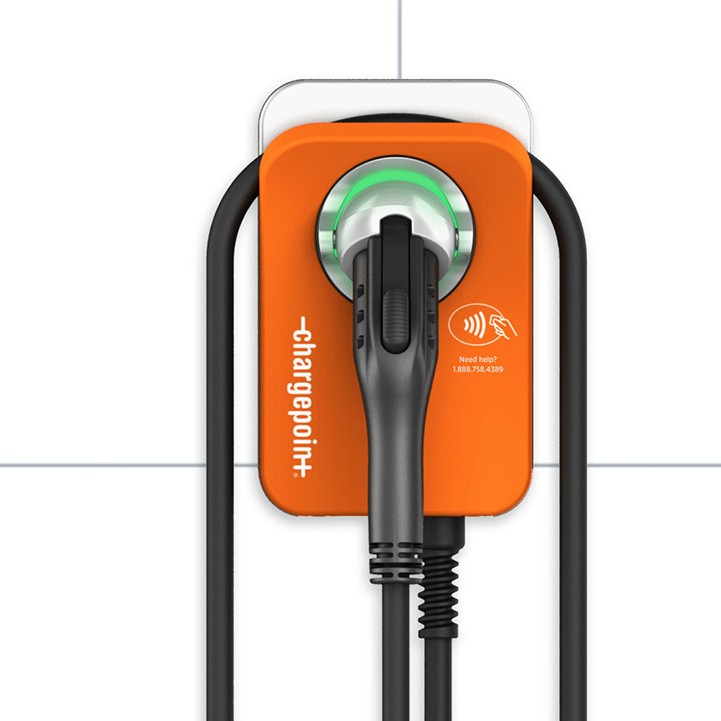
When the station is powered on and activated, the status light on the front of the station displays status via light color and pulsing.
|
Ring Color |
Message |
|---|---|
|
Solid White |
The station has not yet been activated in the ChargePoint application - or - The station has lost connectivity |
|
Pulsing Yellow |
Station is booting up - or - Station is validating the card |
|
Solid Green |
Card is approved and the station is ready to charge |
|
Solid Red |
Card is not valid |
|
Pulsing Green |
Card is approved and schedule is set to delay charging |
|
Solid Blue |
Vehicle is plugged in but is not yet charging - or - The vehicle is fully charged |
|
Pulsing Blue |
Vehicle is charging |
Additionally, there are Wi-Fi Wireless Fidelity and Status LEDs on the left side of the charging station.
|
LED Status |
Description |
|---|---|
|
Both off |
The station is turned off/not powered |
|
Wi-Fi |
Station is not activated but is connected to the Gateway via Wi-Fi |
|
Wi-Fi |
Station is activated and connected to the Gateway via Wi-Fi |
|
Status LED off |
Station has no faults |
|
Status LED red |
Station has a fault. The station will self-test three times. If the fault persists, the status ring turns red. If the fault corrects, the status LED turns off. |
CPF32 supports authentication via RFID Radio Frequency IDentification card.
