Introduction
This guide describes how to operate and maintain a ChargePoint® CT4000 AC charging station as a station owner or facility manager.
For full charging station specifications and ratings, refer to the charging station Datasheet at: ChargePoint Product Reference Documentation
- If the charging station is not installed, commissioned, or serviced by a ChargePoint certified technician using a ChargePoint-approved method, it is excluded from all ChargePoint and other warranties and ChargePoint is not responsible.
- You must be a licensed electrician and complete training at https://www.chargepoint.com/partners/training-certification to become ChargePoint certified and to access ChargePoint's web-based installer tools or ChargePoint Installer app.
Before performing any procedure, the technician must disconnect the power to the charging station at the service panel. Follow local code to de-energize the applicable circuit and lockout/tagout the upstream breaker before proceeding. Use a multimeter and check that the power is off. Keep power off for the circuit until all cover panels are correctly reinstalled and the work is complete.
FAILURE TO FOLLOW THESE INSTRUCTIONS CAN RESULT IN SERIOUS INJURY, LOSS OF LIFE, OR PROPERTY DAMAGE.
Power On the System
The charging station is powered on by the installation team at the site’s electrical panel, immediately after completing installation. The charging station does not have a separate power switch.
When power is turned on at the panel after it is first installed, the station runs a self-diagnostic that includes:
-
Electrical safety checks
-
Lighting checks
-
Display panel visual checks
-
Component operation checks (such as fans and contactors)
-
Network connectivity checks
-
Installation Wizard process (allows installer to complete configuration and pinpointing of the station on user maps)
When power is turned on at the panel after servicing or a power outage, the station runs a self- diagnostic to ensure safe and correct operation:
-
Electrical safety checks
-
Lighting checks
-
Display panel visual checks
-
Component operation checks (such as fans and contactors)
-
Network connectivity checks
If any errors are found, the station displays error codes on the website dashboard. See Reporting for further information on diagnostics.
Power Off the System
The charging station does not need to be powered off except during service. The charging station does not have a separate power switch. The service technician turns off power at the electrical panel or disconnect switch before beginning work. There is no need for a software command to power off the station; the hardware is not harmed by disconnecting the circuit’s breaker.
Configure System Behavior
ChargePoint offers its station owners a variety of software features to customize operation, such as:
-
How to set pricing and billing methods for station use
-
Who is allowed to use the station
-
Waiting lists if the station(s) are already full
-
How to display simple messages on the station
All configuration is done on the ChargePoint website for station owners. You are issued a username and password during the station purchase process. Log in at:
na.chargepoint.comInstructions and videos are available in ChargePoint by selecting Help.
Receive Notification
To receive email alerts of system alarms:
-
Log into the dashboard and select your name in the upper-left corner.
-
Click the Edit button next to your name.
-
Select the Batched Email Alerts check-box.
-
Click Save.
Alarms are batched and sent a maximum of once per hour. You will not receive email unless there is an alarm.
ChargePoint Alarm Codes
The ChargePoint Cloud application logs alarm codes for each station. For more information on generating reports, see Reporting.
|
Code Name |
Description |
Solution |
|---|---|---|
|
Unreachable |
The station has lost connection to the ChargePoint network. |
Turn breaker(s) off for at least 2 minutes. Then switch breakers back on. If this does not resolve the issue, contact ChargePoint Support. |
|
Over Current Hard Trip Detected |
The vehicle is attempting to pull more current than the station allows. |
Contact ChargePoint Support. |
|
GFCI |
GFCI |
Usually this problem is with the vehicle. Unless this is occurring across many different vehicles and charging sessions, you can disregard this alarm. If it is occurring frequently with various vehicles, contact ChargePoint Support for guidance. |
|
GFCI |
GFCI |
Usually this problem is with the vehicle. Unless this is occurring across many different vehicles and charging sessions, you can disregard this alarm. If it is occurring frequently with various vehicles, contact ChargePoint Support for guidance. |
|
GFCI |
The GFCI |
Contact ChargePoint Support. |
|
Relay Stuck Open |
The relay did not close at the start of the session. |
Contact ChargePoint Support. |
|
Relay Stuck Closed |
The relay stuck closed and the station has stopped power to the connector. The station cannot start a new session. |
Contact ChargePoint Support. |
|
Breakaway Fault |
The cable was pulled too hard and some internal wiring has broken. |
Contact ChargePoint Support. |
|
Pilot Unreachable |
Station saw a fluctuation in power. Ports are marked Out of Service. |
If the station is not back in service after approximately five minutes, or if the alarm returns, contact ChargePoint Support. |
|
Tamper Detect |
The station enclosure has been opened. |
Contact ChargePoint Support. |
|
UIC Firmware Upgrade Failed |
RFID |
Contact ChargePoint Support. |
|
Earth Fault Station In Service |
Station is detecting a grounding issue. |
If the station is not back in service after approximately five minutes, or if the alarm returns, contact ChargePoint Support. |
|
Data Partition Full |
Station memory is full. |
Contact ChargePoint Support. |
|
Hardware Fault |
No power to port 1. The breaker is off/tripped. |
|
|
Grace Session Expire |
This only applies to unactivated stations. All grace sessions have been used. |
Activate the station in the ChargePoint network manager account. |
|
Earth Fault Station Out of Service |
Station is detecting a grounding issue. |
Contact ChargePoint Support. |
|
Hardware Fault Station Out of Service |
No power to port 1. The breaker is off/tripped. |
If the station is not back in service after approximately five minutes, or if the alarm returns, contact ChargePoint Support. |
|
Thermal Alarm |
The station is detecting cold lower than -40 °C (-40 °F) or higher than 95 °C (203 °F). |
Contact ChargePoint Support, unless it has exceeded that temperature range in that location. |

ChargePoint station owner support is available at 1-877-850-4562. More information is available at chargepoint.com/products/support-faq.
Displaying Station Codes
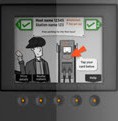
Station codes are displayed on the station.
-
At the charging station, press the station button immediately below the HELP menu option.
-
Press the station button immediately below the DOWN menu option to highlight Station Codes and then press SELECT.
Understanding Station Codes
When the station stops delivering power to the vehicle, most likely, those issues are vehicle-related. However, other situations may require service from a ChargePoint approved electrician.
|
Starts with |
Description |
|---|---|
|
1 |
Indicates vehicle-related issues. |
|
2 |
Indicates a problem with wiring or network connectivity that needs to be resolved at the station, often with the assistance of a ChargePoint approved electrician. |
|
3 |
Indicates a problem internal to the station. Contact ChargePoint Customer Support. |
Additional details about each code are shown below.
|
Code |
Indicator |
Description |
Solution |
|---|---|---|---|
|
101 Over Current Detection |
|
During charging, the vehicle attempted to draw more power than allowed, indicating an issue with the vehicle. |
+ End the session by inserting the station’s plug back into its holster, then restart the session. + If error persists, contact ChargePoint Customer Support. |
|
102 Ventilation Requested |
|
Vehicle requires ventilated charging that is not supported by the station. The driver is unable to use the station to charge their type of vehicle. |
+ Contact the vehicle manufacturer. |
|
103 Soft Ground Fault |
|
During charging, the station detected a ground fault. The station stops delivering power to the vehicle, but continues to retry every 30 seconds. |
+ End the session by inserting the station’s plug back into its holster, then restart the session. + If error persists, contact ChargePoint Customer Support. |
|
104 Immediate Ground Fault |
|
On initial plug-in, the station detected a ground fault. |
+ End the session by inserting the station’s plug back into its holster, then restart the session. + If error persists, contact ChargePoint Customer Support. |
 *
* *
** n indicates the number of the applicable port.
|
Code |
Indicator |
Description |
Solution |
|---|---|---|---|
|
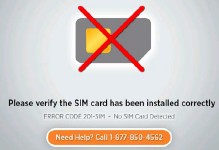
201-SIM |
|
The SIM is either not installed or incorrectly installed and the station cannot communicate with the ChargePoint network. |
+ Disconnect power and install (or re-install) the SIM card. + If the error persists, contact ChargePoint Customer Support. |
|
202-EF |
|
Earth Fault—The station has detected a poor ground connection and the station is not operational. |
+ Disconnect power and check that the station is properly grounded. See the Installation Guide for further information. + After the station is properly grounded, reconnect power. + If the error persists, unplug the head assembly and plug it back in. + If the error continues, contact ChargePoint Customer Support. |
|
The banner displays STATION NOT ACTIVATED ON CHARGEPOINT - GRACE SESSIONS REMAINING (N) |
Station not activated—The station can be used to charge for the specified number of remaining grace sessions. When all grace sessions have been used, the station is not operational. |
+ Arrange for the station to be activated on ChargePoint by completing the steps in the Installation Guide. |
|
|
|
When all grace sessions have been used: |
|
|
|
|
|
|
|
|
Before activation: The banner displays NO GATEWAY WITHIN RANGE
After activation: This code is listed in Help > |
Non-Gateway Not Paired—The station is set up to communicate with a gateway station that is either not within range or is not powered on. |
+ Verify that the gateway station is powered on and located within 150 feet line of sight (no obstructions). + If the error persists, contact ChargePoint Customer Support. |
|
|
|
Station Codes. |
|
|
|
Code |
Indicator |
Description |
Solution |
|---|---|---|---|
|
|
Unknown Network Signal—The gateway station is unable to establish a network connection. |
+ Ensure the station is receiving an adequate signal strength from the cellular network. To do so, display the Service menu and then: + Choose Basic mode > Display last measured RSSI. Check the network signal for each type of modem. The signal strength should be A, B or C. + If the network signal is Grade D, or if a better network signal is available on the other type of modem, change modems by choosing Basic mode > Change modem technology (CDMA or GSM). + If the signal strength is either weak (D) or not available for both CDMA and GSM, arrange for cellular repeaters to be installed near the installation site. + If the error persists when the station shows a strong network signal, contact ChargePoint Customer Support. |
|
Code |
Indicator |
Description |
Solution |
|---|---|---|---|
|
Before activation:
After activation:
The code is shown in Help > Station Codes and the port status icons shows:
* or
|
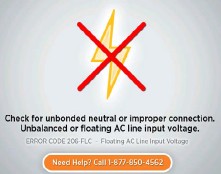
Floating Line Connection—The voltage of an AC input line has fallen below 80 VAC relative to ground. Even if the line-to-line voltage measures nominally 208 or 240 volts, the voltage of each line must be greater than 80 volts when measured to ground. |
+ Correct any faulty connections. Confirm that the neutral is properly bonded to ground. |
|
|
A poor connection in the wiring supplying power and the ground connection to the station. There could be a poor connection between the buss bar and circuit breaker, the breaker to the branch circuit feeding the station, or at any splice along the branch circuit. |
+ Verify that the station is connected to a system with its neutral properly grounded according to NEC |
||
|
The station is connected to an improperly grounded power source. All power and ground connections must be clean and tight and carry the full rated current of the station. |
+ Verify the station is connected to one of the system types described in the Installation Guide. + Do not connect the station to an ungrounded (floating neutral) system, a corner grounded Delta system, or the high (or “stinger” leg) of a center grounded Delta system. |
||
|
|
+ If the error persists, contact ChargePoint Customer Support. |
* n indicates the number of the applicable port.
|
Code |
Indicator |
Description |
Solution |
|---|---|---|---|
|
|
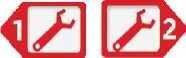
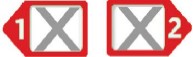
Breakaway Fault—The cable has been removed from the station or is damaged. The station is not operational. |
+ Contact ChargePoint Customer Support to arrange to have the station replaced. |
|
|
302-GST |
* or
|
GFCI |
+ End the session by inserting the station’s plug back into its holster, and then restart the session. + If the error persists, contact ChargePoint Customer Support, |
|
303-RSC |
* or
|
Relay Stuck Closed—When attempting to end a charging session, the relay stays closed. Although the driver can return the station’s plug to its holster, the station doesn’t end the session. Therefore, a new session cannot be started. |
+ Contact ChargePoint Customer Support at to arrange to have the station replaced or repaired. |
|
305-LCO |
|
Pilot Unreachable—The station is out of service. |
+ Disconnect and reconnect power. + If the error persists, contact ChargePoint Customer Support to arrange to have the station replaced or repaired. |
|
306-BF |
|
Boot Fault—The station is out of service. |
+ Disconnect and reconnect power. + If the error persists, contact ChargePoint Customer Support to arrange to have the station replaced or repaired. |
|
307-HE |
|
Hardware Error—The station is out of service. |
+ Disconnect and reconnect power. + If the error persists, contact ChargePoint Customer Support to arrange to have the station replaced or repaired. |
* n indicates the number of the applicable port.
ChargePoint station owner support is available at 1-877-850-4562. More information is available at chargepoint.com/products/support-faq.
