Operation
Power Operation
-
Power on: Pantograph Down 2000 is powered on by the installation team at the site’s electrical panel immediately after completing installation.
-
Power off: Pantograph Down 2000 does not need to be powered off except during maintenance or service. Refer to the Power Block and/or Pantograph Down 2000 Service Guide to power off and de-energize Pantograph Down 2000 components.
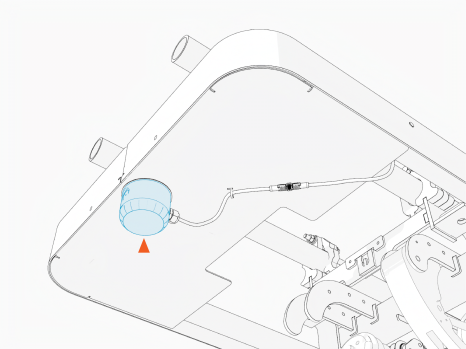
Status LED Auxiliary Lights
The Pantograph Status LED indicates the following:
|
Color |
Pantograph Status |
|---|---|
|
GREEN |
No ongoing wireless communication with an EV |
|
BLUE, pulsing |
Wirelessly communicating with an EV |
|
BLUE |
Wirelessly communicating with an EV |
|
YELLOW |
Reduced charging rate |
|
WHITE |
Offline |
|
Fault (see View Station and Diagnostics Information) |

Power Block Status Light
To check the Power Block status light, perform the following steps:
-
Open the security panel to check the status light

The Power Block status light indicates the following:
|
Color |
Power Block Status |
|---|---|
|
GREEN |
Normal operating state |
|
YELLOW, blinking |
Self-test ongoing |
|
YELLOW |
Not yet activated |
|
Fault (see View Station and Diagnostics Information) |
ChargePoint Platform Dashboard
You can configure stations, view station and diagnostics information, generate reports, and manage many functions of Pantograph Down 2000 in the ChargePoint Platform. Log in to the ChargePoint Platform at na.chargepoint.com using the login credentials created when setting up the station network manager account.
For more information, see ChargePoint Product Reference Documentation.
Set Up and Configure Station Features
You can do one or more of the following:
-
Control who can access the stations
-
Set up station groups
-
Grant station rights to other organizations
-
Set up web services API
-
Set up and manage your fleet
After logging in, navigate to (Help) > Videos and Manuals to see the video tutorials and user guides.
To view stations and access diagnostic information, see Stations Overview.
View Station and Diagnostics Information
-
Log in to the ChargePoint Platform at na.chargepoint.com or ca.chargepoint.com or eu.chargepoint.com.
-
Select Stations.
-
Apply filters to locate the desired station.
-
Select the station name to view the station-specific information.
Generate Reports
Access a variety of reporting features in the Reports tab:
-
Reports by data type (such as Analytics, Financial, Logs).
-
Duration slider (by day, week, month, year).
-
Advanced filters (such as station name, organization).
-
Detailed data view when you hover over a report graph.
For more information, see Reports.
Reports on Alerts
You can view the station error codes and alerts from the ChargePoint Platform and export that information to a report.
-
Log in to the ChargePoint Platform.
-
Navigate to Reports > Alarms.
-
Choose Most Recent Only, Current Alarms, Historical Alarms, or All Alarms from the drop-down menu.
-
Apply filters from the bottom tab.
-
Use the checkboxes on the left to choose specific data.
-
Export as a
CSVfile by choosing either Visible Columns or All Columns from the drop-down menu.
