Install Charging Cables
Skip this entire chapter if the liquid-cooled cables come preinstalled (see Power Link 2000 with LCC).
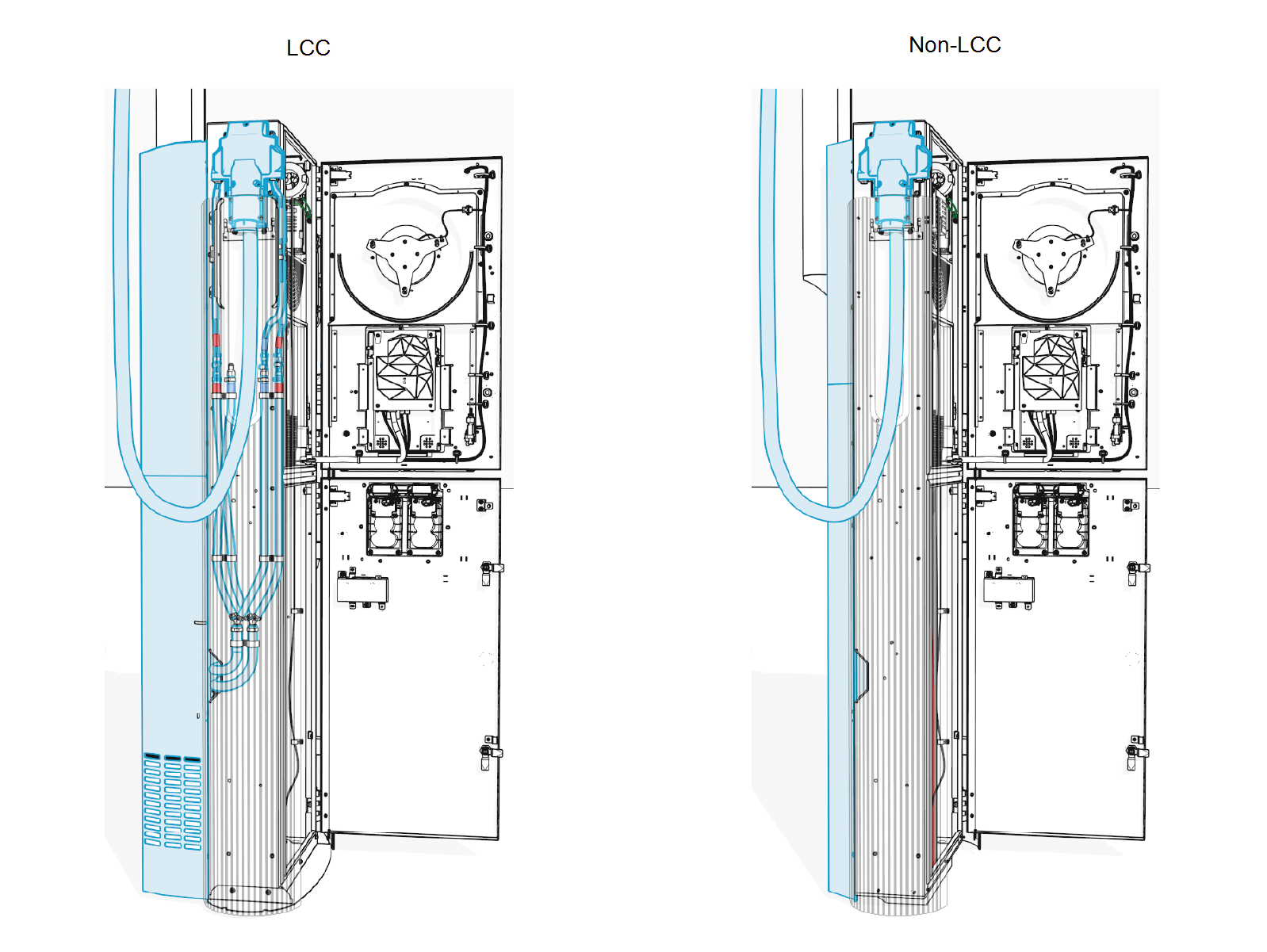
The Power Link 2000 may be configured with one or two liquid-cooled cables (LCC Liquid Cooled Cable) or non-liquid-cooled cables (non-LCC Liquid Cooled Cable). The Power Link 2000 with LCC Liquid Cooled Cable comes with a liquid cooling system attached to the back of the Power Link 2000 (see Pedestal-Mount Power Link 2000 Configurations for more information).
To install the charging cables, complete the following steps:
Charging Cable Package
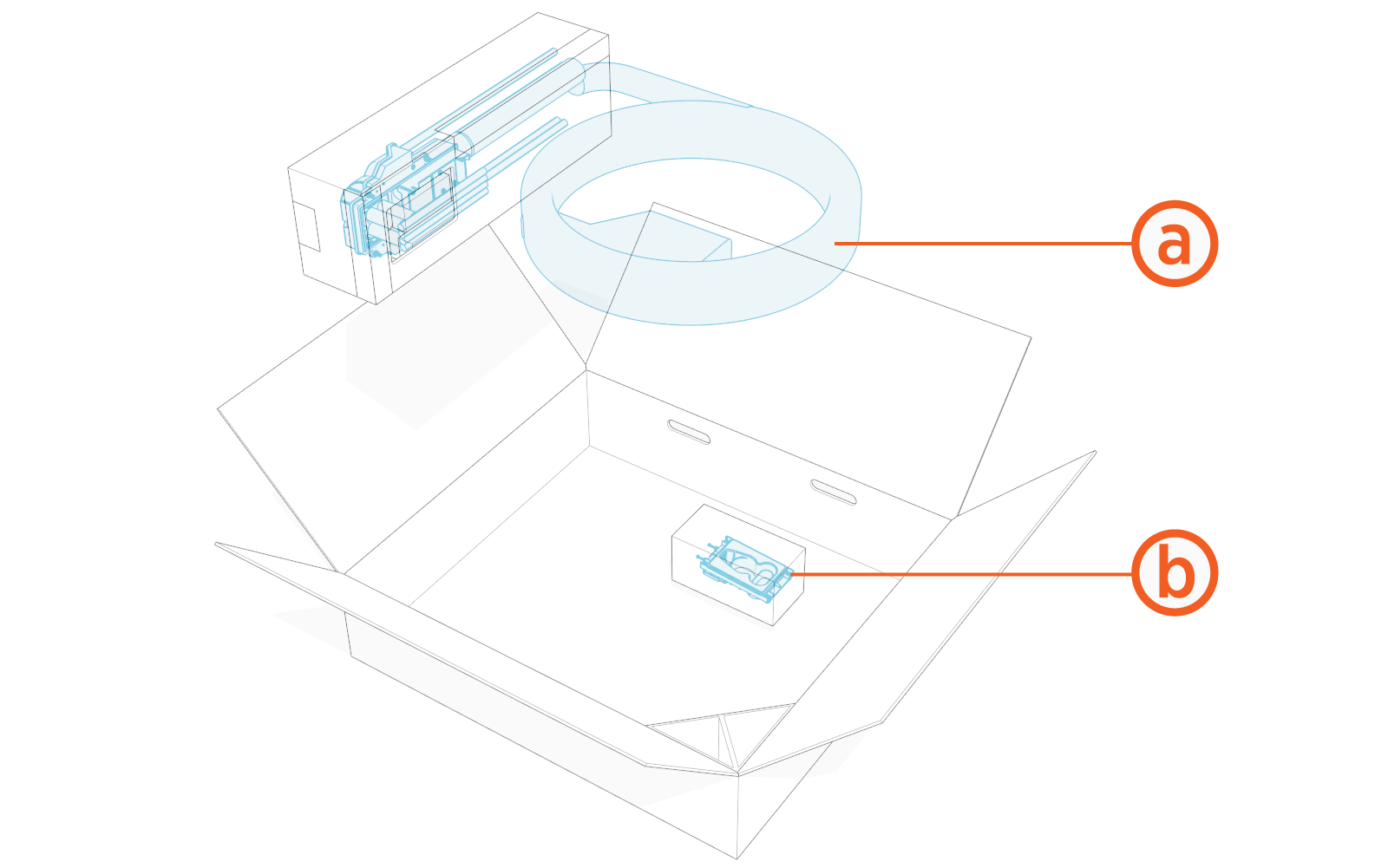
Check the package for the following components:
For any missing component, contact ChargePoint support at chargepoint.com/support.
-
Charging cable assembly with connector and tetherball
-
Holster for placing the cable connector
Standard length (5.8 m or 19 ft) charging cables come with a tetherball preinstalled onto the cable. For non-LCC Liquid Cooled Cable medium length (7.6 m or 25 ft) charging cables, a tetherball is not preinstalled onto the cable. It must be installed after installing the charging cable or while installing the CMK Cable Management Kit.
Remove Cable Cap
Pull the cable cap up to remove and keep it aside to reinstall it later.
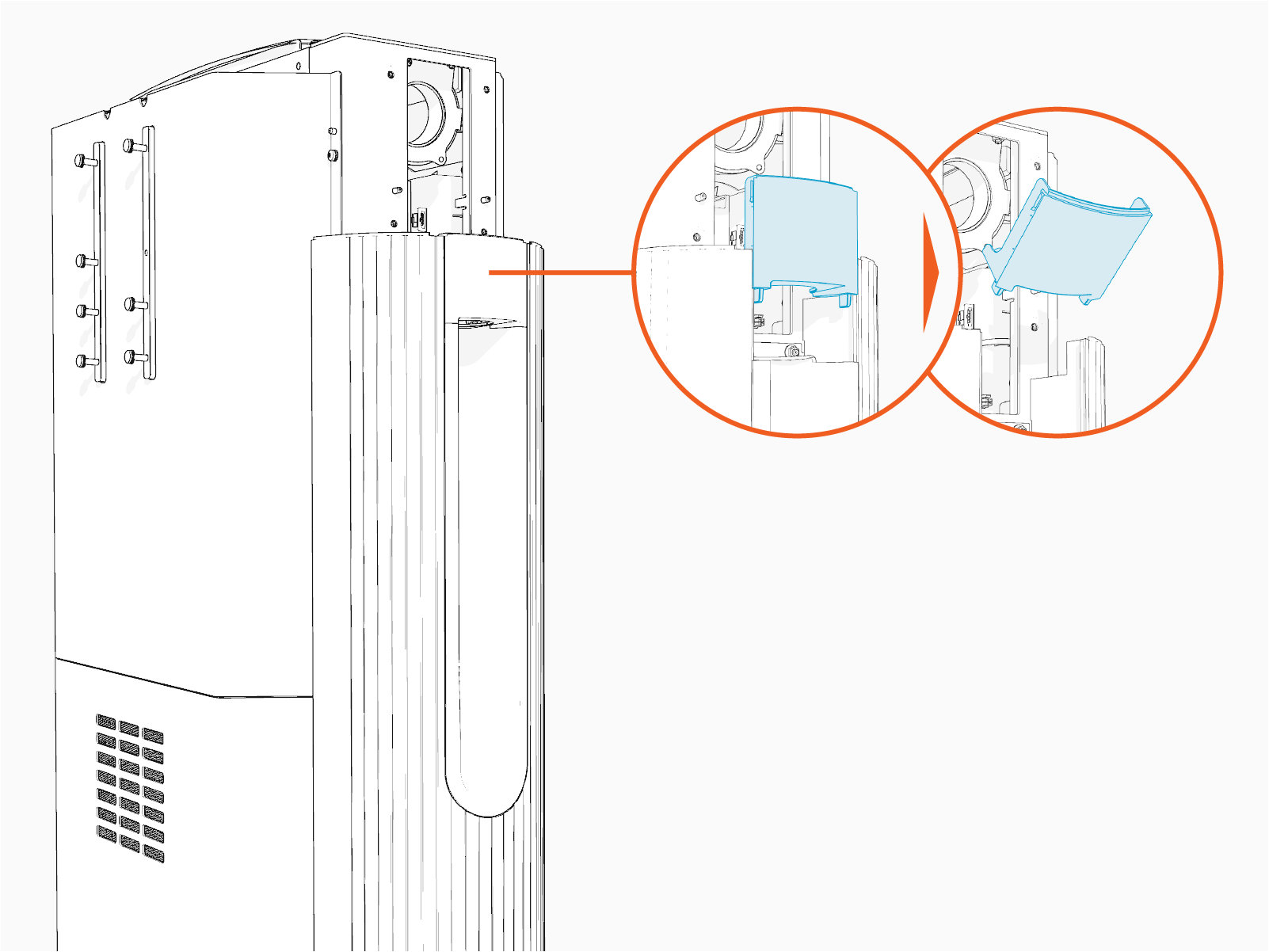
On the Power Link 2000 with LCC configuration, the coolant hose connectors are located behind the side panel. If your unit comes witih the liquid-cooled cable preinstalled (see All-in-one Package) removing the side panel is not necessary.
Remove HV DC Lug Landing Bus Bar Safety Cover
-
Loosen the screw (x1 per safety cover).
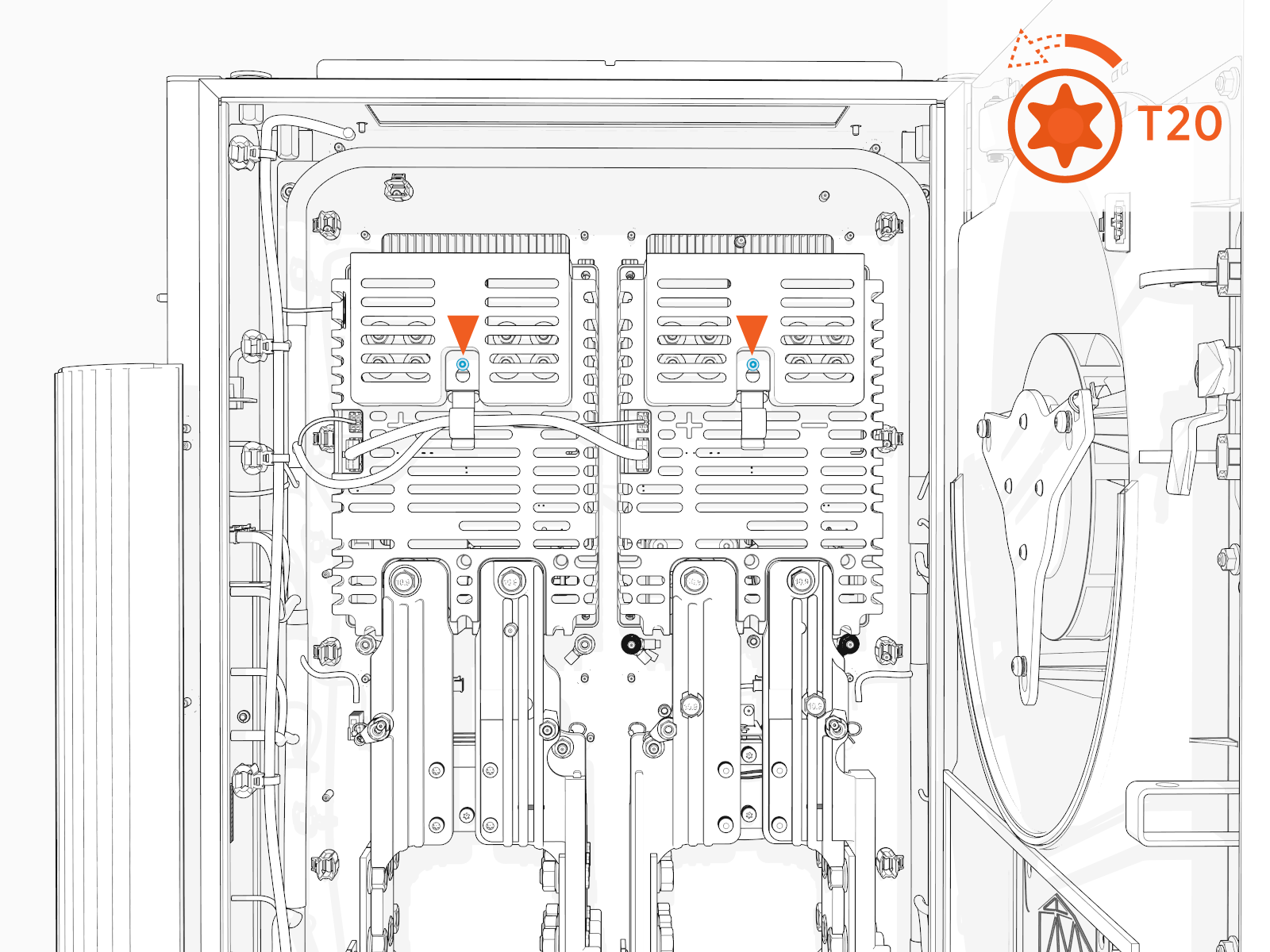
-
Slide the safety cover up to remove it from the screw.
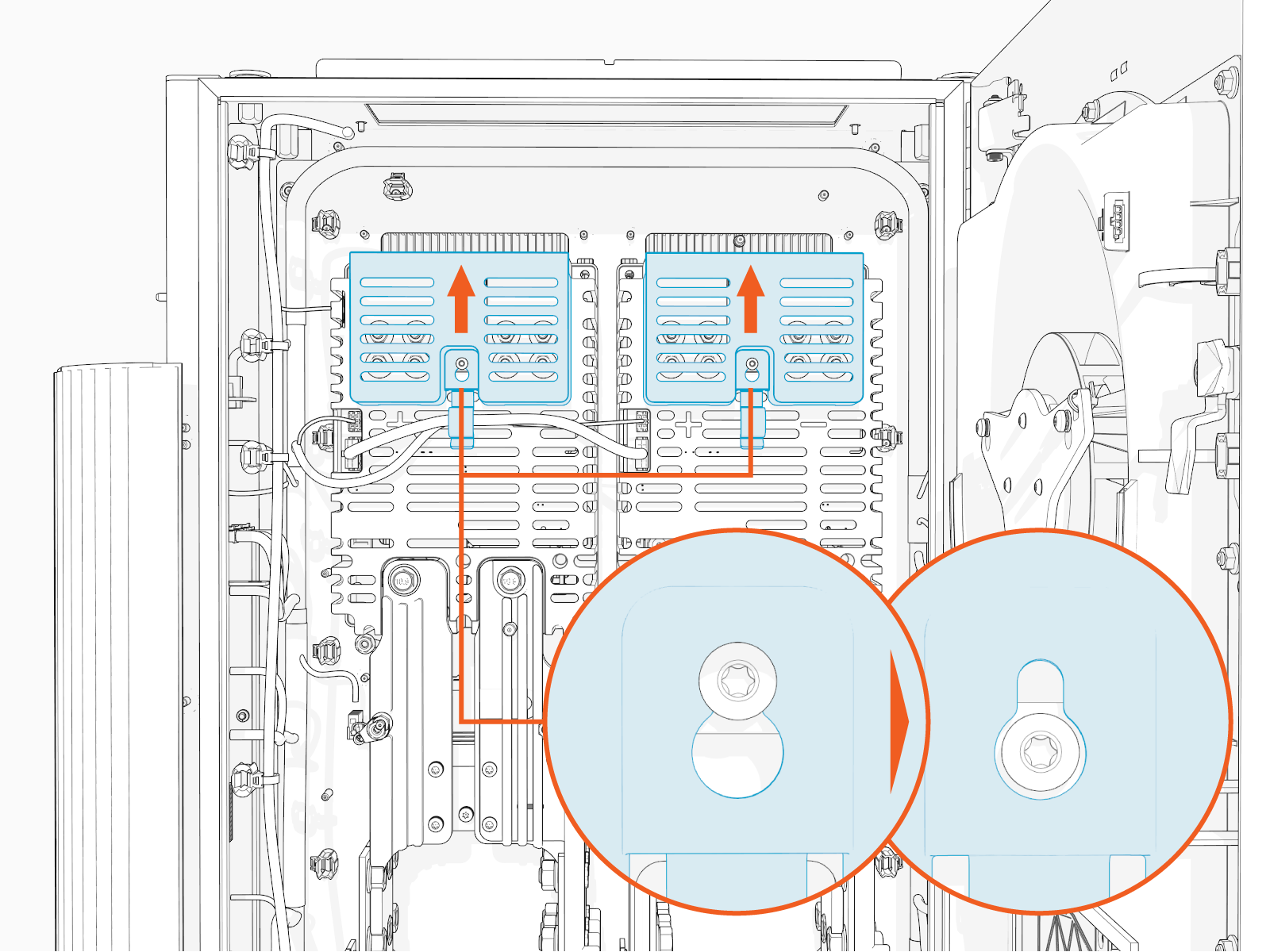
Install Cable Assembly
To install the cable assembly, complete the following steps:
-
Route the red (+) and black (-) HV DC
High Voltage Direct Current wires through the Ferrite ring. Route other wires, such as ground (green) and Ethernet, outside of the Ferrite ring.While routing the left side cable through the Ferrite ring, make sure that the red (+) wires are at the front side and black (-) wires are at the rear side to easily maneuver and land them onto their respective poles. Conversely, while routing the right side cable, make sure that the black (-) wires are at front side and red (+) wires are at the rear side.
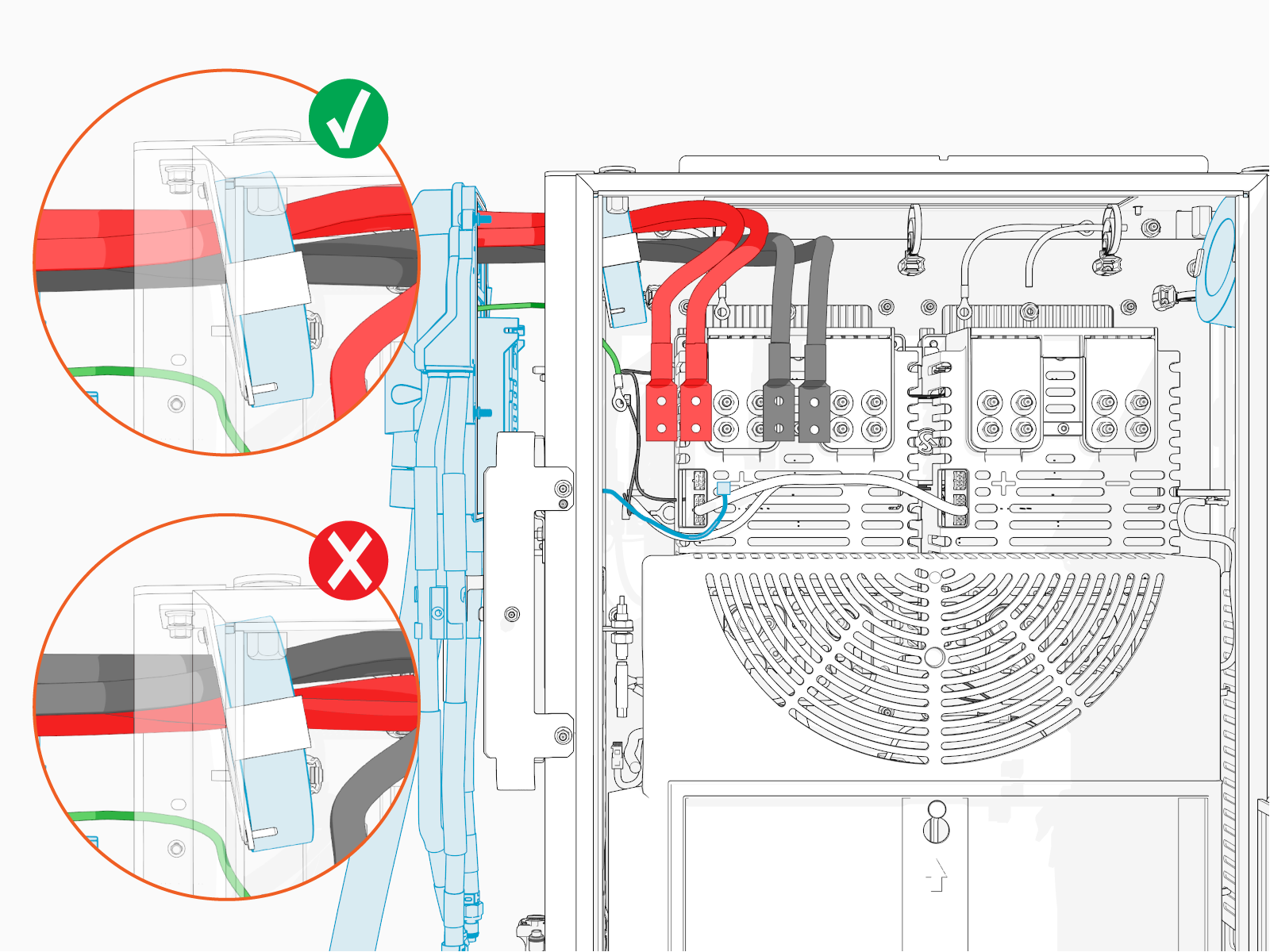
-
Install cable assembly onto the alignment pins (x2).
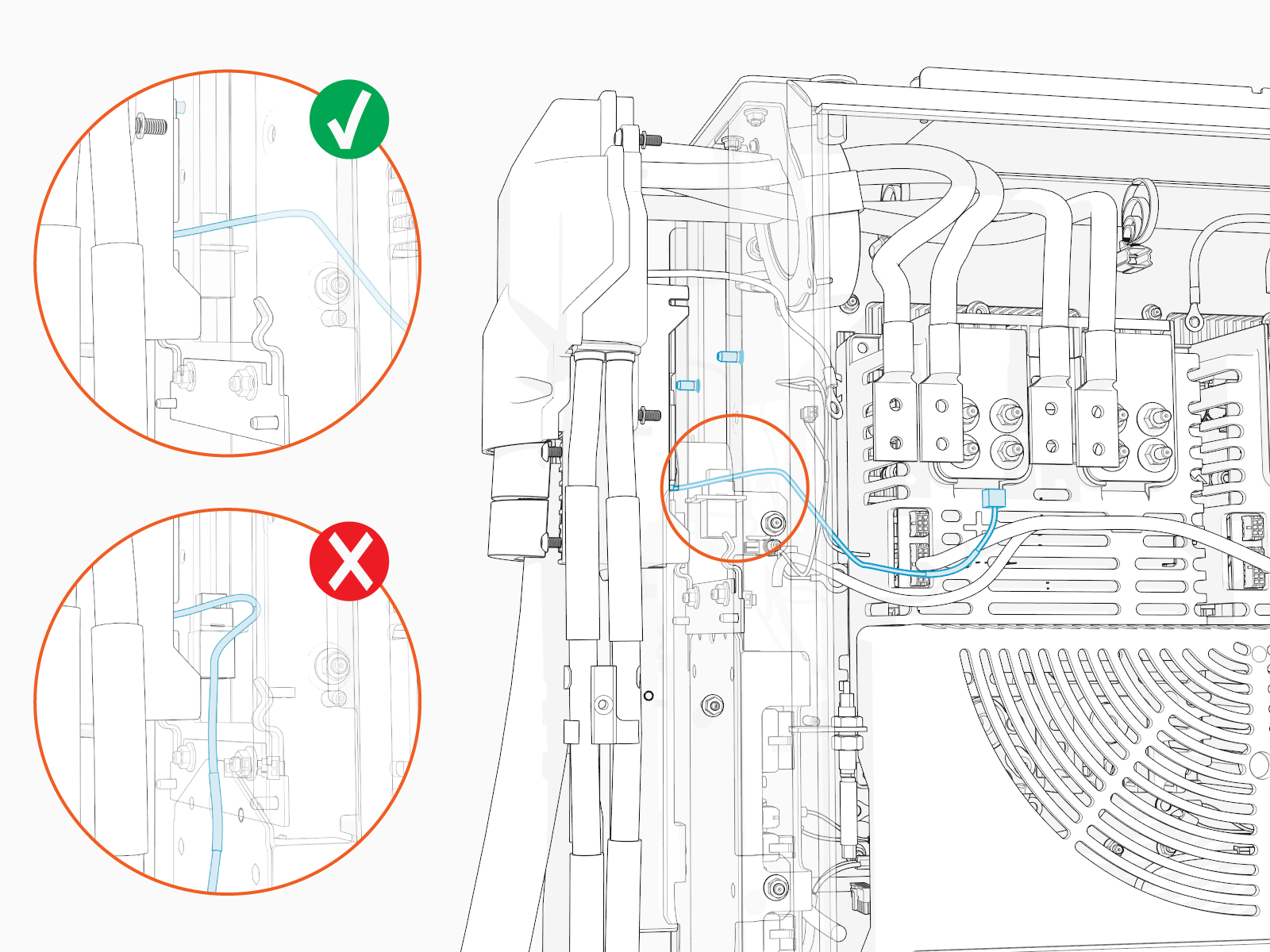
Ensure the small cables do not get pinched between the cable assembly and the Power Link 2000 frame.
-
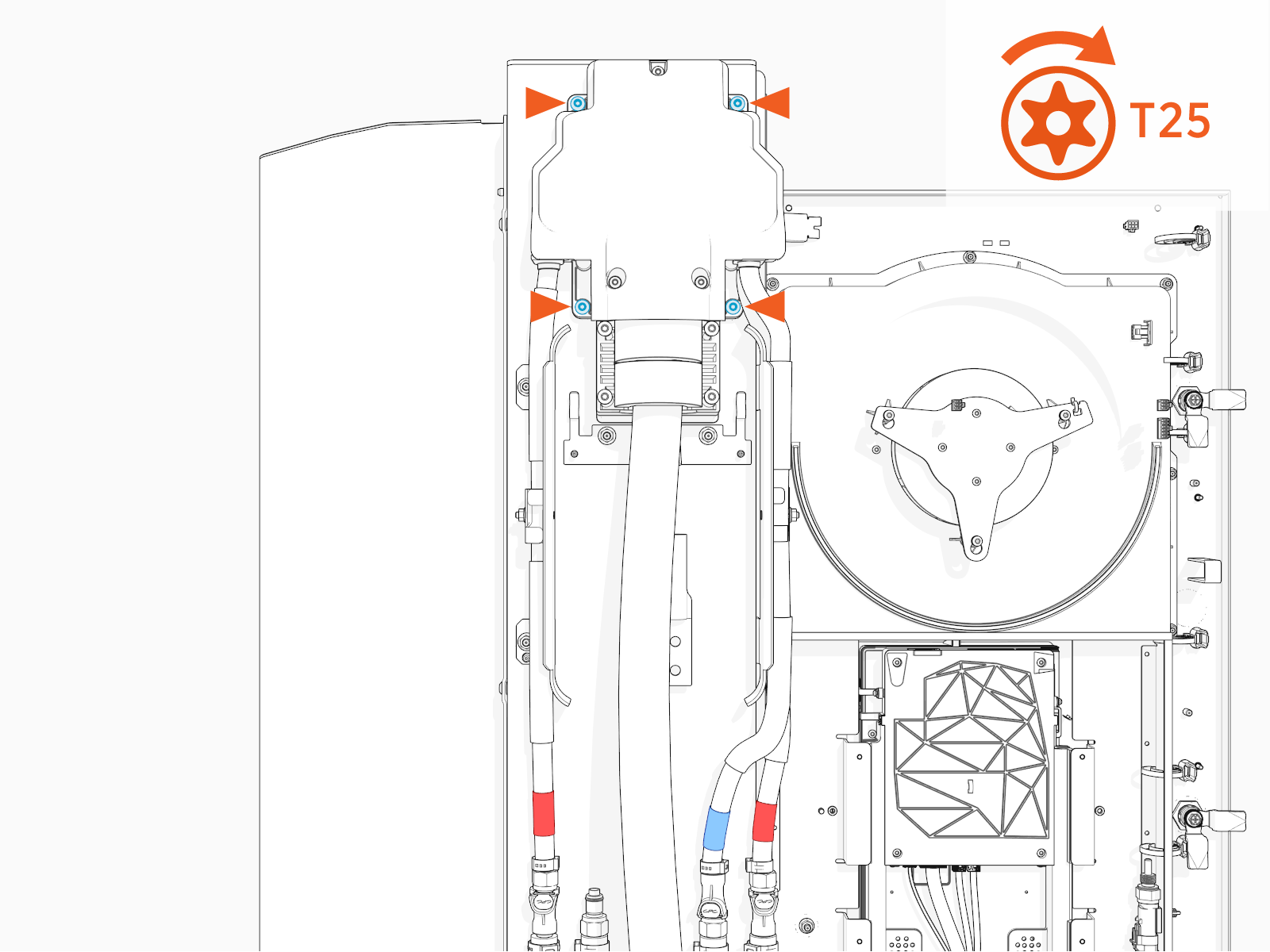
Torque the screws (x4) to 4.5 Nm (40 in-lb).
Connect Wires
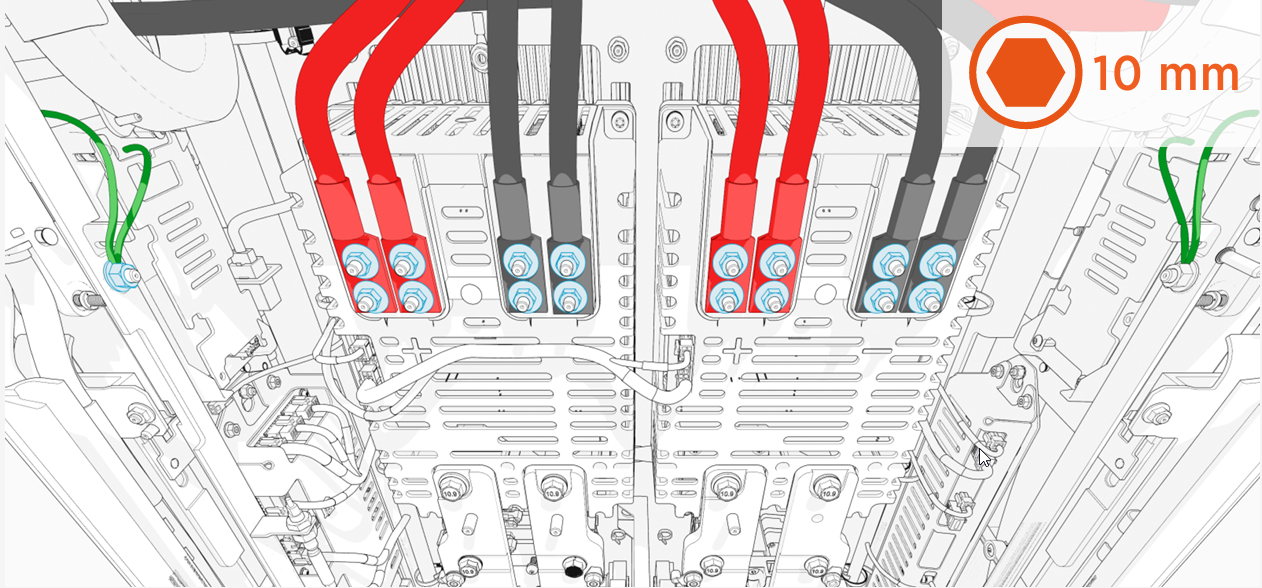
The illustrated cable connections on the left side and right side are for the left side and right side charging cables, respectively.
To connect wires, complete the following steps:
Connect HV Wires
|
|
-
Remove the lug nuts (x4 per red and black HV DC
High Voltage Direct Current wires; x1 per green ground wires). -
Connect red HV DC
High Voltage Direct Current wire lugs to positive (+) and black HV DC High Voltage Direct Current wires to negative (-) pole. -
Connect green ground wire lugs (x2 per charging cable) to ground stud on the frame.
-
Torque all lug nuts to 5.6 Nm (50 in-lb) and mark using a torque paint pen.
Connect LV Wires
-
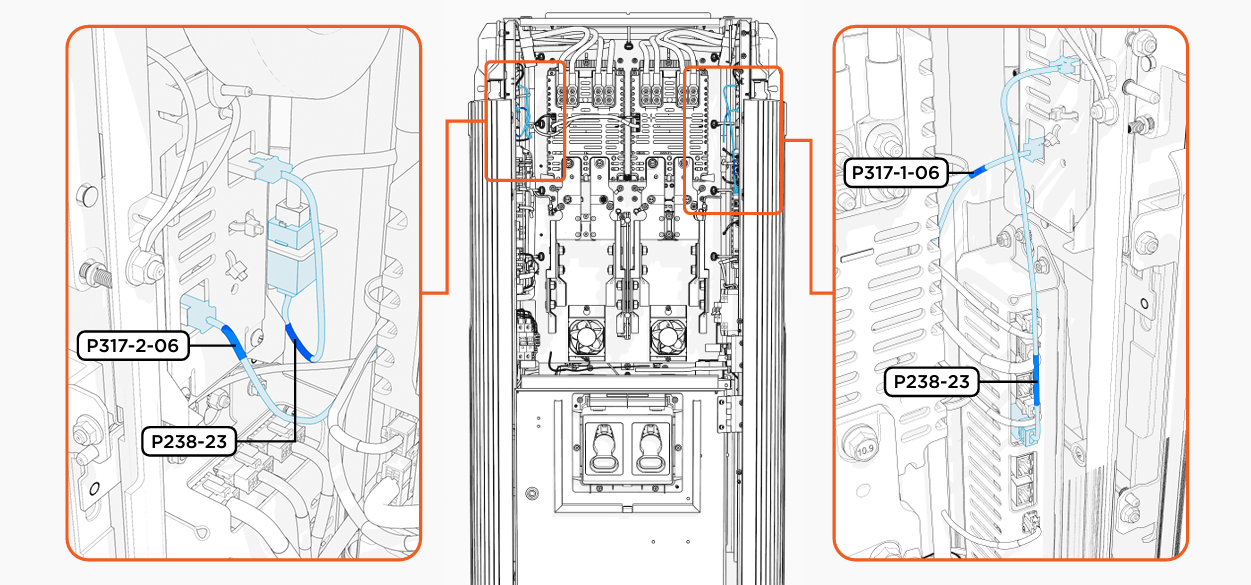
Plug in the LV
Low Voltage wire (with labels P317-2-06 and P317-1-06) to four pin socket on the cable assembly. -
Plug in the Ethernet cable from the charging cable assembly, as illustrated above.
Reinstall HV DC Lug Landing Bus Bar Safety Cover
To reinstall the HV DC High Voltage Direct Current lug landing bus bar safety cover, complete the following steps:
-
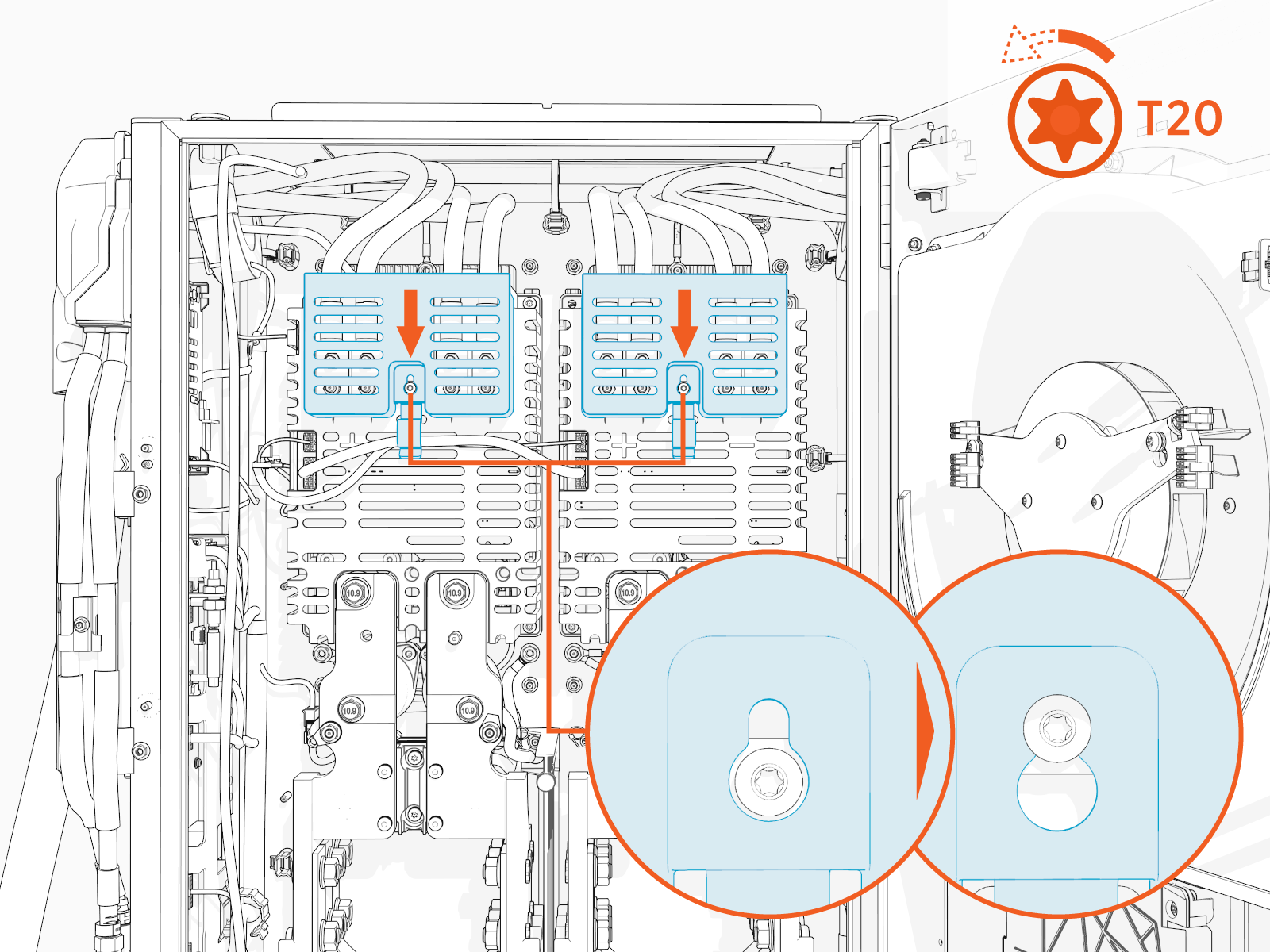
Install the safety cover onto the screw (ensure that the screw is loose) and slide it down.
-
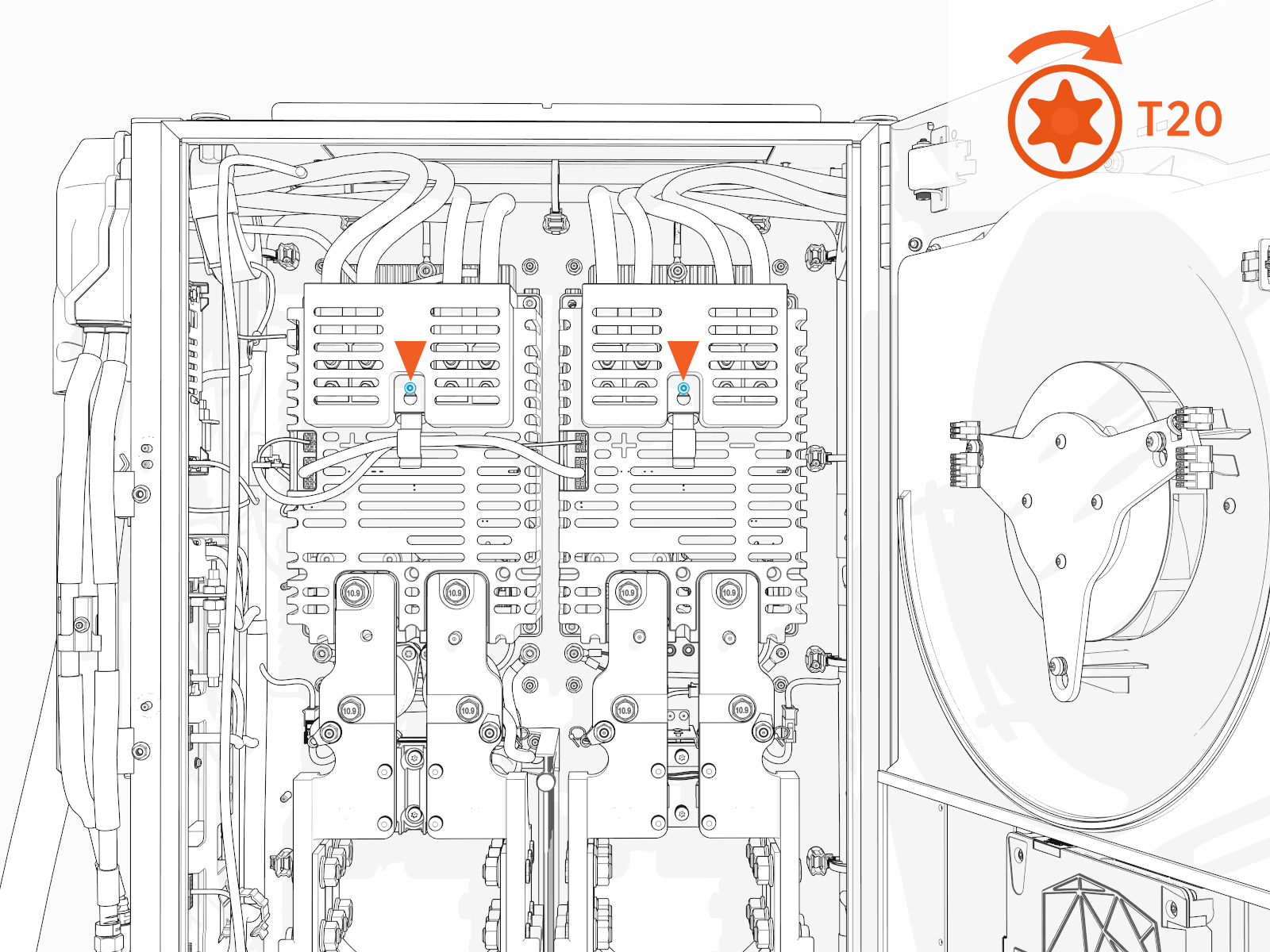
Torque the screw to 1.7 Nm (15 in-lb).
-
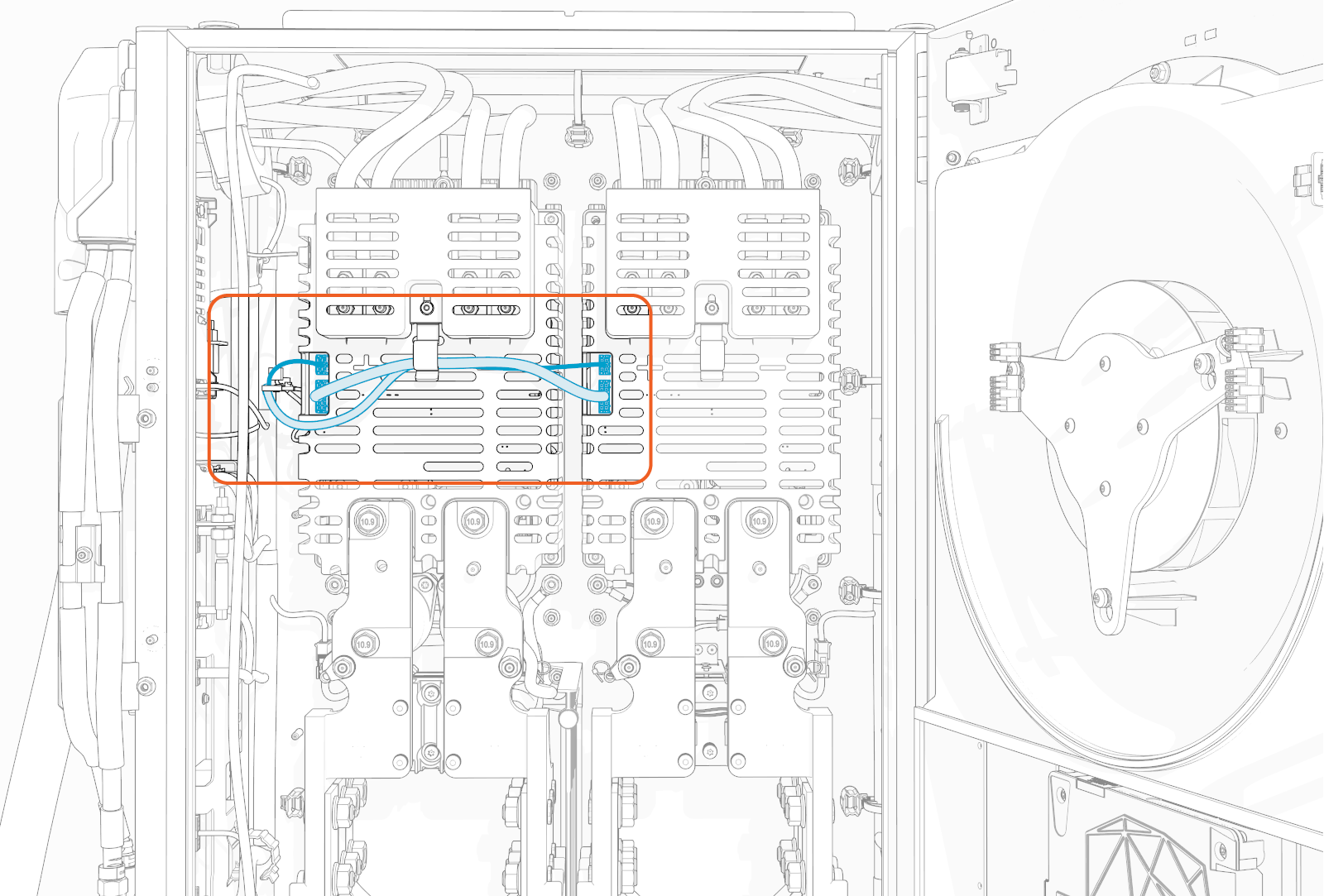
Tuck the internal low voltage supply wires under the wireway tab on the cover.
Install Holsters
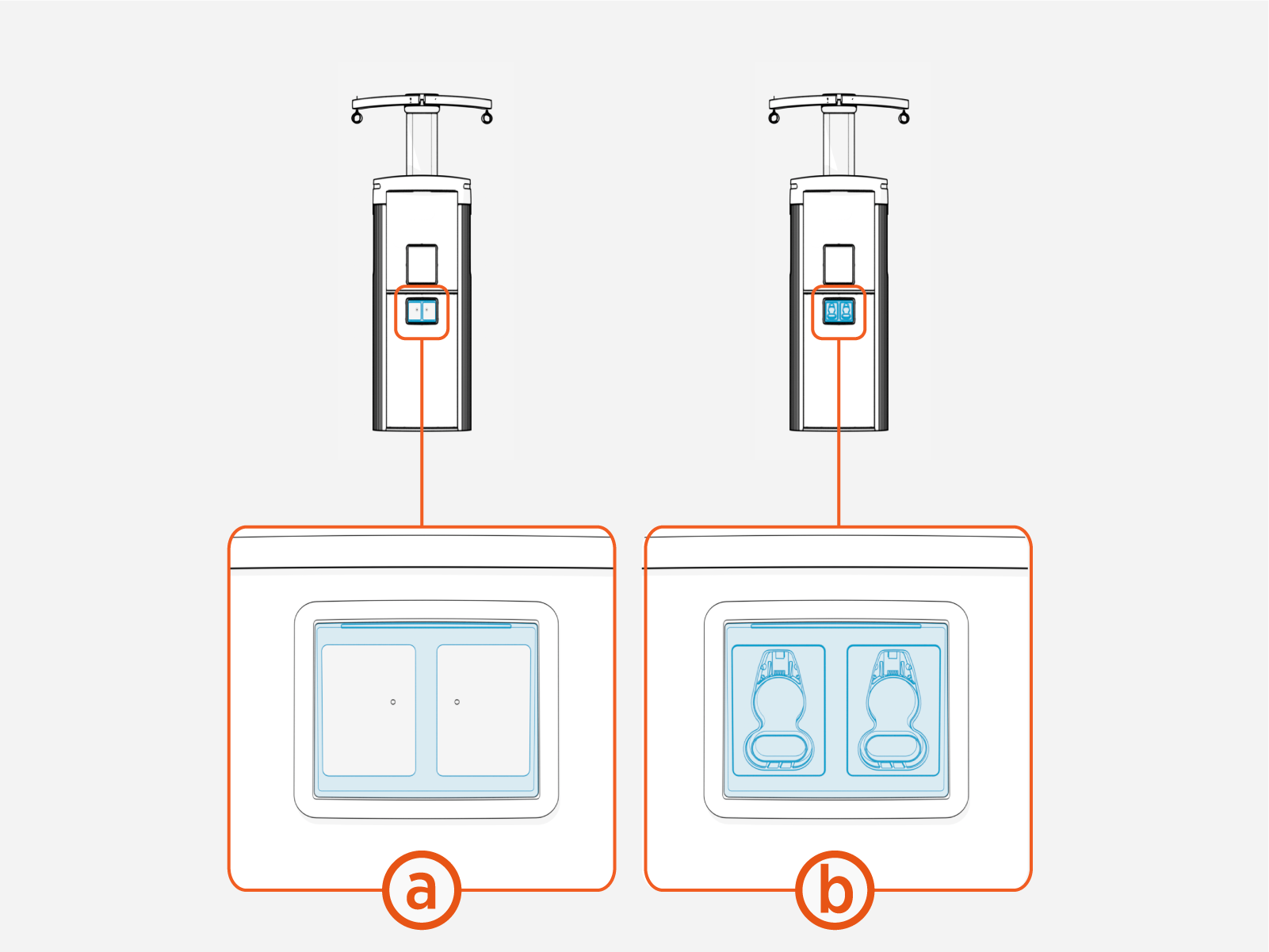
Power Link 2000 can be configured with standard holsters or Omni Port. A newly shipped Power Link 2000 shall arrive in one of the following configurations:
-
With a holster bracket preinstalled (standard holsters must be field-installed into the bracket)
-
With standard holsters and holster bracket preinstalled
Install Standard Holsters
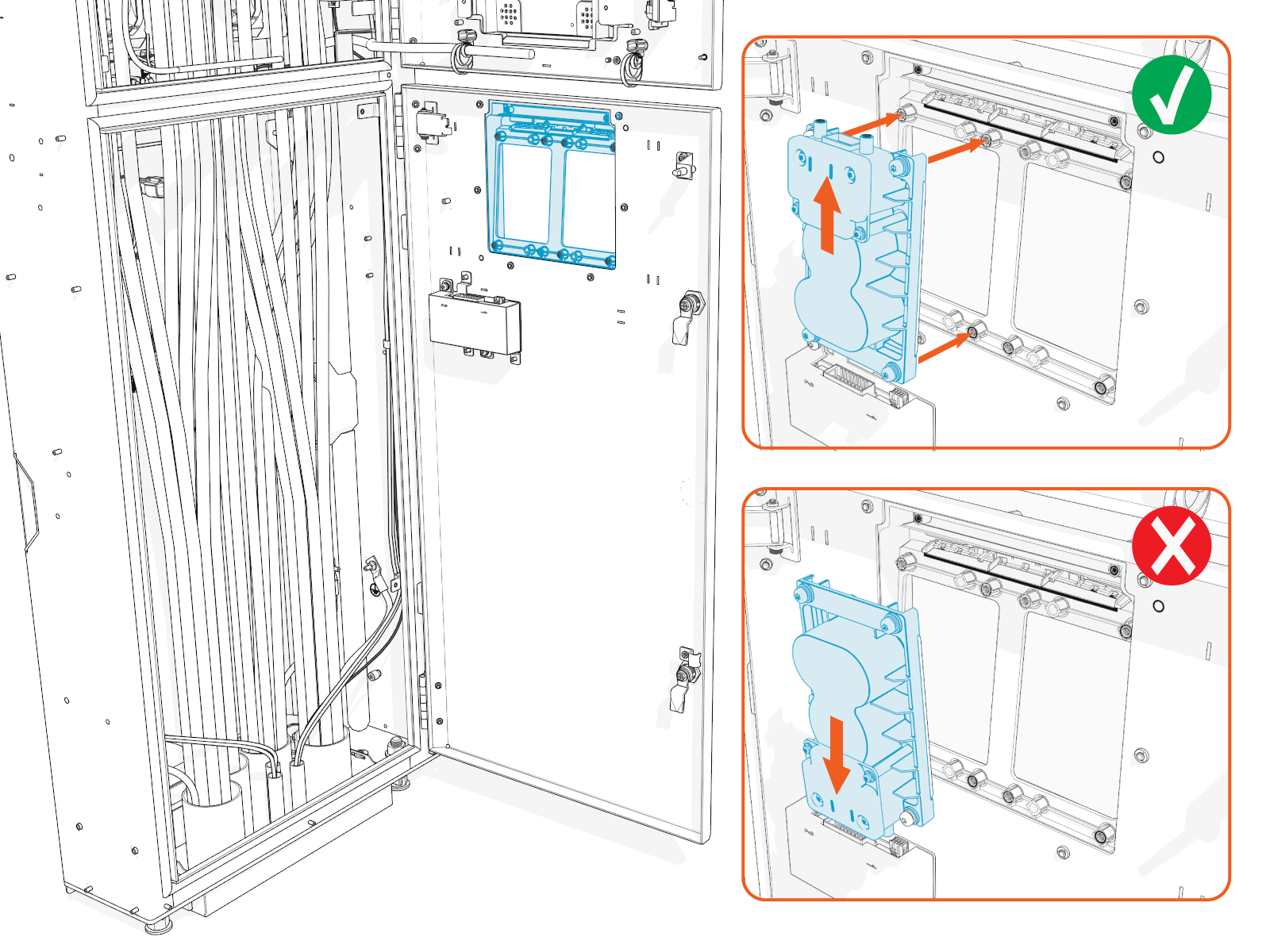
If the Power Link 2000 requires standard holsters but did not ship with them preinstalled, follow instructions in this section to install holsters.
-
Find the holster shipped with the charging cable.
-
Align and seat the holster onto the holster bracket.
-
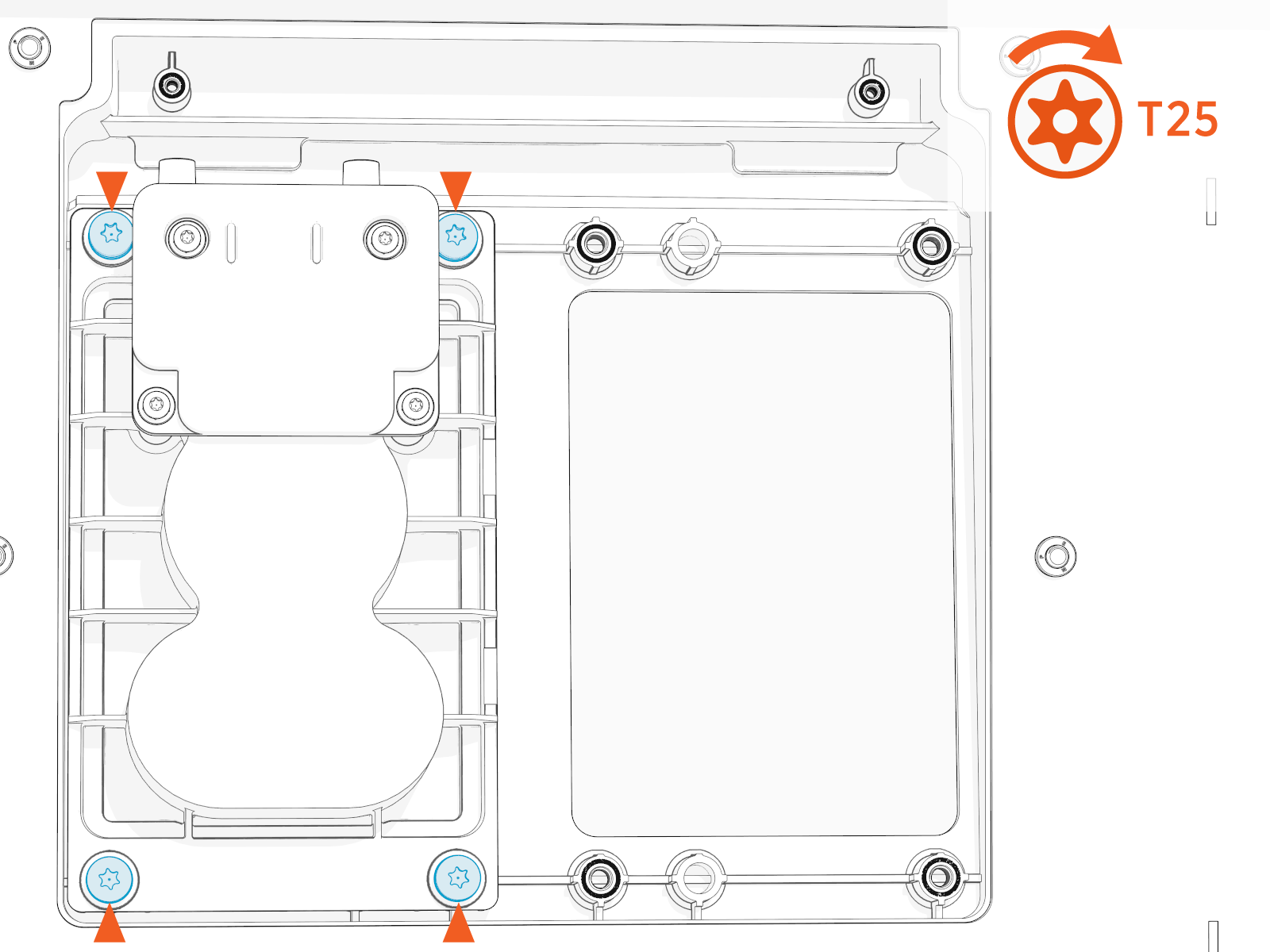
Torque the screws (x4) to 2.8 Nm (25 in-lb).
-
If the Power Link 2000 is configured with two charging cables, repeat the above procedure to install a second holster.
Install Omni Port
If the Power Link 2000 requires configuration with Omni Port but did not ship with one preinstalled, follow instructions in this section to install the Omni Port.
Mount Omni Port
-
Unpack the Omni Port package. Confirm all parts listed below are present. Ensure the pigtail cable is attached to the Omni Port cable.
For any missing component, contact chargepoint.com/support.
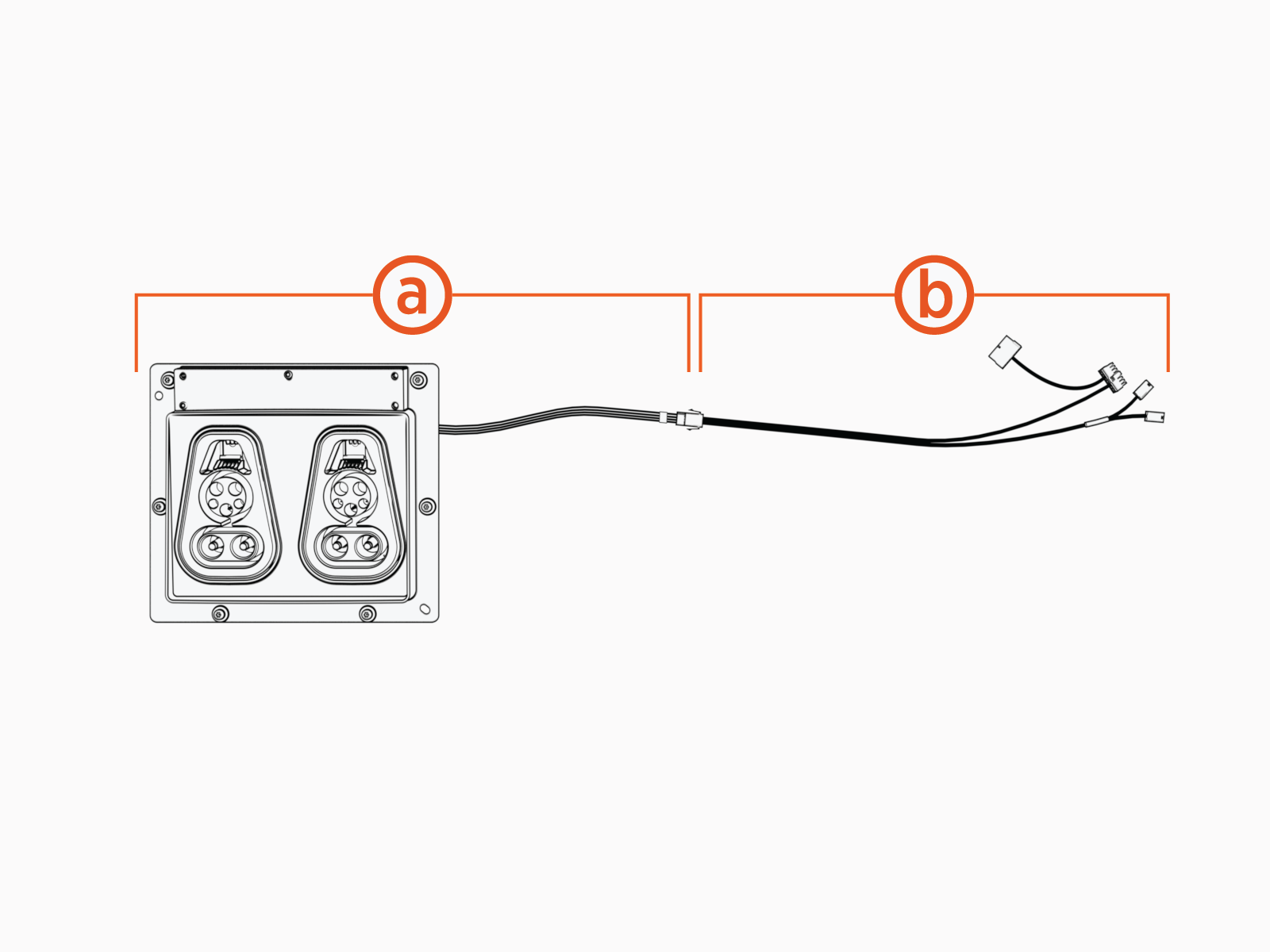
(a) Omni Port assembly with cable
(b) Pigtail cable
-
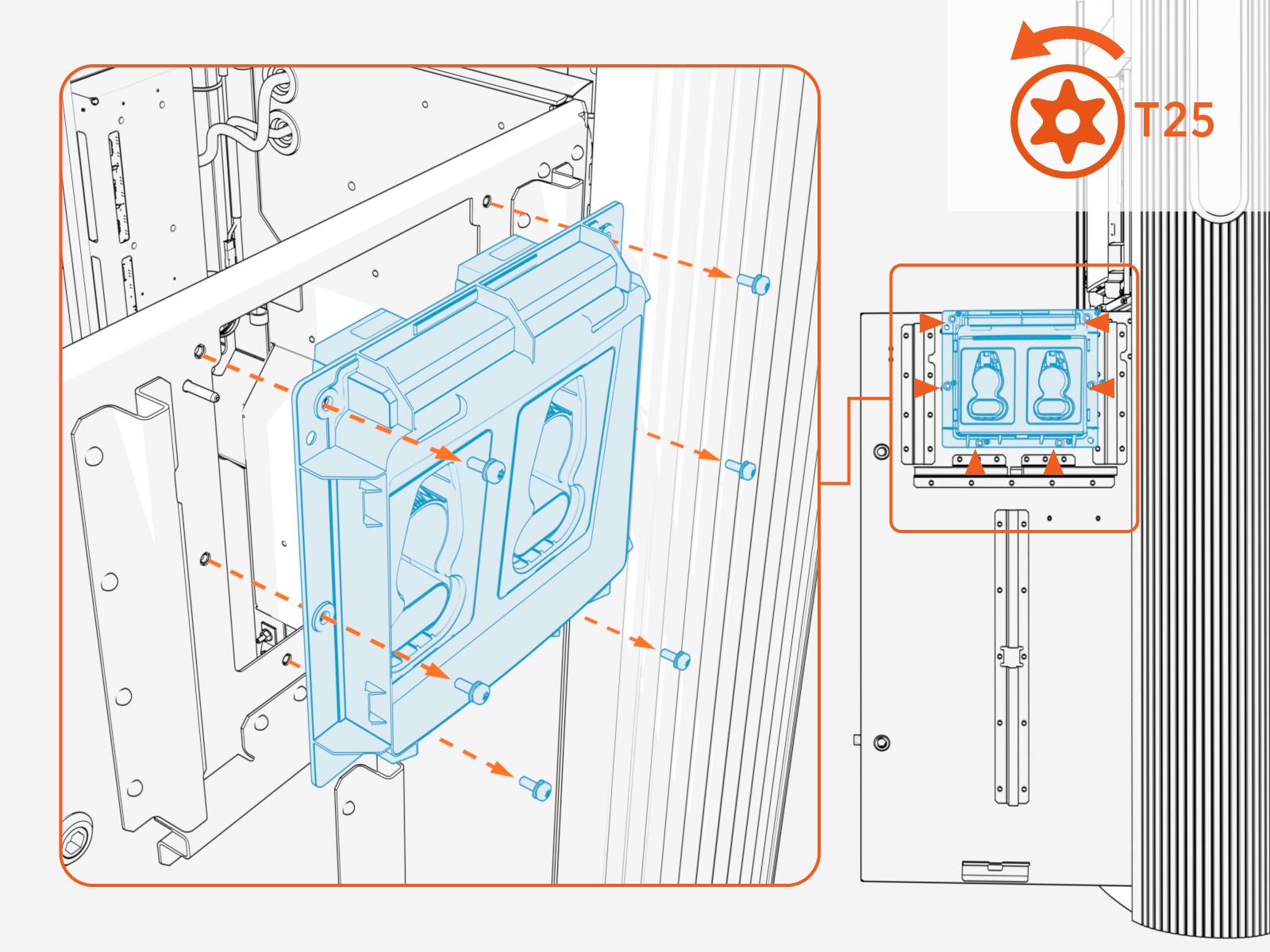
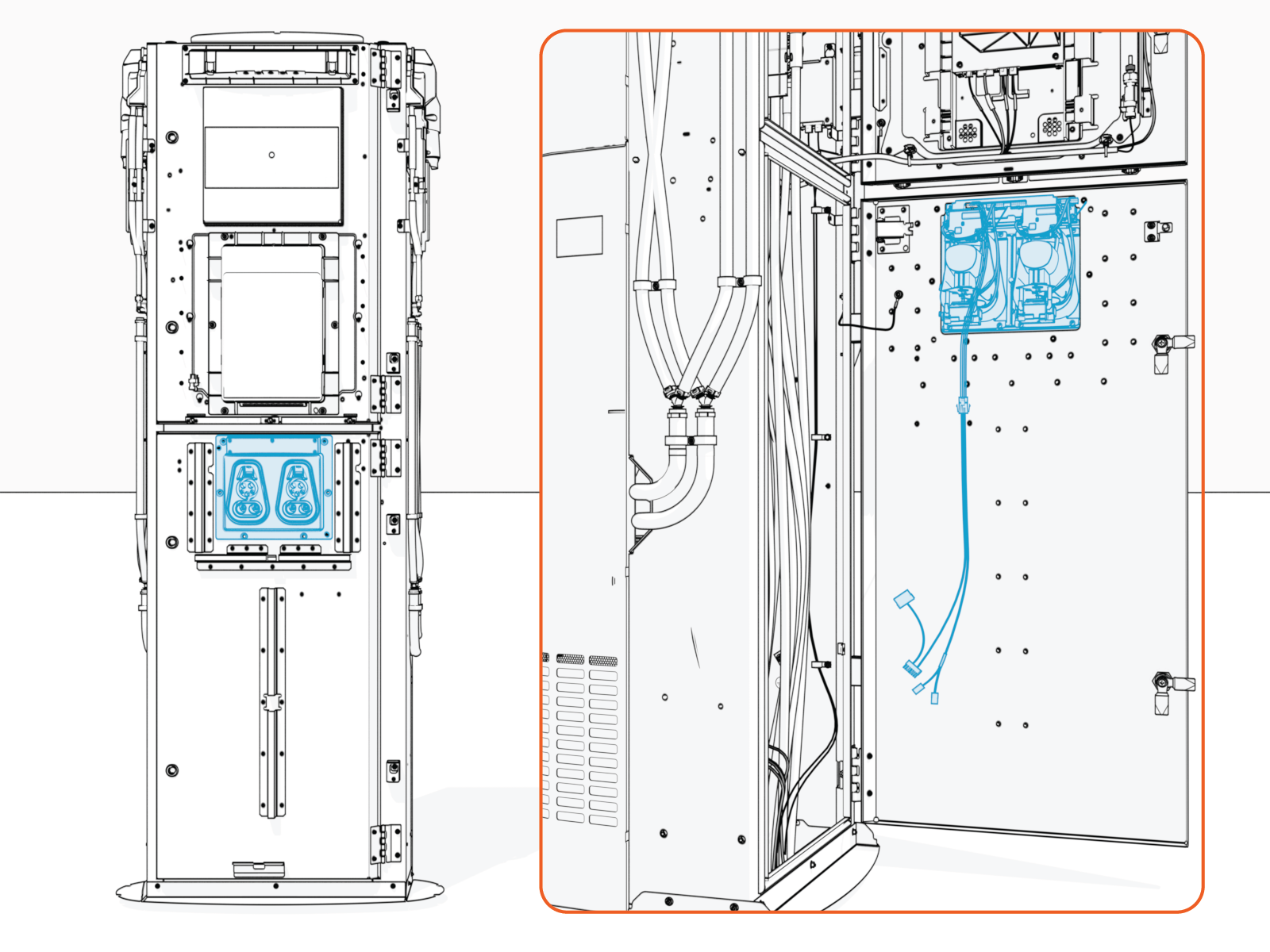
If the Power Link 2000 shipped with standard holsters preinstalled or just a holster bracket preinstalled, remove screws (x6) to uninstall the part.
Holster bracket removal
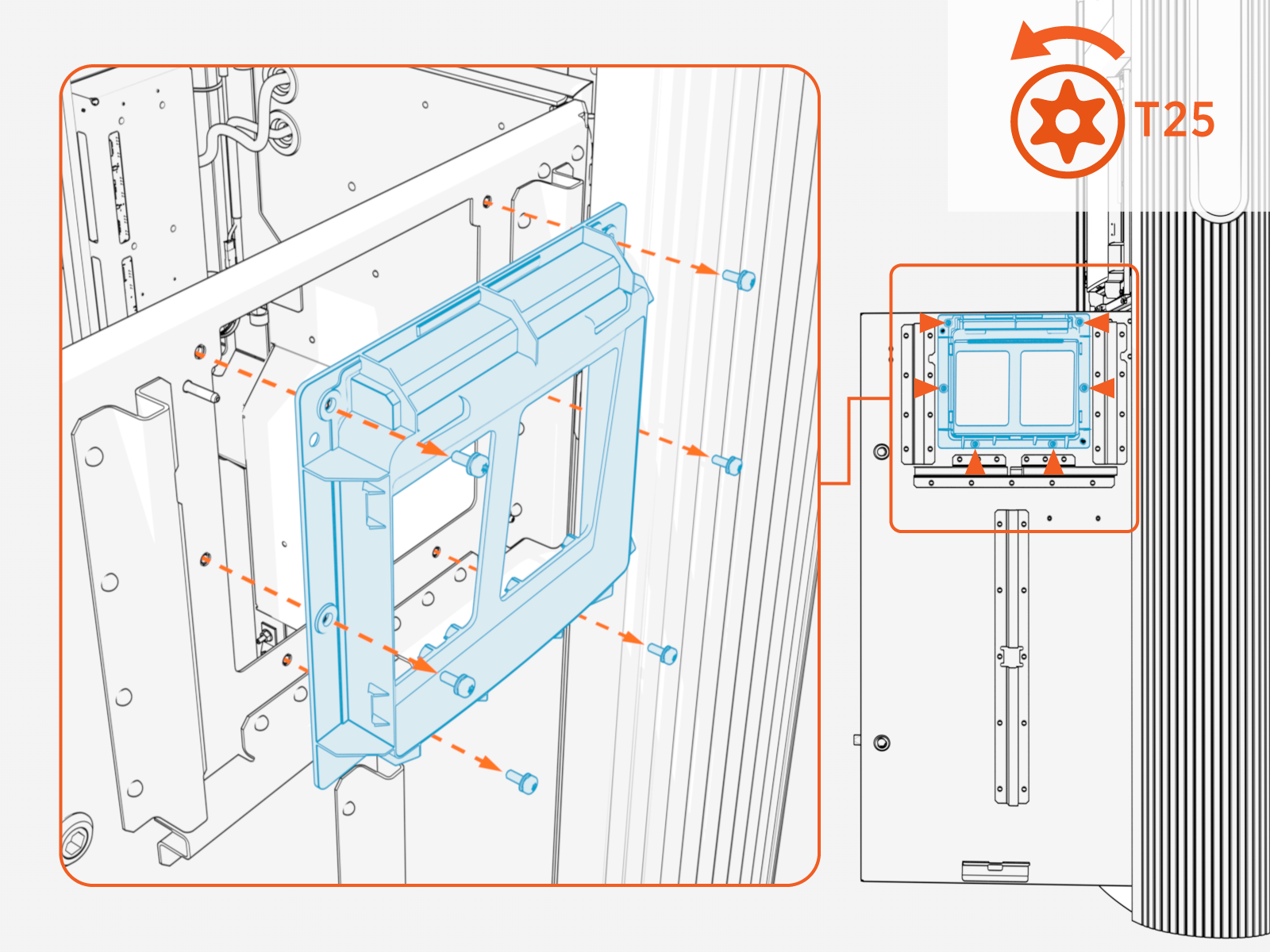
Standard holster removal
-
Align and seat the Omni Port assembly into the holster opening.
-
Install screws (x6). Torque to 4.5 Nm (40 in-lb).
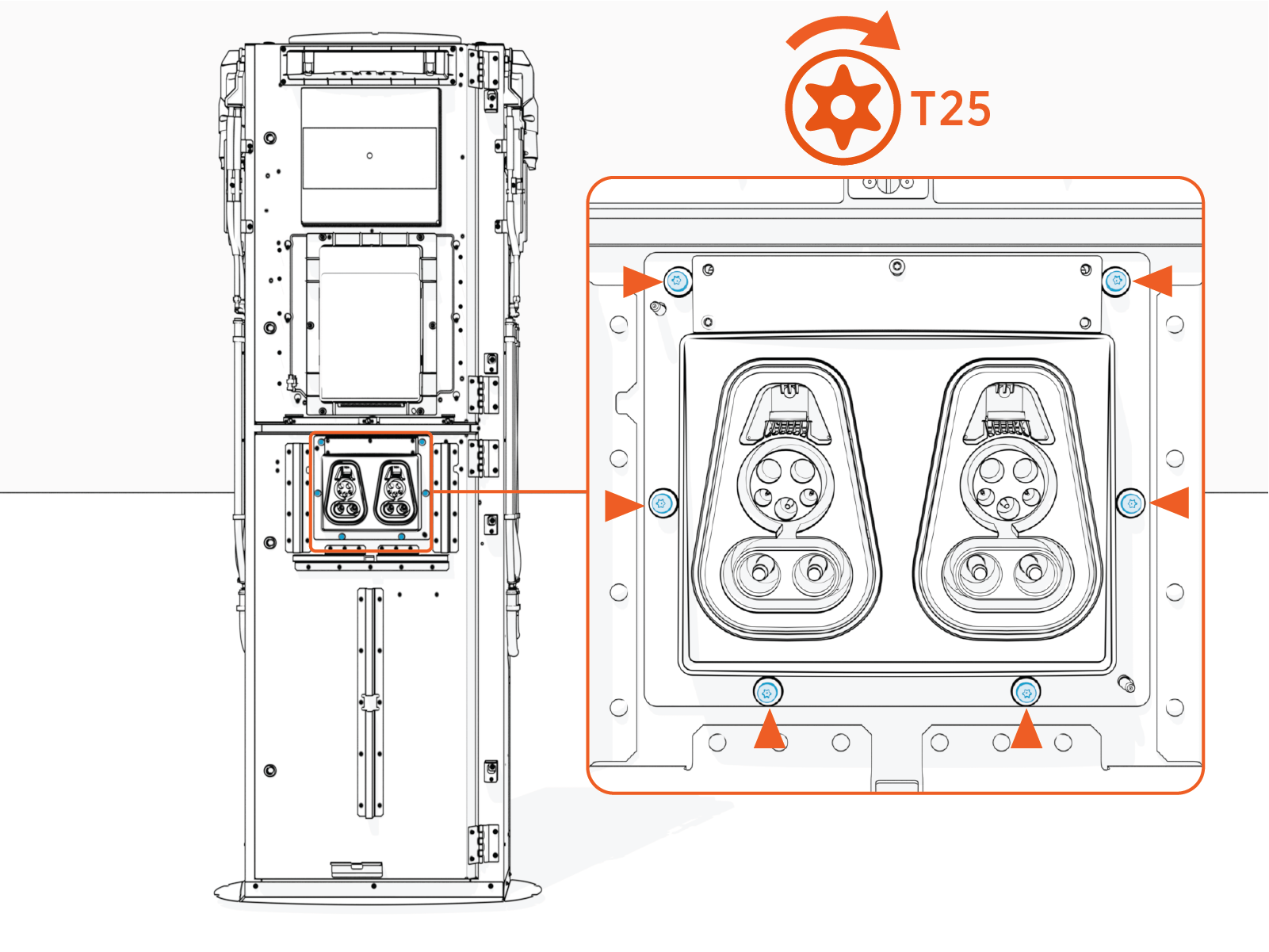
Mount Omni Port
-
Unpack the Omni Port package. Confirm all parts listed below are present.
For any missing component, contact ChargePoint support.
-
Omni Port assembly with cable
-
Pigtail cable
-
-
If the Power Link 2000 shipped with a standard holster bracket preinstalled, remove screws (x6) and remove the holster bracket.
-
Align and seat the Omni Port assembly into the holster opening.
-
Install screws (x6). Torque to 4.5 Nm (40 in-lb).
Connect Omni Port Wires
-
Route the Omni Port cable harness to reach the main cable harness on the upper door.
The cable harness must route behind the mid-height brace and through the door cable guide to prevent the cable from being pinched when closing the door.
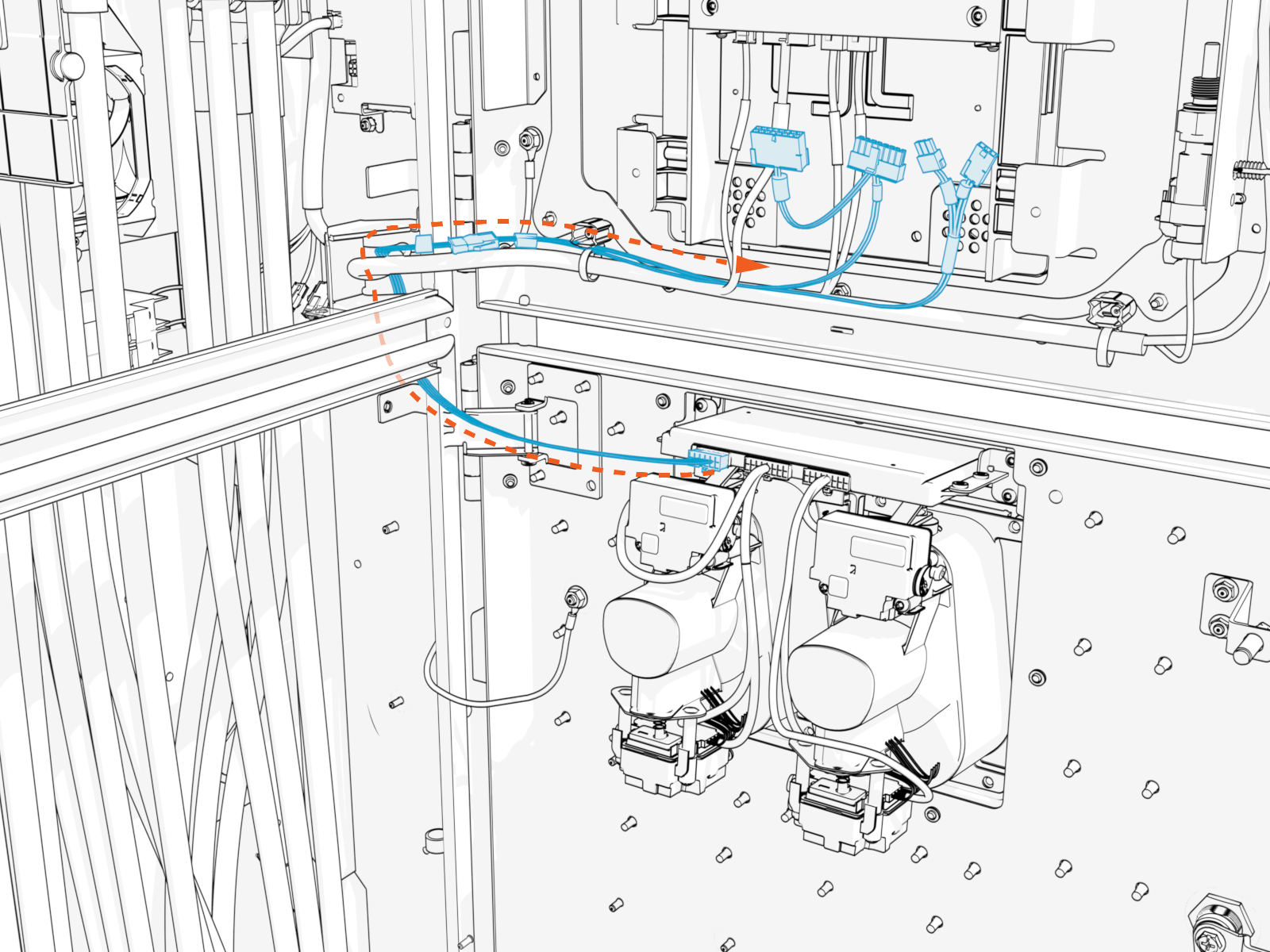
-
Study the cables and connectors at the end of the Omni Port cable harness. Identify the cables by their labels.
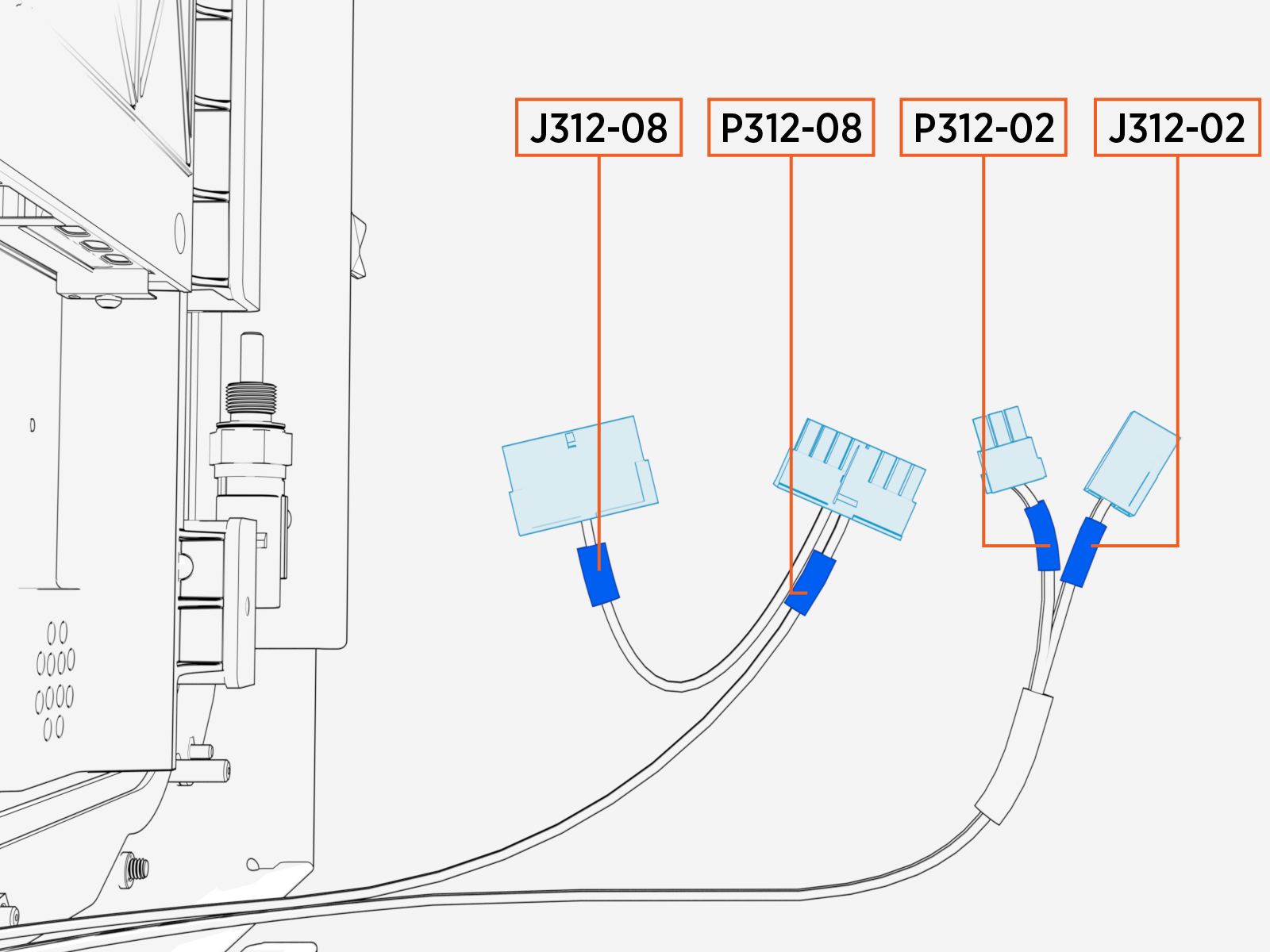
Omni Port Cable Identification Cable Label Terminating Connector (Pin Count, Gender) J312-08
16-pin, female
P312-08
16-pin, male
P312-02
3-pin, male
J312-02
3-pin, female
-
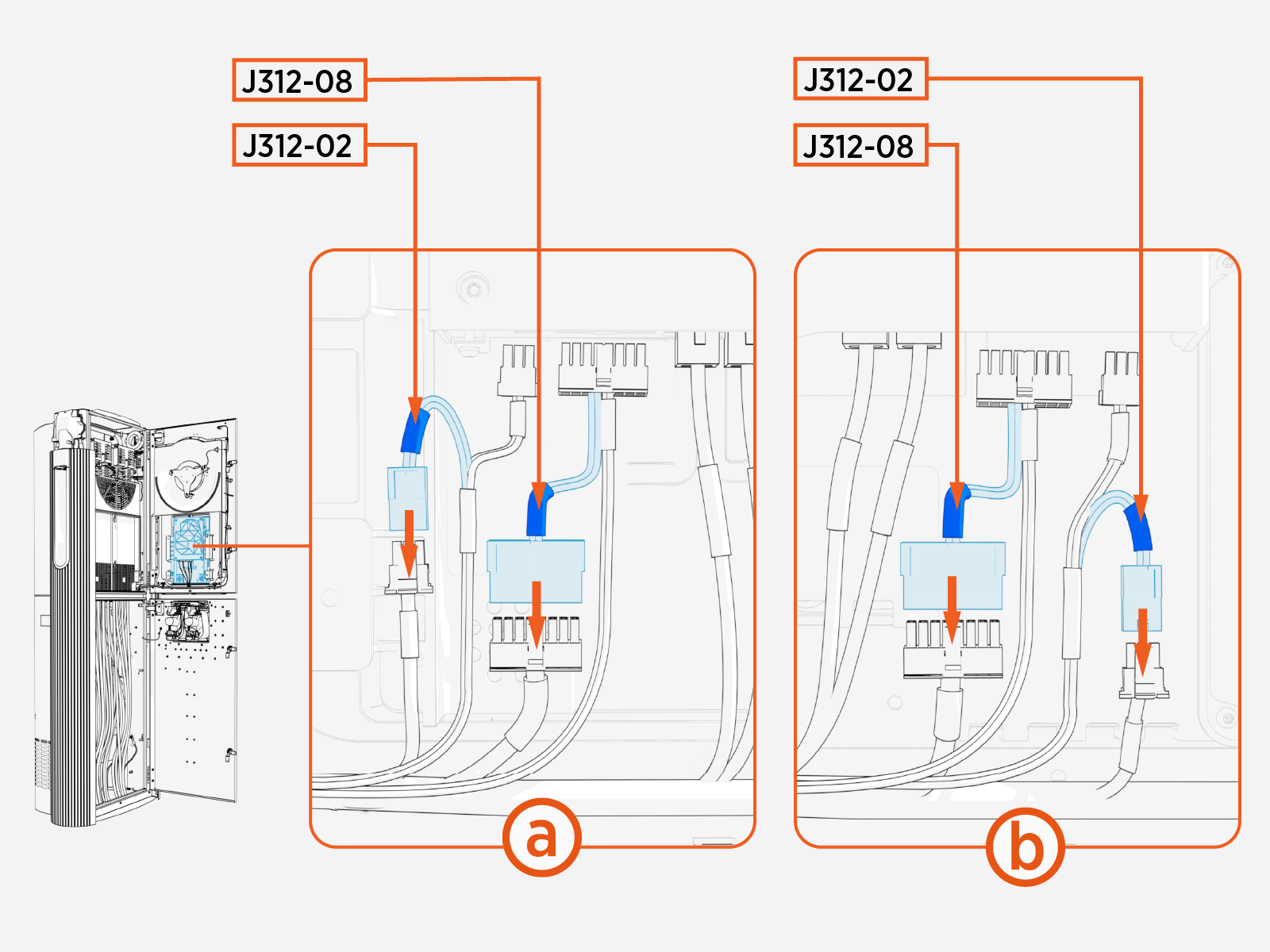
On the rear side of the upper door, identify cables P312‑02 and P312‑08 running from the door main cable harness to the Control and Communications Unit (CCOM
Control and Communications Module). Disconnect the cables from the CCOM Control and Communications Module.The cable port locations vary based on the CCOM
Control and Communications Module model. Verify the cable labels carefully. 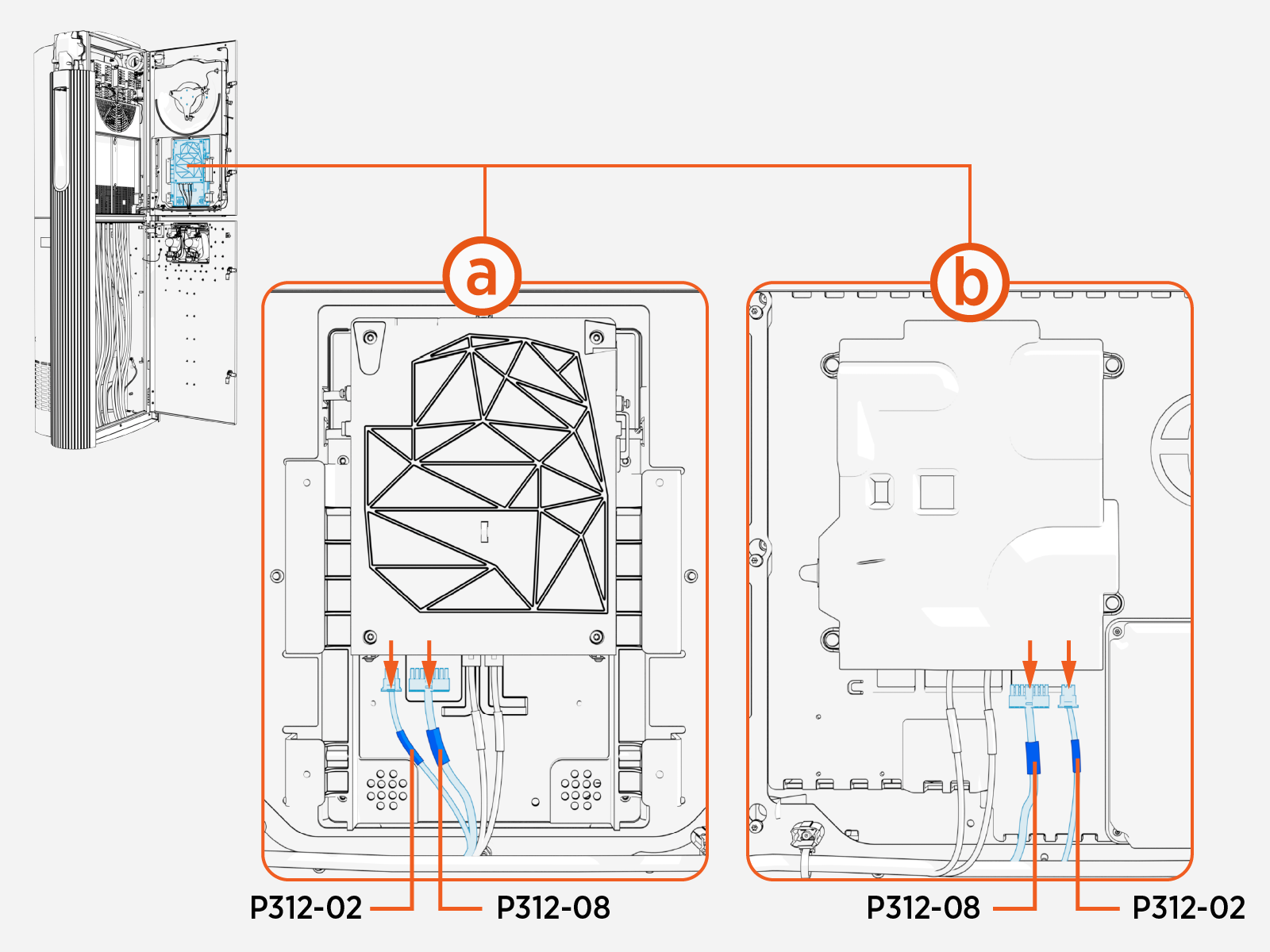
-
Study the diagram below, which illustrates the required connections between the Omni Port cable harness and the door main cable harness.
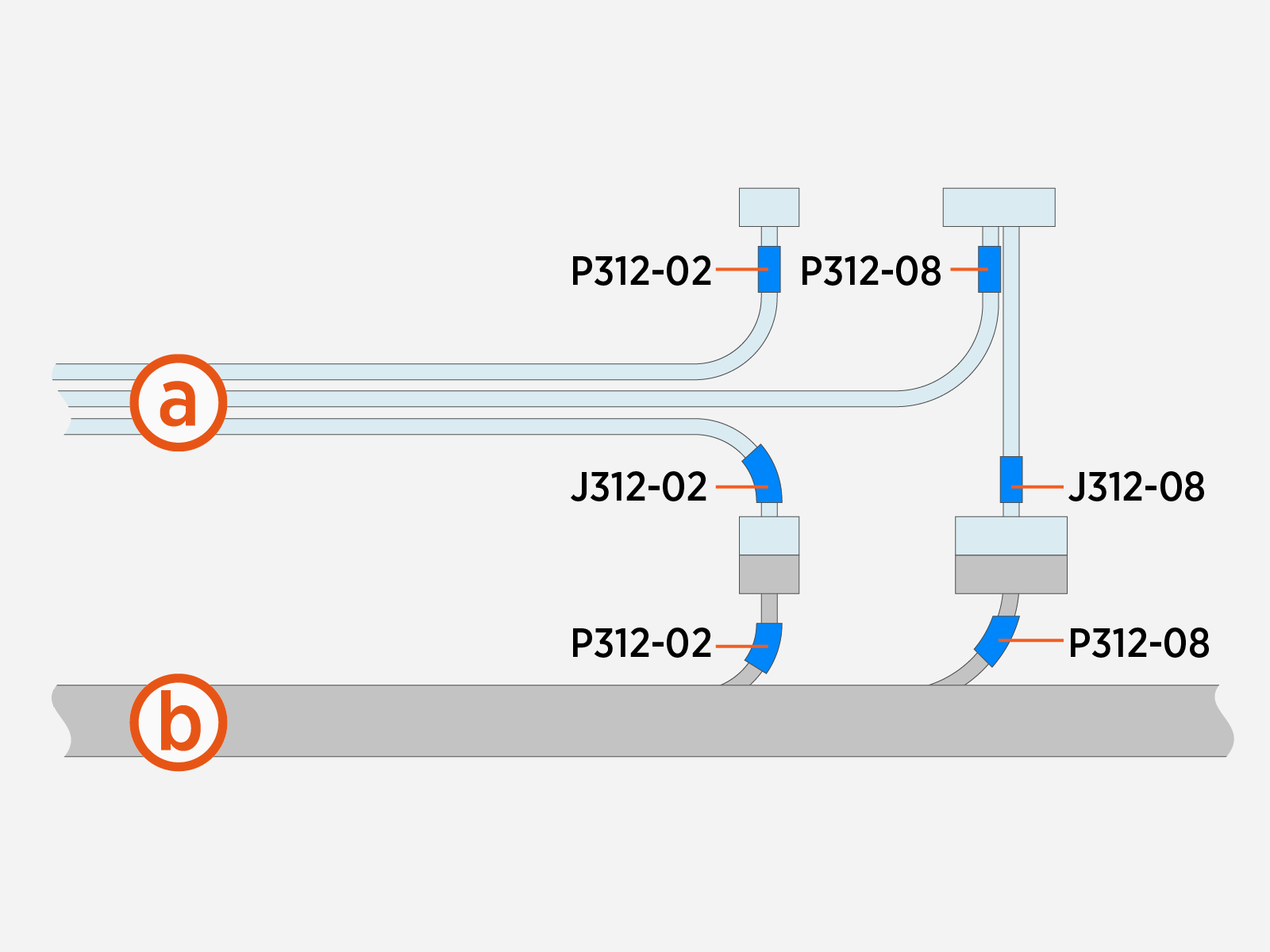
-
Omni Port cable harness
-
Door main cable harness
-
-
Connect Omni Port cables J312‑08 and J312‑02 (highlighted below) to cables P312‑08 and P312‑02 of the door main cable harness.
-
Connect Omni Port cables P312-02 and P312-08 to the CCOM
Control and Communications Module.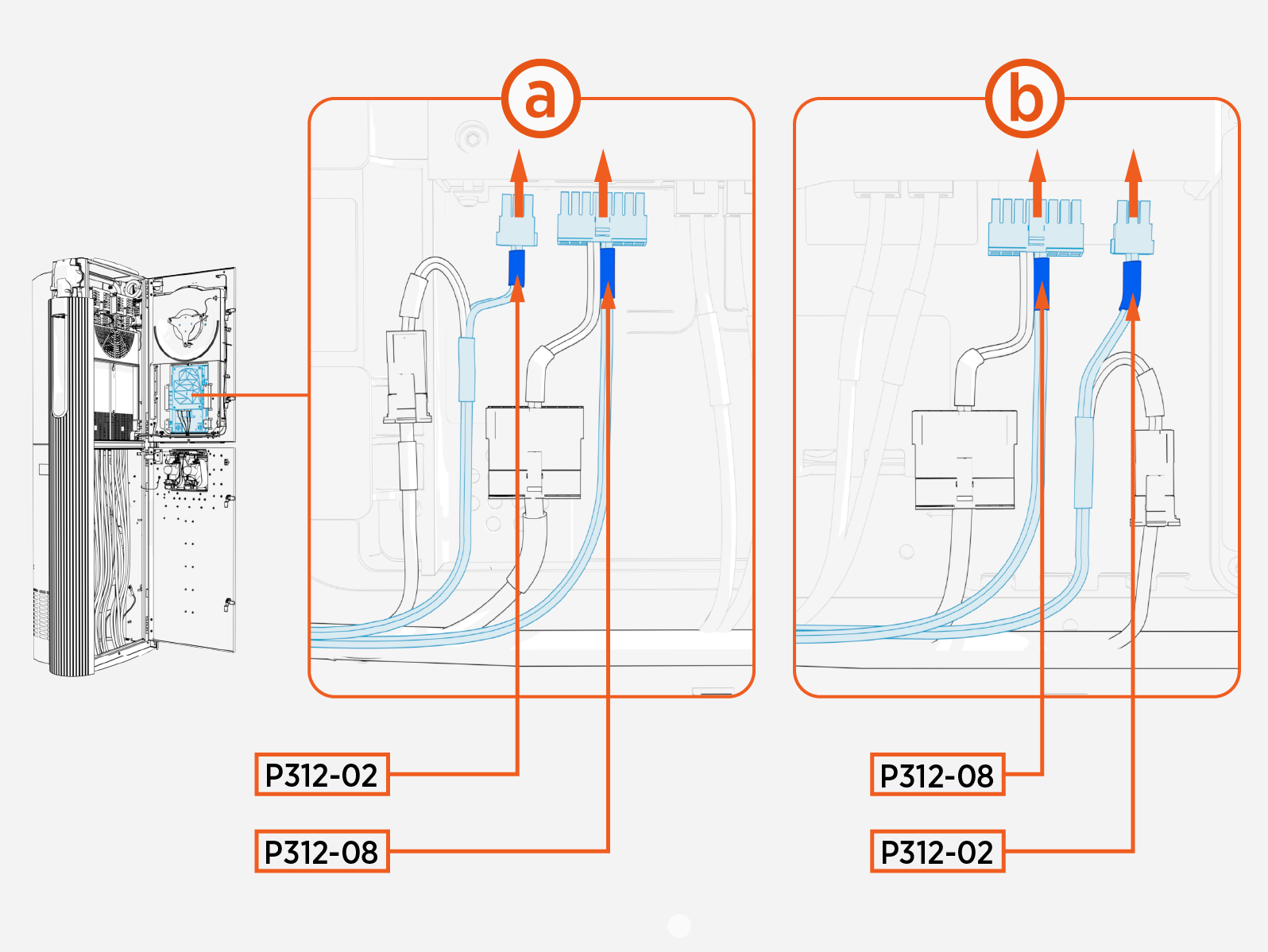
-
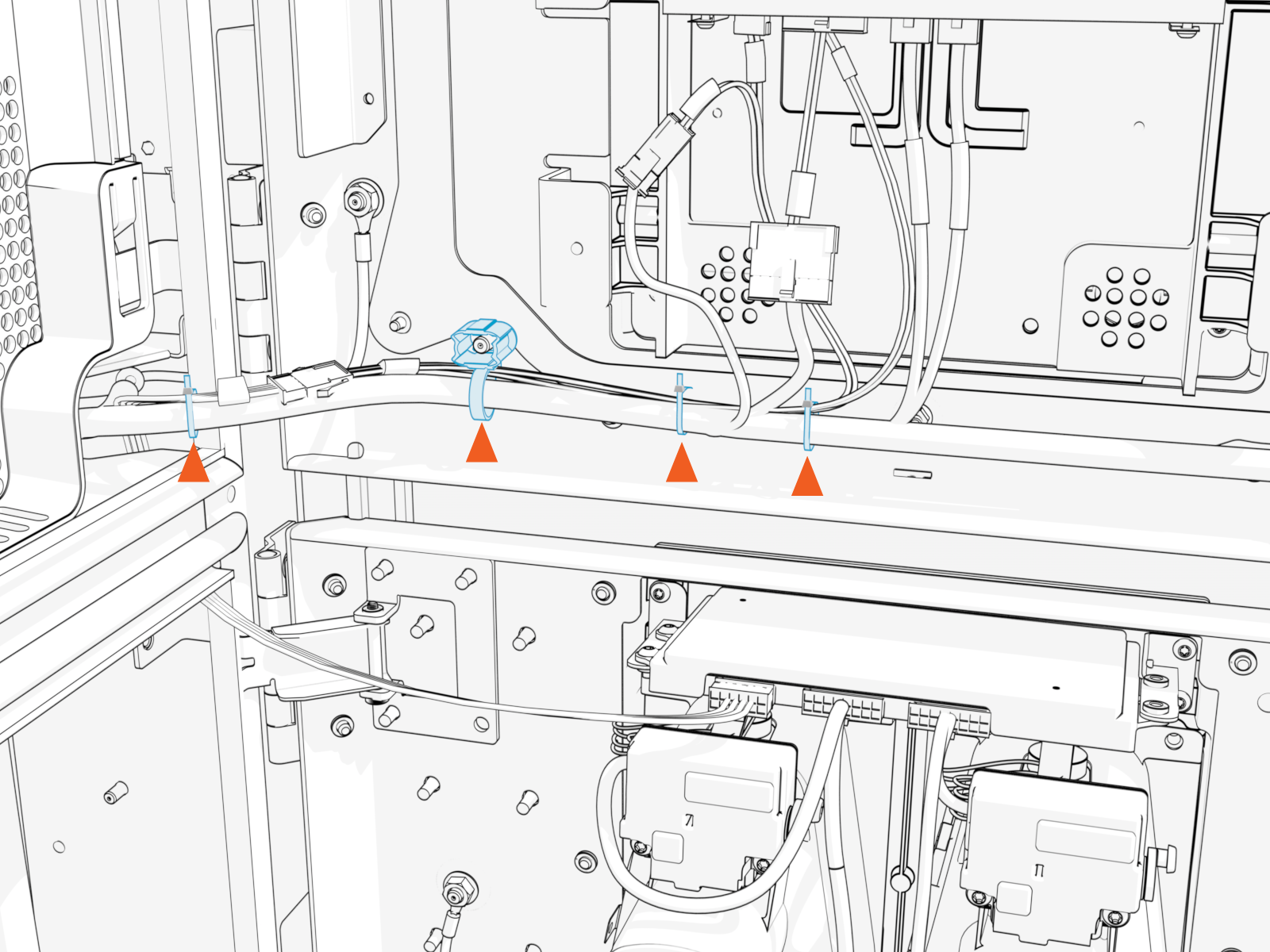
Use zip ties to secure the Omni Port cables to the main cable harness.
Pull excess cable into the Power Link 2000 pedestal to ensure there is no loose wire hanging from the door. Loose wires may get pinched when closing the door.