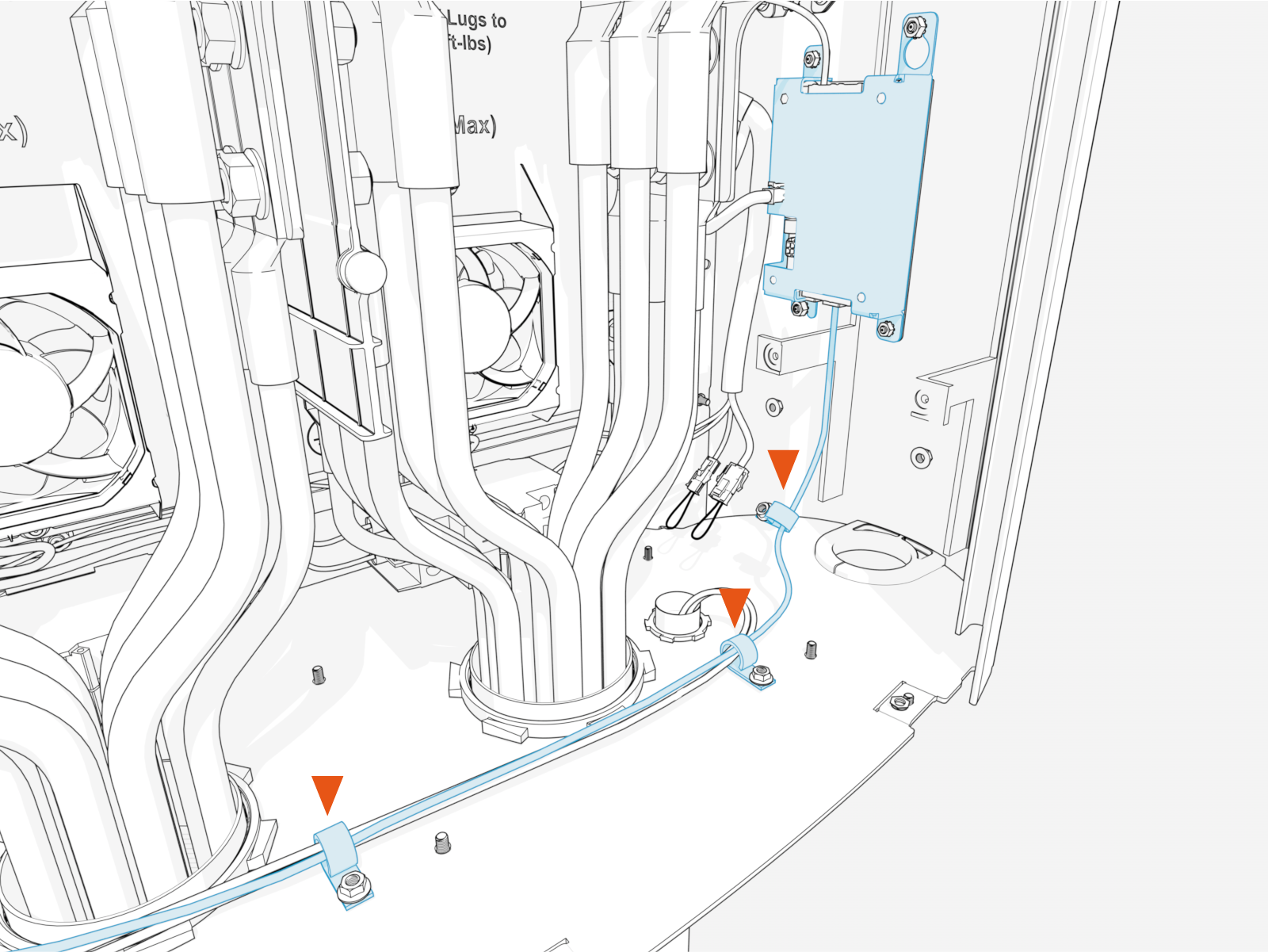
Install Power Link 2000
To install Power Link 2000, complete the following set of steps:
- If the charging station is not installed, commissioned, or serviced by a ChargePoint certified technician using a ChargePoint-approved method, it is excluded from all ChargePoint and other warranties and ChargePoint is not responsible.
- You must be a licensed electrician and complete training at https://www.chargepoint.com/partners/training-certification to become ChargePoint certified and to access ChargePoint's web-based installer tools or ChargePoint Installer app.
If the site has height constraints for installation, contact ChargePoint to get instructions and clearances that you will need for the modified process.
Alternatively, you may use a forklift bracket kit, or a crane with lifting shackles and a spreader bar (constraints may differ among sites).
Lift and Open Power Link 2000 Assembly
To lift and open Power Link 2000 assembly, complete the following steps:
-
Open and unpack the Power Link 2000 package and wall mount kit package (see Power Link 2000 Packages).
-
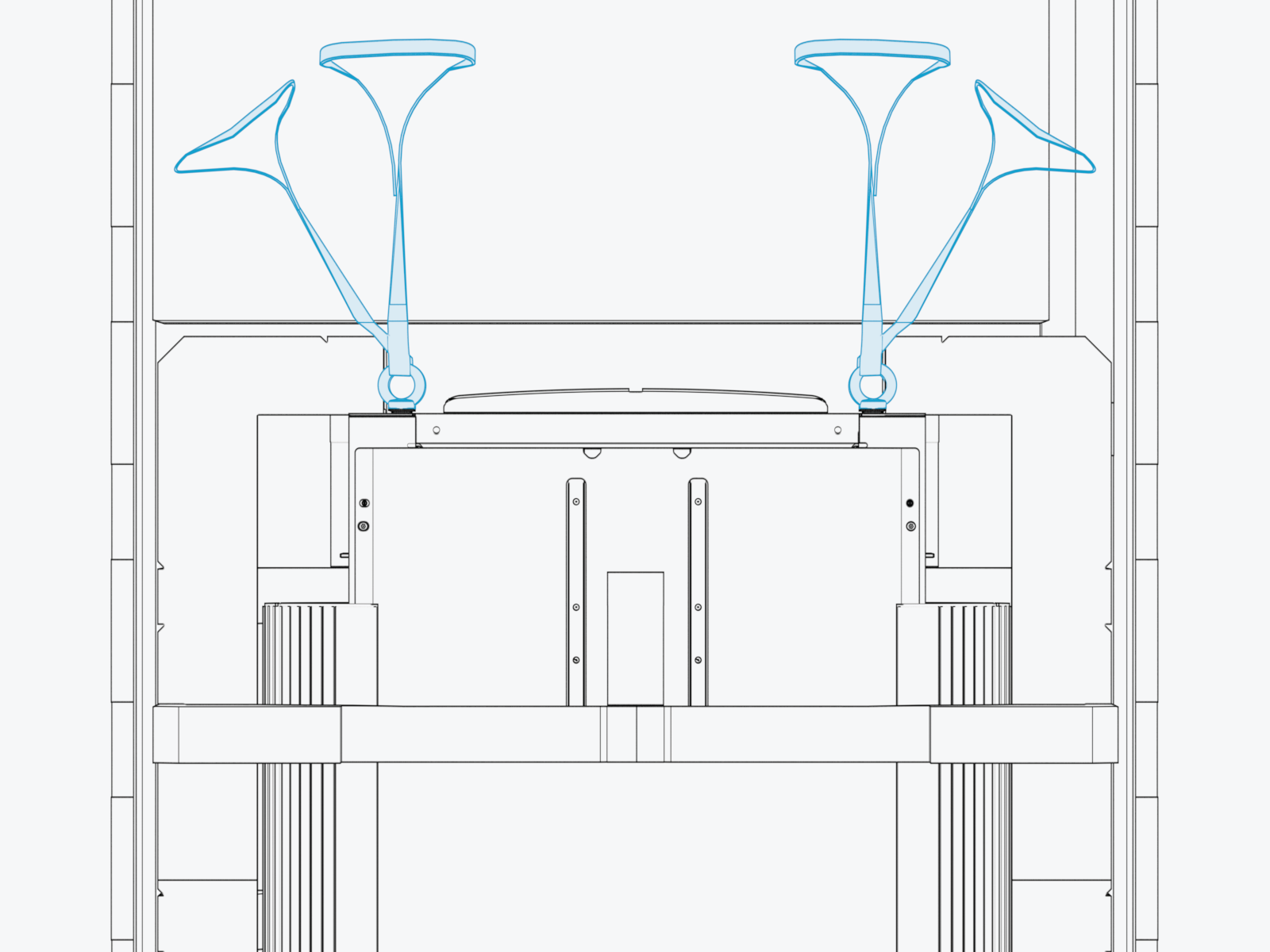
At the top of the Power Link 2000, locate four preinstalled eye bolt and lifting straps.
-
Use forklift to lift the Power Link 2000 by the lifting straps to eye level.
Ensure the lifting straps are secured to the forklift tines with c-clamps or similar.

-
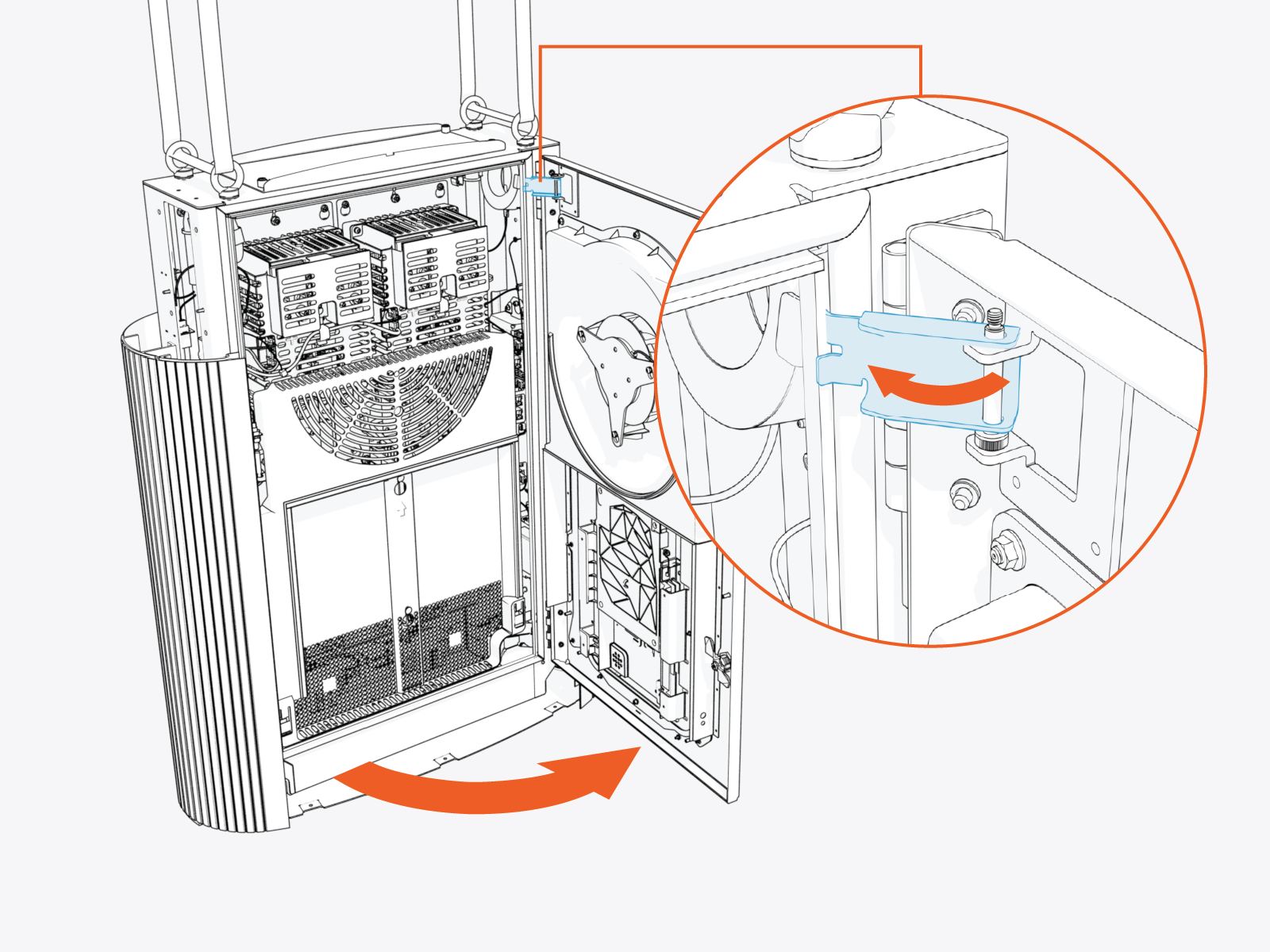
Quarter turn the door latches (x2) to unlock the door.

-
Open the door and engage the door stopper.
-
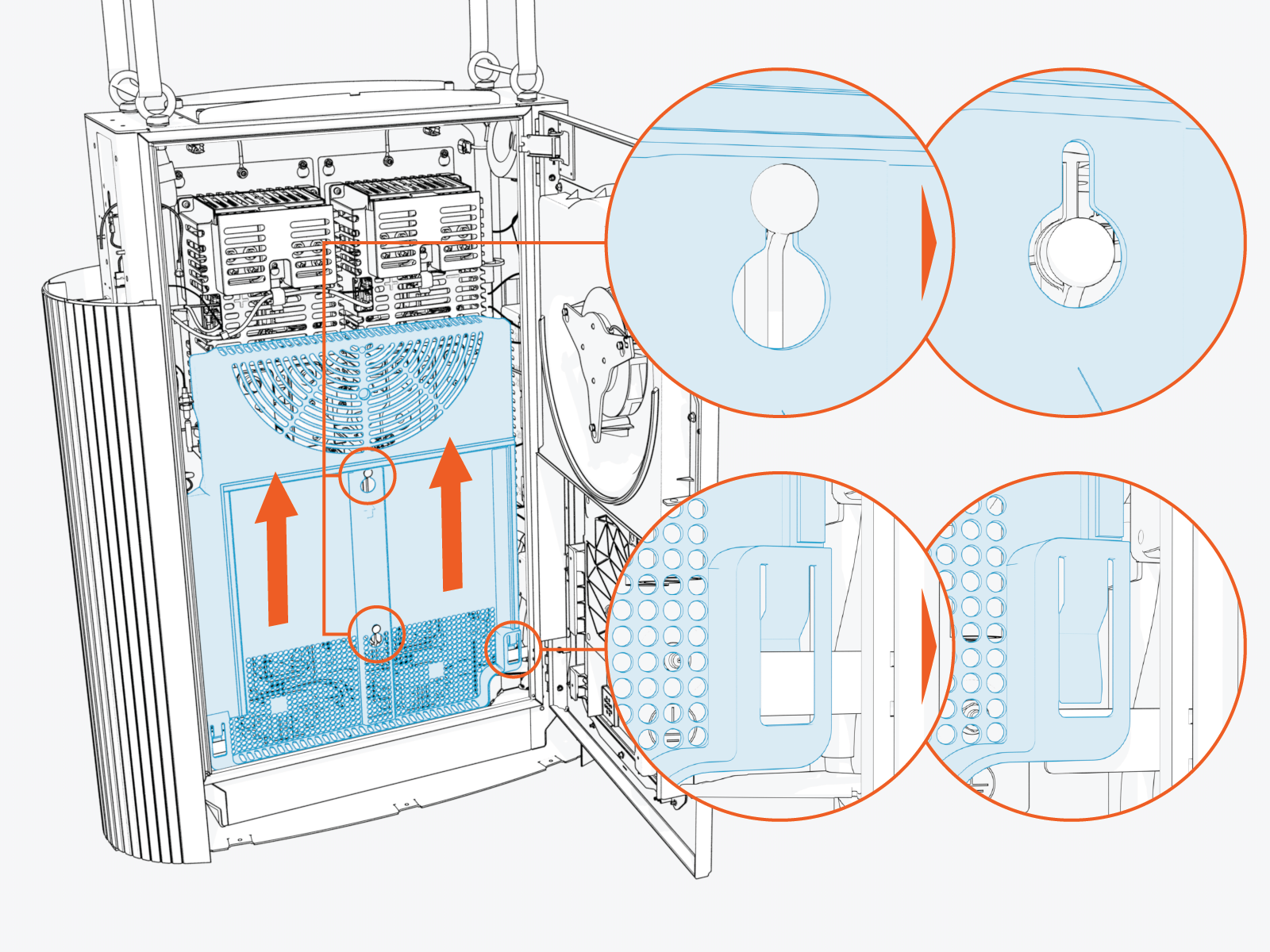
Slide the bus bar safety cover up to remove from hooks (x2) and latches (x2).
Prepare Gland Plate
To prepare the gland plate, complete the following steps:
-
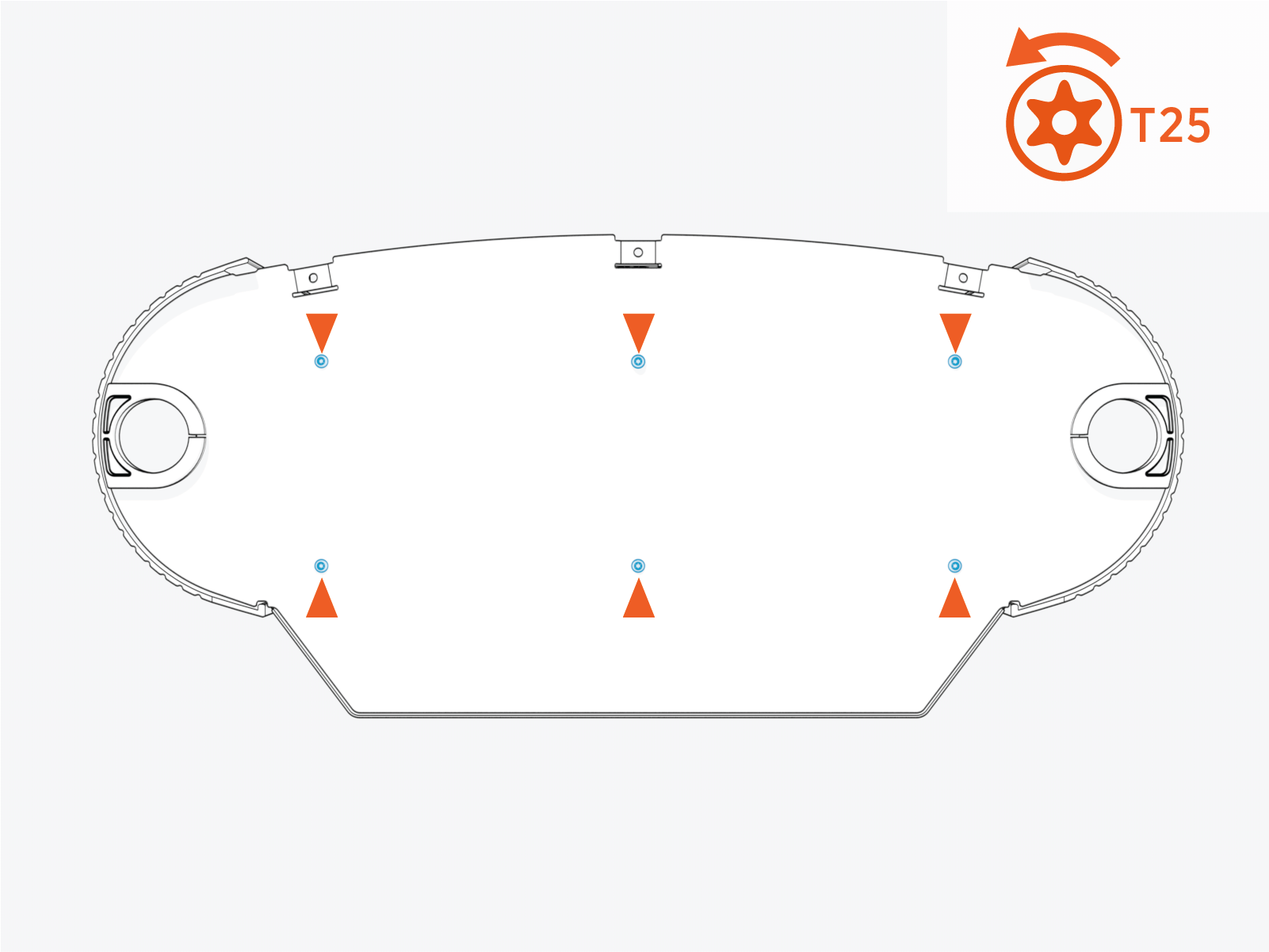
Uninstall the screws (x6) from the Power Link 2000 bottom gland plate. Save screws for later reinstall.
The bottom gland plate may have two charging cable exits (as shown below) or only one charging cable exit, depending on the Power Link 2000 configuration.
-
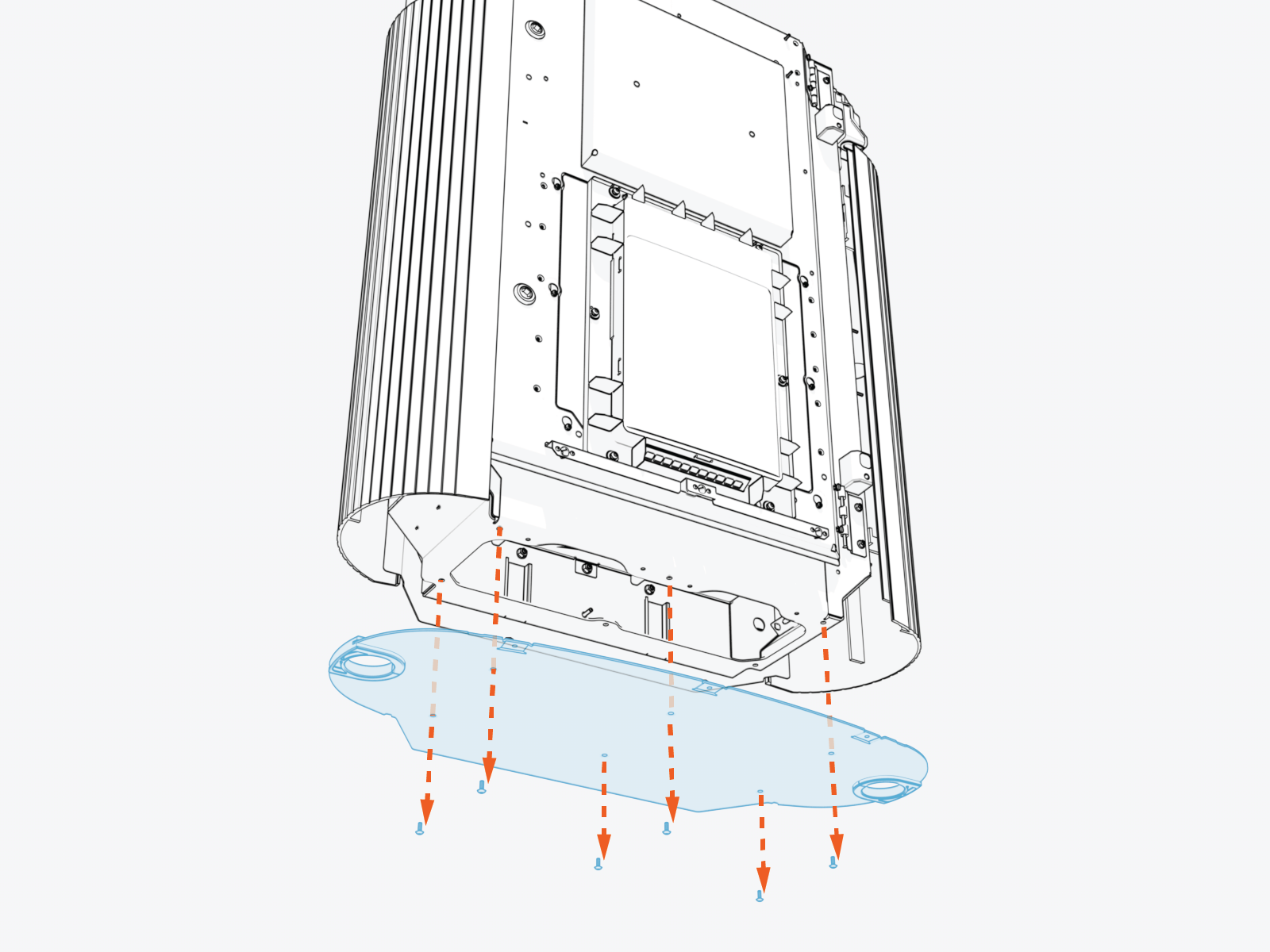
Remove the gland plate.
-
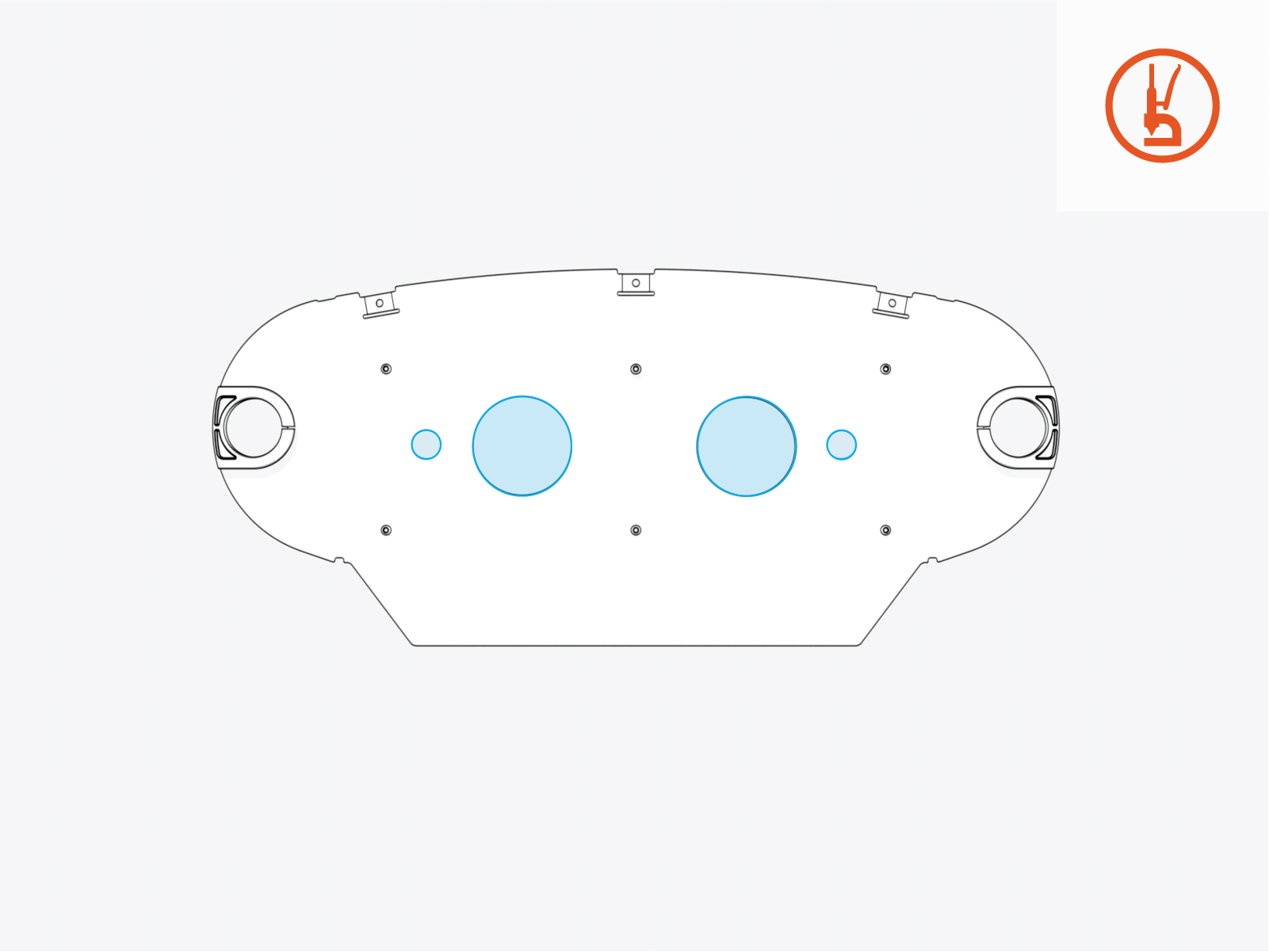
Consult the site plan to confirm the number and size of conduits that will attach to the Power Link 2000 gland plate. Use a hydraulic hole punch to create the needed conduit openings.
Illustrations in this guide depict a sample conduit configuration. Actual configuration will vary by site.
-
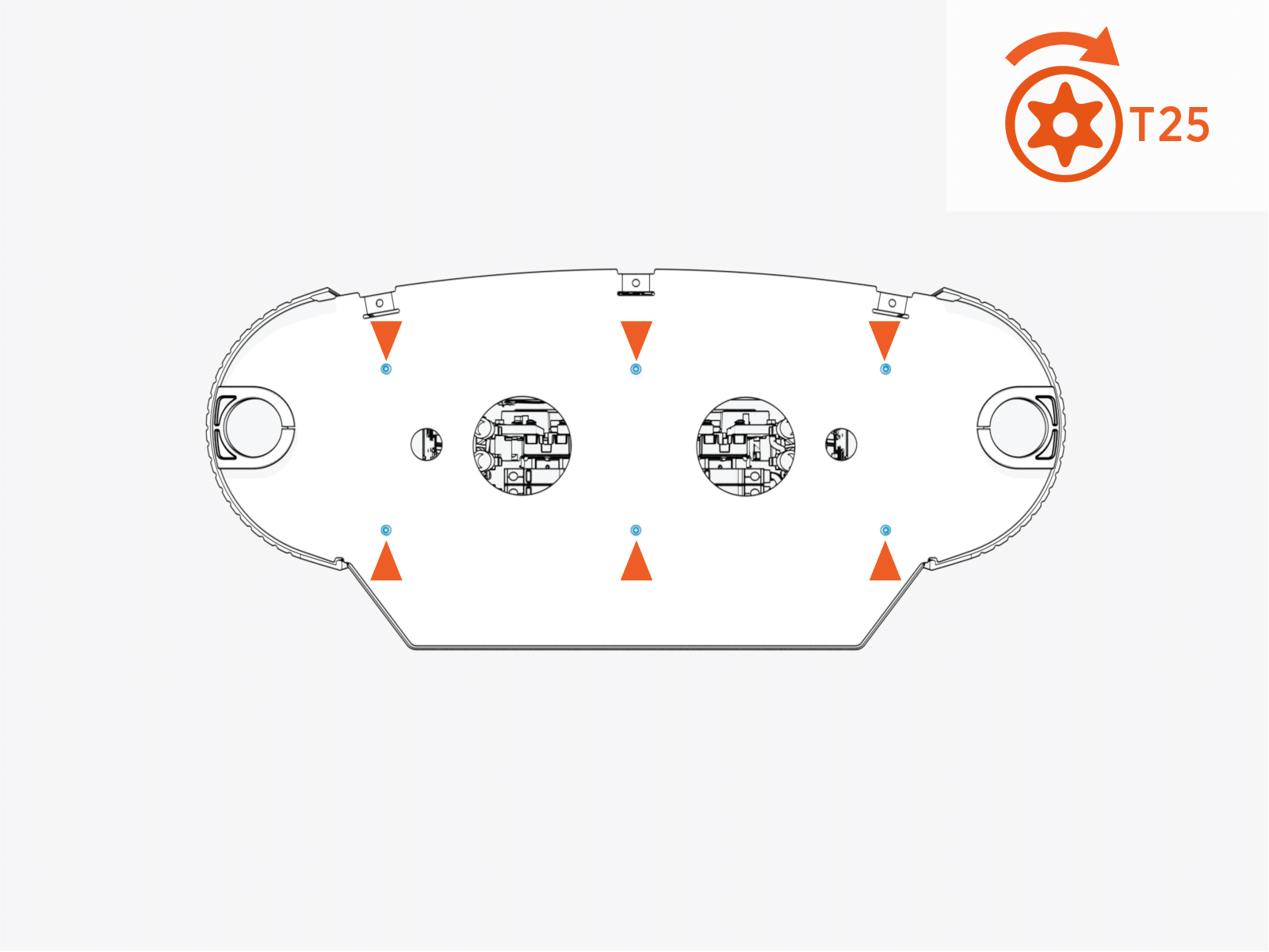
Reinstall the gland plate. Torque screws (x6) to 4.5 Nm (40 in-lb).
Mount Power Link 2000
To mount the Power Link 2000, complete the following steps:
-
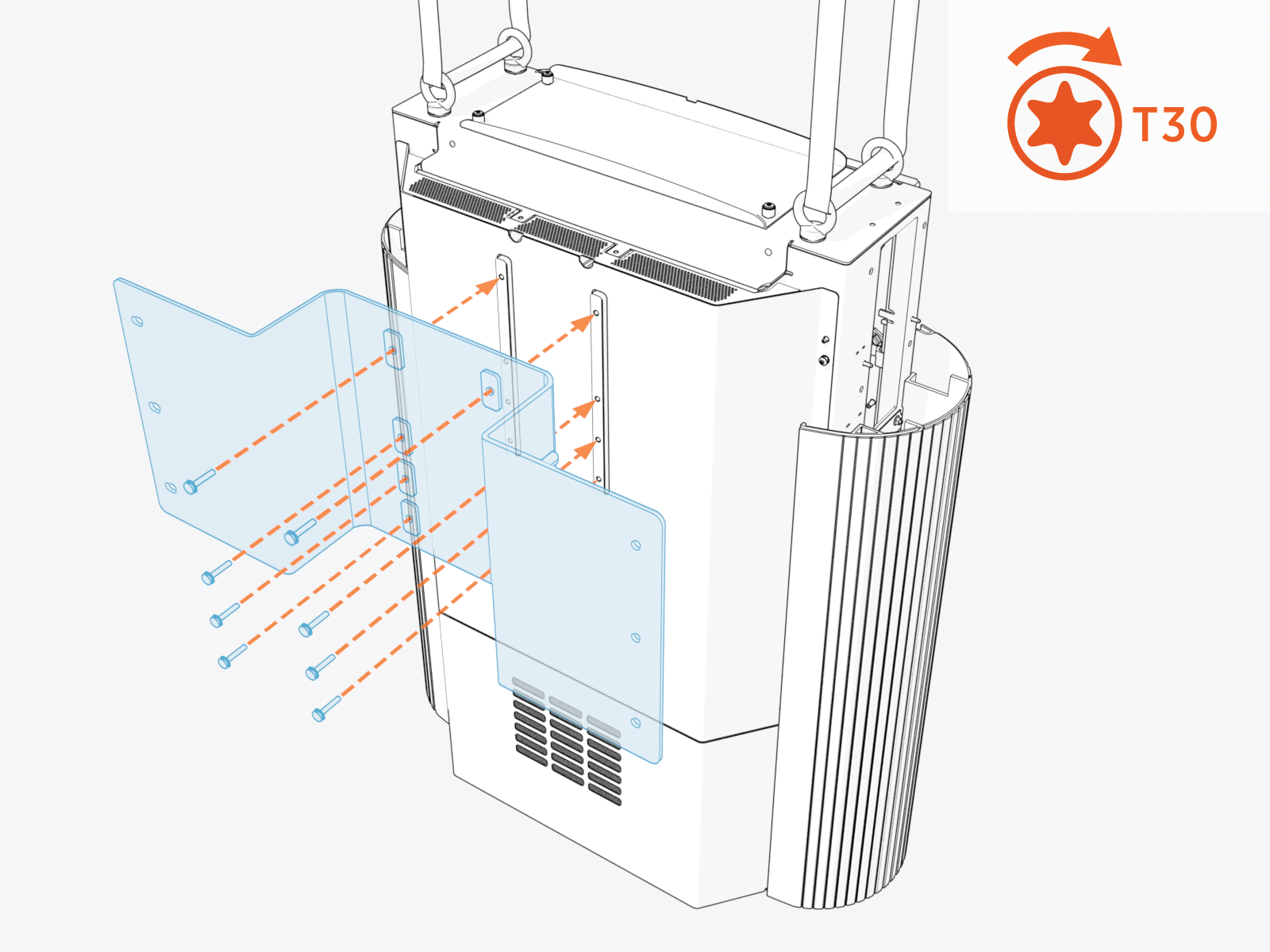
Attach the mounting bracket to the back of the Power Link 2000 with M6 screws (x8). Torque to 5.6 Nm (50 in-lb).
After attaching the bracket, double-check the fasteners to ensure they are torqued to the correct value.
-
If installing the Power Link 2000 in a space where the overhead clearance does not meet the minimum requirement (305 mm or 12 in from top of Power Link 2000), install forklift brackets. See Appendix: Install Forklift Brackets.
-
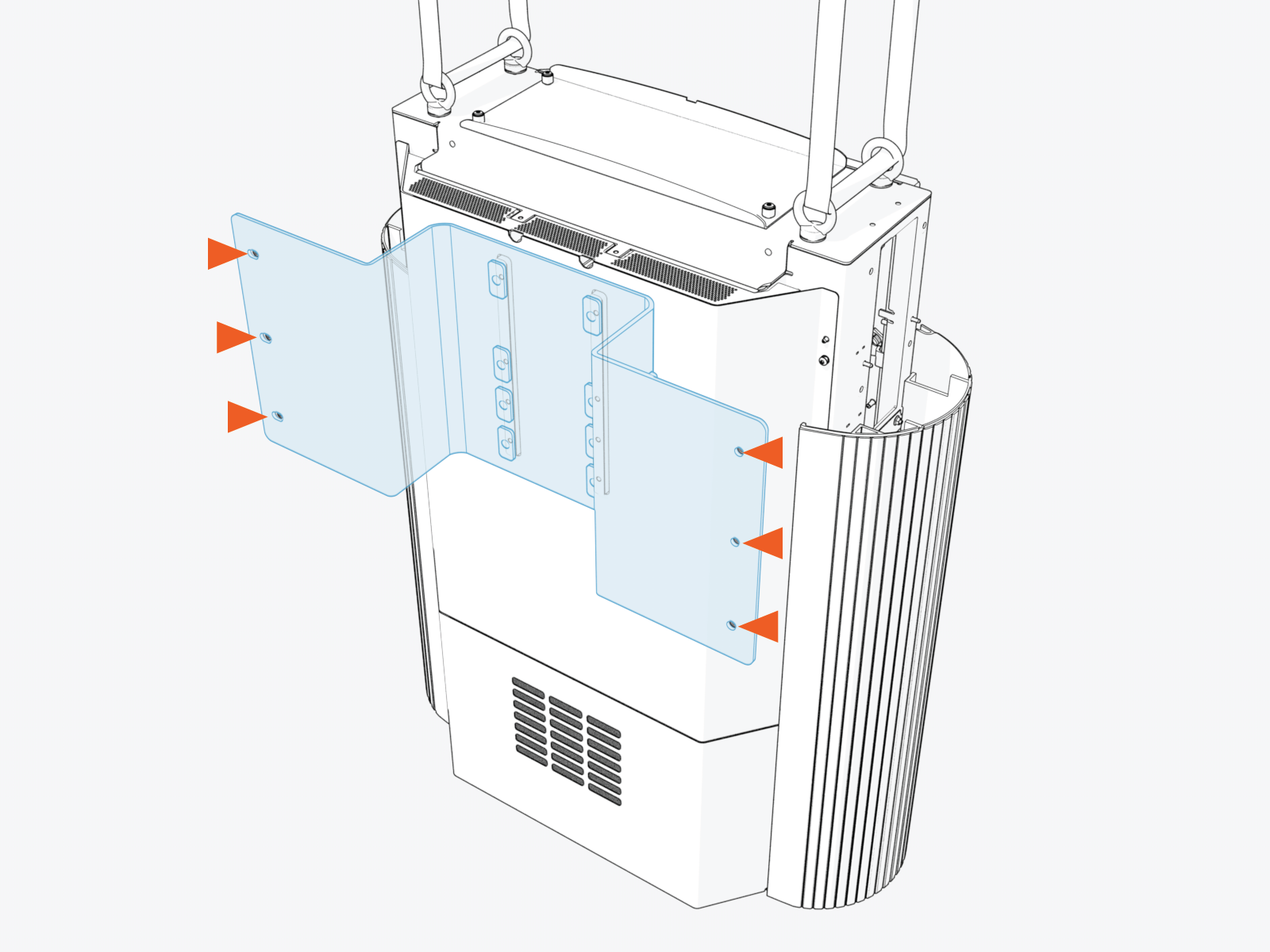
Lift the Power Link 2000 to the installation location and mount the enclosure with fasteners (x6). Use fasteners specified by the site plan. Torque to the specification indicated by the site plan.
Contractor provides the fasteners. Site plans must specify fasteners appropriate for the mounting surface and rated to secure the weight of the Power Link 2000. After mounting the enclosure, double-check the fasteners to ensure they are torqued to the correct value.
-
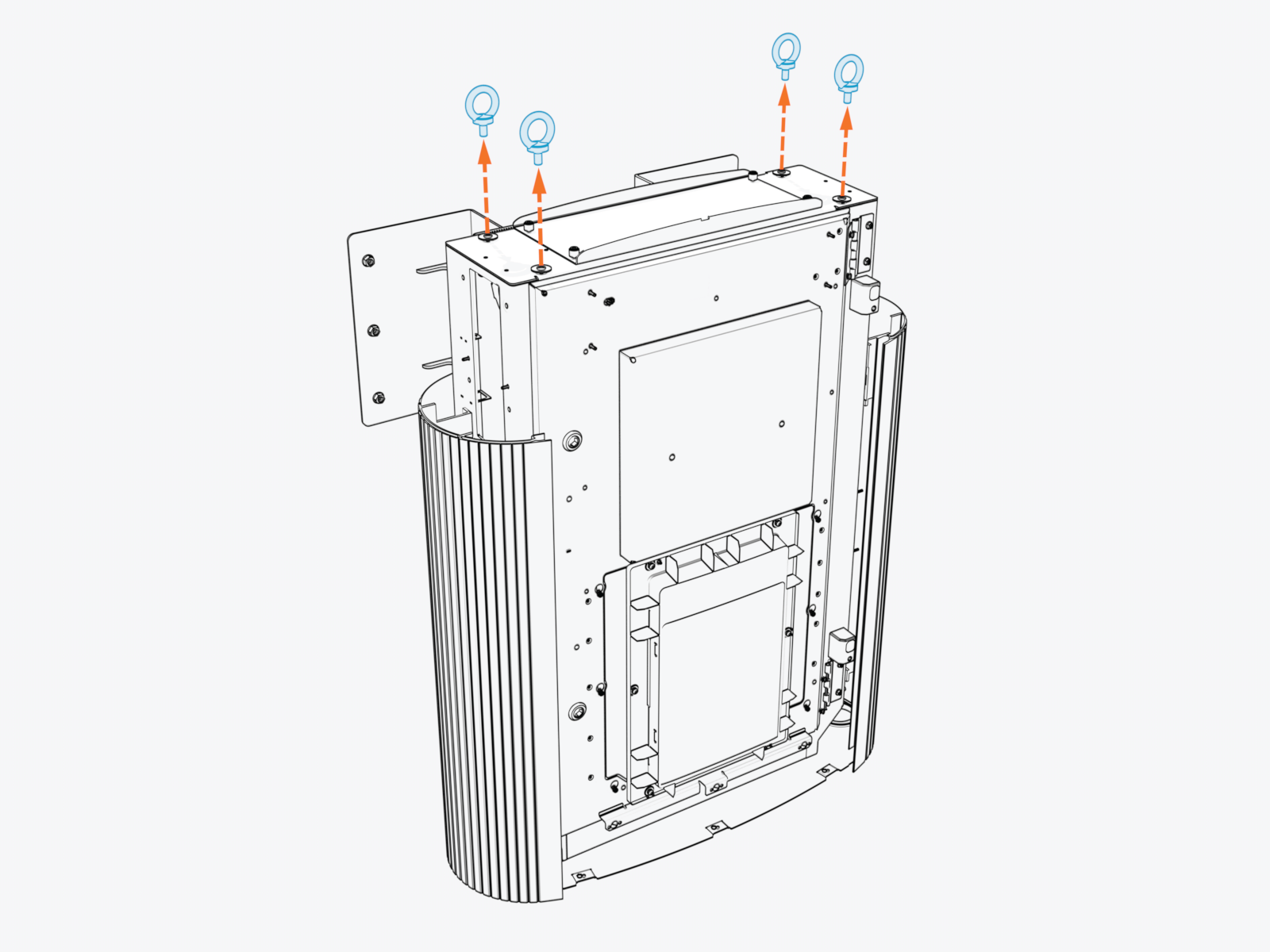
Release the lifting straps and remove the eye bolts (x4) and rubber washers (x4). Use either an adjustable wrench or screwdriver shaft to loosen the eye bolts.
-
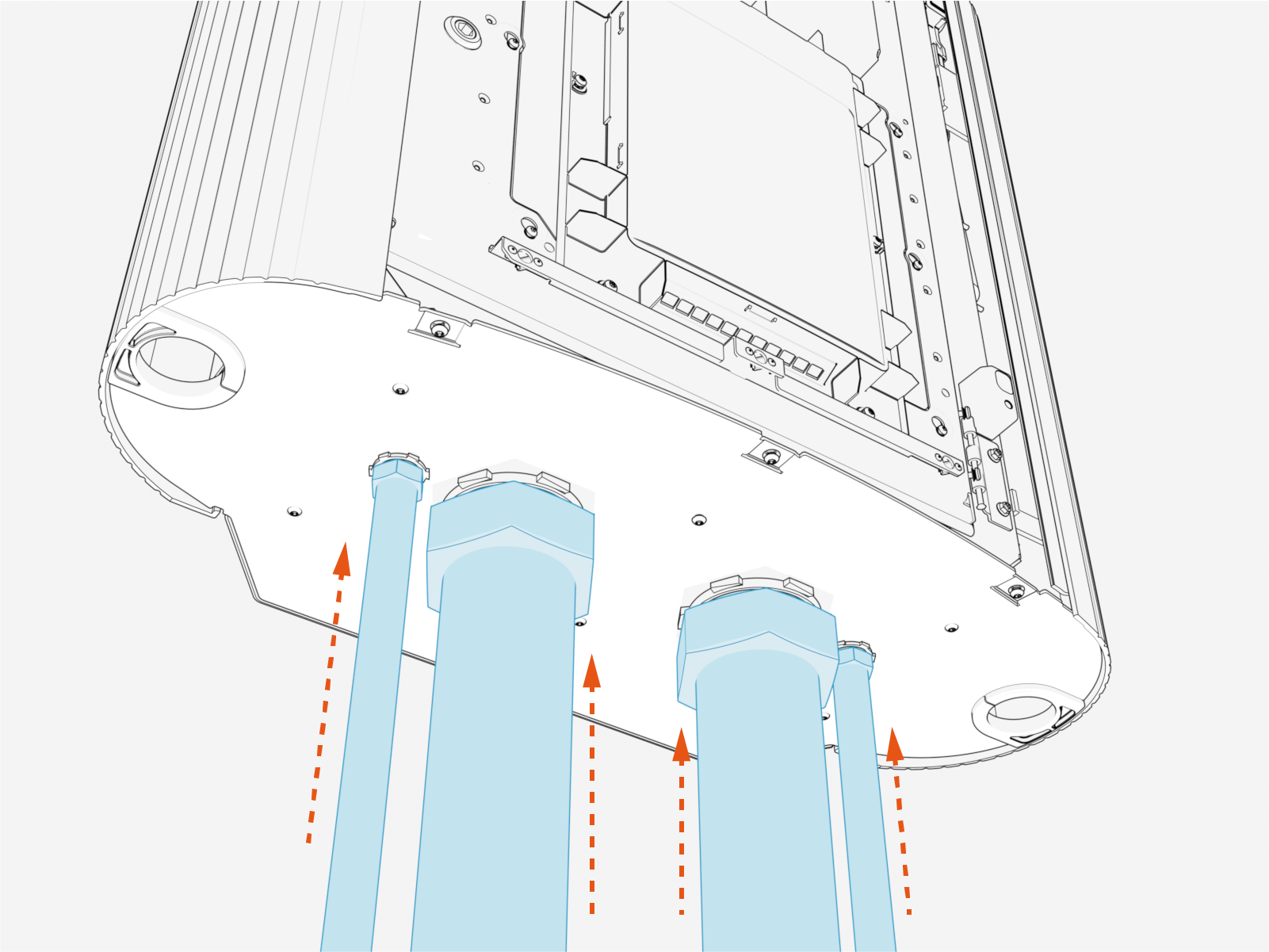
Connect conduits at the bottom gland plate.
Illustrations in this guide depict a sample conduit configuration. Actual configuration will vary by site.
Plan for HV DC Wire Connect
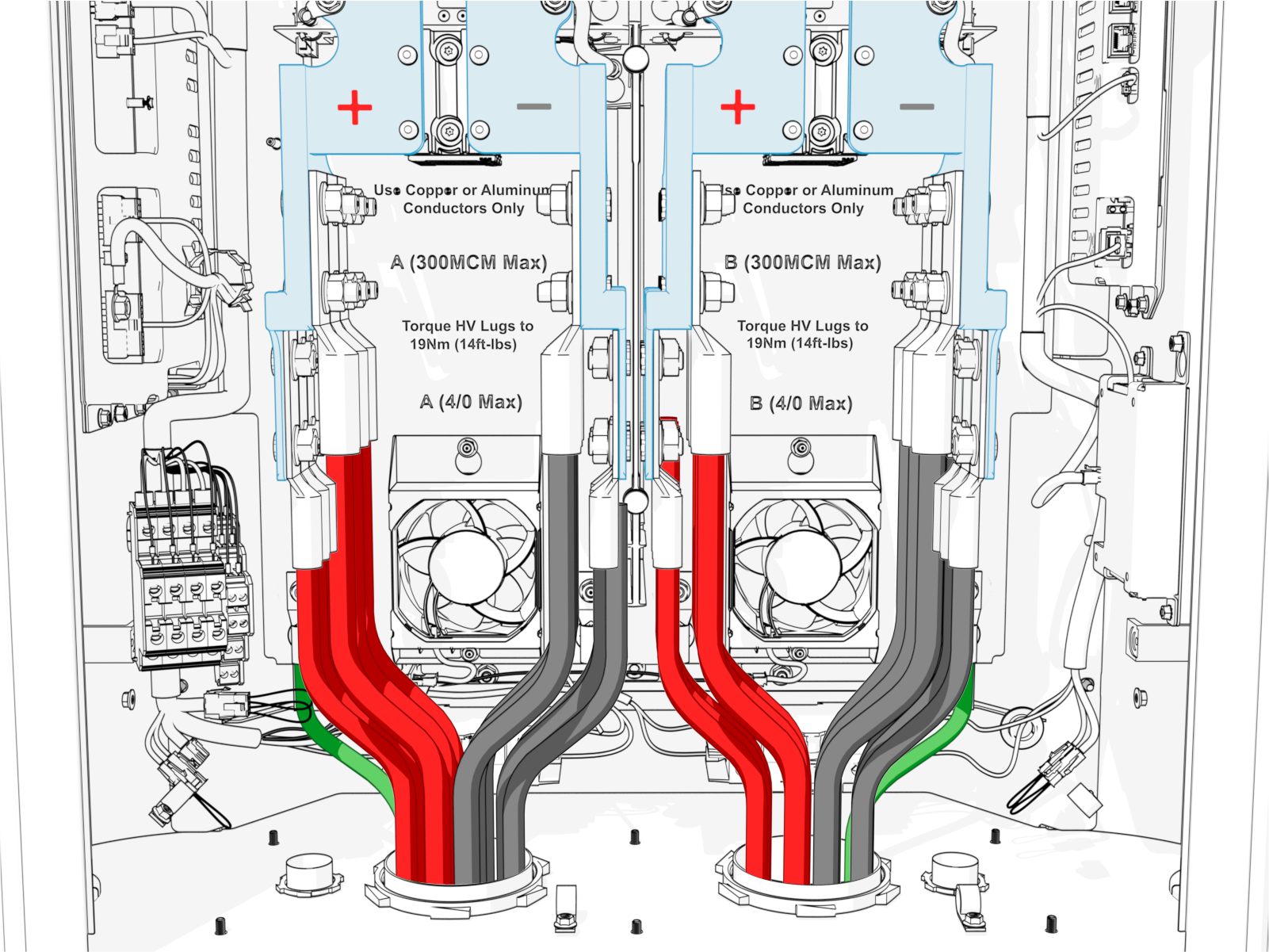
The physical locations for landing HV DC High Voltage Direct Current and high power ground wires are shown below.
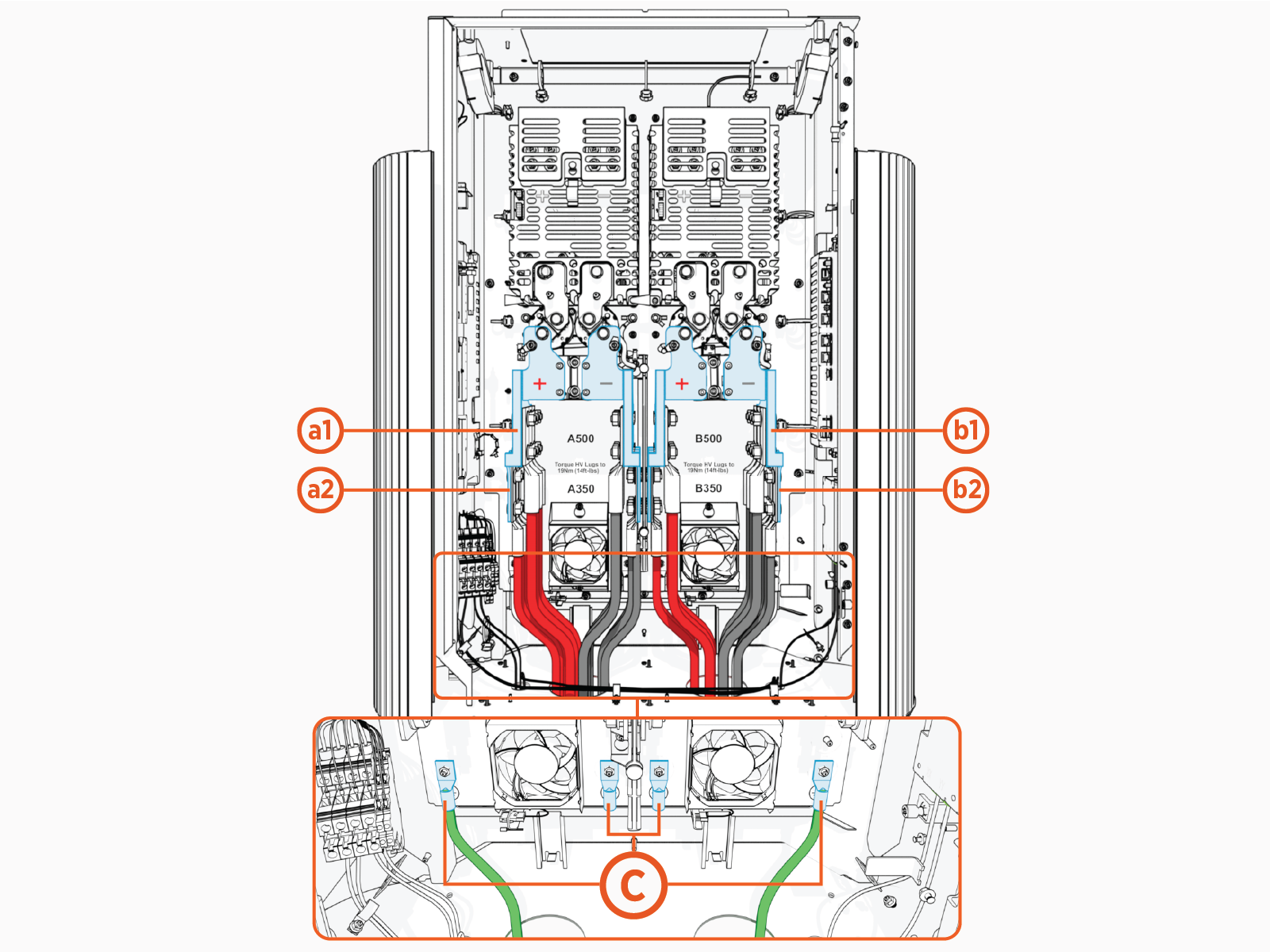
(a1) Path A, upper landing
(a2) Path A, lower landing
(b1) Path B, upper landing
(b2) Path B, lower landing
(c) Ground
Depending on its configuration, a Power Link 2000 will have one or two independent HV DC High Voltage Direct Current power paths, A and B. Power Link 2000 with a single charging cable are configured with Power Path B only.
The Power Block has two HV DC High Voltage Direct Current outputs, also named A and B. Although the Power Link 2000 power paths and Power Block outputs are named alike, it does not mean that Output A of a Power Block must connect to Power Path A of a Power Link 2000. Output A of a Power Block may connect to either Power Path A or B of a Power Link 2000. Likewise, Output B of a Power Block may connect to either Power Path A or B of a Power Link 2000. The A and B designations serve only to identify separate power paths and outputs in each product.
The upper and lower landings may be used to connect a single power path to multiple Express Plus products in an orderly manner. For example:
-
In some Express Plus architectures, a single Power Link 2000 power path receives HV DC
High Voltage Direct Current input from two separate Power Blocks. This may be achieved by connecting wires from one Power Block at one landing level and connecting wires from the other Power Block at the other landing level. -
In some Express Plus architectures, a single Power Link 2000 power path receives HV
High Voltage DC input from a Power Block and also provides HV DC High Voltage Direct Current output to another Power Link 2000. This may be achieved by connecting wires from the Power Block at one landing level and connecting wires going to the other Power Link 2000 at the other landing level.
How exactly to make connections within a cluster of Power Block(s) and Power Link 2000(s) is determined by the Express Plus architecture chosen for the site. Use the site plan single line diagram to understand and plan how to land the HV DC High Voltage Direct Current wires on the Power Link 2000 terminals. If you require further assistance in this matter, go to chargepoint.com/support and find your region’s technical support number.
Pull, Cut, and Connect Wires
To pull, cut and connect wires, complete the following steps:
HV DC Wires
-
Label the HV
High Voltage DC and high power ground wires at both ends. -
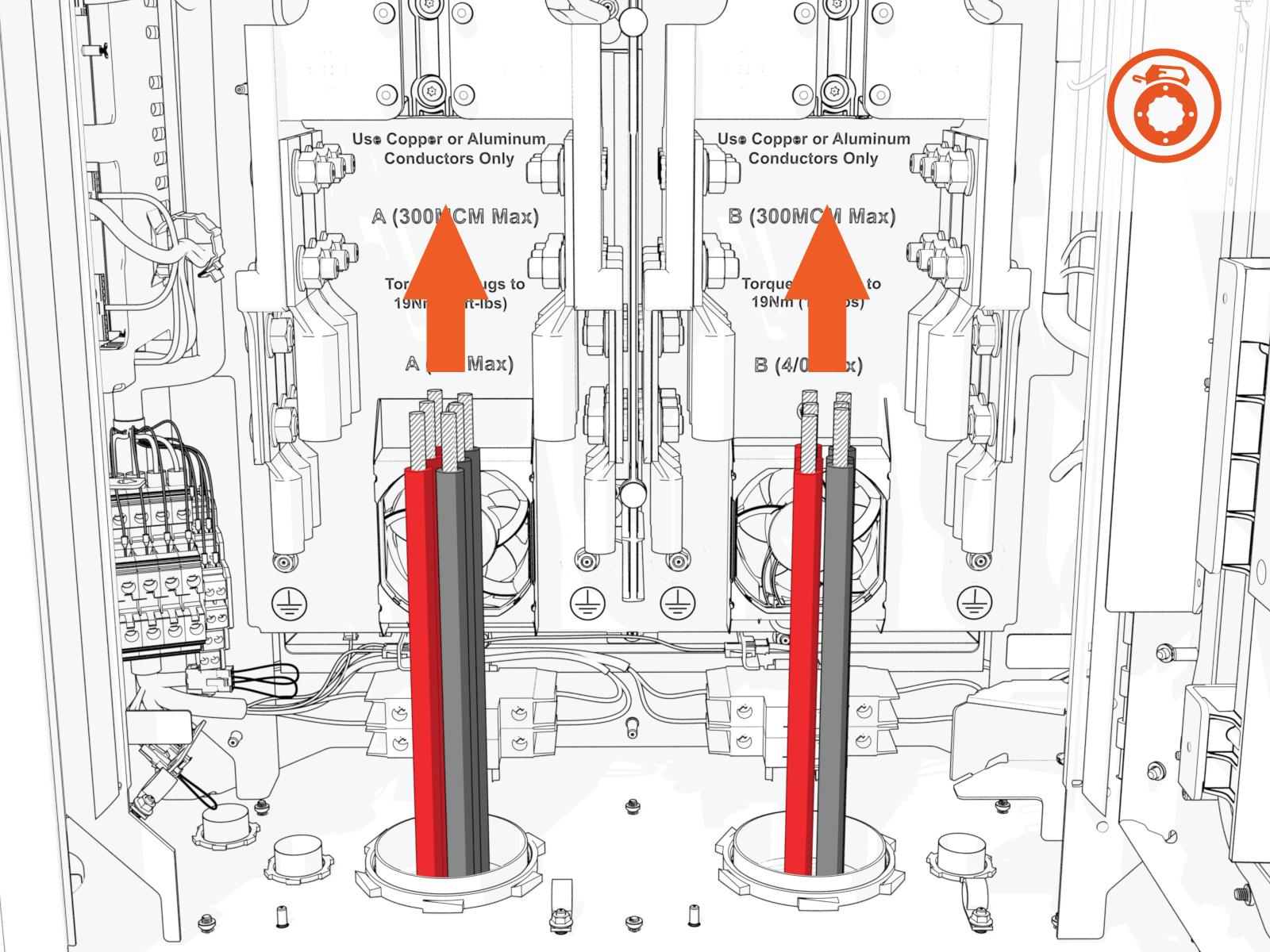
Pull wires through the conduits. See How to Pull HV DC Wires.
-
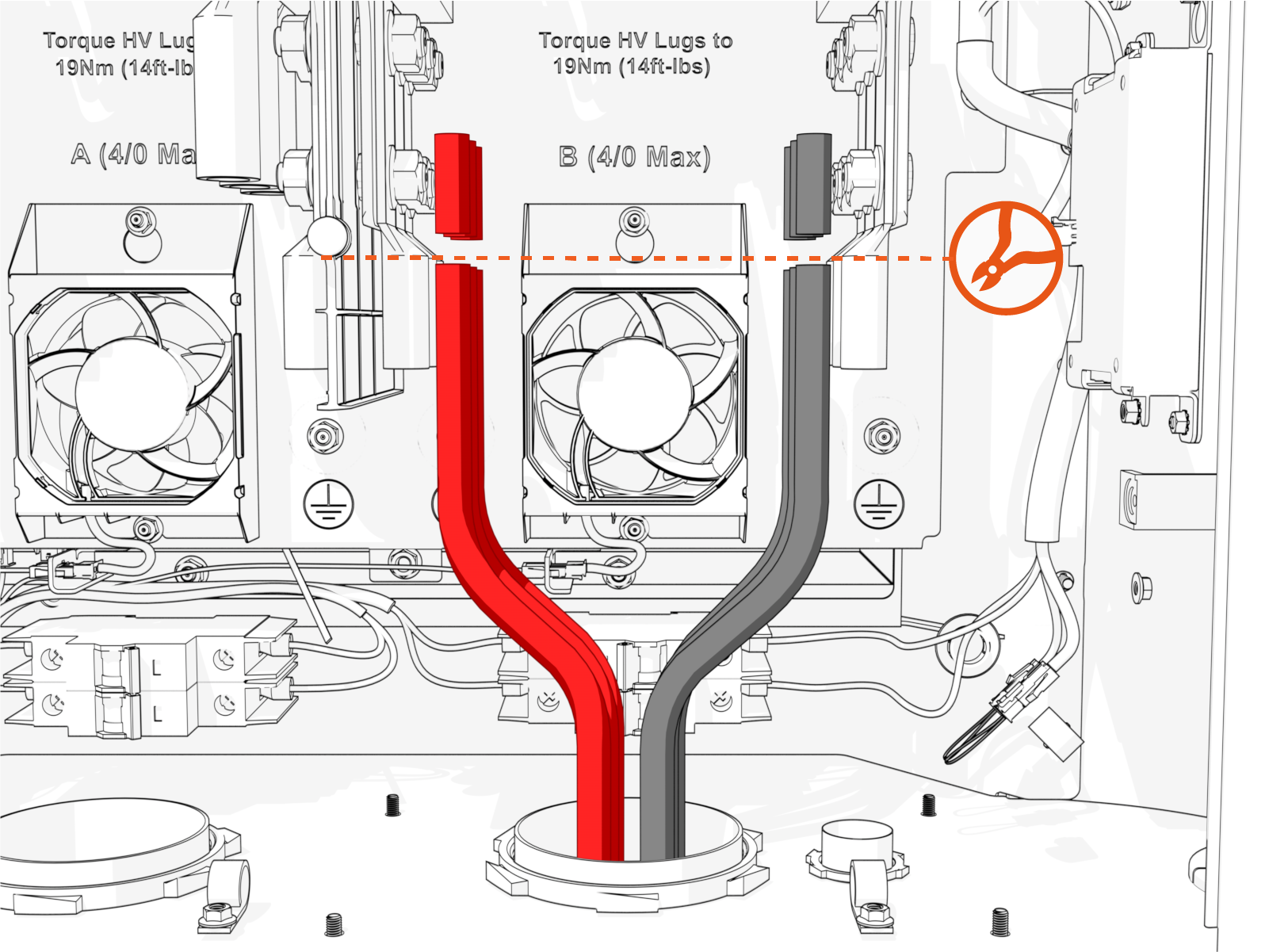
Arrange wires so they reach the landings with as little bend as possible. Cut wires to length, taking into account the terminating lug length.
-
Perform insulation resistance test on the HV DC
High Voltage Direct Current wires. Refer to the Express Plus High Voltage Wire Insulation Resistance Test Field Guide. -
Connect the HV DC
High Voltage Direct Current wires at the landings. See How to Connect HV DC and Ground Wires.Connect wires starting at the ground studs and lower landings first. Installing wires on the upper landings restricts access to lower areas.
Connect wires starting at ground studs and lower landings.
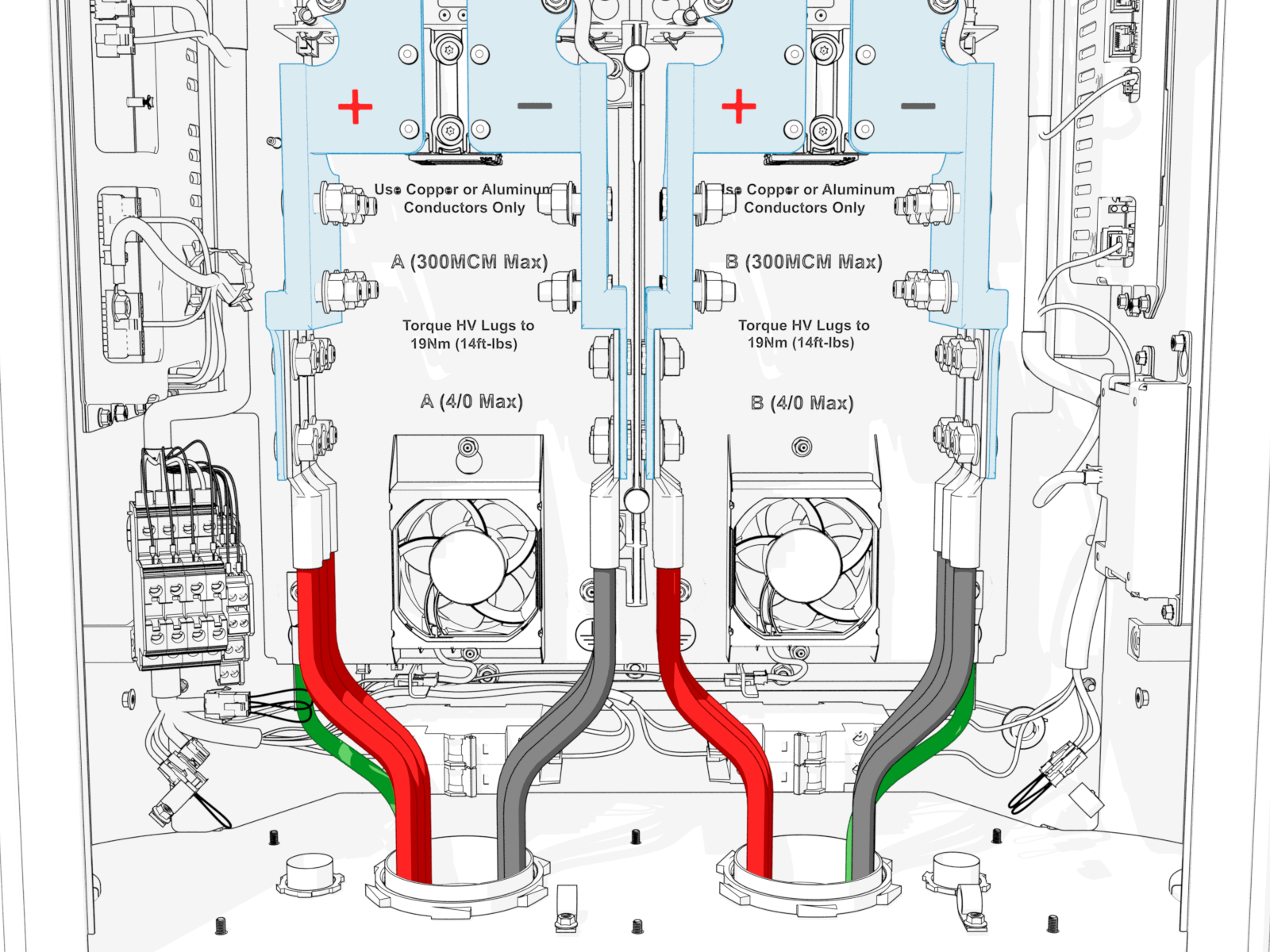
Then connect wires at upper landings.
LV DC and Ethernet Wires
-
Label the LV
Low Voltage DC and Ethernet wires at both ends. -
Pull the LV DC
Low Voltage Direct Current wires and Ethernet cables through the conduits.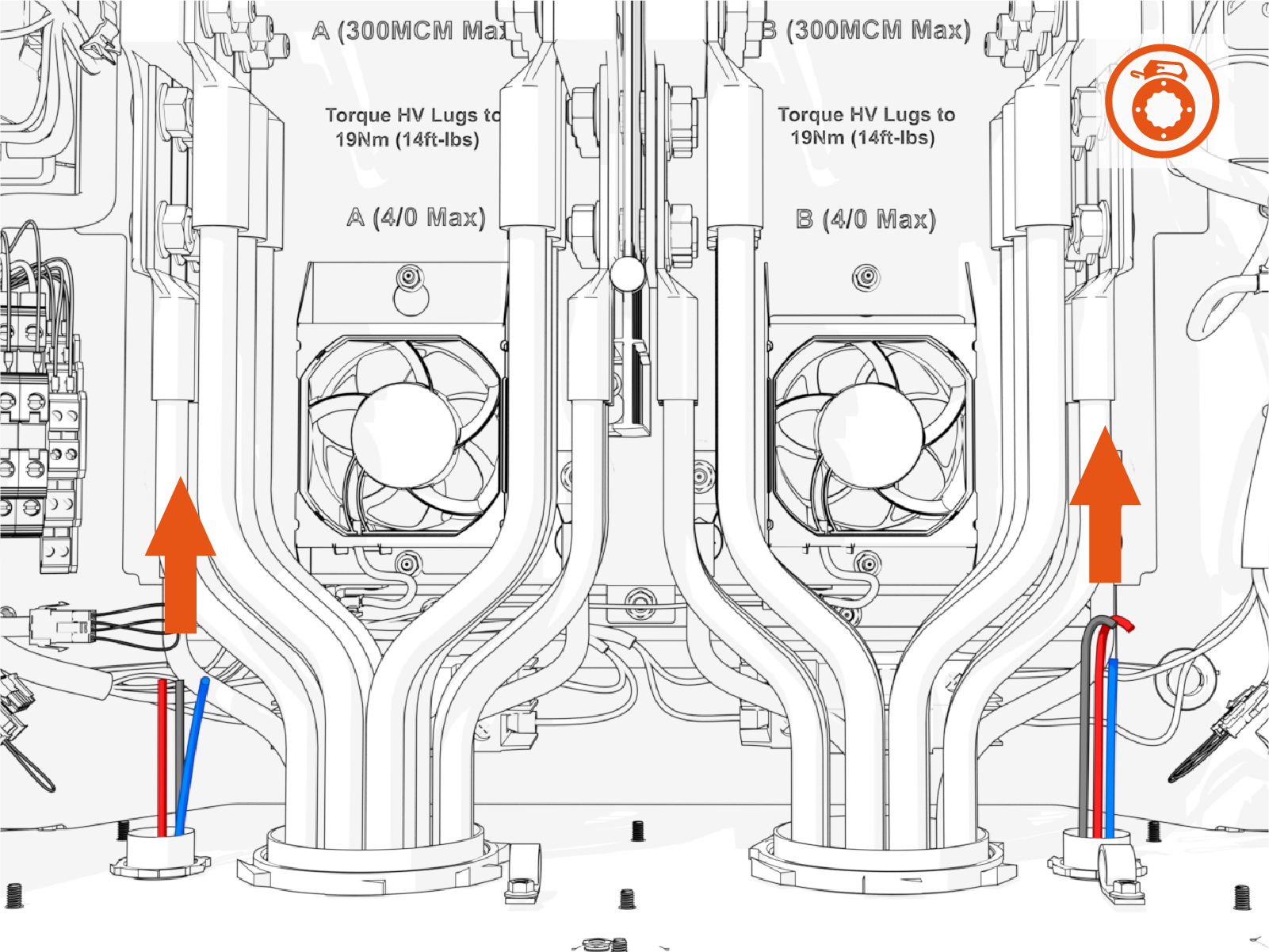
-
Connect the LV DC
Low Voltage Direct Current wires and Ethernet cables. See How to Connect LV DC and Ethernet Wires.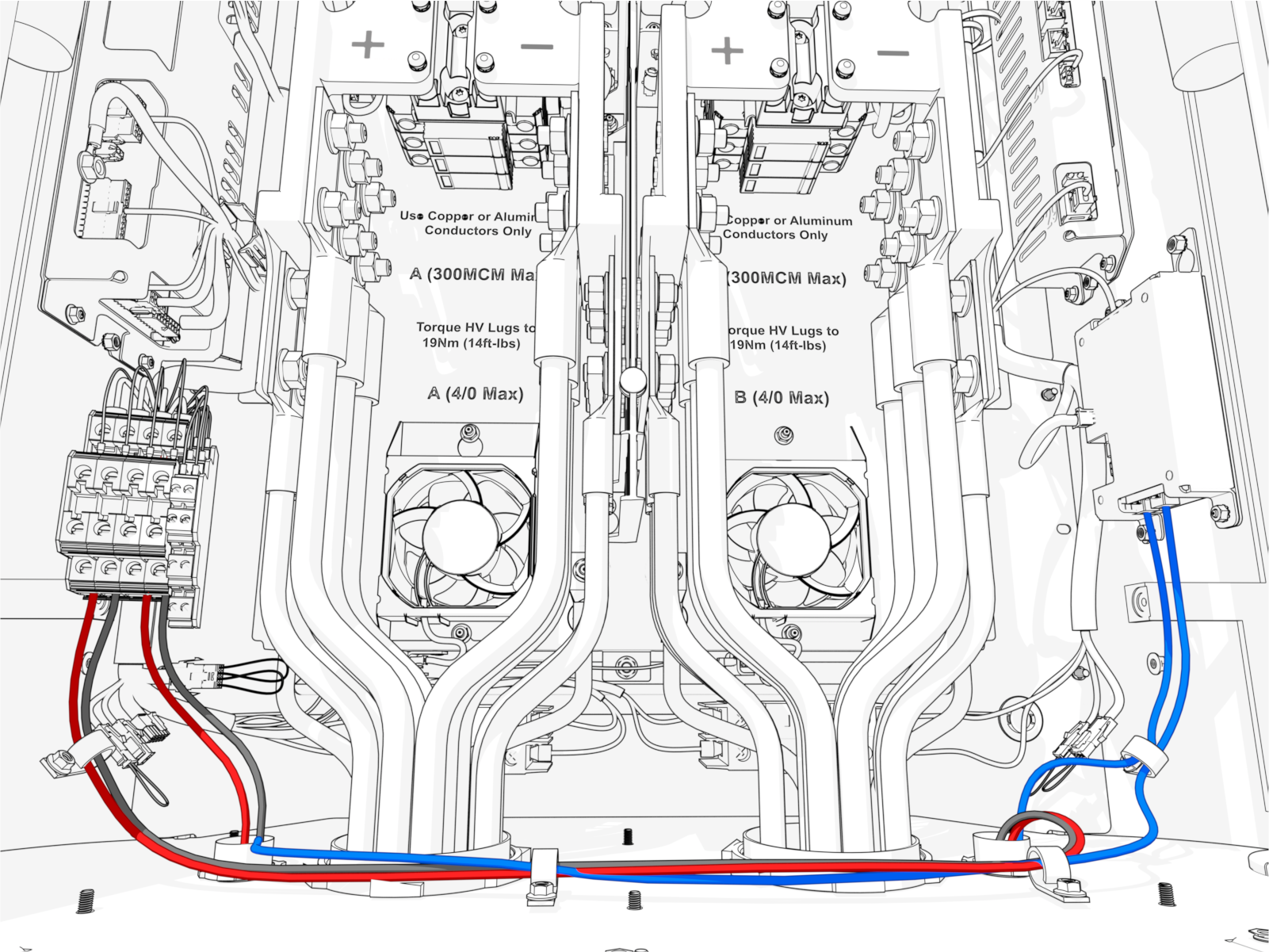
How to Pull HV DC Wires
To pull HV DC High Voltage Direct Current wires, complete the following steps:
-
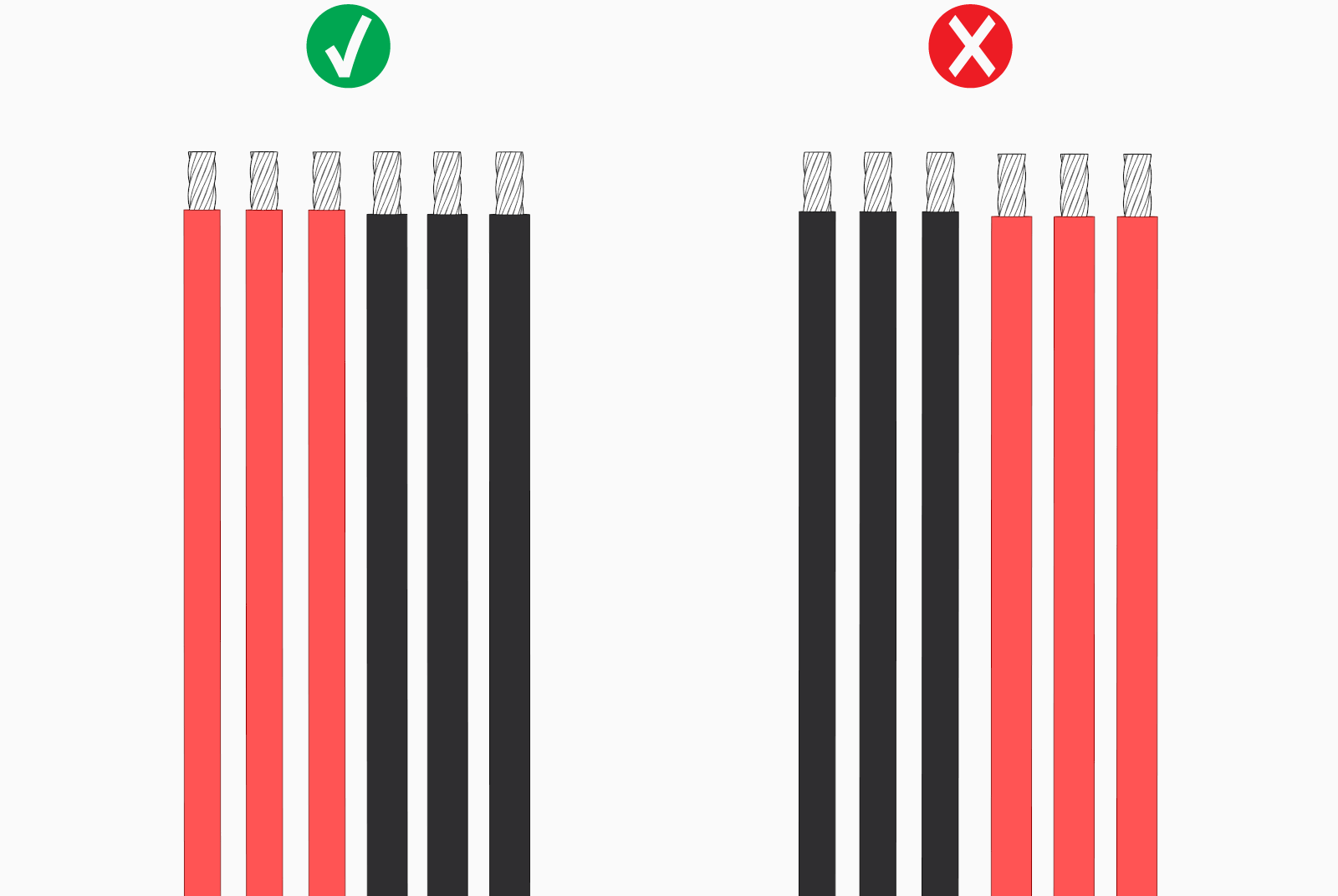
Arrange wires such that the positive wires (red) arrive on the left side and negative wires (black) arrive on the right side within the Power Link 2000. This arrangement will help you land wires on their respective poles.
-
If necessary, apply a non-conductive wire pulling lubricant.
-
Pull the wires.
-
Wipe off any remains of wire pulling lubricant if applied.
How to Connect HV DC and Ground Wires
To connect HV DC High Voltage Direct Current ground wires, follow the instructions below:
Before you begin, make note of the following:
-
See Wires and Terminations Required for Site for the wire and lug specifications.
-
Make sure no bare conductor is exposed below the lug's barrel. If necessary, heat shrink or tape the exposed area to meet the local code requirements.
-
Wipe off any remains of wire pulling lubricant if applied.
Prepare HV DC Wires
To prepare HV DC High Voltage Direct Current wires, complete the following steps:
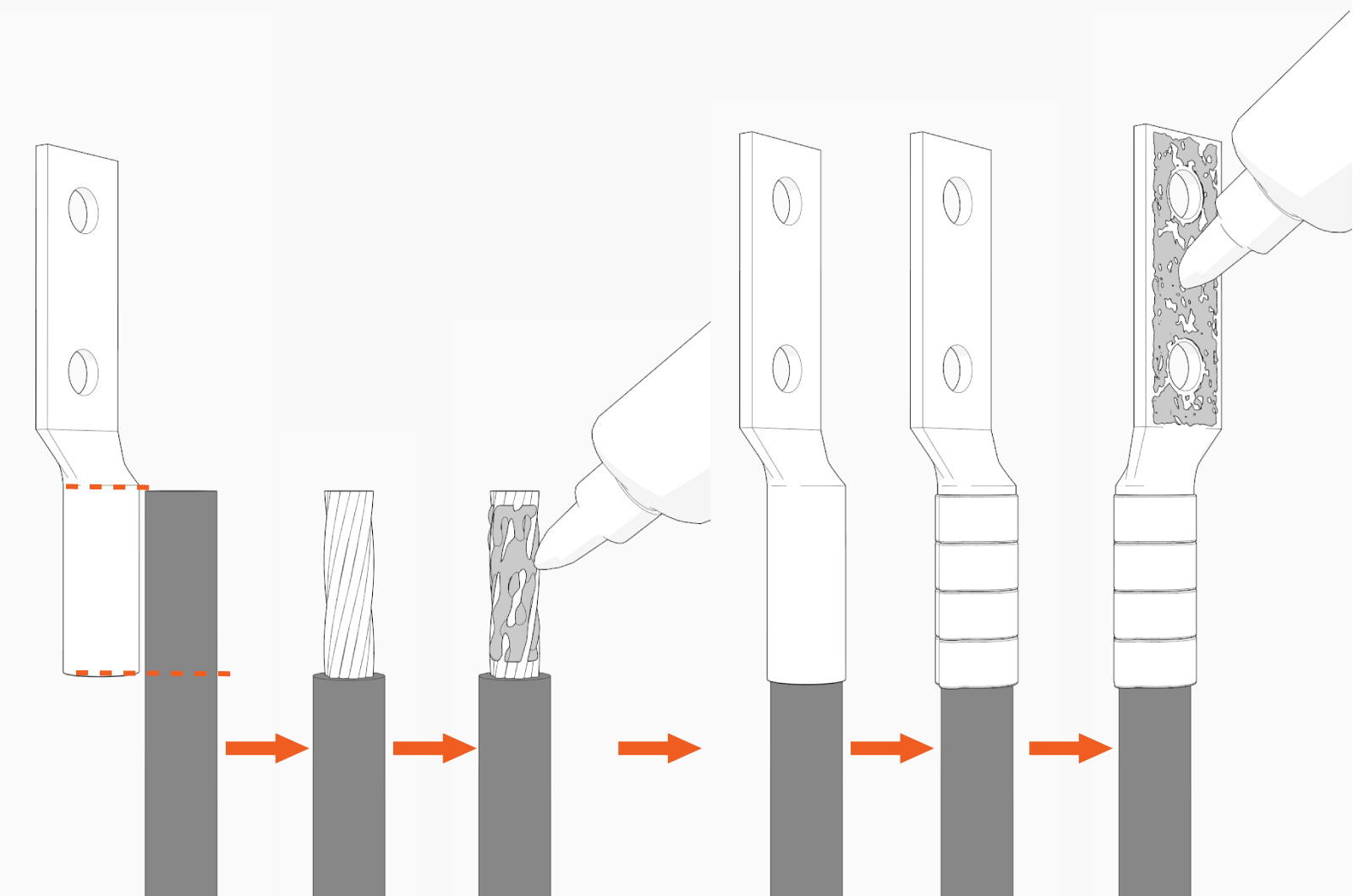
-
Mark the lug's barrel height on the wire terminal.
-
Strip the jacket on the marked terminal. Use a suitable wire stripper, such as Klein tool.
-
If recommended by the wire manufacturer or local code, apply an anti-oxidant joint compound to the stripped wire material to make a gastight joint with the lug.
-
Insert the stripped terminal into the lug's barrel and crimp it. Use a suitable lug crimping tool and/or die recommended by the lug manufacturer.
-
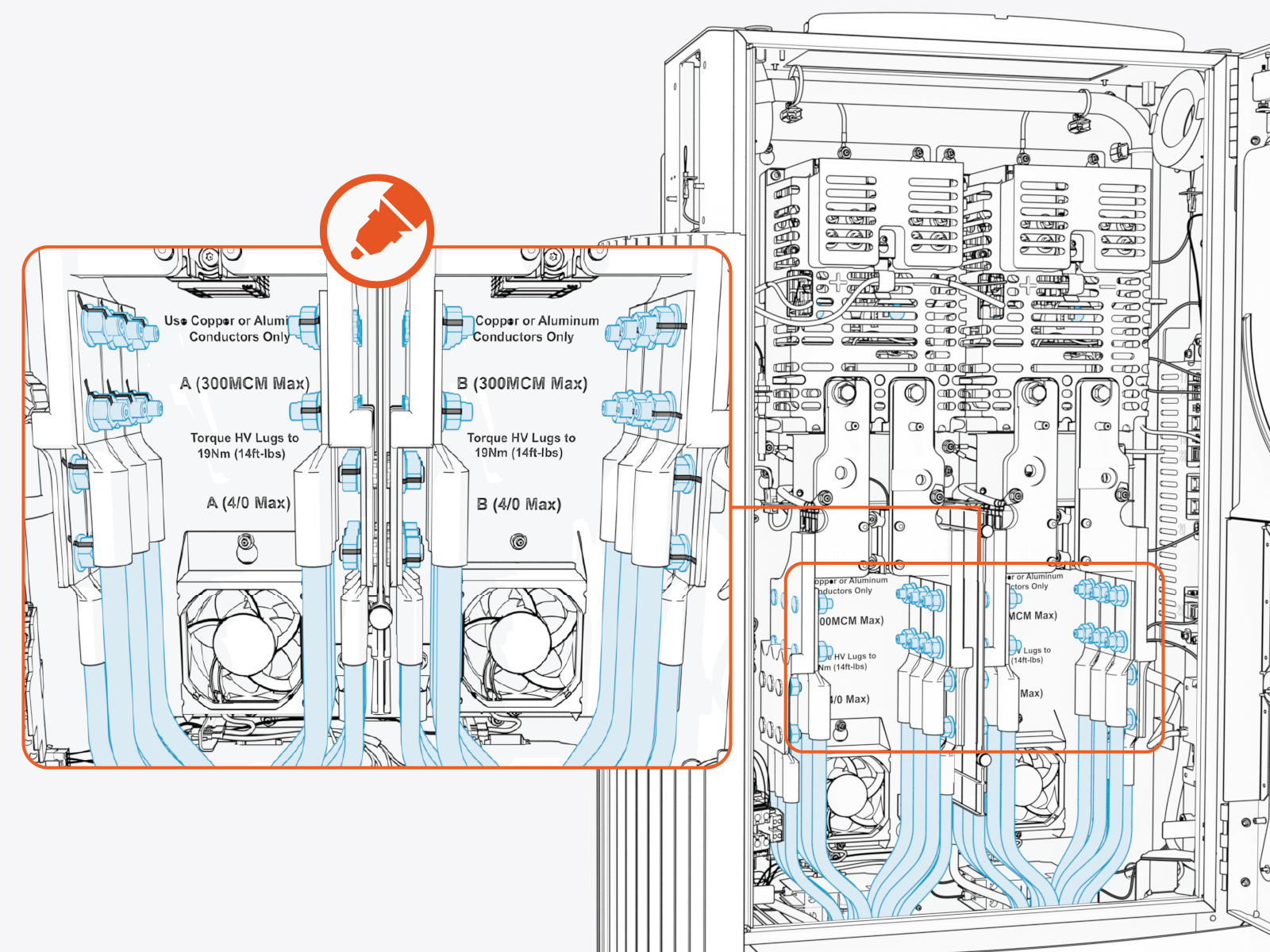
Apply dielectric grease to the lug's tongue surface that comes in contact with the bus bars.
Connect HV DC Wires
To connect HV DC High Voltage Direct Current wires, complete the following steps:
-
Identify the location for landing one HV DC
High Voltage Direct Current wire. See Plan for HV DC Wire Connect for the wire landing locations.
-
Remove lug nuts.
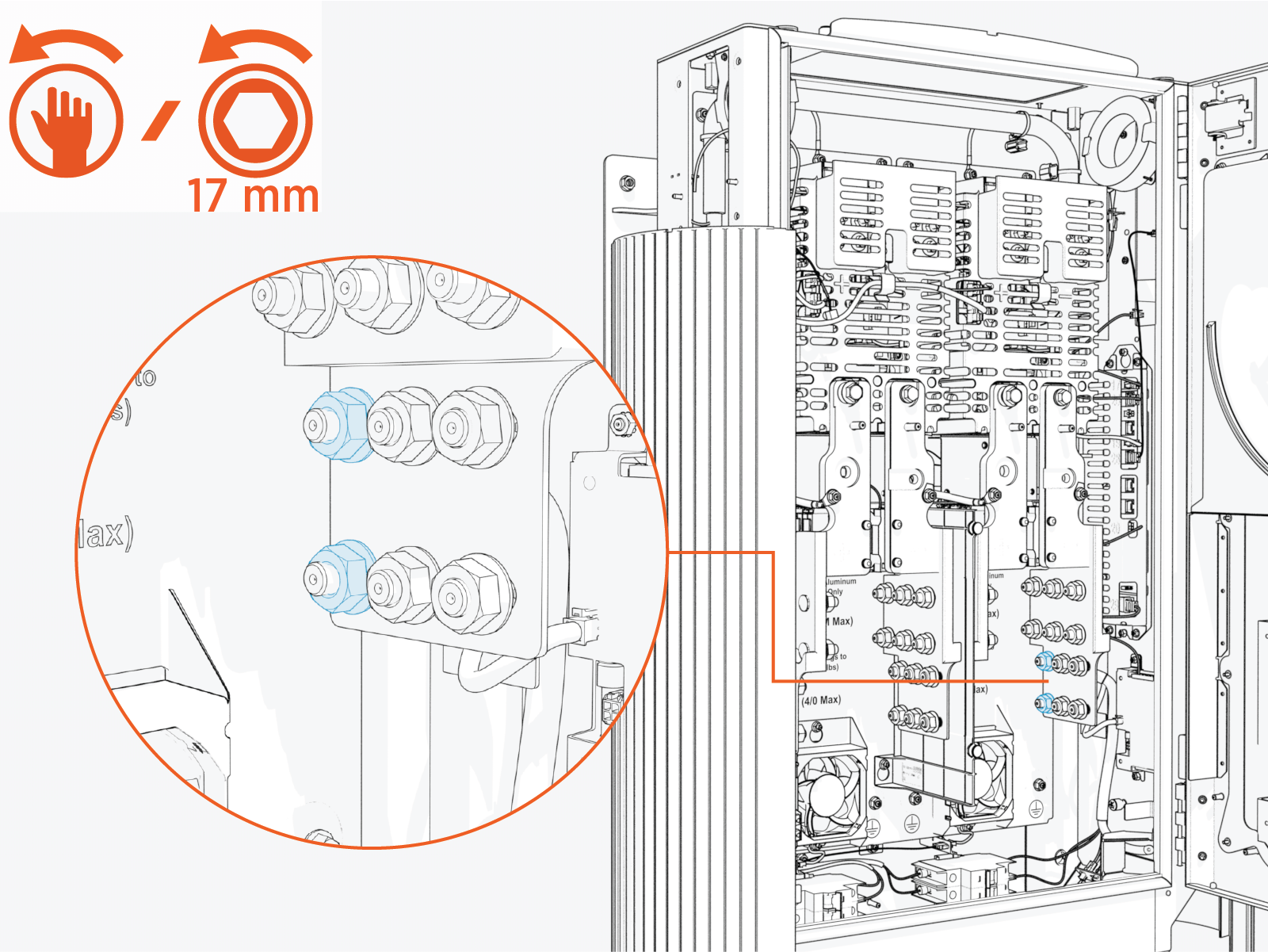
-
Install the prepared wire onto the studs (see Prepare HV DC Wires).
When connecting the HV DC
High Voltage Direct Current input wires, install the red (+) wire's lug onto the bus bars' positive (+) pole and black (-) wire's lug onto the bus bars' negative (-) pole.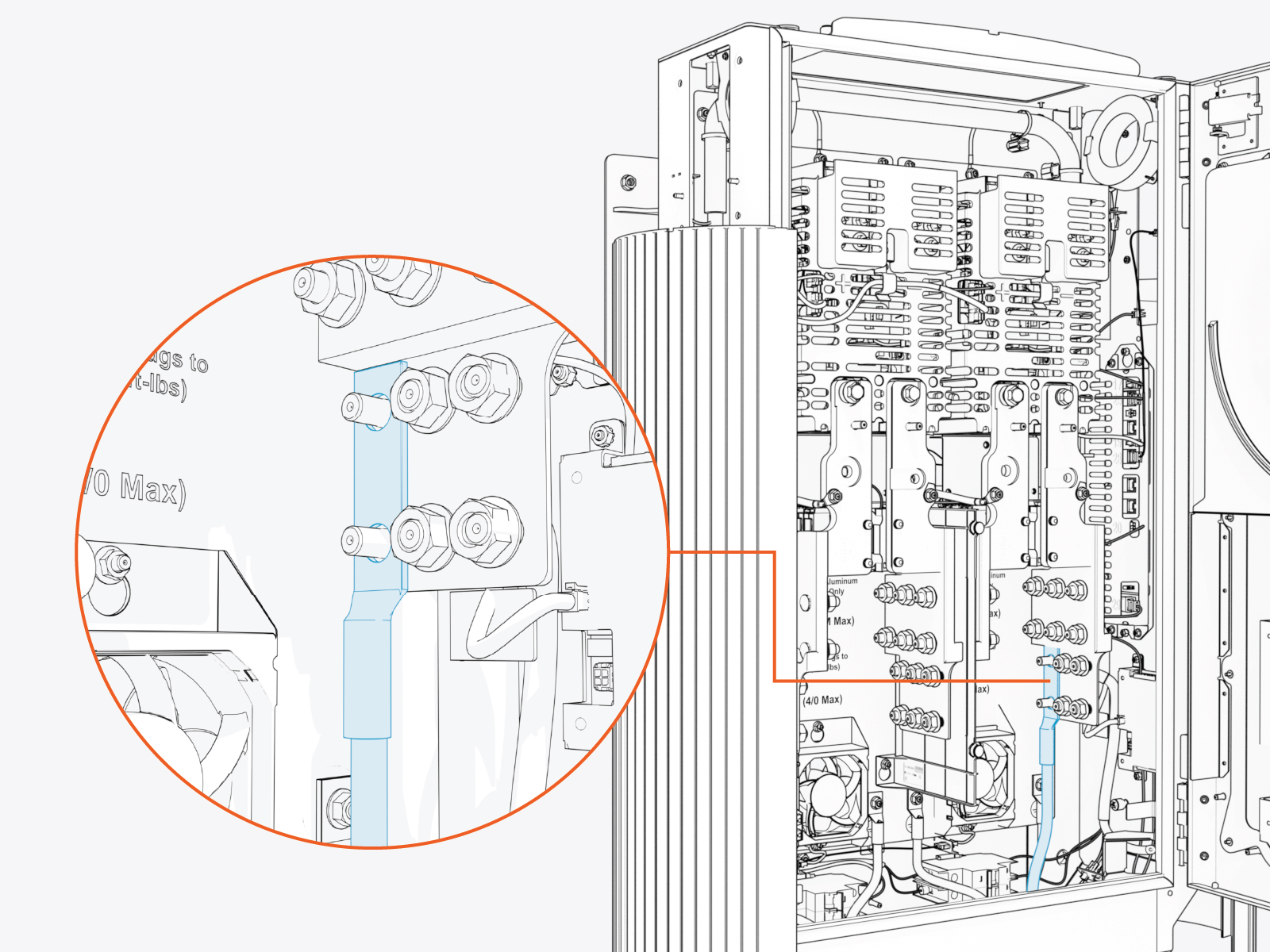
-
Reinstall the lug nuts and torque them.
Torque the HV DC
High Voltage Direct Current input wire lug nuts to 19 Nm (14 ft-lb).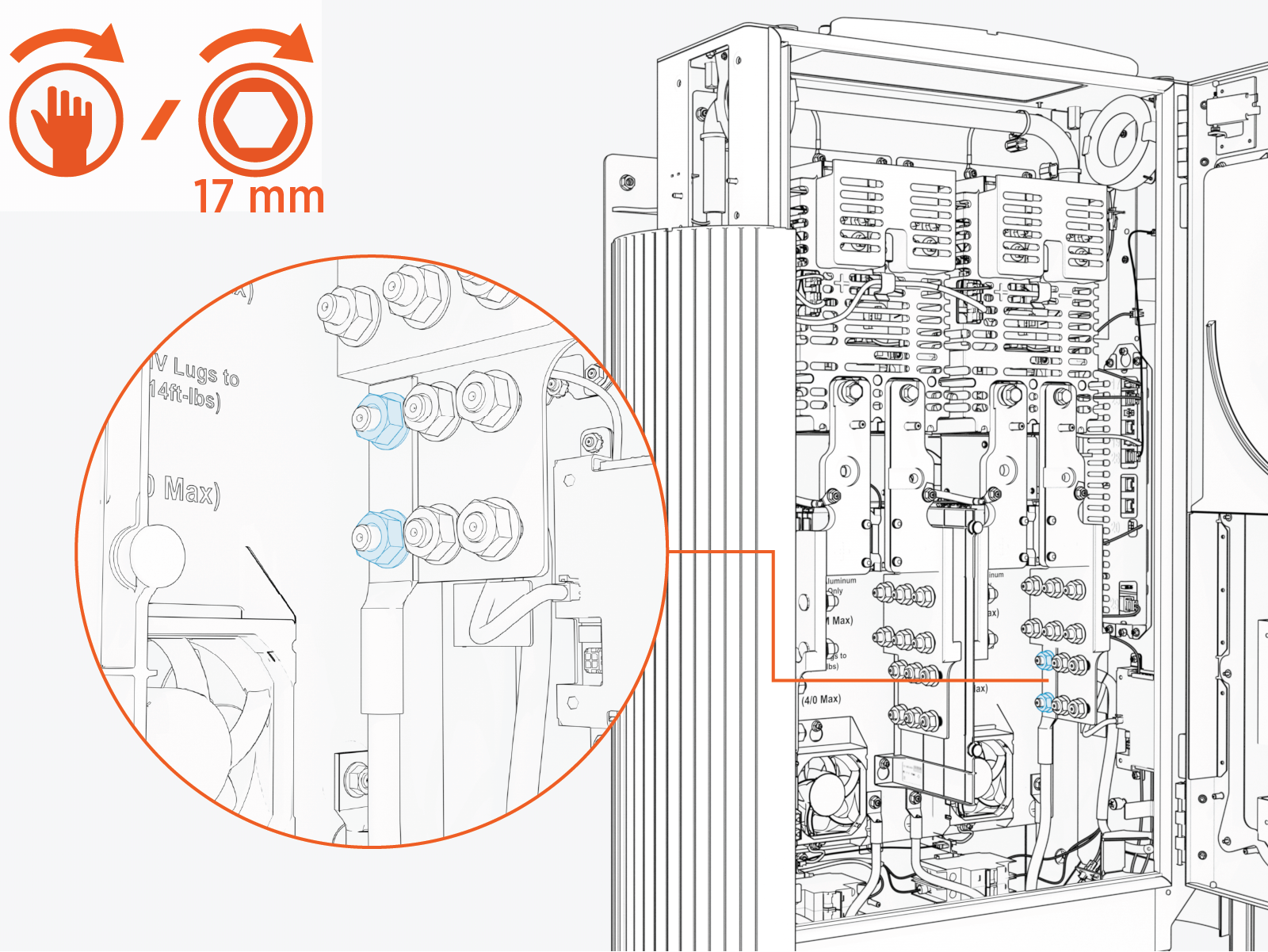
-
Repeat for all remaining HV DC
High Voltage Direct Current wires. -
Mark all torqued connections to ensure all lug nuts have been tightened. This is also for inspection purposes.
Prepare Ground Wires
To prepare the ground wires, complete the following steps:
-
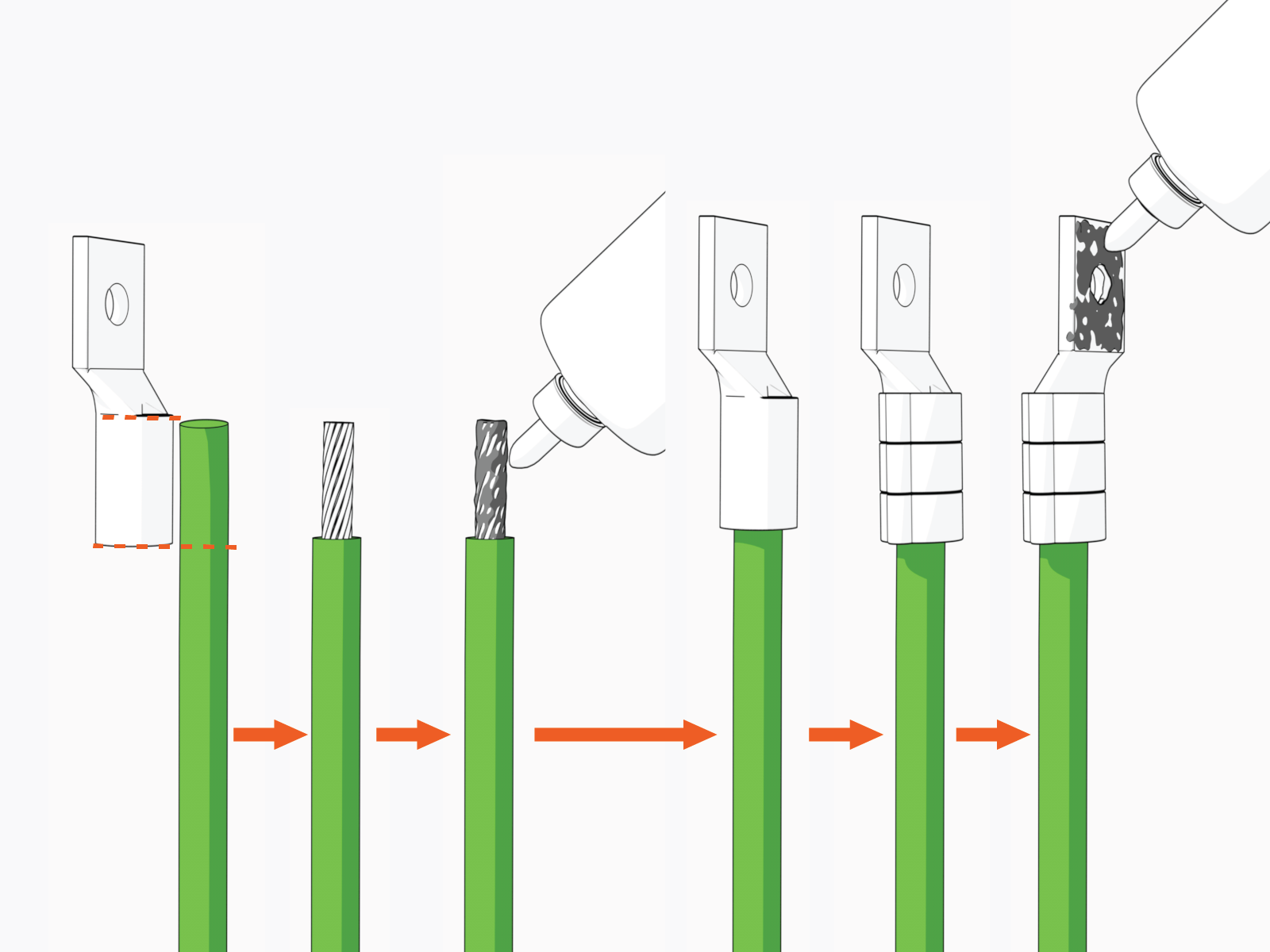
Mark the lug's barrel height on the wire terminal.
-
Strip the jacket on the marked terminal. Use a suitable wire stripper, such as Klein tool.
-
If recommended by the wire manufacturer or local code, apply an anti-oxidant joint compound to the stripped wire material to make a gastight joint with the lug.
-
Insert the stripped terminal into the lug's barrel and crimp it. Use a suitable lug crimping tool and/or die recommended by the lug manufacturer.
-
Apply dielectric grease to the lug's tongue surface that comes in contact with the bus bars.
Connect Ground Wires
To connect ground wires, complete the following steps:
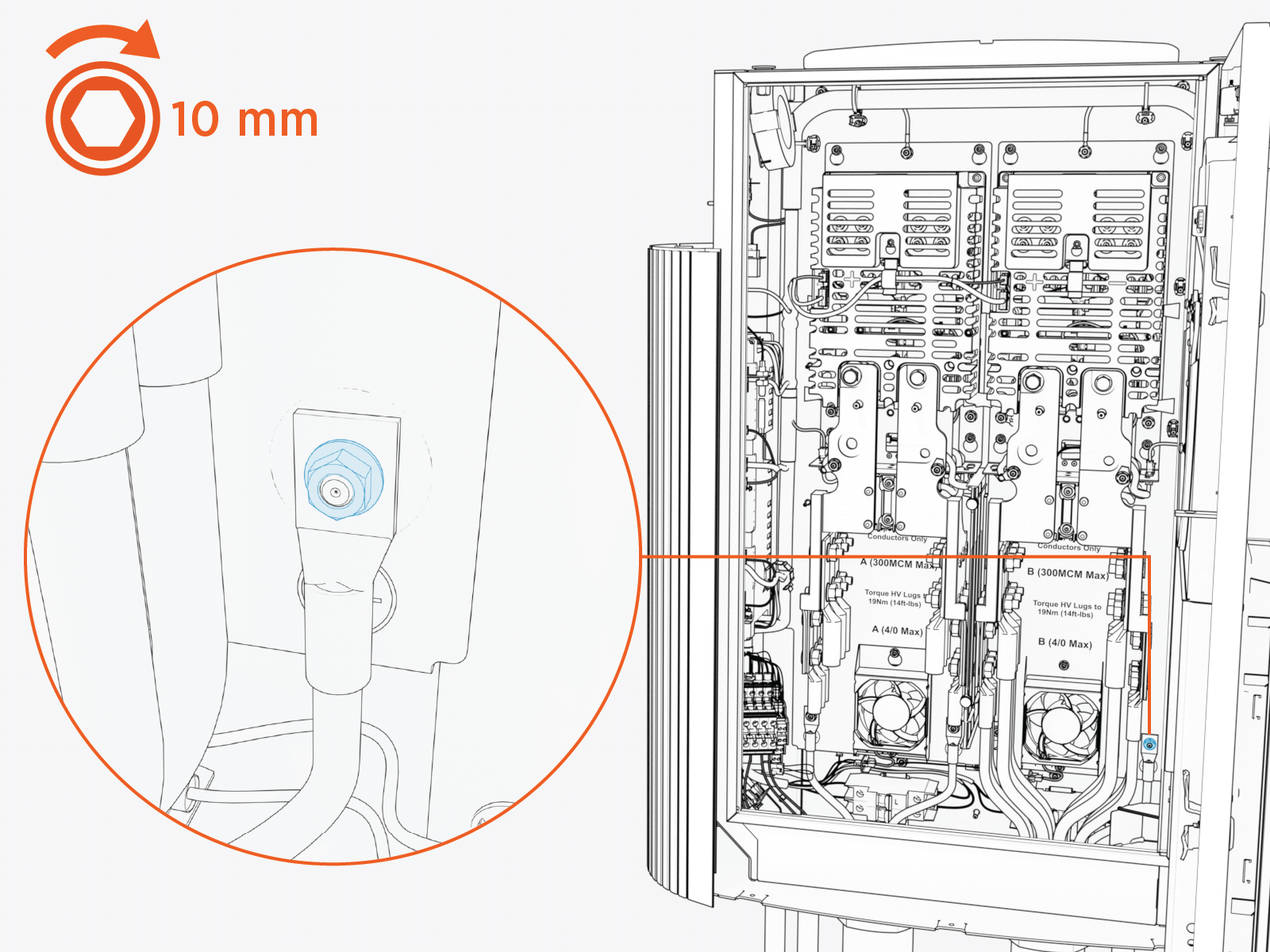
-
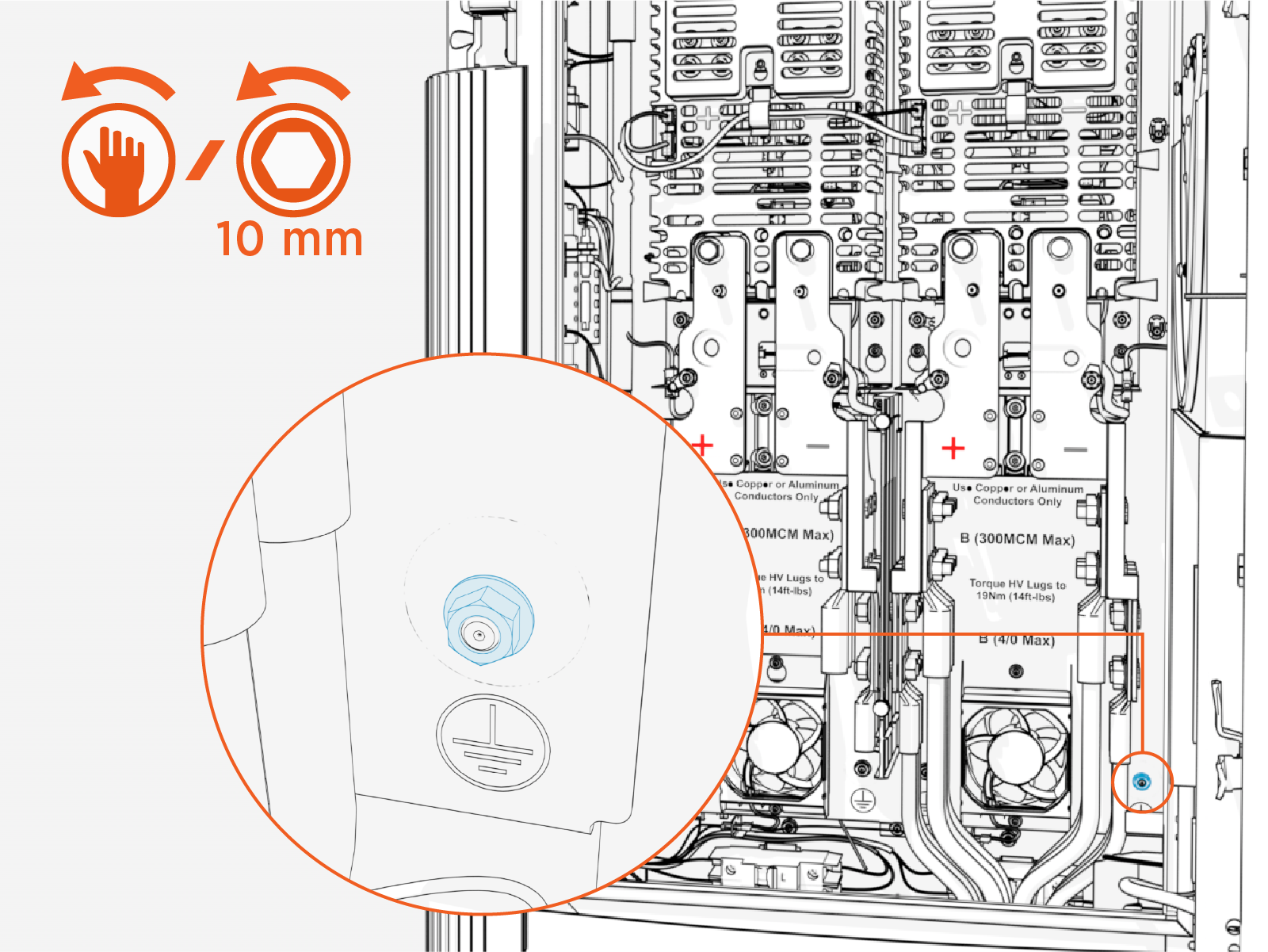
Identify a target ground wire landing stud. See Plan for HV DC Wire Connect for the wire landing locations.
Two ground wires may land on a single stud by stacking the ground wires on the stud.
-
Remove lug nut.
-
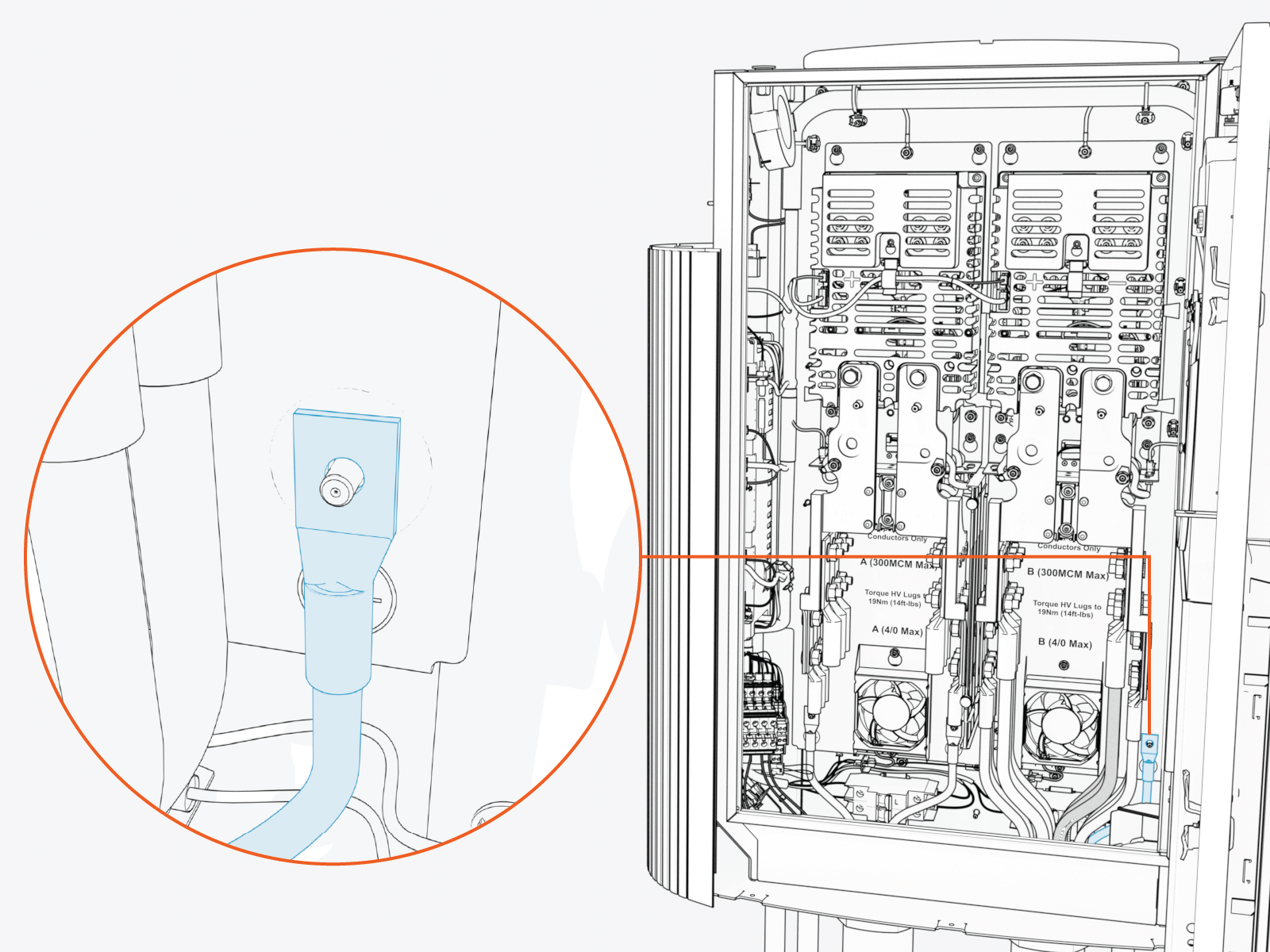
Install the prepared wire(s) onto the stud. (see Prepare Ground Wires).
-
Reinstall the lug nut and apply torque.
Torque the ground wire lug nut to 5.6 Nm (50 in-lb).
-
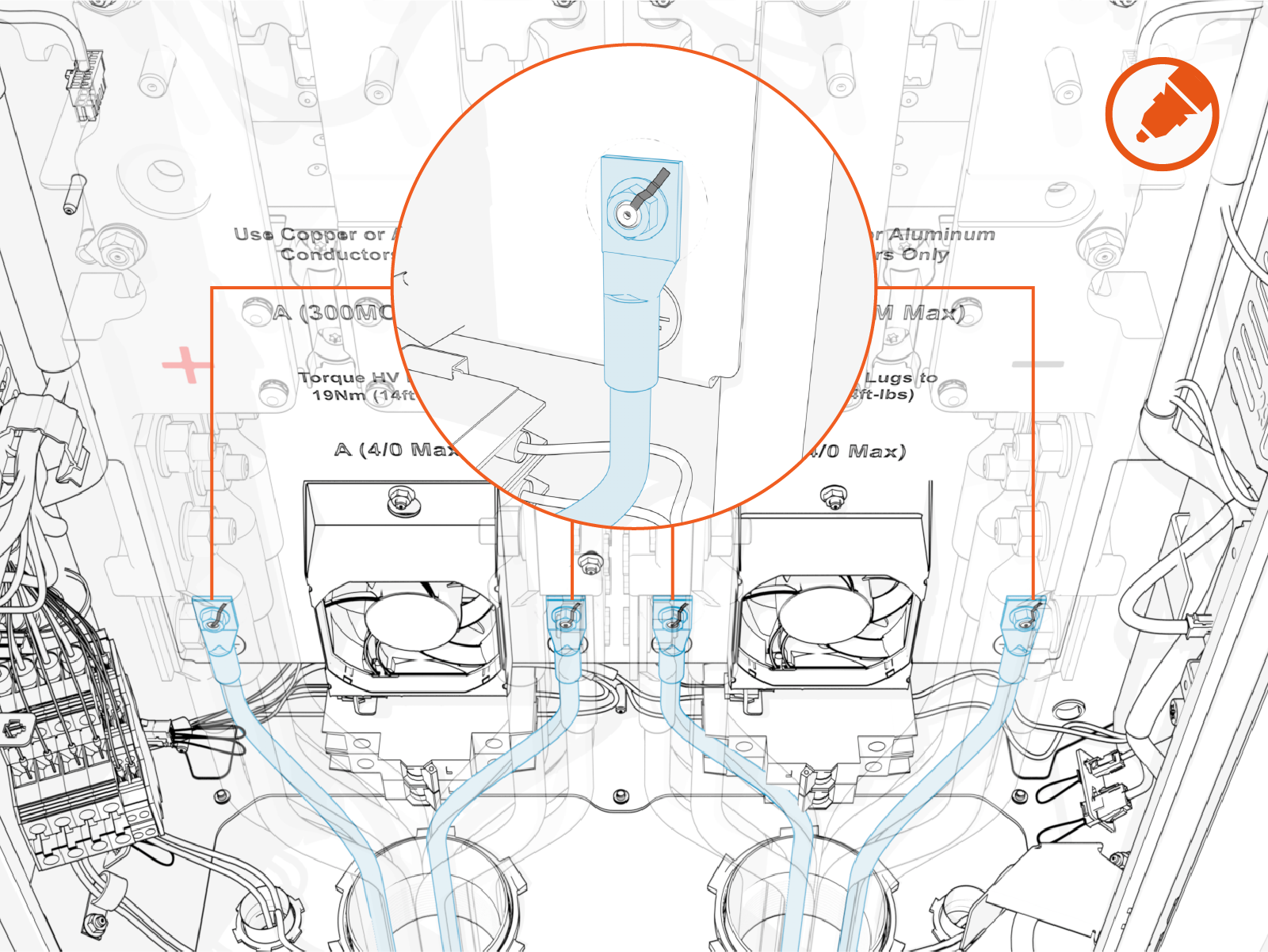
Repeat for all remaining ground wires.
-
Mark all torqued connections to ensure all lug nuts have been tightened. Torque marks are required to pass post-installation inspection.
How to Connect LV DC and Ethernet Wires
To connect LV DC Low Voltage Direct Current and Ethernet wires, complete the following steps:
Connect LV DC Wires
Follow the procedure below for each LV DC Low Voltage Direct Current wire pair.
-
On the LV
Low Voltage terminal block, identify the target wire insertion points for landing the LV DC Low Voltage Direct Current wire pair.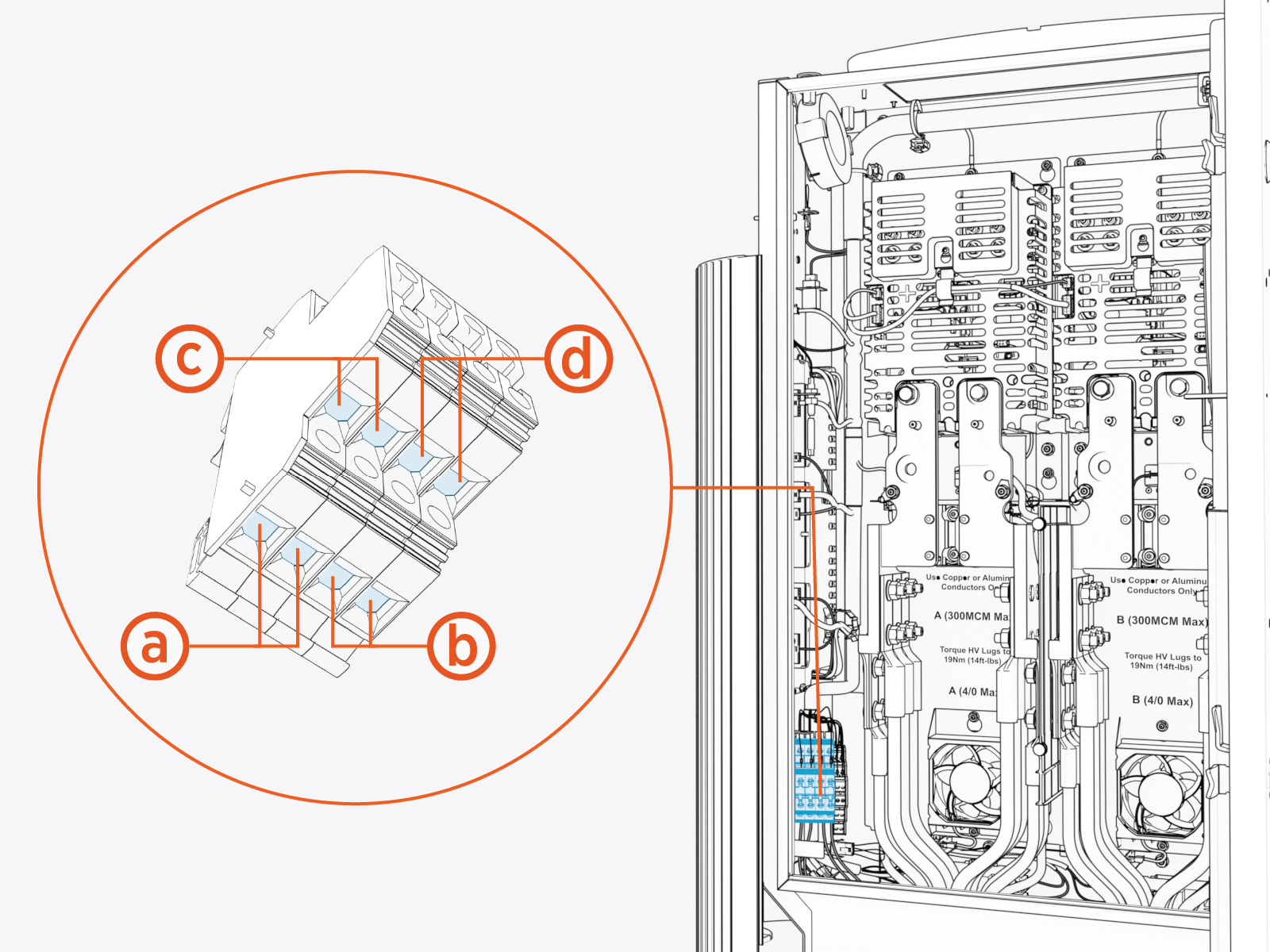
-
LV
Low Voltage input, primary -
LV
Low Voltage input, secondary -
LV
Low Voltage output, primary -
LV
Low Voltage output, secondary
-
-
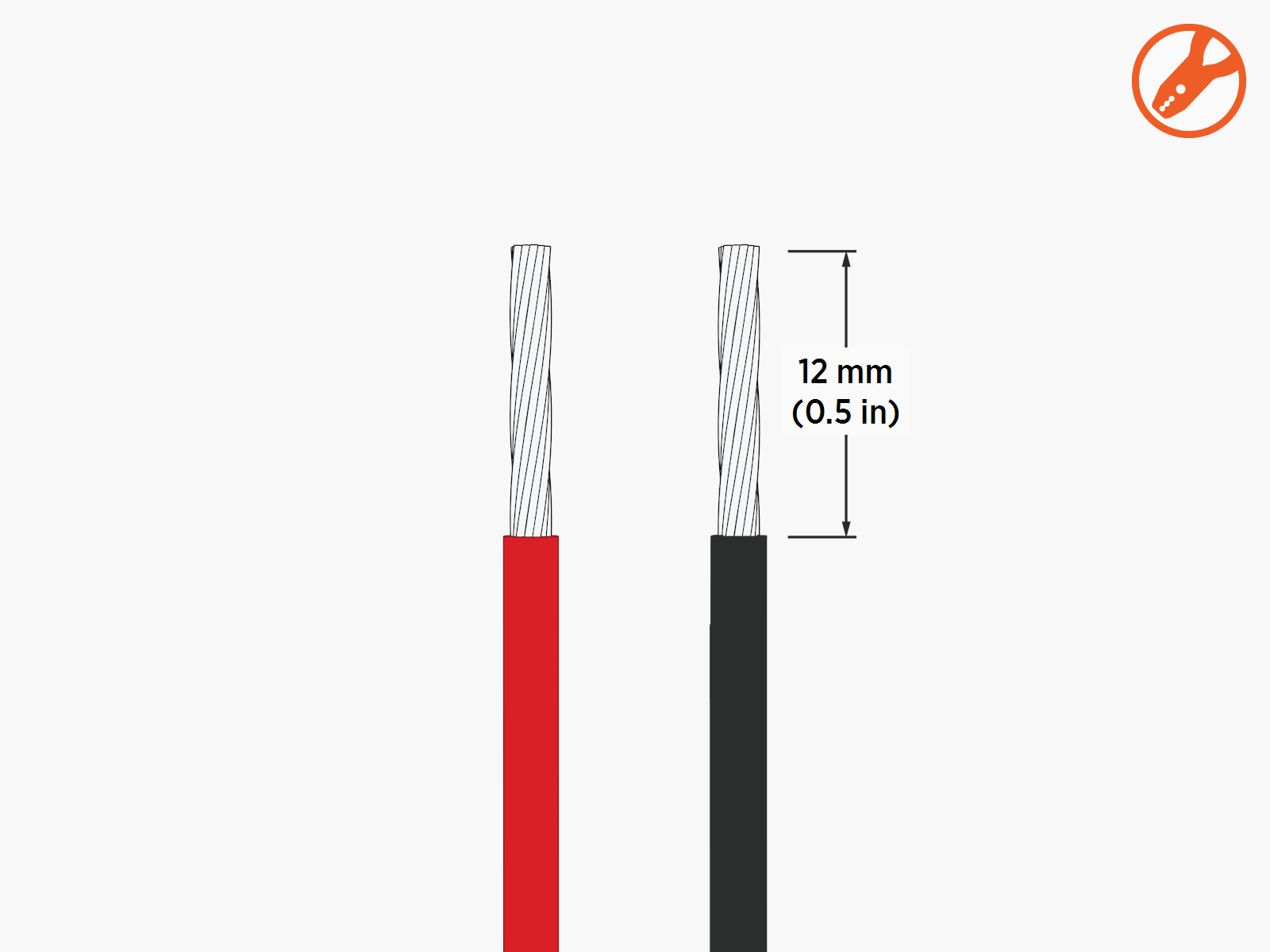
Strip the wire jackets (x2).
-
Loosen the wire set screws (x2).
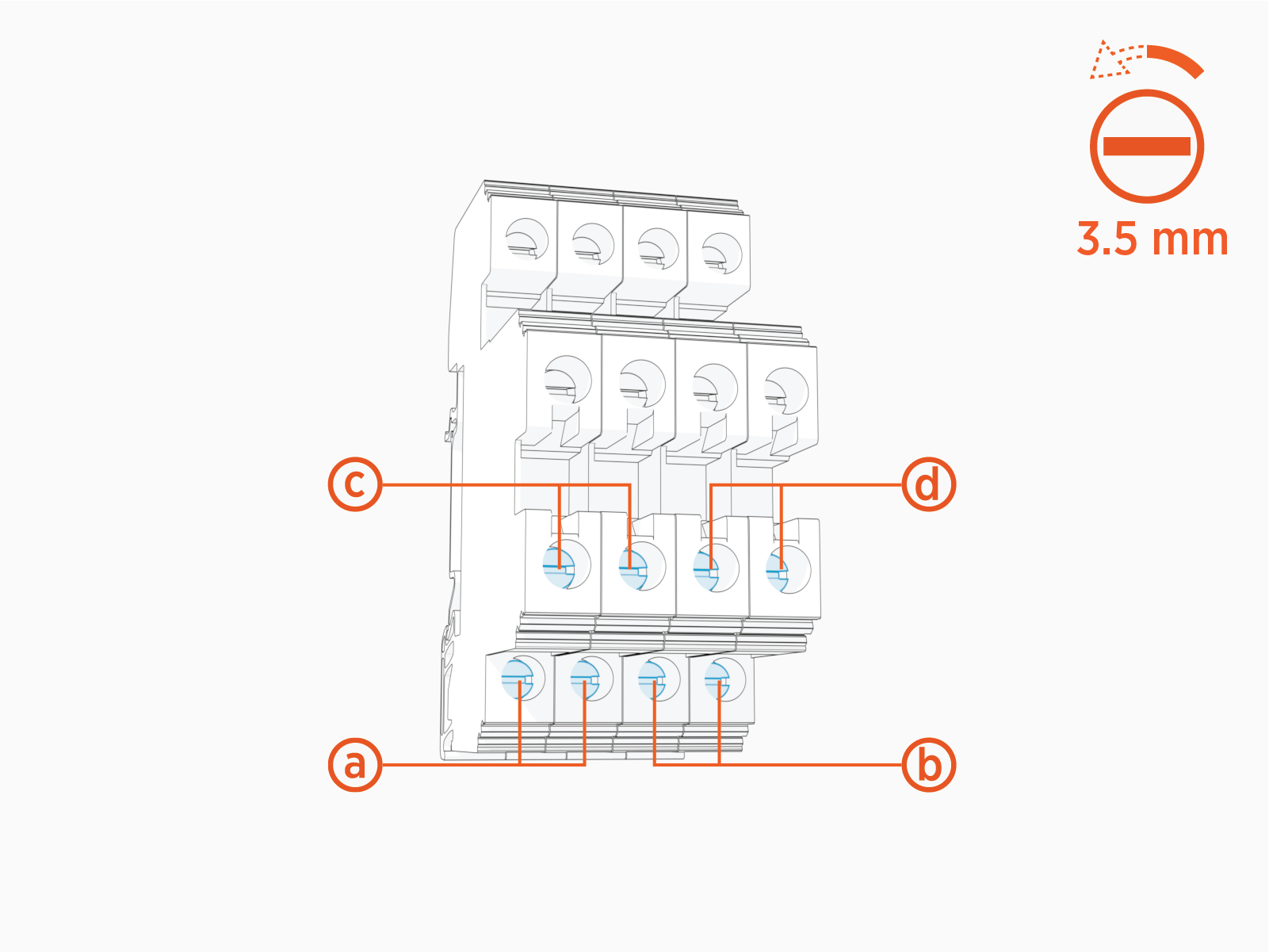
-
LV
Low Voltage input, primary -
LV
Low Voltage input, secondary -
LV
Low Voltage output, primary -
LV
Low Voltage output, secondary
-
-
Route wires (x2) through the wireway clamps (if necessary use cable ties) and insert them into the LV
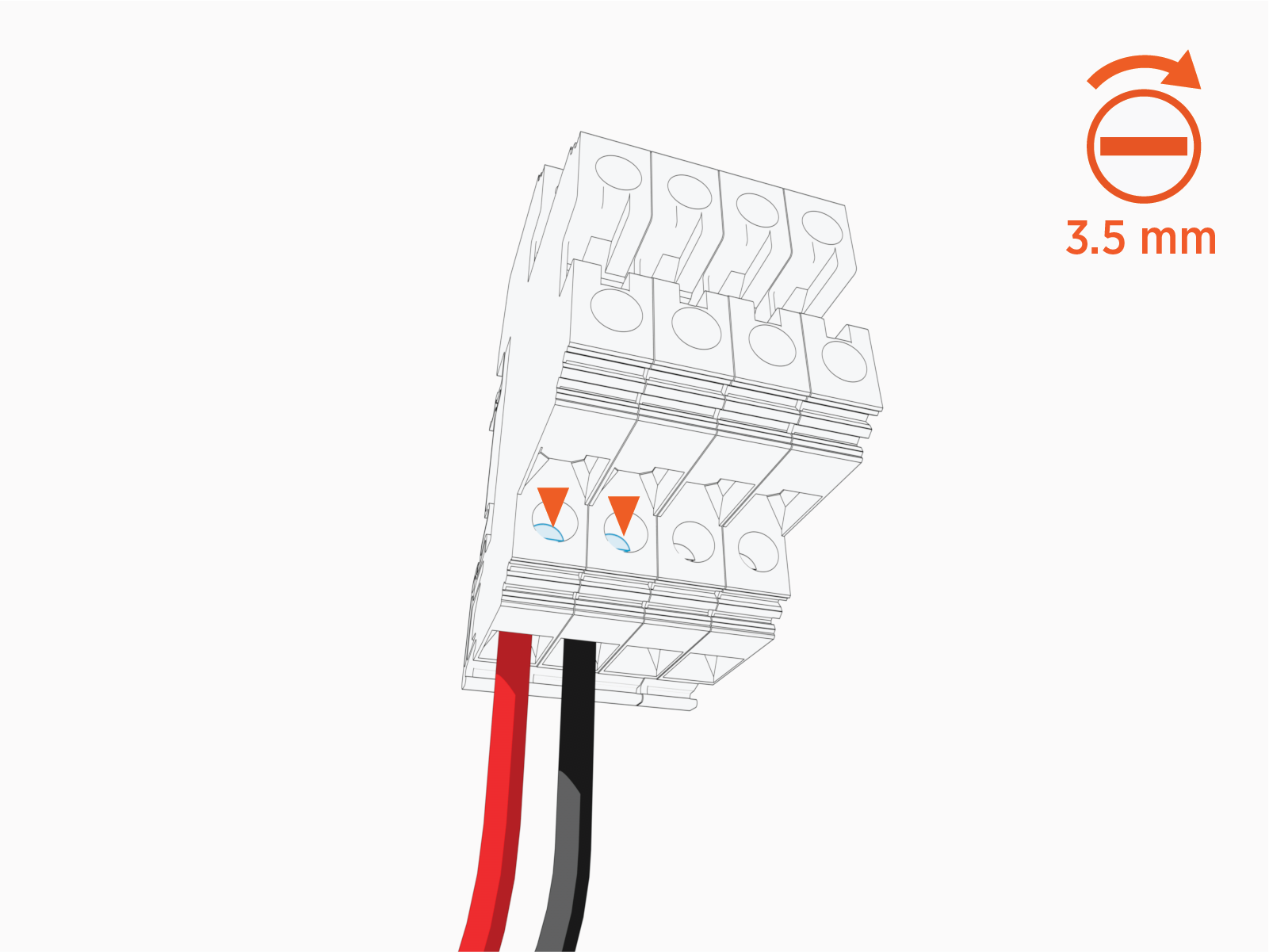
Low Voltage terminal block. Insert the positive (+) wire into the left terminal. Insert the negative (-) wire into the right terminal. The illustration below depicts insertion of the primary LV
Low Voltage input wire pair.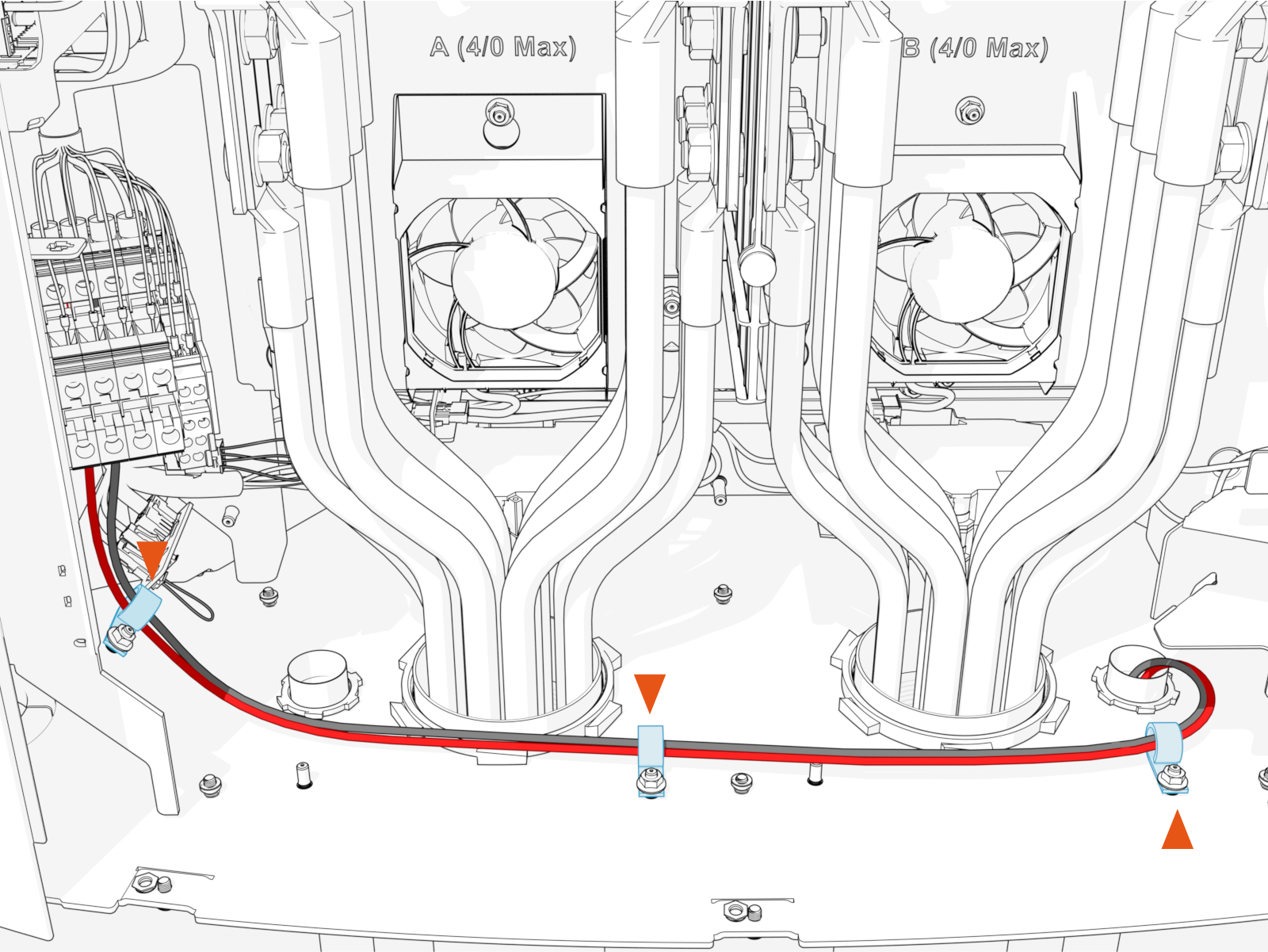
-
Torque the screws (x2) to 1.5 Nm (13.3 in-lb). Push-pull to test that both (+ and -) wires are secured.
Connect Ethernet Cable(s)
Follow the procedure below to connect each Ethernet cable.
-
On the Smart Ethernet Switch, locate three ports for landing Ethernet cables. All ports are equivalent.
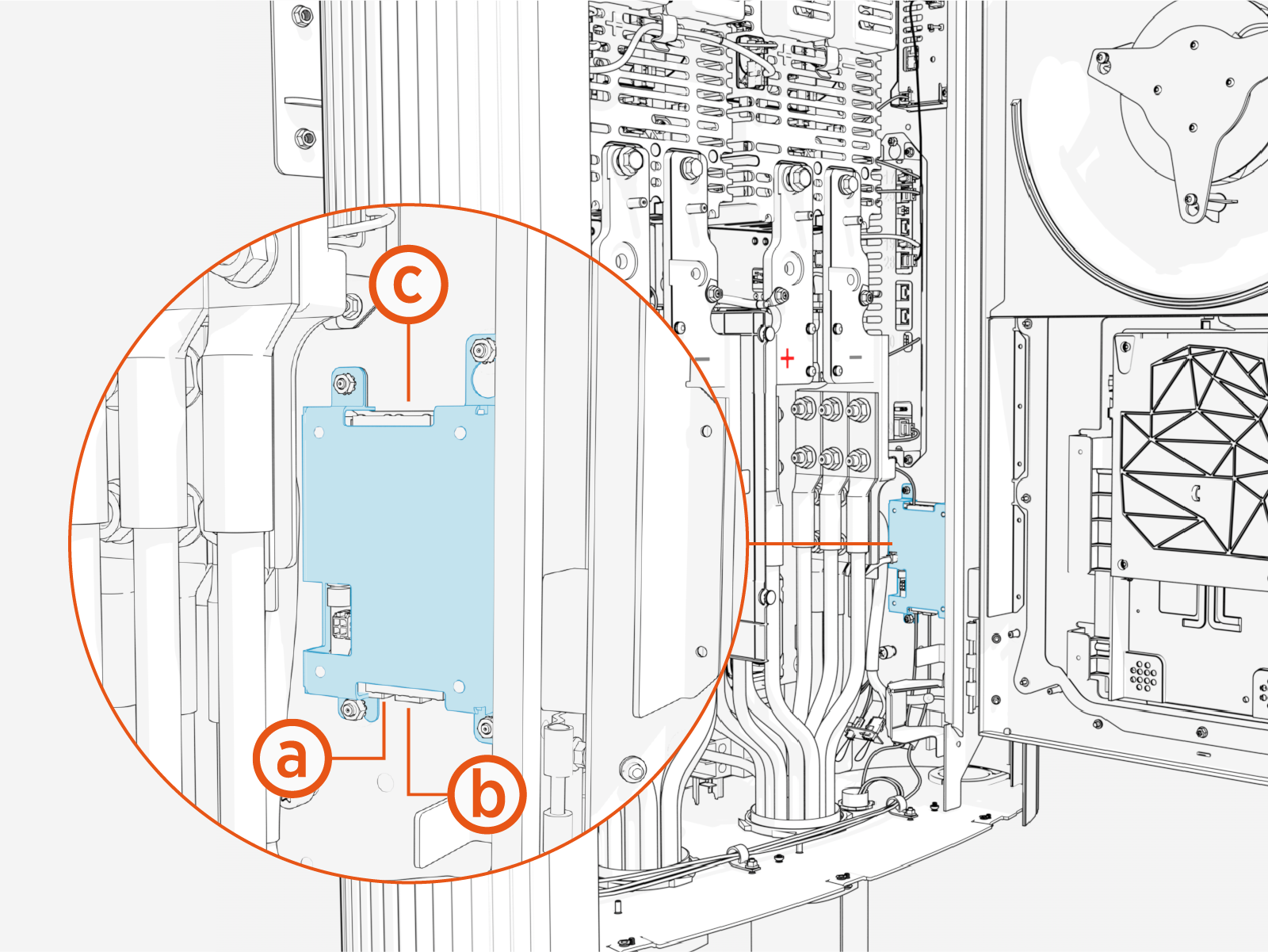
-
Lower left port
-
Lower right port
-
upper port
-
-
Trim Ethernet (Cat6 STP
Shielded Twisted Pair) cable to length, allowing for a service loop. -
Field crimp a shielded RJ45 connector onto the Ethernet cable. Use straight-through T568B pattern.
Ground the Ethernet cable shield as follows:
-
For an Ethernet cable connecting from Power Block to Power Link 2000, ground the shield at the Power Block cable end. Do not ground the shield at the Power Link 2000 cable end.
-
For an Ethernet cable connecting between Power Link 2000s, ground the shield at the cable end nearer to the Power Block (per Ethernet topology for the Express Plus cluster). Do not ground the shield at the other cable end.

-
-
Test the Ethernet cable for functionality.
If using a Paige OSP Shielded GameChanger cable for a wire run length greater than 100 m (328 ft), follow the test procedure specified by Paige. See Paige GameChanger Resources.

-
Route the cable through the wireway clamps and connect to any available port on the Smart Ethernet Switch. To establish a secure connection, the RJ45 connector's latch must click into the switch.