Complete the Installation
To complete the installation, follow these steps:
-
Inspect the charging cable and verify if a CMK
 Cable Management Kit ball is present.A cut-resistant charging cable has a CMK Cable Management Kit ball attached. You can remove the CMK Cable Management Kit ball or leave it in place.
 -
To remove the CMK
Cable Management Kit ball from the charging cable, do the following steps:-
Using a #2 Phillips screwdriver, remove the screws (x2) that hold the top to the bottom of the CMK
Cable Management Kit ball.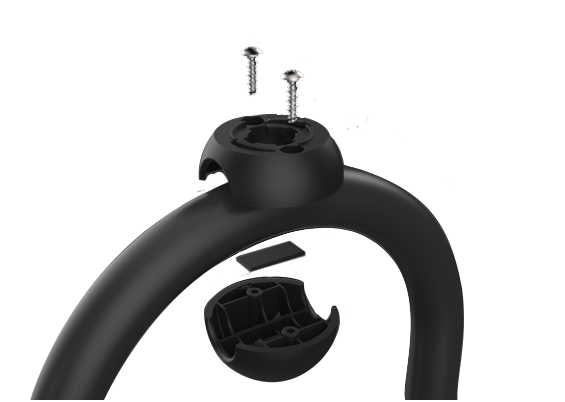
-
Remove the top and bottom halves of the CMK
Cable Management Kit ball, along with the adhesive tape.
You can store the CMK Cable Management Kit ball for future use with a CMK Cable Management Kit charging station. -
-
Extend the charging cable to its full length to remove any twists or tension.
-
Drape the charging cable over the top of the charging station and dock the connector in its holster.
-
Ensure labels specifying circuit amperage are applied to the bottom of the charging station and to the circuit in the electrical panel.
-
Plug the charging station into the outlet (if applicable).
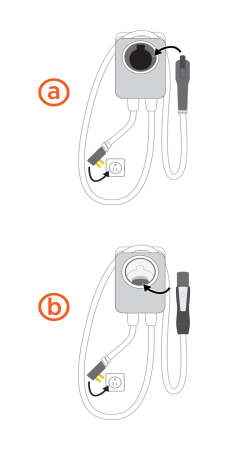
The images below represent a ChargePoint charging station integrated with two different adapters:-
J1772 cable
-
-
Restore power to the circuit at the electrical panel.
-
Watch to ensure the front status light glows yellow, then blinks white.
-
Return all packaging materials to the box and give the box to the homeowner.
Do not throw the guide away. Give the Quick Start Guide, the drill bit, the driver bit, and this Installation Guide to the homeowner.
Access the Installer App
To access the installer application, complete the following steps:
-
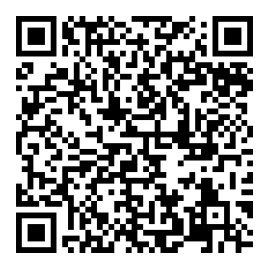
Scan the QR
Quick Response code to download the app and sign up if necessary.Scan this QR
Quick Response code if you are using an Android device.Scan this QR
Quick Response code if you are using an iOS device.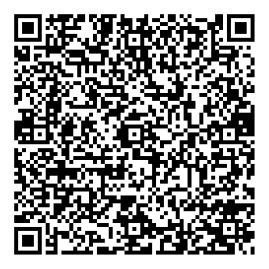
-
Open the ChargePoint Installer app and log in.
-
Execute the following steps in the app:
-
Select Get Started and follow the app instructions.
-
Select the installation type.
-
Set the appropriate breaker settings.
-
Send a notification to the homeowner through mobile or email.
See Plan the Location section to determine the desired breaker rating (charging amperage).The homeowner will receive a notification that the installation is complete and to activate the charging station.
If you are unable to set the breaker rating via the ChargePoint Installer app, set the breaker rating via the homeowner's ChargePoint account using the ChargePoint app.
-
-
Activate the station to enable advanced features. The homeowner must follow these steps:
-
Refer to the Quick Start Guide.
The Quick Start Guide contains information that the homeowner needs to complete the charging station set up and activate it. -
Complete the charging station set up by downloading the ChargePoint application (distinct from the ChargePoint Installer app).
On the ChargePoint app, select Home Charger and choose Set Up. Depending on the app version, the Home Charger option may appear either under the menu icon or the home icon.
The electrician sets the maximum current by using the ChargePoint Installer app, but the homeowner must activate the station and complete the set up using the ChargePoint driver app.
-
Charging Station Status
The following table outlines the charging station status indicators and their corresponding meanings:
| Light | Status indicator |
|---|---|
|
|
Updating software or booting |
|
|
The charger needs to be set up in the app |
|
|
Ready to charge |
|
|
The charger is on a schedule. Plug in twice to charge immediately. |
|
|
Plugged in |
|
|
Currently charging |
|
|
Not connected to Wi-Fi Check Wi-Fi |
|
|
Something's wrong If the station is displaying an error, refer to our Troubleshooting Video. |
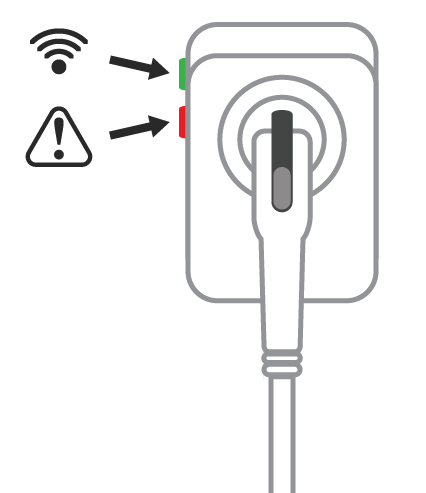
|
Wi-Fi Wireless Fidelity and fault indicators
|


