Installation Wizard
When you power up the charging station, the on-screen Installation Wizard runs. The wizard verifies operation of the station and performs basic setup tasks.
The Installation Wizard includes these tasks:
-
Set a language for the Installation Wizard.
This does not permanently affect the station’s display language. Choose the language most convenient to you. -
Configure power
-
Check for faults
-
Test network connectivity
-
Complete the post-installation checklist
Pinpoint the Station
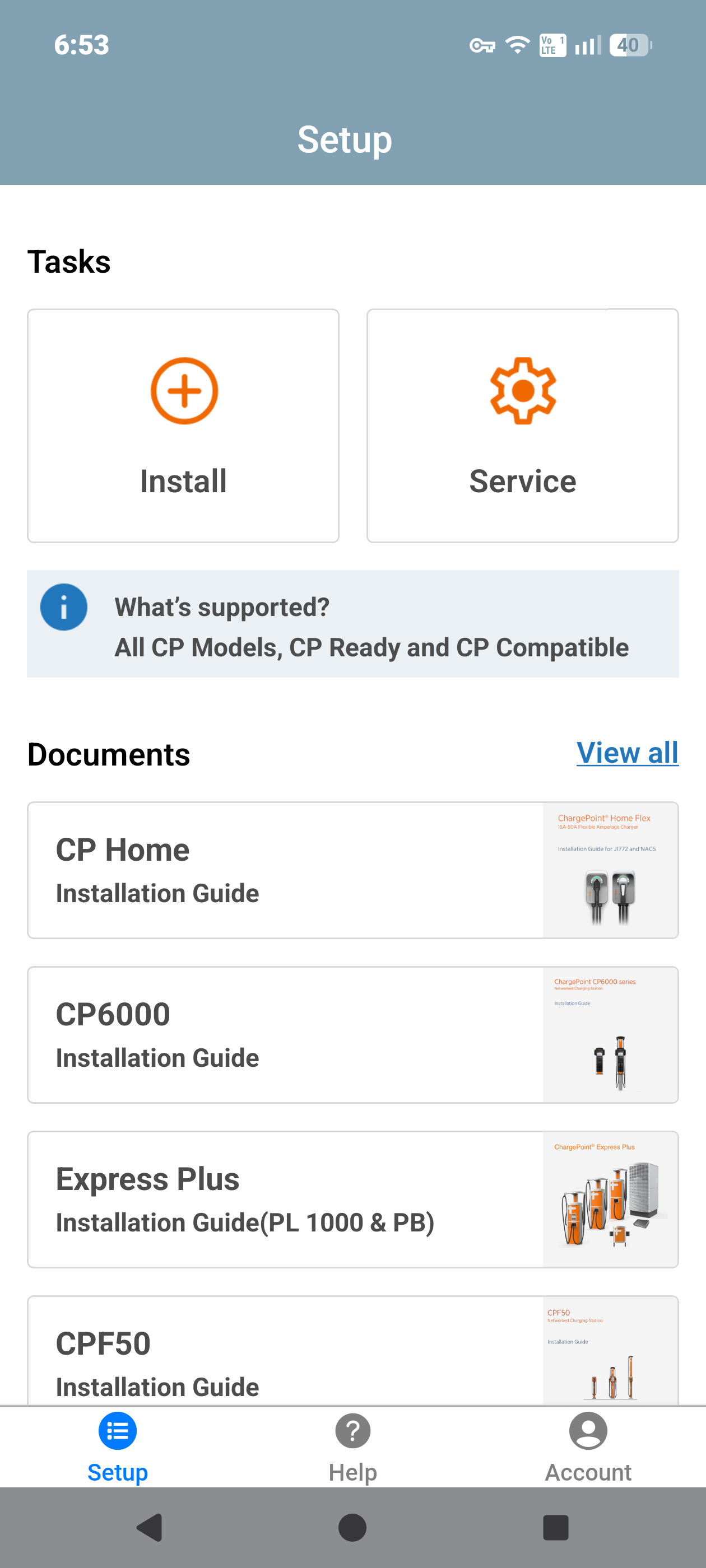
Open the ChargePoint Installer app on your smartphone and follow the instructions below:
-
If you do not already have the Installer app, scan the QR
 Quick Response code to download the app.
-
Log in or register using the ChargePoint Installer app on your smartphone.
If cellular connectivity is unavailable, the Installer app automatically switches to Offline Mode for Ethernet configuration. Automatic switching occurs only if the Installer app was launched and logged in while online. If Offline Mode does not start automatically, you can enable it manually using the Force Offline Mode option in the Account section or by turning on Flight Mode. -
Tap on Install.
-
Use the app to scan the QR
Quick Response code on the station screen or on the charging station label.
-
The app automatically identifies the charging station and begins the pinpointing and configuration process.
-
Follow the in‑app instructions to complete pinpointing and configuration process.
Station Activation
As the installer, your role is to support this process by providing the station owner with the required station identification information. Before leaving the site, give the station owner a list of all installed station serial numbers and/or MAC Message Authentication Code addresses and inform them that activation is required before the station can be used.
If station owner has additional questions, you can refer them to ChargePoint Support at chargepoint.com/support.
