Install Cables, Top Cap, and Front and Rear Panels
Install the CHAdeMO cable on the right side of the charger at contactor position 3. Ensure the high-voltage CHAdeMO cable always lands on Port 3 of the MDS to ensure proper operation and prevent misconfiguration.
Follow the table and figure below to determine the correct cable position based on the contactor configuration:
|
Contactor Position |
Cable Type |
Cable Location on Charger |
|---|---|---|
|
3 |
CCS |
Right side |
|
2 |
CCS |
Left side |

To install cables, top cap, front and rear panels, configure the following steps:
These steps are the same for both Standalone and Paired installations.
Install the Cables
-
Guide the DC, ground, and data cables gently through the top of the station.

(a) DC
(b) Ground
(c) Data
-
Route the cables through the ferrite stack.

-
Use a T25 Torx screwdriver to tighten the four screws securing the charging cable housing. Torque to 4.5 Nm (40 in-lb).

-
Apply a thin coat of dielectic grease on each lug.

-
When you are connecting a charging cable on the right side of the station, use a 10 mm socket hex driver to connect the positive and negative DC conductors from the front tabs of the connector box to the upper set of connectors.

- Use the middle set of DC connectors for charging cables on the left side of the station.

-
If the station is being configured with two CCS
 Combined Charging System charging cables, or if a single CCS Combined Charging System cable is installed, connect a data cable extension to the main data cable.
Guide the data cable extension behind the contactor box to connect to the CCS
Combined Charging System cable and the upper data connector.
If the single CCS
Combined Charging System is being installed on the left side when you are standing in front of the station, you do not need the data cable extension. Connect the data cable to the lower data connector. 
-
Torque each charge cable nut to 5.6 Nm (50 in-lb).
-
Mark all torqued power connections.

-
Connect ground cable.
Ground cable right side

Ground cable left side

-
Tuck the cables into the station body so they don't get caught or pinched.

Suspend the Charging Cable
To suspend the charging cable, complete the following steps:
-
Loosen the screw in the tetherball if it is not already loose.
-
Align the spring in the ball clamp with the flat notch on the anchor pin. While aligned, gently push the ball clamp onto the anchor pin.
Standard CMK
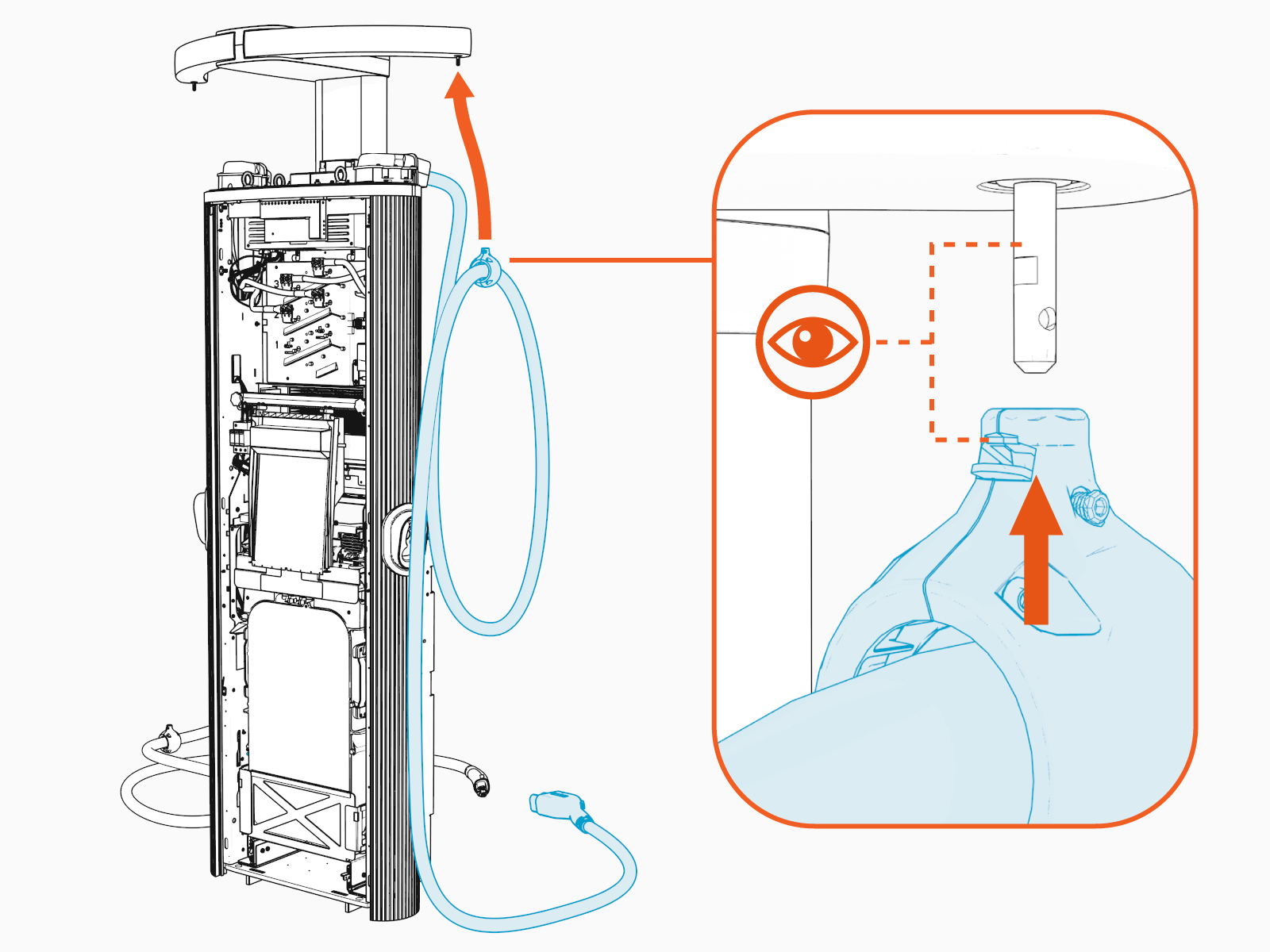
Tall CMK

-
Use a T20 Torx screwdriver to torque the set screw (a) to 2.8 Nm (25 in-lbs).
Standard CMK
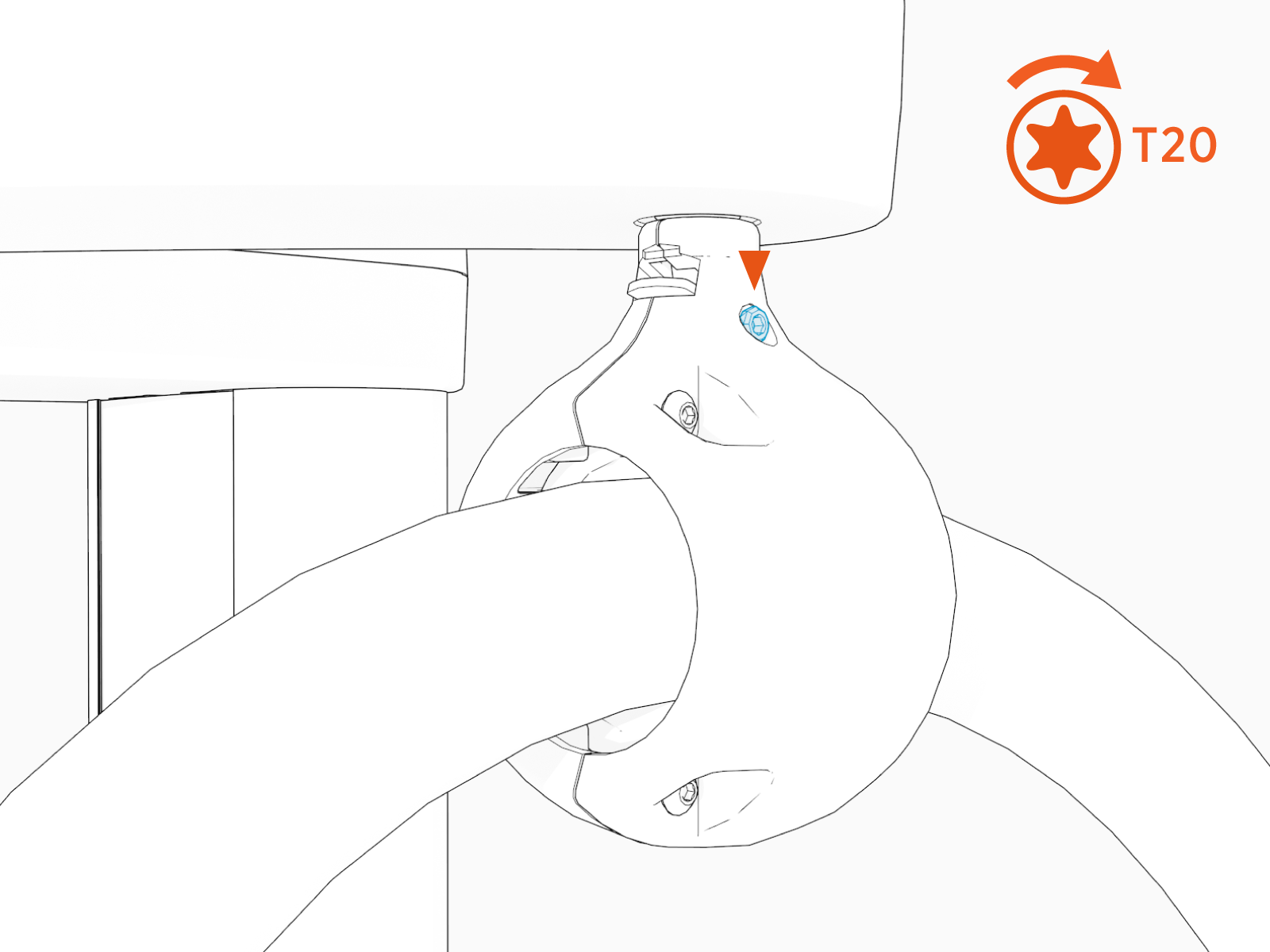
Tall CMK

-
Unwrap the charging cable connectors and insert each connector into its corresponding holster.
Standard CMK
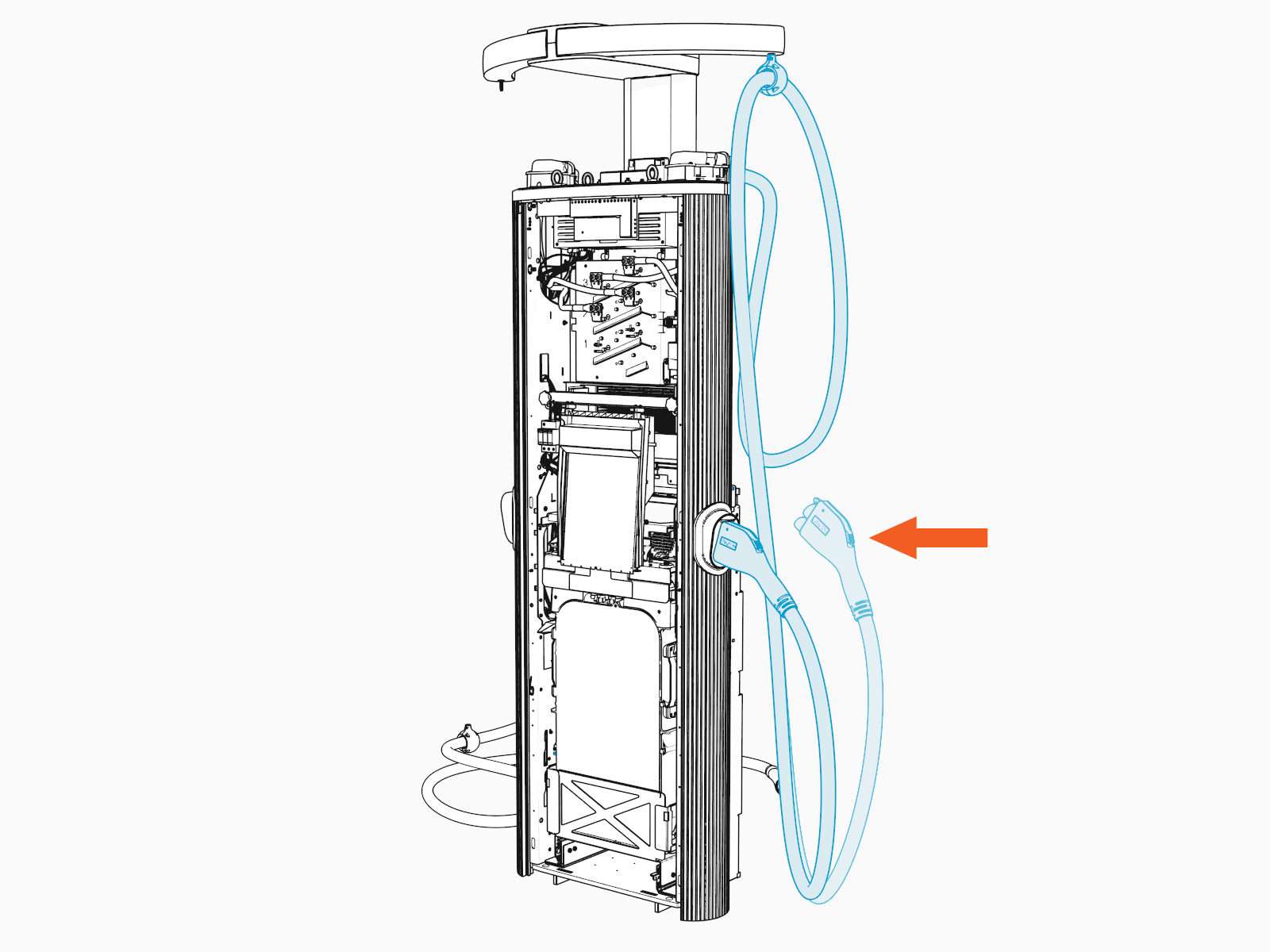
Tall CMK
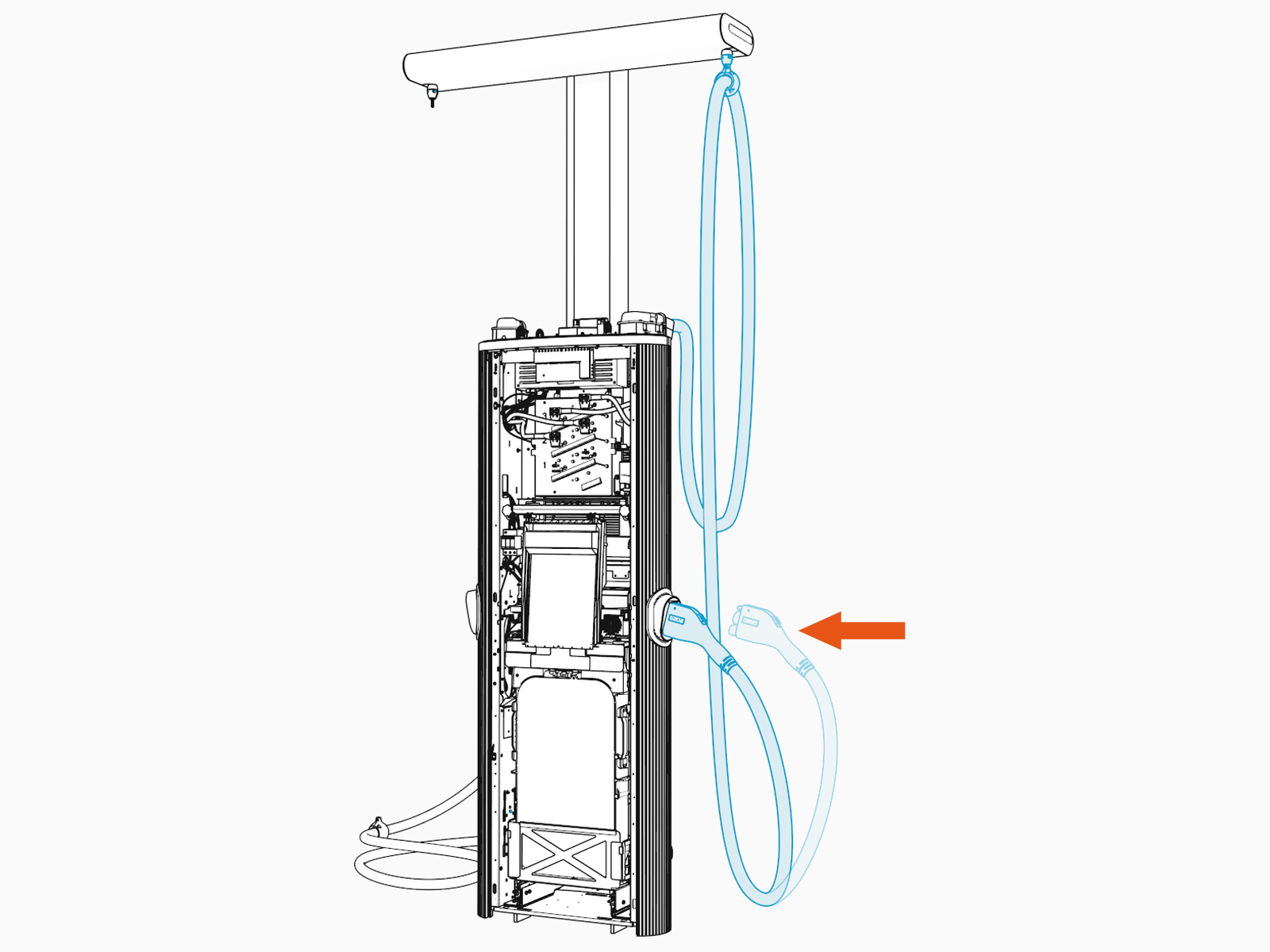
-
Check the lowest point of the cable. It should be a few inches above the ground. Adjust the position of tetherball on the charging cable if necessary.

-
Tug on cable to confirm that it is securely attached and check that the CMK
Cable Management Kit is functioning. If you find limited motion or retraction, contact ChargePoint at chargepoint.com/support.
Standard CMK

Tall CMK

-
If two charging cables are to be installed, repeat for the other side.
Install the Top Cap
To install the top cap, complete the following steps:
-
Remove the top cap from the packaging.
-
Install the four screws that shipped with the top cap. Allow 10 mm clearance (a). Ensure the screws are secure.
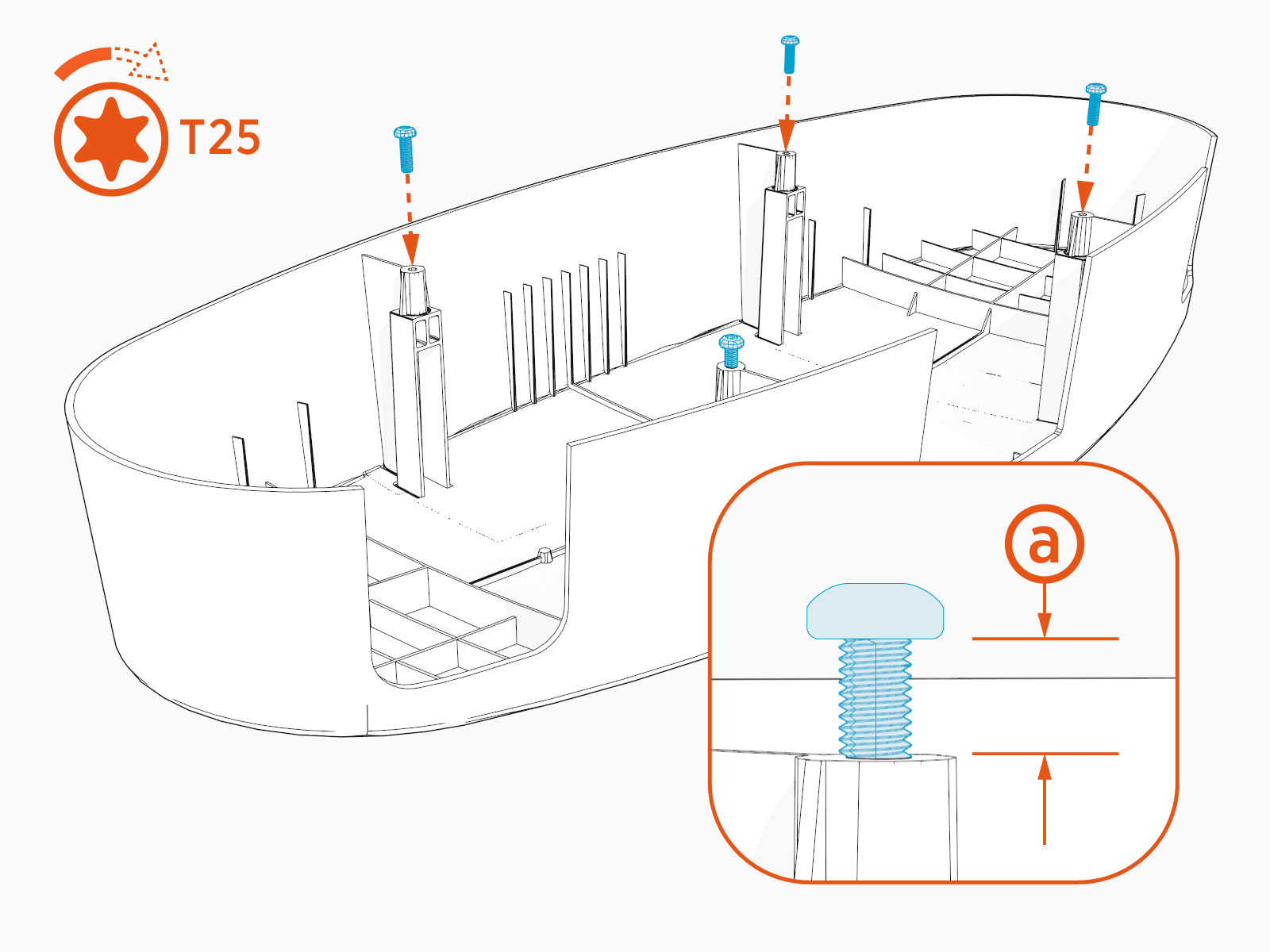
-
Align the top cap screws with the corresponding holes on the station.
Place the top cap onto the Express 280.

-
Ensure the screws go through the keyhole openings on the orange latches inside the station.

-
Slide each latch toward the center of the station.

-
Ensure the top cap is centered on the Express 280.

-
Use a T25 Torx screwdriver to torque the four top cap screws to 25 in-lbs.
Install the Rear Cover Panels
To install the rear cover panels, complete the following steps:
When installing the rear panels, take special care to ensure that each panel is correctly positioned. Failure to do so can prevent station operation.
Small gauge wiring routed on the sides of the frame could be sheared if caught by panel tabs. Ensure wiring is cleared from guide holes when installing bottom and middle rear panels.
Wear cut-resistant gloves when installing bottom and middle rear panels.
-
Align the guide tab along the bottom edge of the lower rear panel to the matching slot on the Express 280.
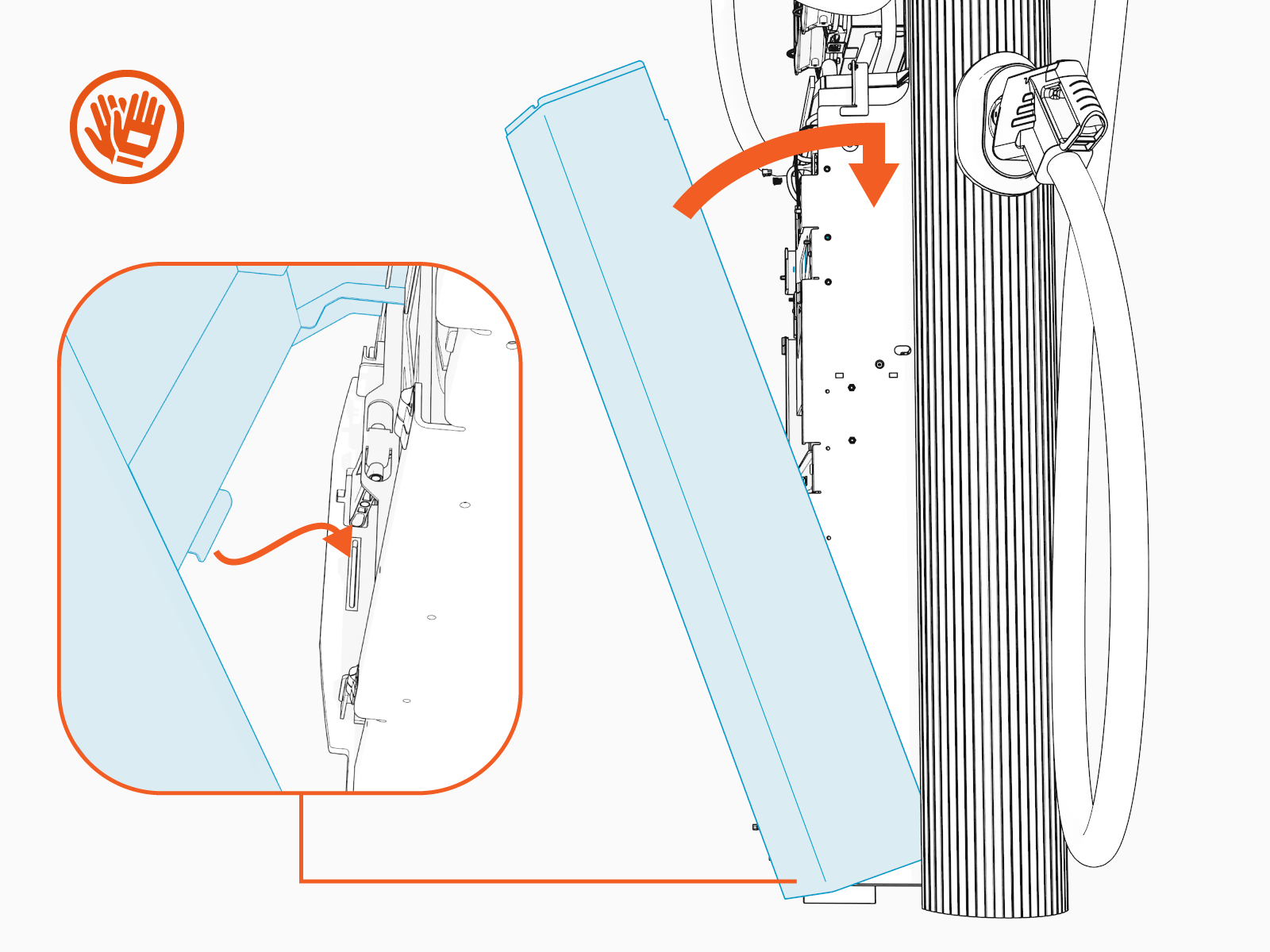
-
Carefully push the panel forward and down until the key holes align with the screws on the station.
Use a T25 Torx screwdriver and two screws to secure the top of the lower rear panel to the enclosure frame. Torque to 2.8 Nm (25 in-lb).

-
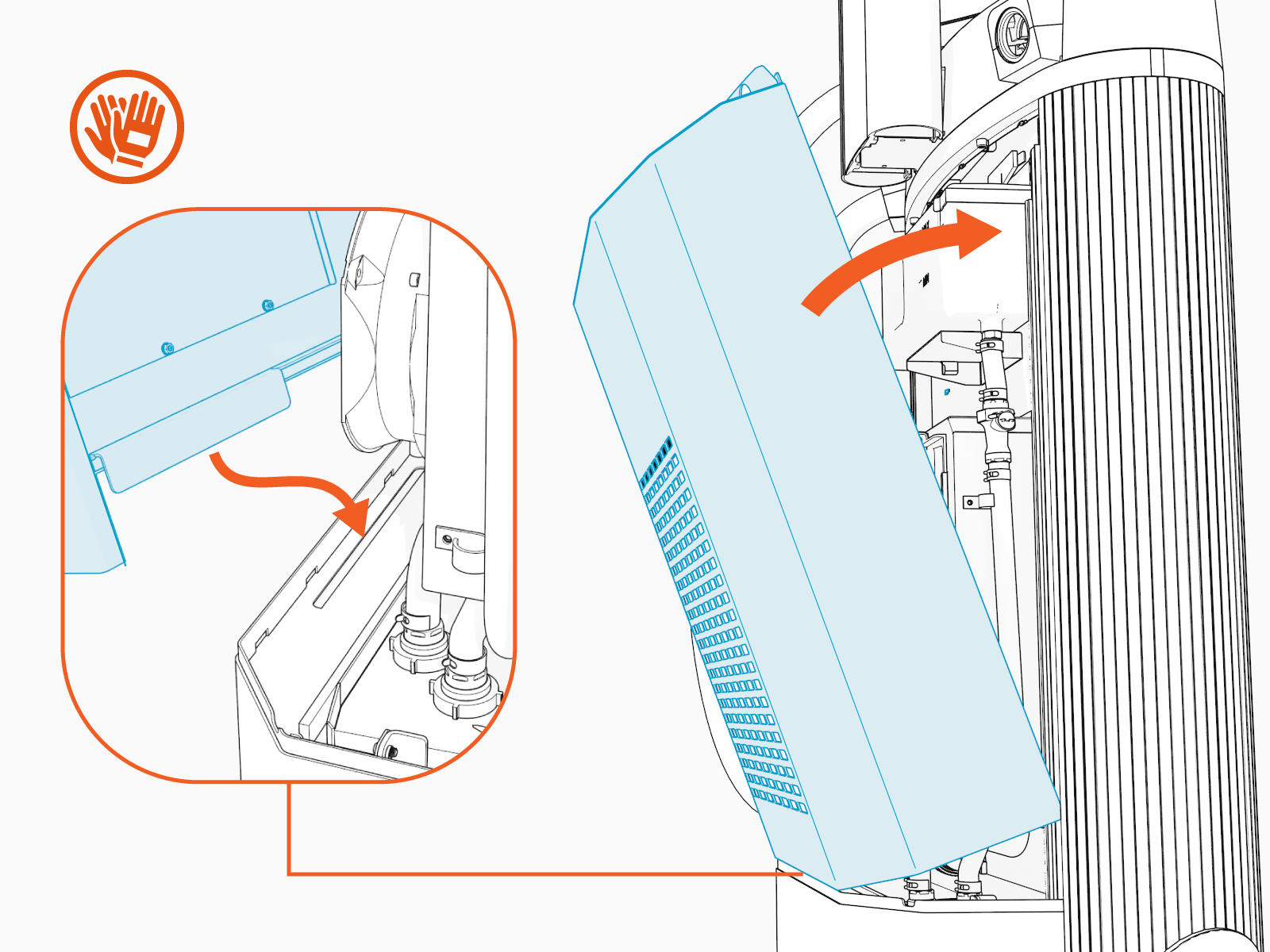
Using two hands, align the guide tab along the bottom edge of the upper rear panel to the matching slot on the lower rear panel. Carefully push the panel forward and down.
Wear cut-resistant gloves and hold the sides of the panel gently when installing it.
-
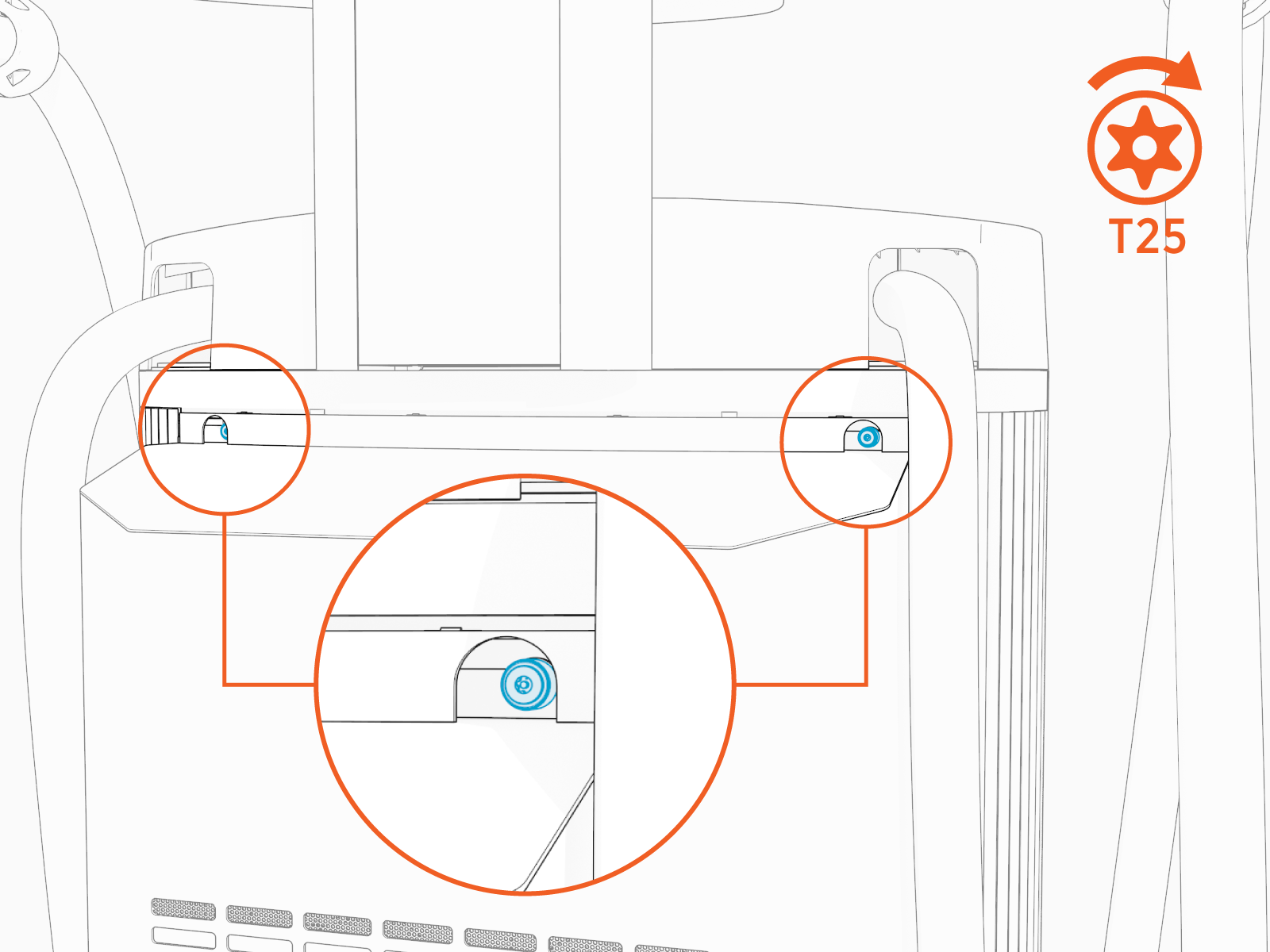
Use a T25 Torx Security screwdriver and two screws to secure the top of the upper rear panel to the enclosure frame. Torque to 2.8 Nm (25 in-lb).
-
Remove the blue protective film from the two rear panels.
Install the Front Cover Panels
To install the front cover panels, complete the following steps:
-
Align the guide tabs on the front bottom panel to the matching slots on the Express 280’s frame. Push the panel down carefully until the bottom edge aligns with the bottoms of the side panels.
-
Tilt panel forward until it aligns with the slots on the side panels. Press panel downward into place.

-
Using a T25 Torx screwdriver and two captured M5 screws, secure the lower front panel in place. Torque to 2.8 Nm (25 in-lb).

Ensure the panel installation does not tear or break the gaskets on the inner edges of the side extrusions.
Wear cut-resistant gloves and hold the sides of the panel gently when installing it.
-
Press the bottom of the touchscreen down so the lower edge fits inside the bottom panel.

-
Keeping pressure on the edge of the touchscreen to properly seat it inside the panel, slide the touchscreen beam down. Re-tighten the knobs to secure it.

Ensure the touchscreen is centered horizontally with the front panel.
-
Using two hands, align the guide tabs on the front upper panel with the corresponding slots.
Wear cut-resistant gloves and hold the sides of the panel gently when installing it.

-
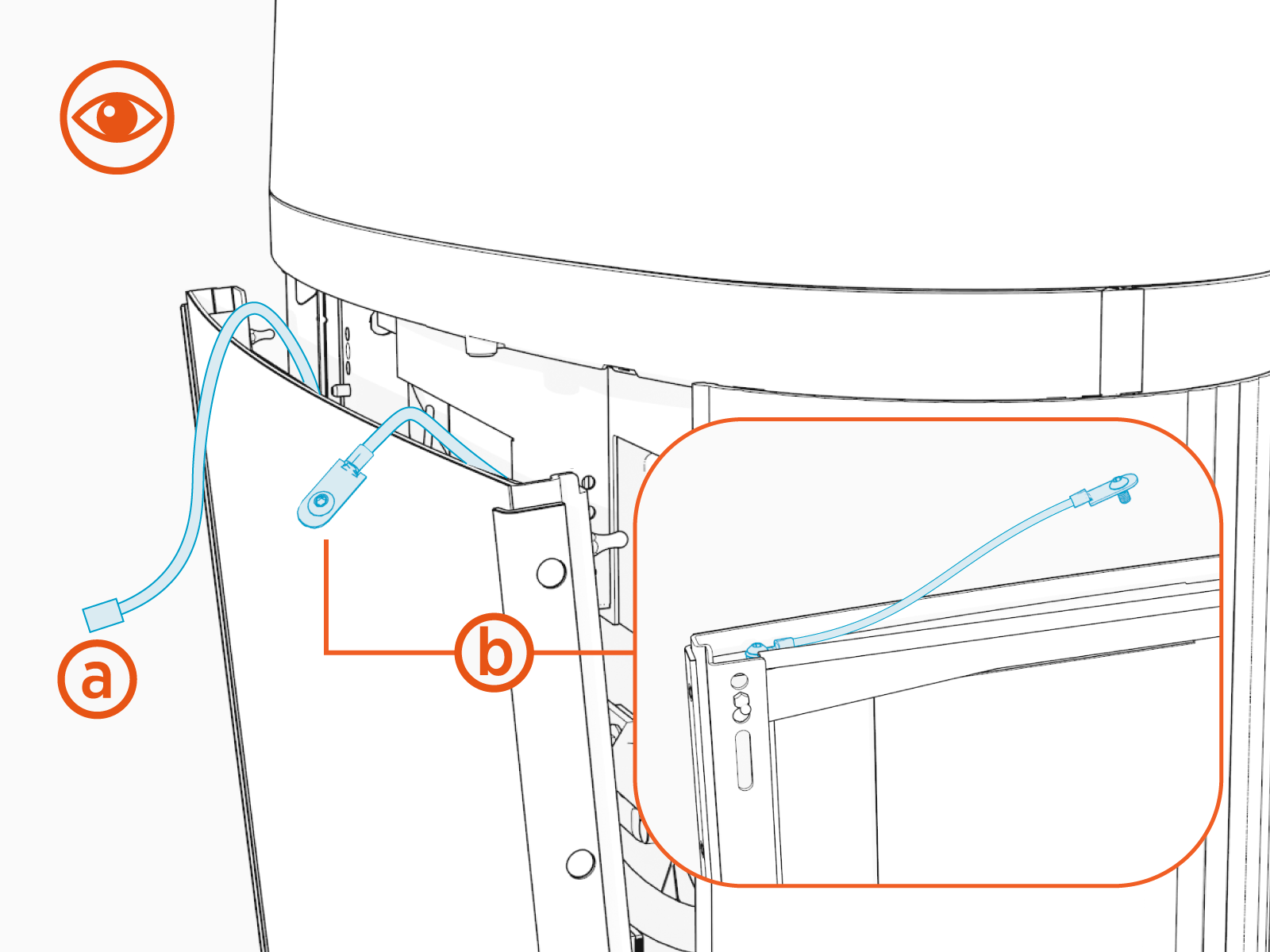
Ensure the power cable (a) and the ground cable (b) at the top of the Express 280 are not captured by this front upper panel and are easily accessible.
-
Carefully push the panel toward the station body until the alignment posts snap into place.
-
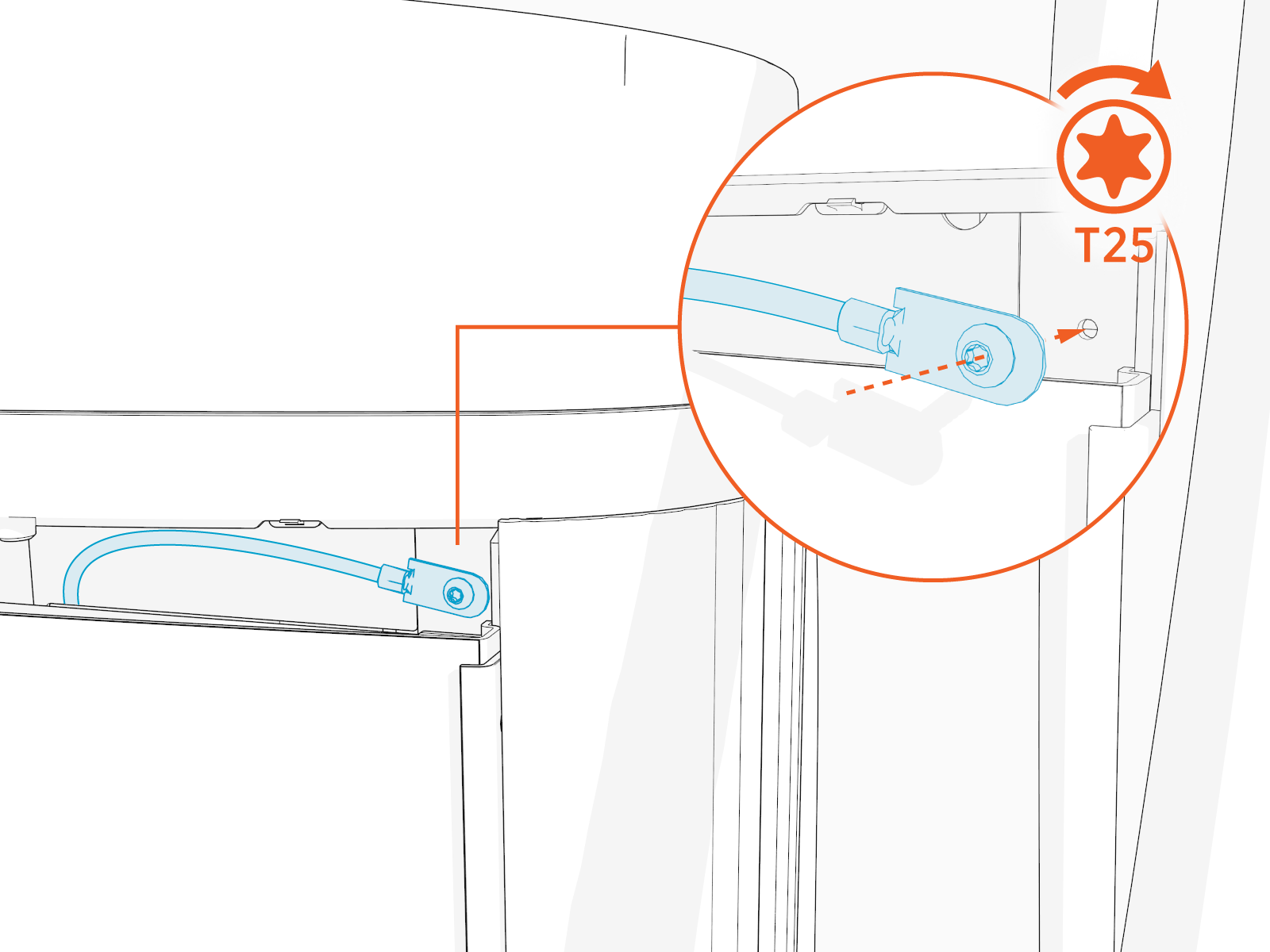
Use a T25 Torx screwdriver to secure the ground cable from the front panel to the station frame.
-
Remove the blue protective film from front and rear panels and screen.

Install the Area Light Bar
To install the area light bar, complete the following steps:
-
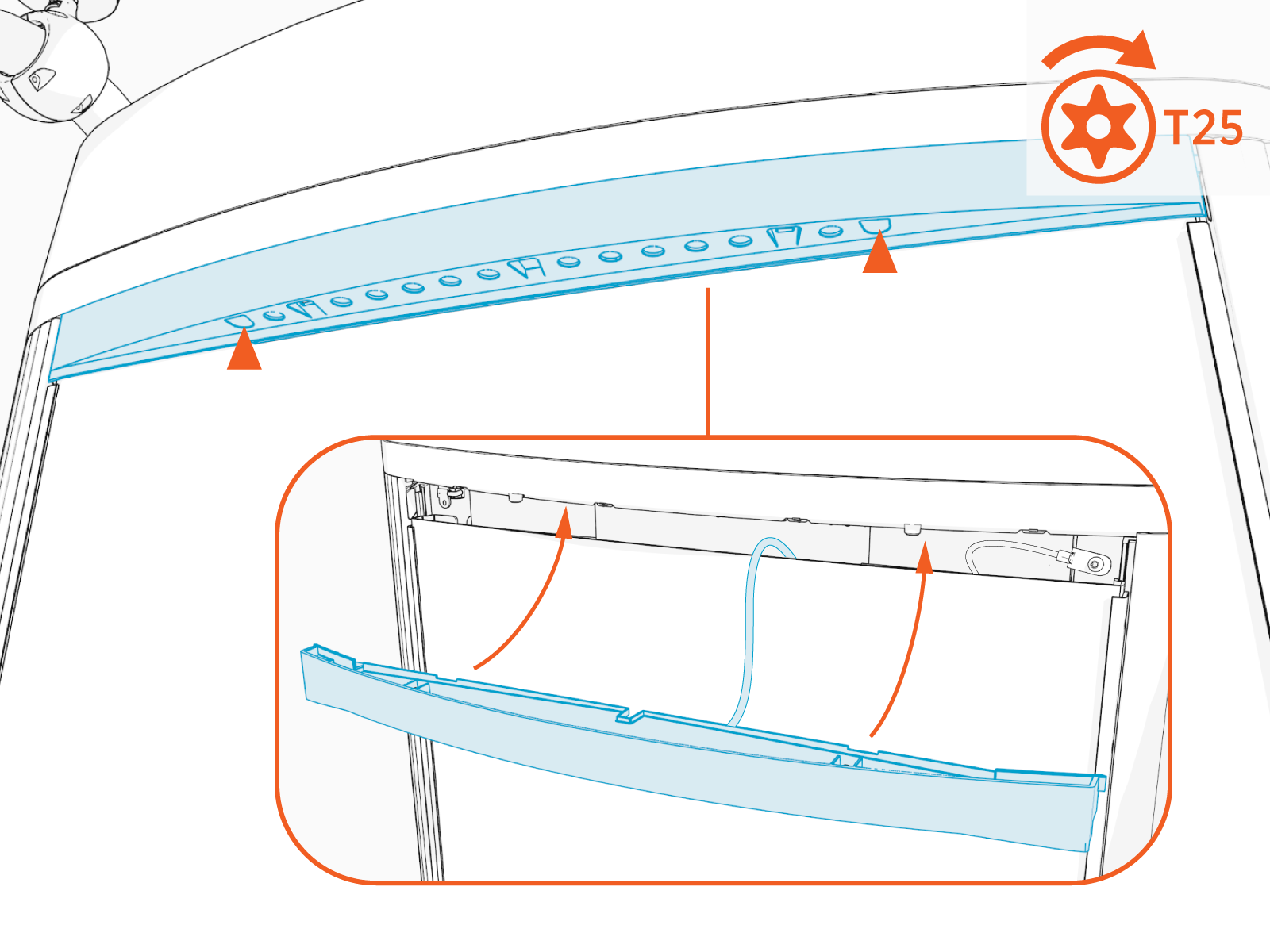
Position the area light bar above the upper front panel.
-
While holding the area light bar near the opening at the top of the Express 280, guide the power cable through the notch in the center of the area light bar.

-
Connect the power cable from the Express 280 to the area light bar.
Make sure to route the cable carefully so it does not get pinched.
-
Use a tamper resistant T25 Torx screwdriver to tighten the two captive screws on the bottom edge of the area light bar. Torque to 2.8 Nm (25 in-lb).
-
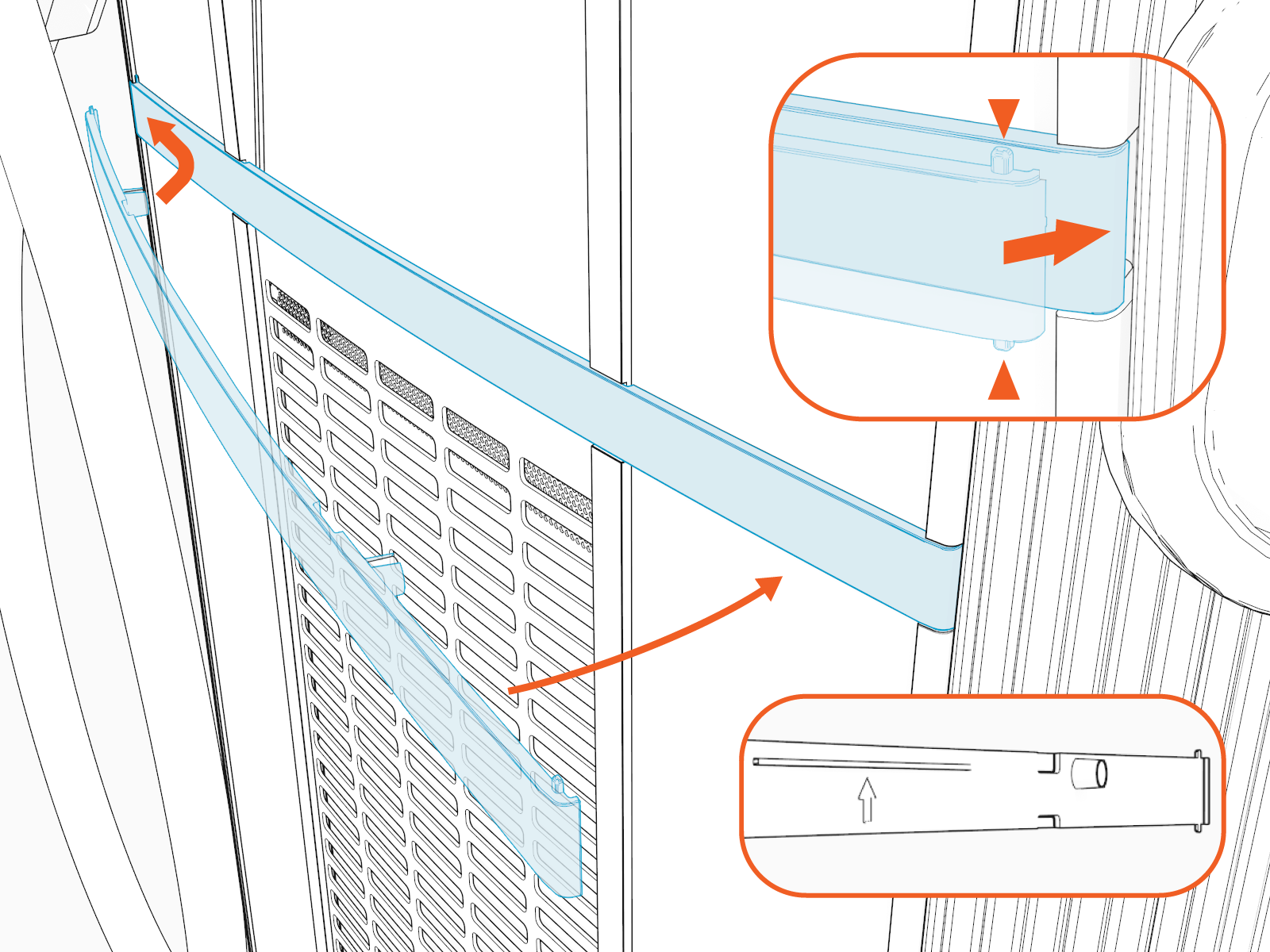
Attach the trim panel.
You have now completed the physical installation of the Express 280. Follow the steps in the next section to complete the installation. Do not leave the installation site until you complete all steps in the next section and verify the Express 280 is operating correctly.
