Install Side Panels, Power Modules, and the Touchscreen
If the installation requires above-ground conduit, visit Install the SCE Box Cover for steps to install a Surface Conduit Entry (SCE Surface Conduit Entry) box cover before installing the side panels.
Install the Side Panels
Side panels prevent electrical shock hazard before powering on the charging station. These steps are the same for both Standalone and Paired installations. To install the side panels, configure the following steps:
Install the Power Module
To install the Power Module, configure the following steps:
-
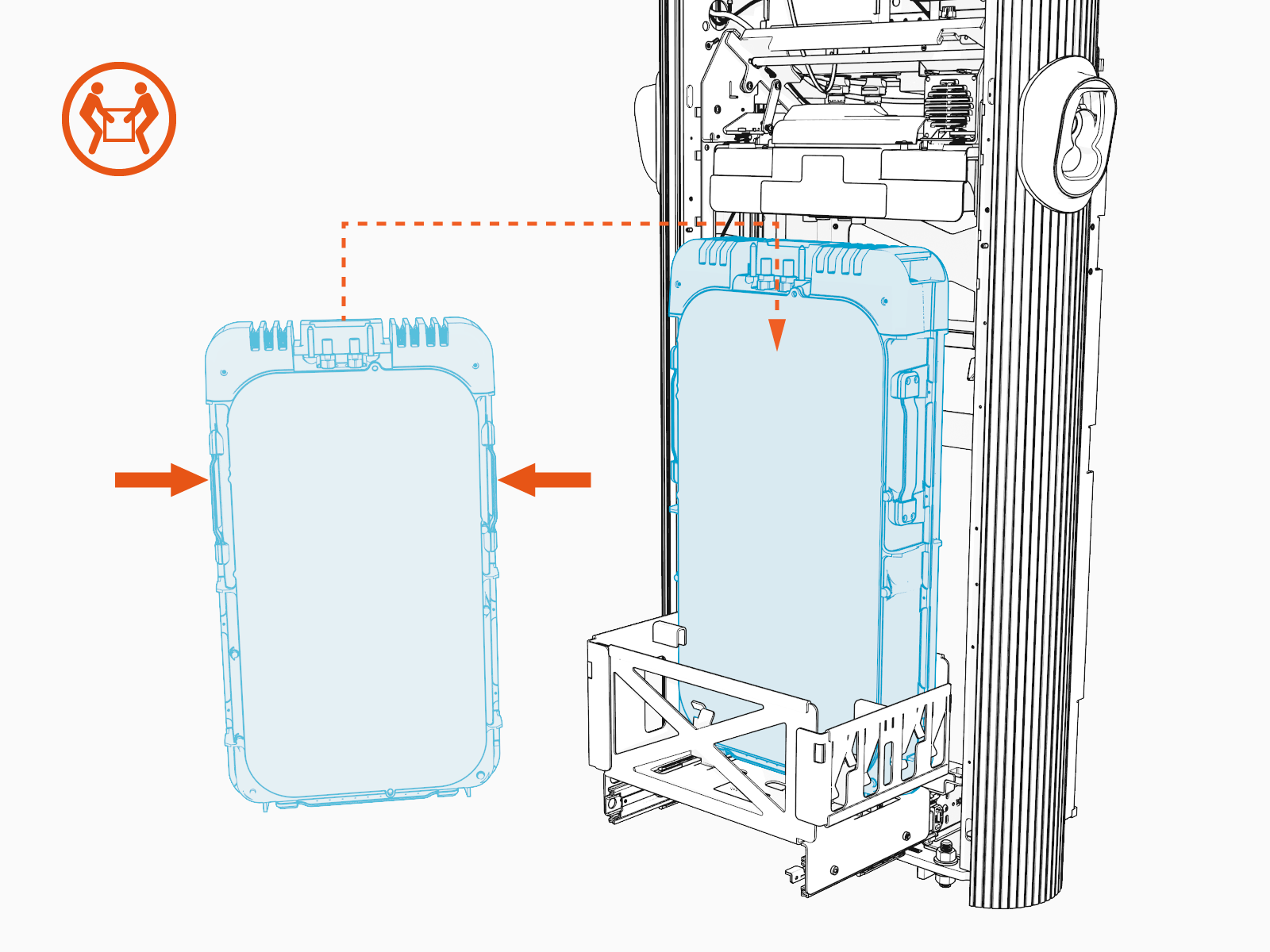
Using two people, lift the Power Module by its side handles and gently place it into its holder.
-
Install the rear Power Module first. Ensure the communication pins are closest to the back of the station.
 If only one Power Module is being installed, it must be installed in the rear holder.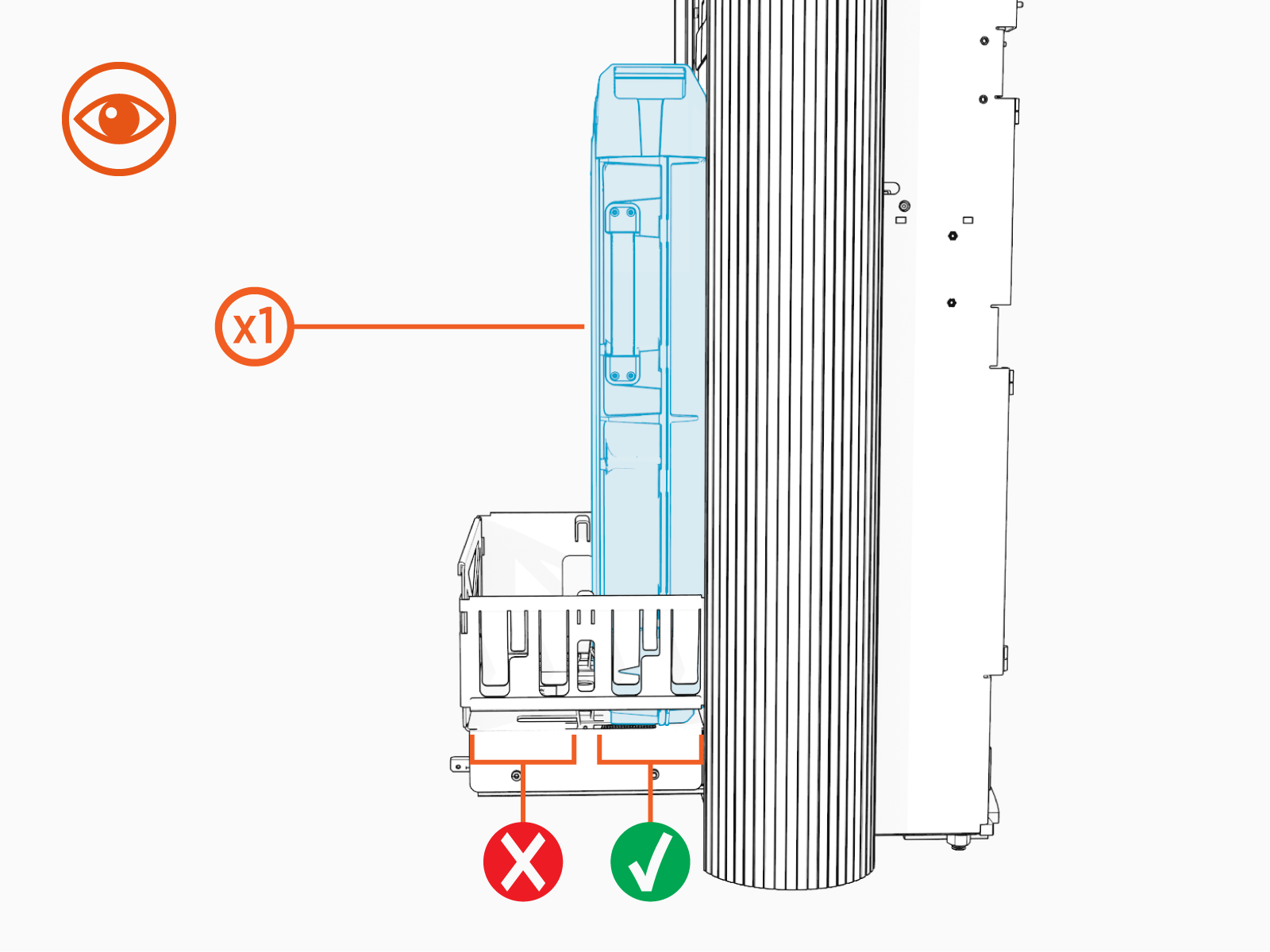
-
Repeat the step for the second Power Module, if applicable.

-
If not already done, remove the safety caps from the coolant ports.

-
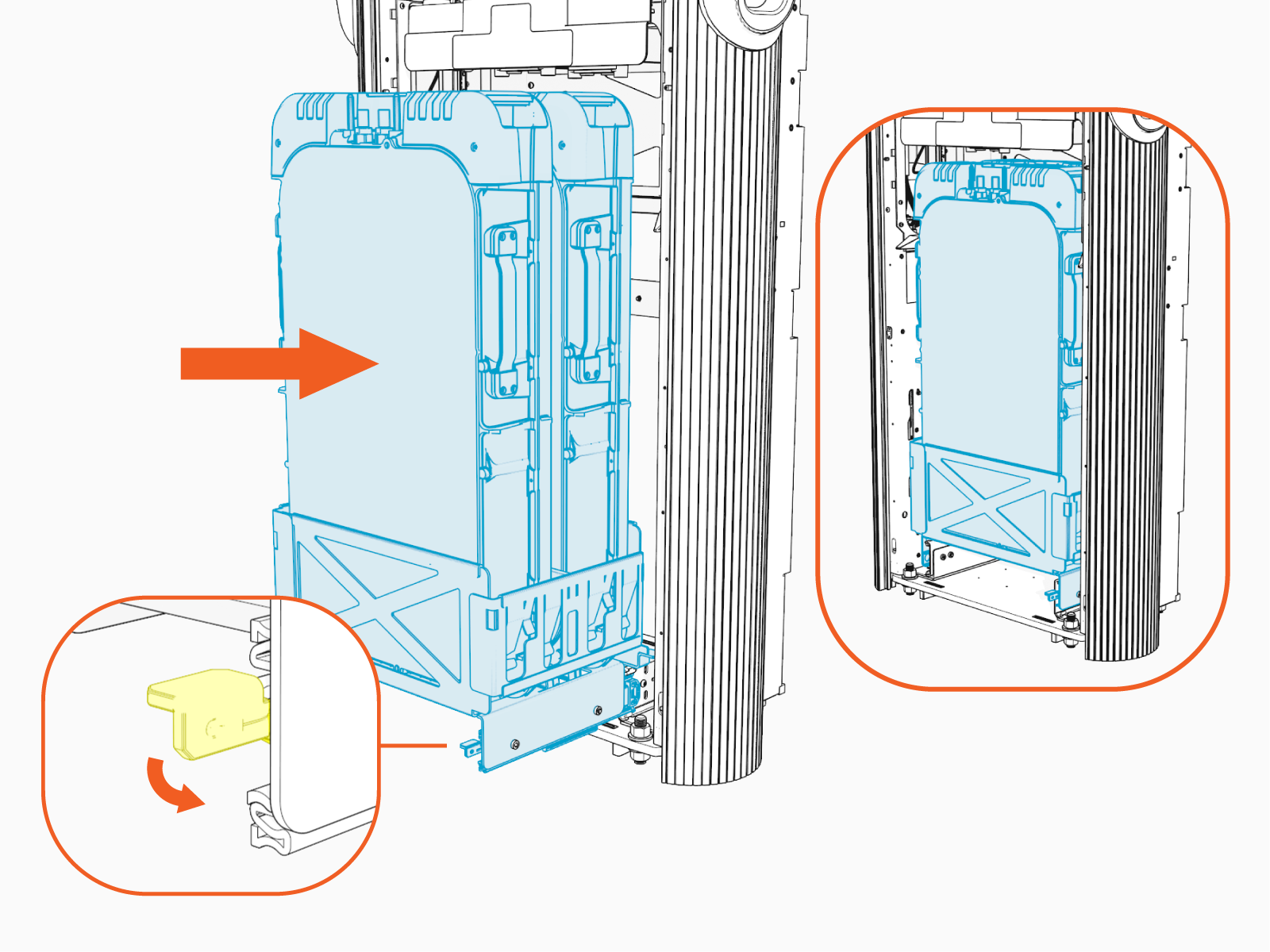
At the bottom right of the Express 280, press and hold the yellow release latch while pushing the Power Module tray into the station until it locks into place.
-
Using two hands, squeeze the Power Module mechanism’s release bar and lower it part of the way down while checking alignment with the ports and guide posts.

-
Lower the Power Module mechanism until you hear a click as the mechanism locks into place.
Ensure the mechanism is fully engaged with all Power Module connectors. The Power Module mechanism should fully cover the ridges on the Power Module’s top edge.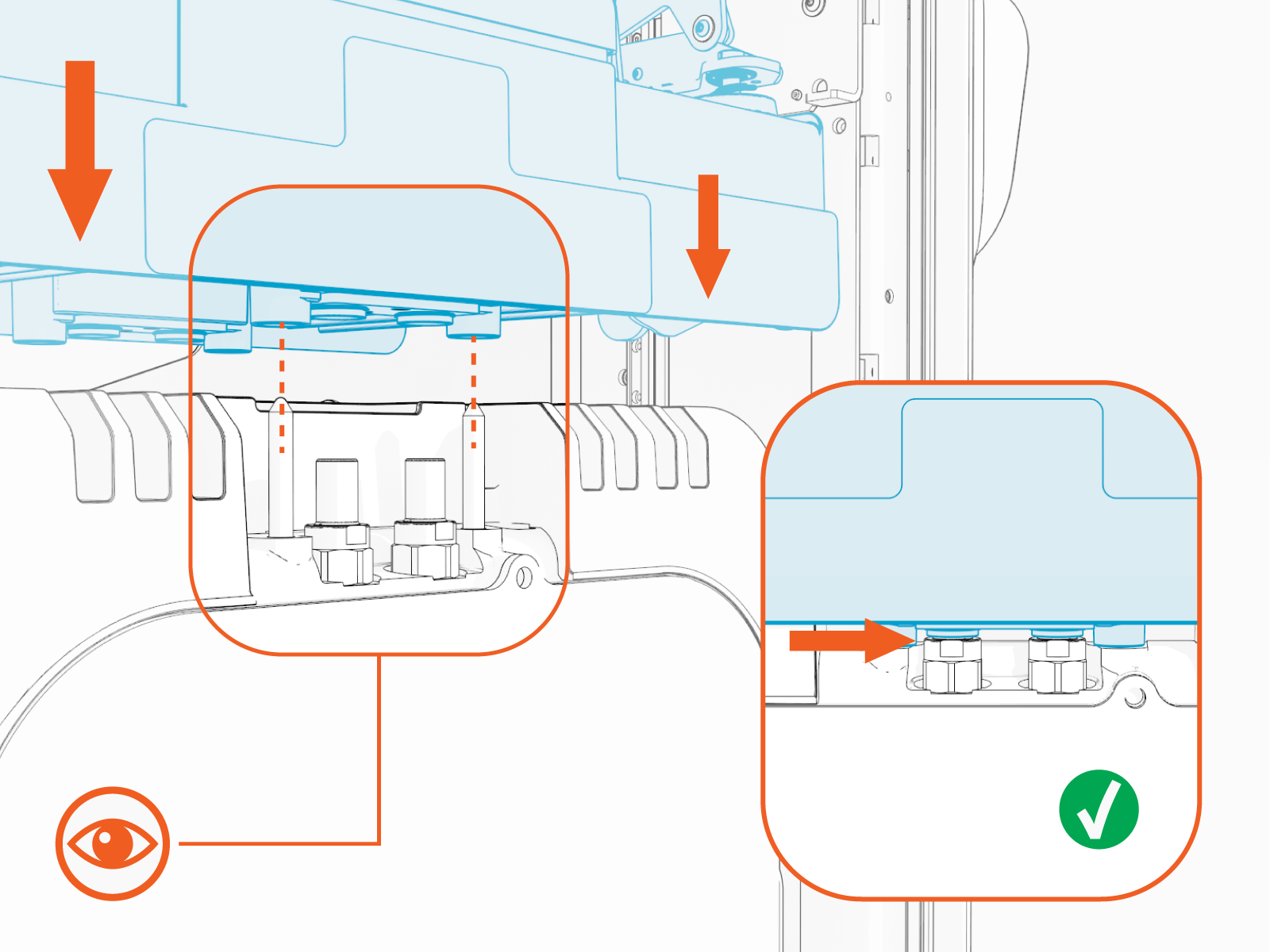
Install the Touchscreen
To install the touchscreen, configure the following steps:
-
Loosen but do not remove the retention knobs.

-
Remove the touchscreen from the packaging.

-
Align the hooks of the touchscreen’s mounting bracket over the retention knob supports. Tighten the knobs enough to secure the touchscreen.

-
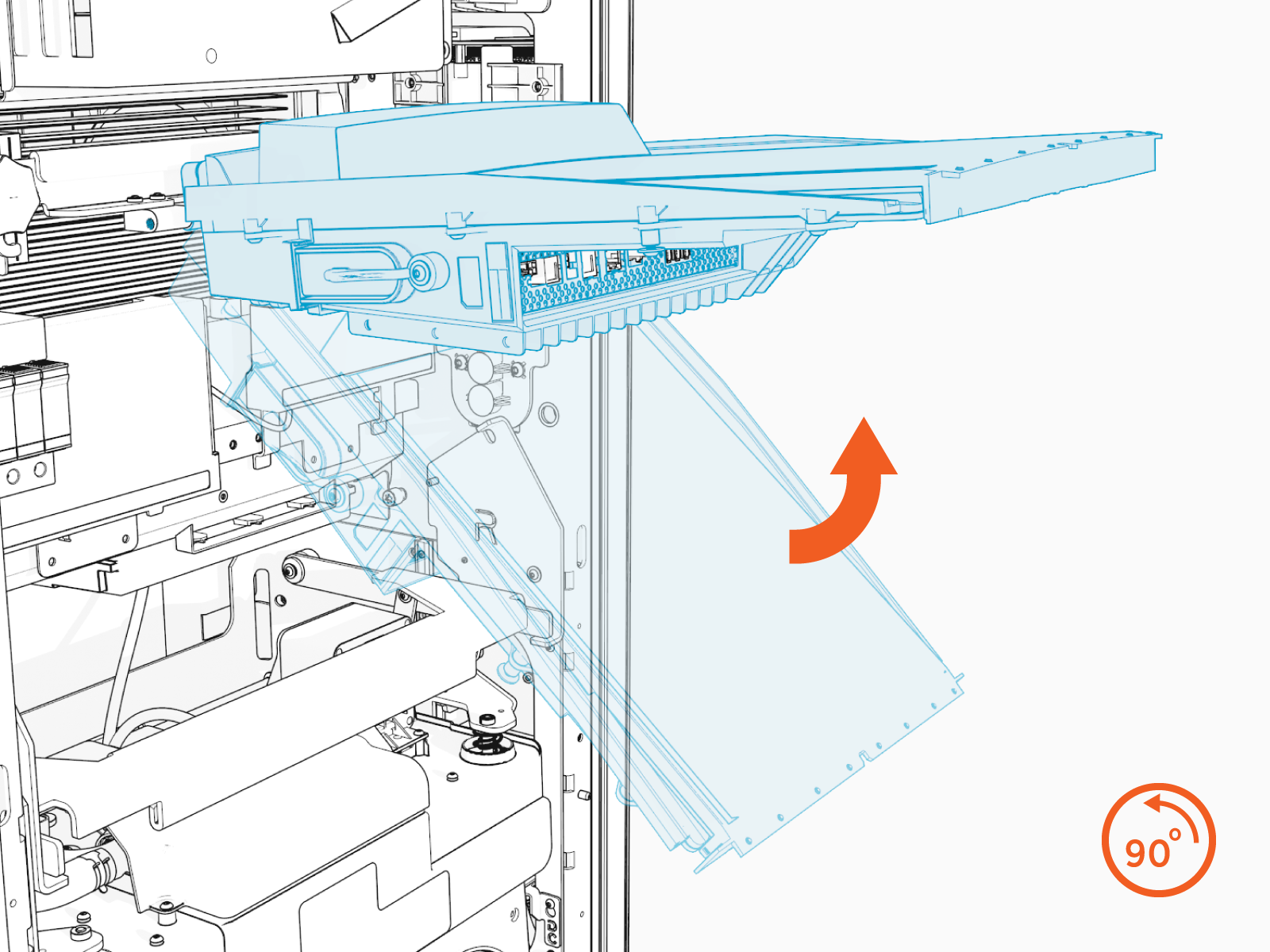
Swing the bottom of the touchscreen out to a 90-degree angle.
-
Connect all cables to the underside of the touch screen:

(a) Speaker
(b) Power 24 VDC power
(c) RJ45 to dispenser cable control
(d) USB
Universal Serial Bus to LED displayPerform a pull-push test to ensure that each cable is correctly seated. Failure to connect these correctly could prevent the system from powering on.
-
Route excess wiring through the wire management rings under the touchscreen to prevent it being pinched in the panels.

-
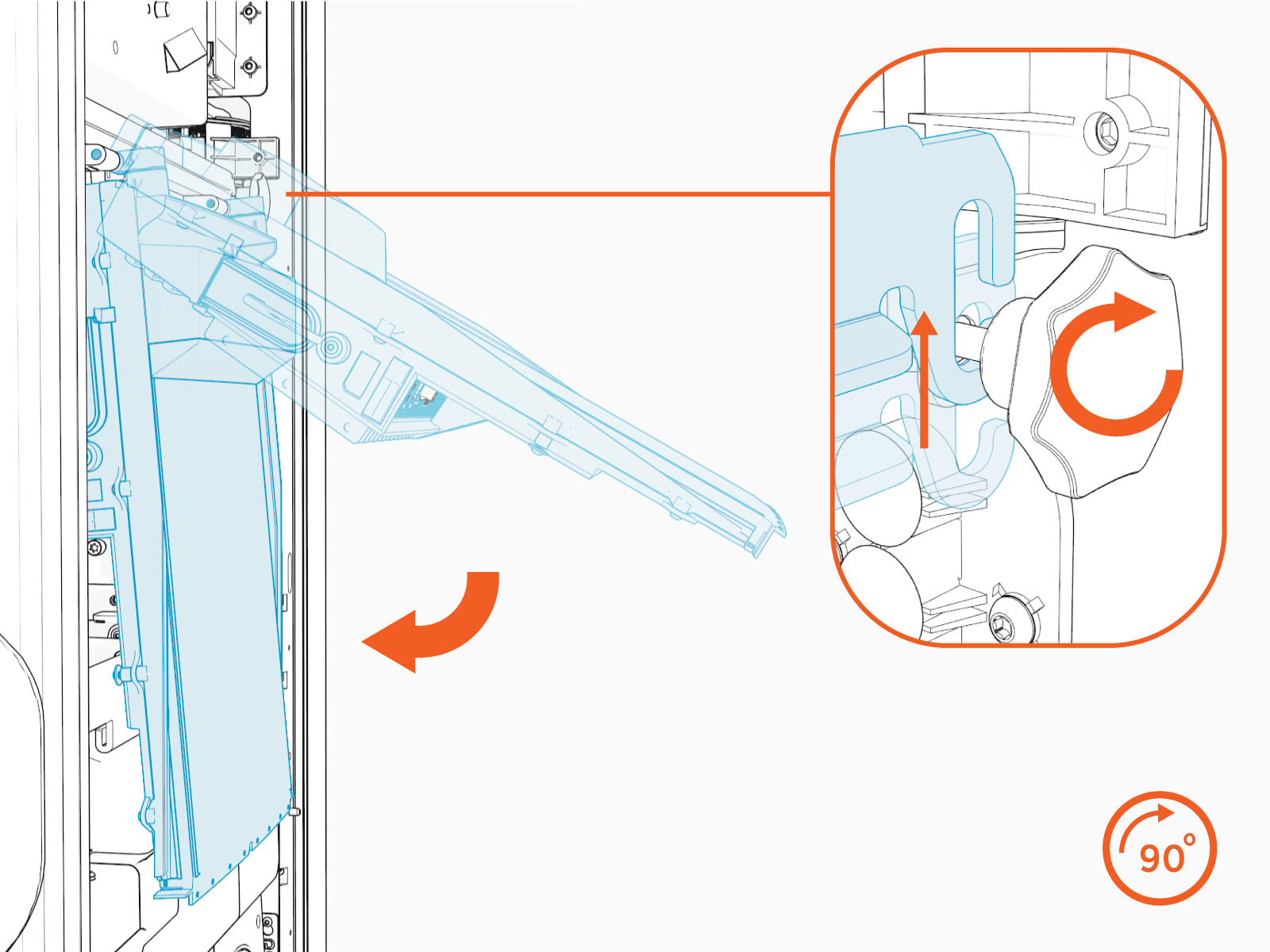
Swing the touchscreen down.
Loosen both retention knobs and slide the touchscreen beam up.
Re-tighten the knobs in the highest position.
Fill the Coolant Reservoir
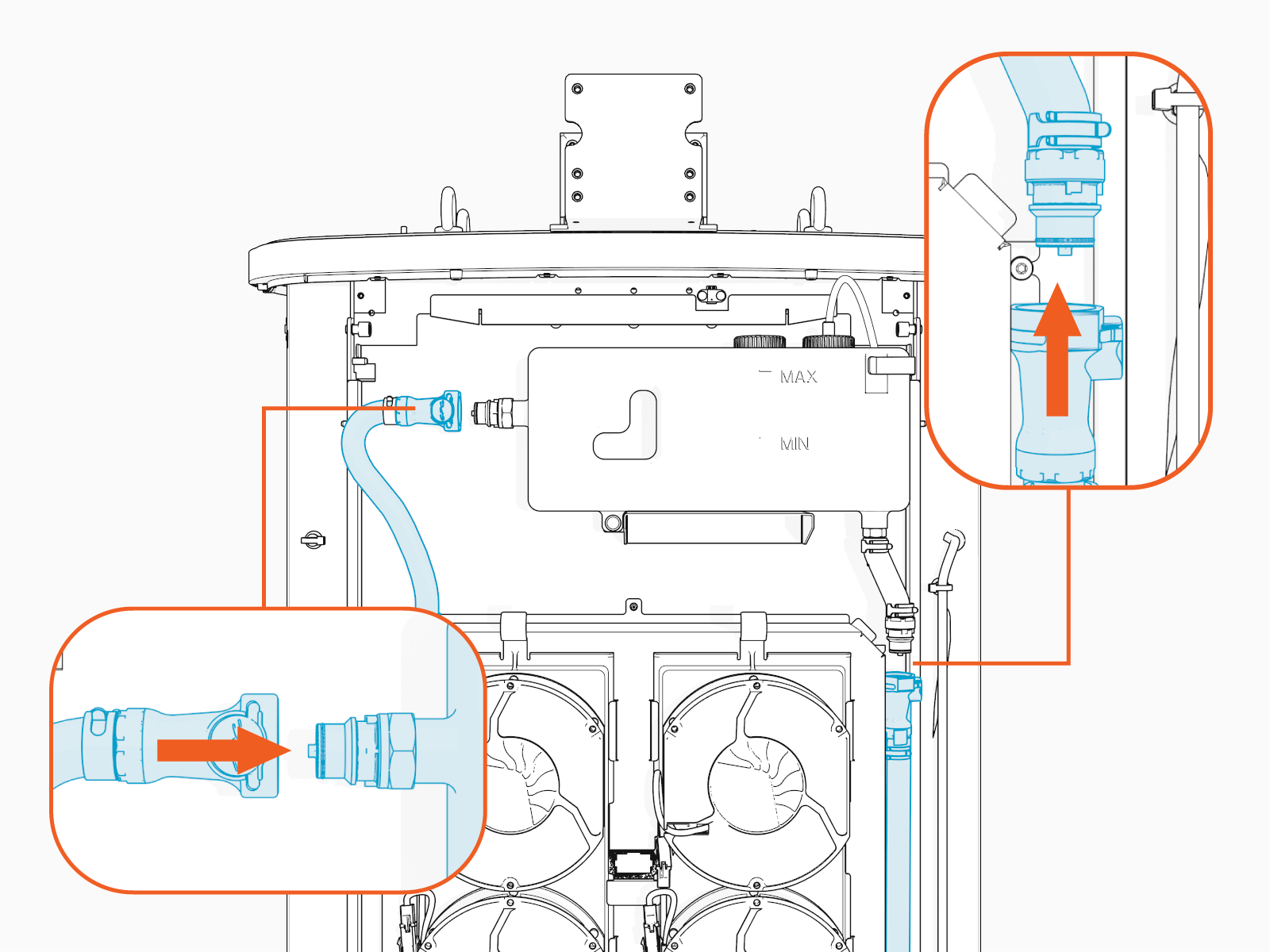
The Express 280 is shipped with an empty coolant reservoir. Coolant and a funnel are included with the product. Most coolant lines are already connected to the reservoir with quick connect fittings, except the ones shown below. To fill the coolant reservoir, configure the following steps:
Always fill the coolant reservoir after installing the Power Modules in the station mechanism, since Power Modules are part of the coolant path. Filling the reservoir first does not allow full station coolant levels.
-
Remove the plastic shipping wrap.
-
Attach the quick connect line on the right side of the coolant reservoir. The line audibly clicks when connected.
-
Attach the quick connect line on the left side of the coolant reservoir.
-
Using a step ladder if needed, unscrew the reservoir fill cap.

-
Use a funnel to fill the reservoir to the marked MAX line with coolant.

-
Replace the reservoir cap.

-
Use the cloth to wipe up any coolant spills.
