Connect Auxiliary Component Cables
Parts Needed
To prepare for auxiliary component cable connection, find the following part from the Auxiliary Components Kit:
-
M6 bolt and nut
Connect RFID Antenna Cable
-
Route the RFID
 Radio Frequency IDentification cable end to the RFID Radio Frequency IDentification antenna. Keep the cable clear of high voltage exposed conductors and the pantograph arms through the entire movement range.You may coil the cable to take up excess slack. However, note the LMR-240 cable shipped with product has a one-time bend radius of 19 mm (0.75 in) and repeated bend radius of 63 mm (2.5 in). Do not exceed the bend radius or the cable may be damaged and the system may not operate. If using an LMR-240 equivalent cable, do not exceed the bend radius limits for the cable type used.
 -
Connect the RFID
Radio Frequency IDentification antenna cable. Torque to 1.5 Nm (13.3 in-lb). The connection to the RFID Radio Frequency IDentification antenna assembly may be oriented at any angle to fit the site cabling routing needs. Check that all connections between adapters are torqued after cable is installed.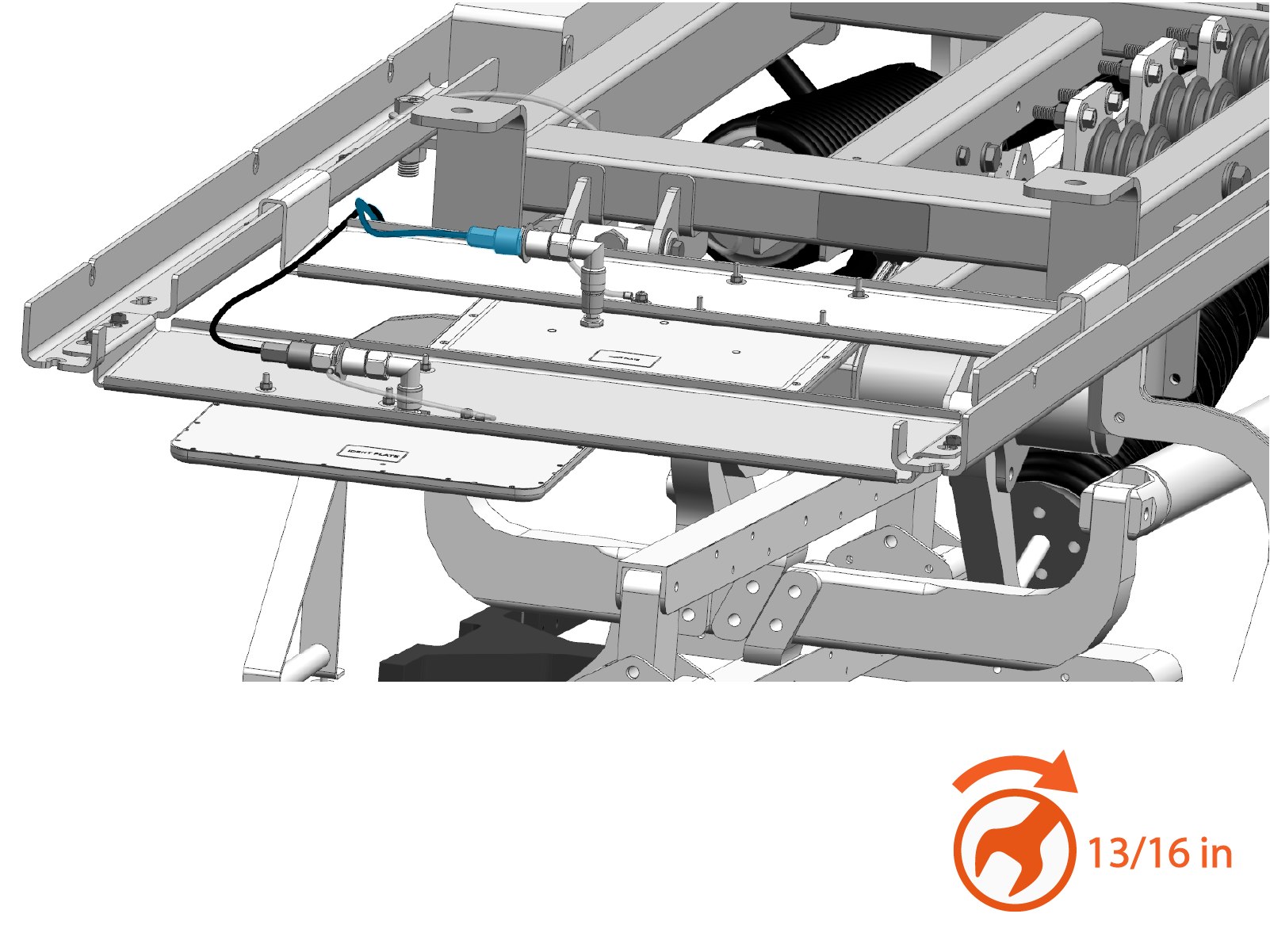
-
Use zip ties to secure the antenna cable so that it is clear of the pantograph during operation.
Connect Wi-Fi Antenna Cable
-
Route the Wi-Fi
Wireless Fidelity cable end to the Wi-Fi Wireless Fidelity antenna. Keep the cable clear of high voltage exposed conductors and the pantograph arms through the entire movement range.You may coil the cable to take up excess slack. However, note the LMR-240 cable shipped with product has a one-time bend radius of 19 mm (0.75 in) and repeated bend radius of 63 mm (2.5 in). Do not exceed the bend radius or the cable may be damaged and the system may not operate. If using an LMR-240 equivalent cable, do not exceed the bend radius limits for the cable type used. -
Connect the Wi-Fi
Wireless Fidelity antenna cable. Torque to 1.5 Nm (13.3 in-lb). The connection to the Wi-Fi Wireless Fidelity antenna assembly may be oriented at any angle to fit the site cabling routing needs. Check that all connections between adapters are torqued after cable is installed.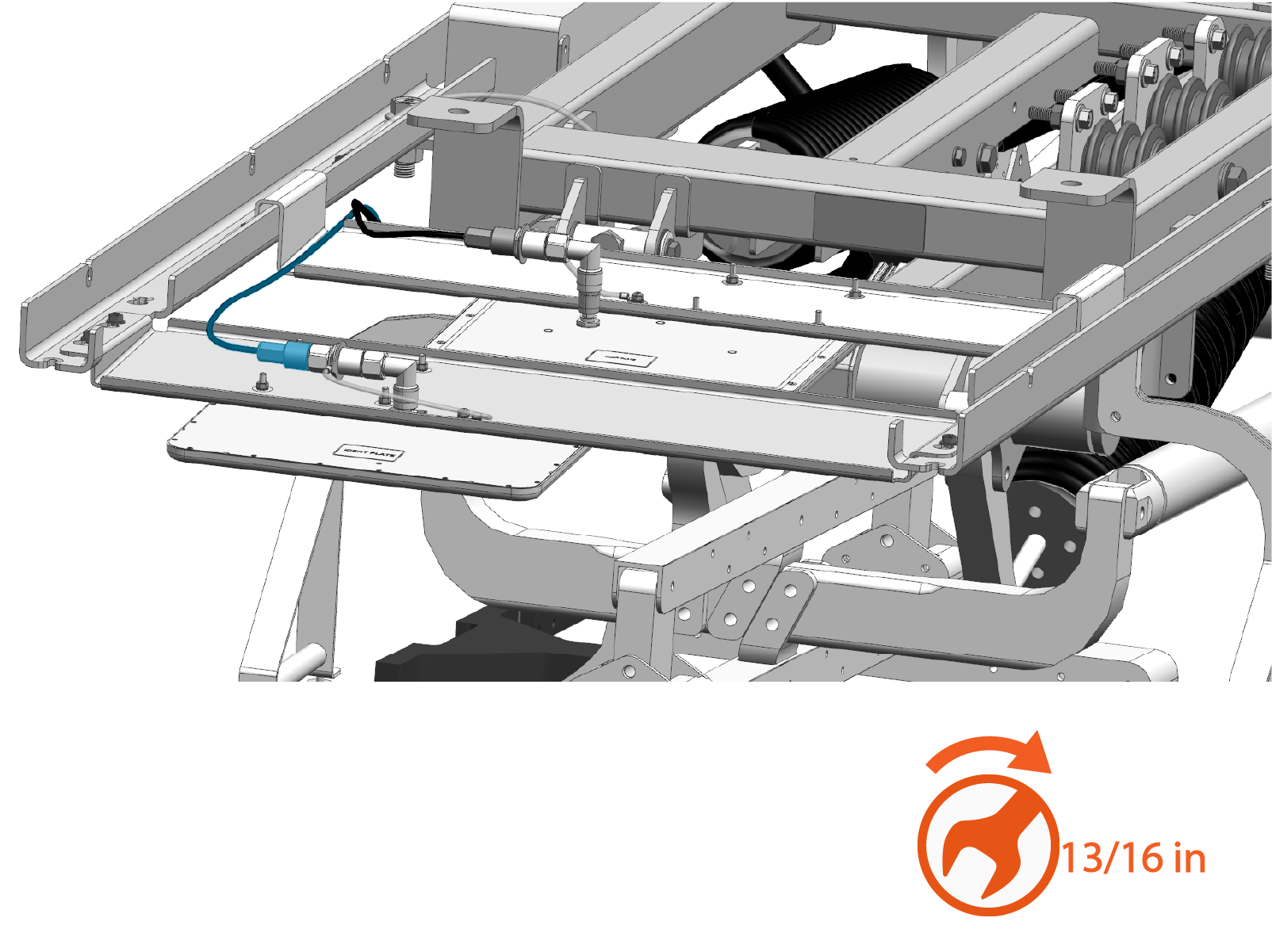
-
Use zip ties to secure the antenna cable so that it is clear of the pantograph during operation.
Connect Status LED Cable
-
Route the status LED cable end to the status LED. Keep the cable clear of high voltage exposed conductors and the pantograph arms through the entire movement range. Coil the cable as needed to take up excess slack.
-
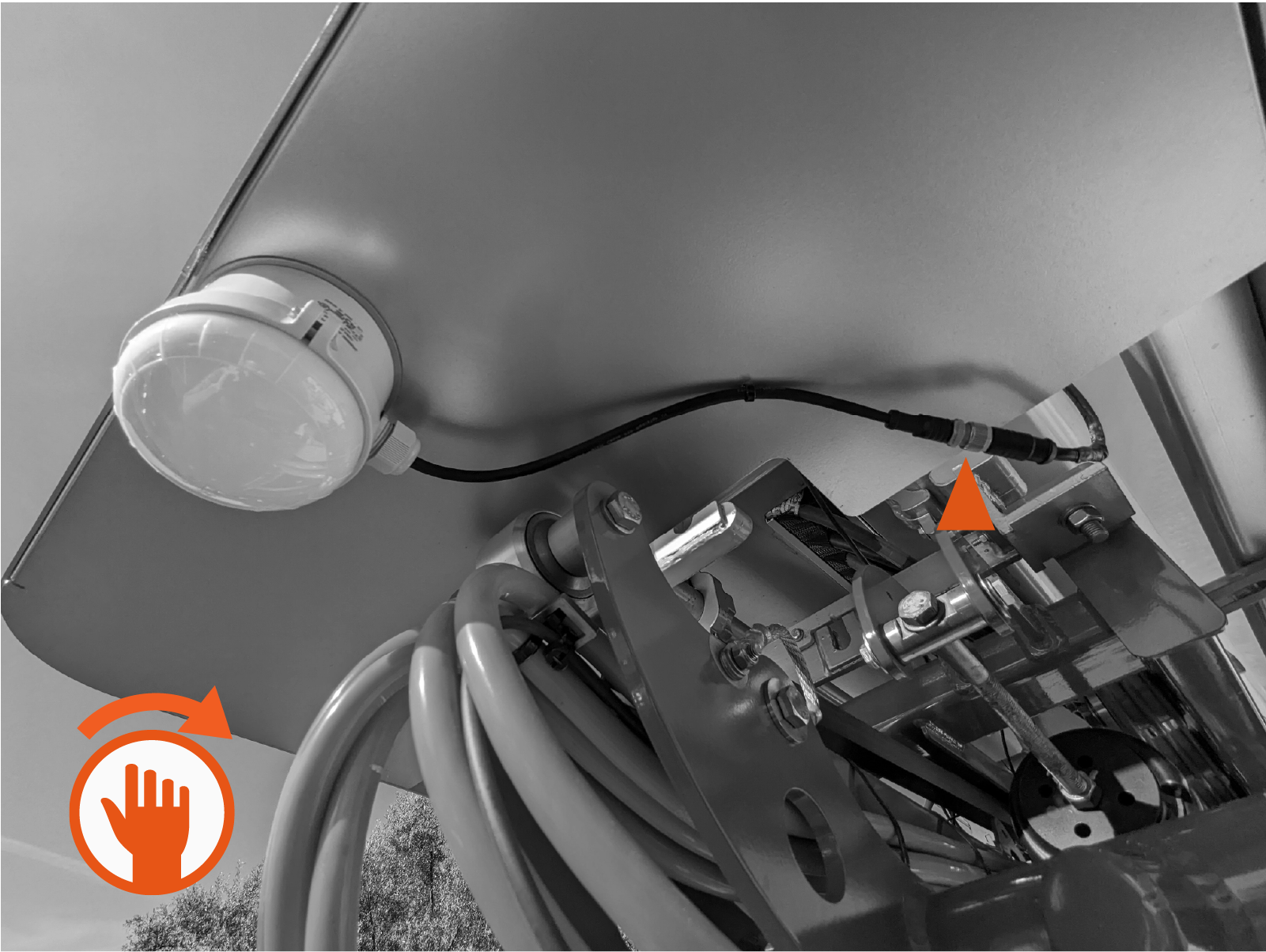
Connect the status LED cable to the short cable attached to the status LED. Hand-tighten.
-
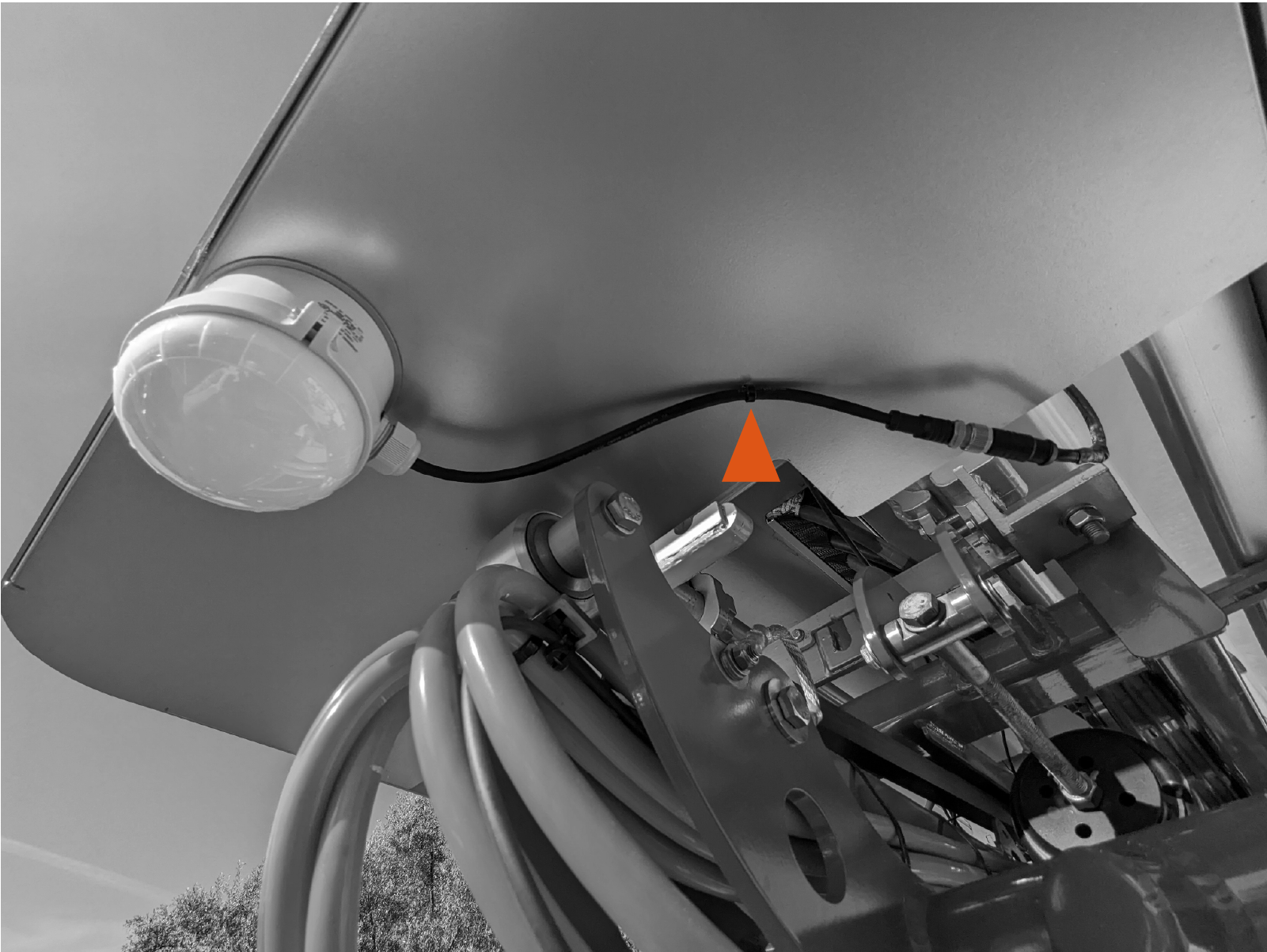
Use a zip tie looped through a hole in the front cover to secure the cable.
-
Use zip ties to secure the cable so that it is clear of the pantograph during operation.
Connect Auxiliary Frame Ground Wire
-
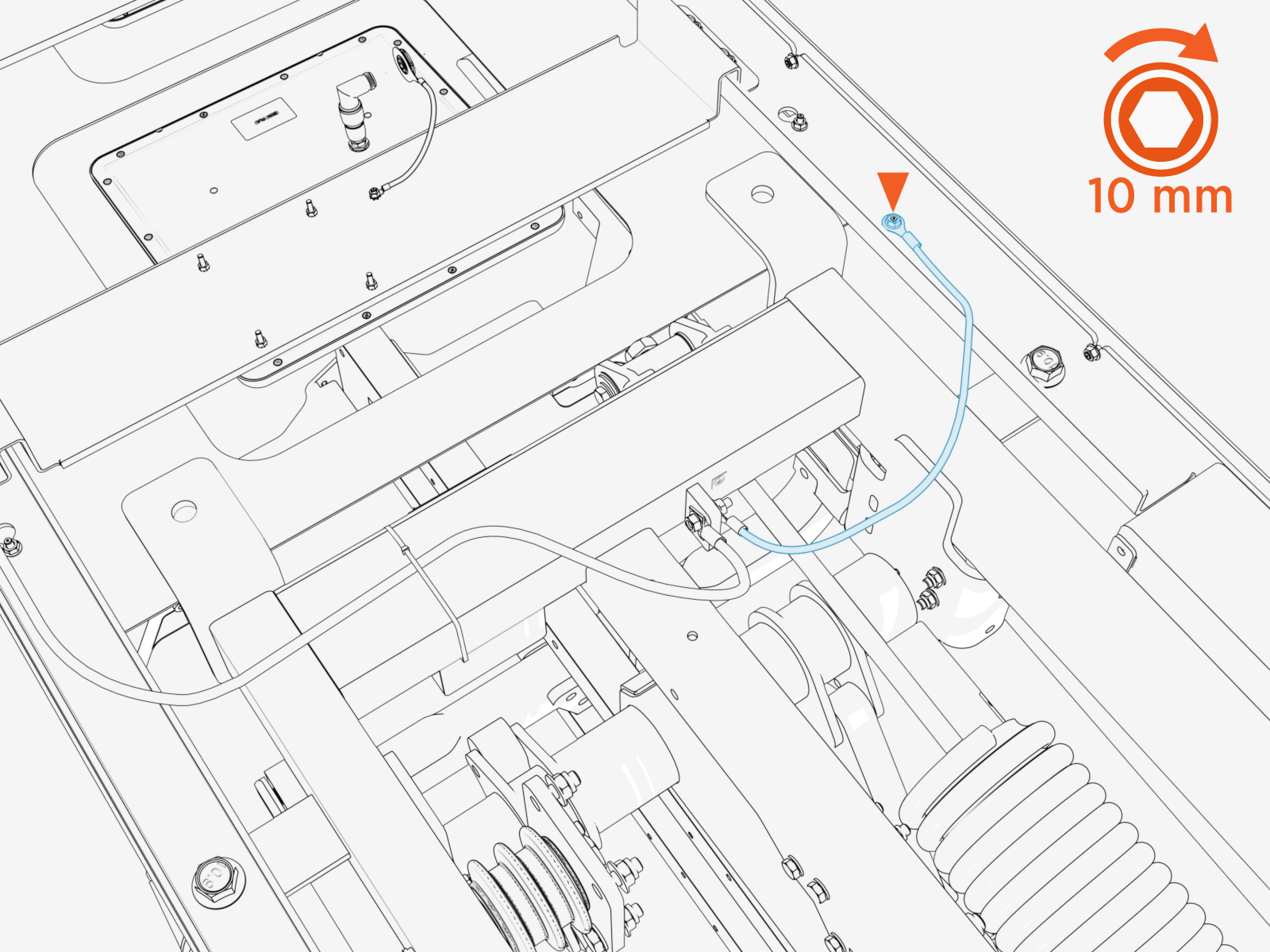
Identify the ground wire connecting from the pantograph frame ground landing.
-
Connect the ground wire to the auxiliary component frame using M6 bolt and nut. Torque to 5.6 Nm (50 in-lb).
-
Use zip ties to secure the wire so that it is clear of the pantograph during operation. The cable must be kept away from the pantograph arms and charging rails.
