Install Power Link 2000 Options
Sequential Charging Kit
If the site plan indicates the Power Link 2000 must be configured for sequential charging (one HV DC High Voltage Direct Current input for two power paths), follow procedures below to install the Sequential Charging Kit.
-
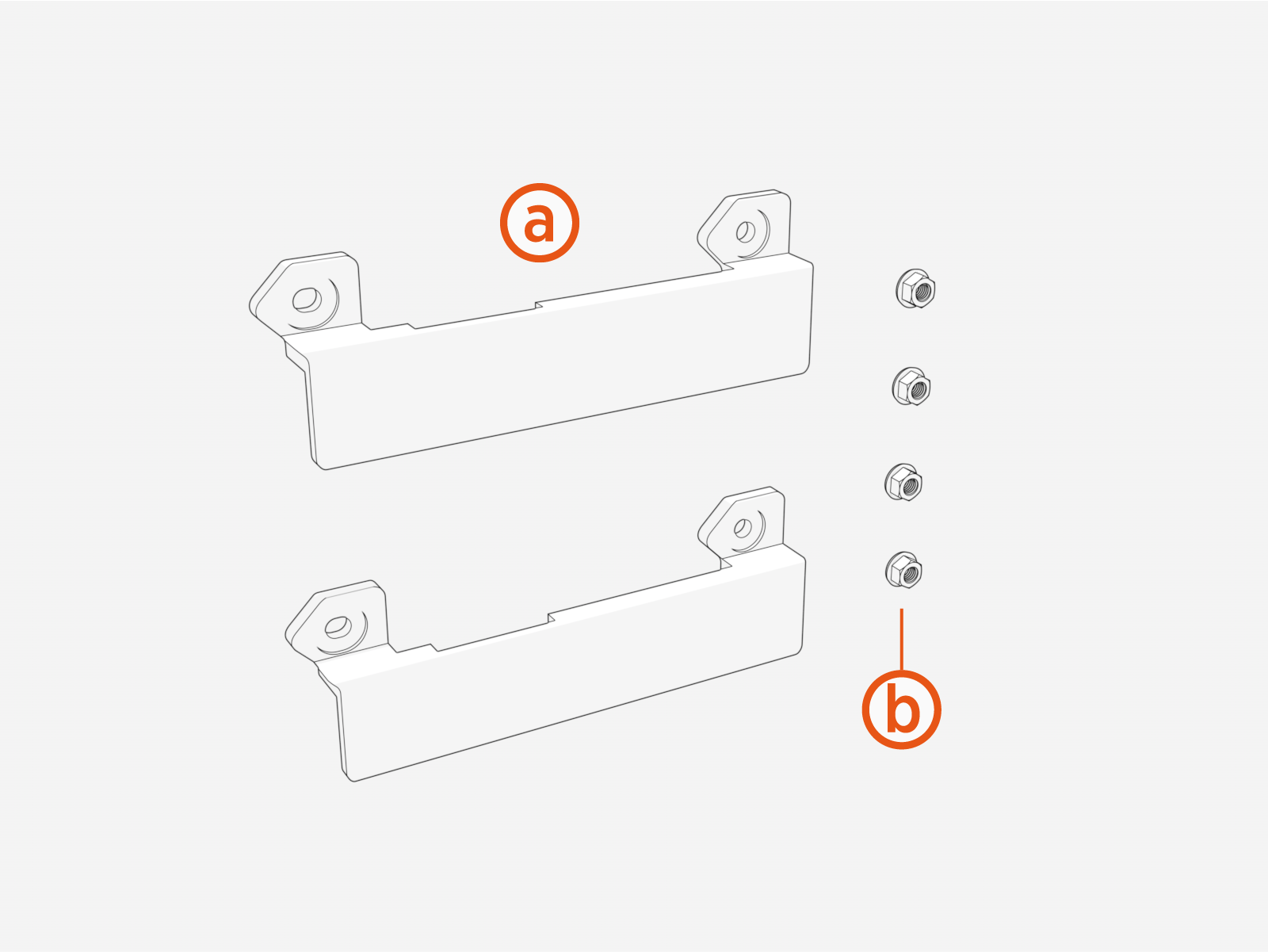
Unpack the Sequential Charging Kit. Confirm all parts listed below are present.
-
Bus bar bridges (x2)
-
M8 captive washer nuts (x4)
-
-
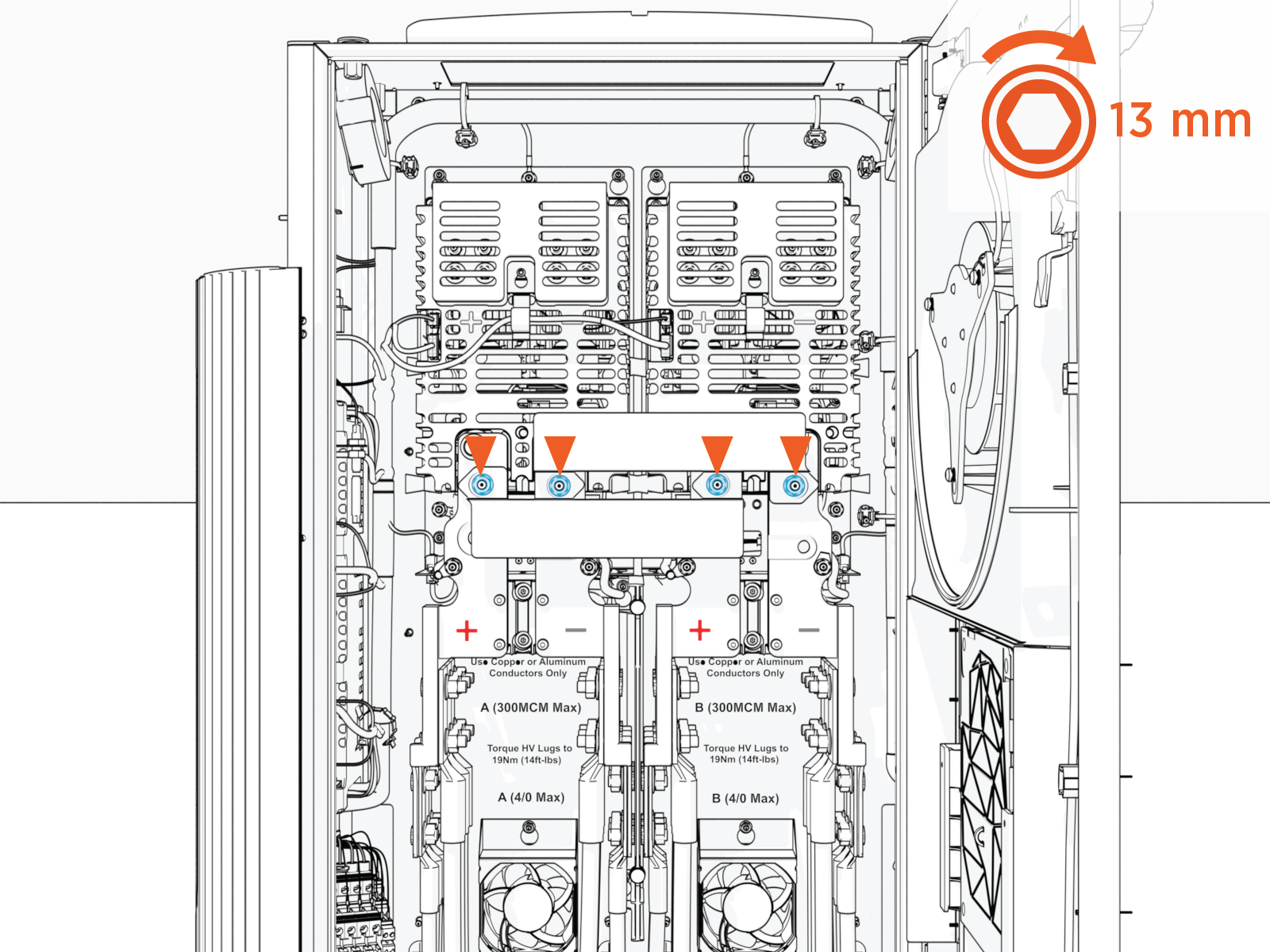
Install the bus bar bridges (x2). The bridges mount onto studs located on the HV DC
High Voltage Direct Current bus bars.
-
Fasten with concentric washer nuts (x4). Torque to 12.2 Nm (108 in-lb).
Ethernet to USB Kit
If the site plan indicates the Power Link 2000 must be configured with a hardwire Ethernet connection to a network server, follow procedures in this section to install the Ethernet to USB Universal Serial Bus Kit and the hardwire connection.
-
Unpack the Ethernet to USB
Universal Serial Bus Kit. Confirm all parts listed below are present.
-
Ethernet to USB
Universal Serial Bus module -
M5 star washer nuts (x2)
-
Zip ties (x5)
-
USB
Universal Serial Bus 3.0 Type B to Type C cable
-
-
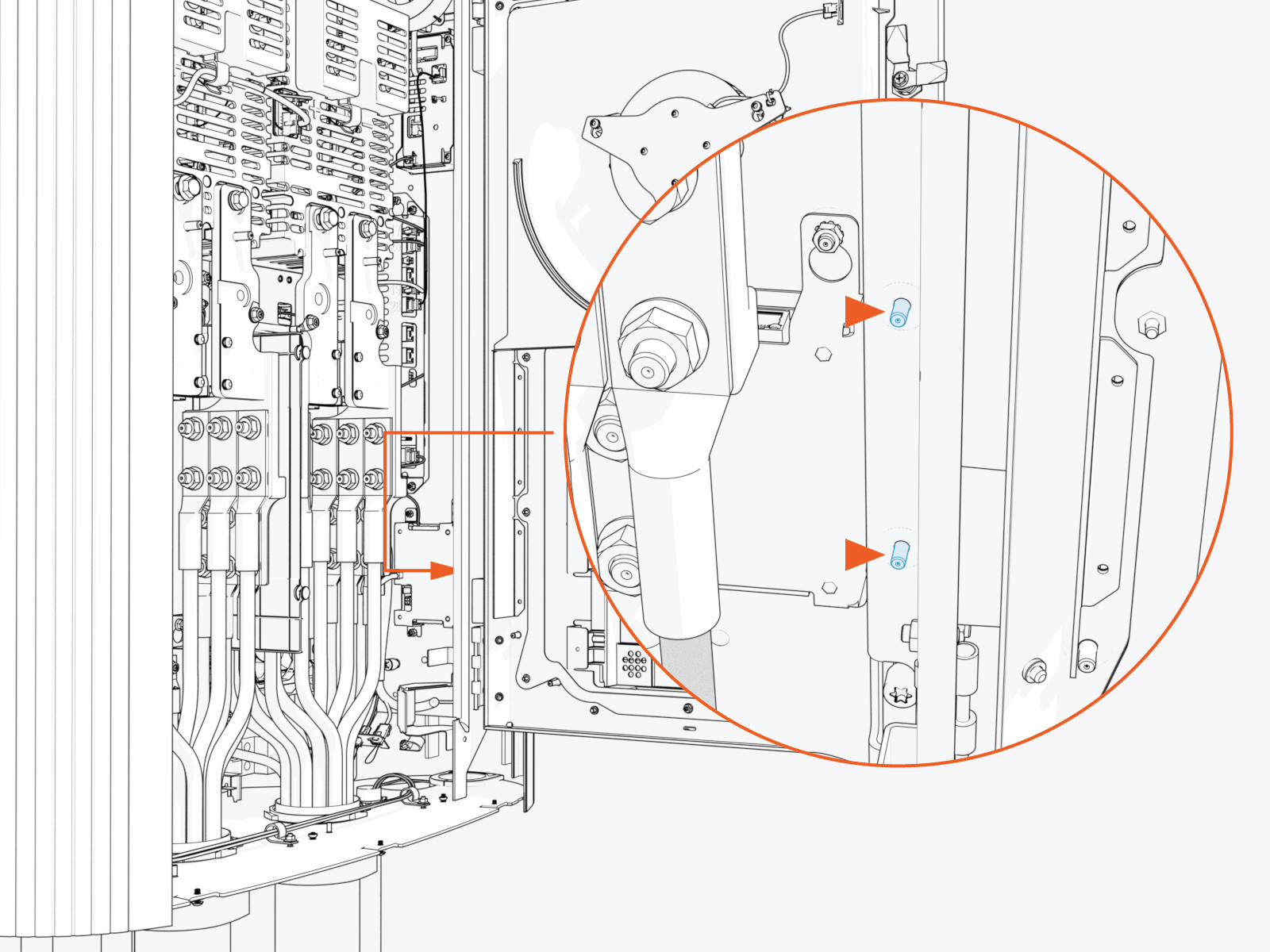
Locate the mounting studs (x2).
-
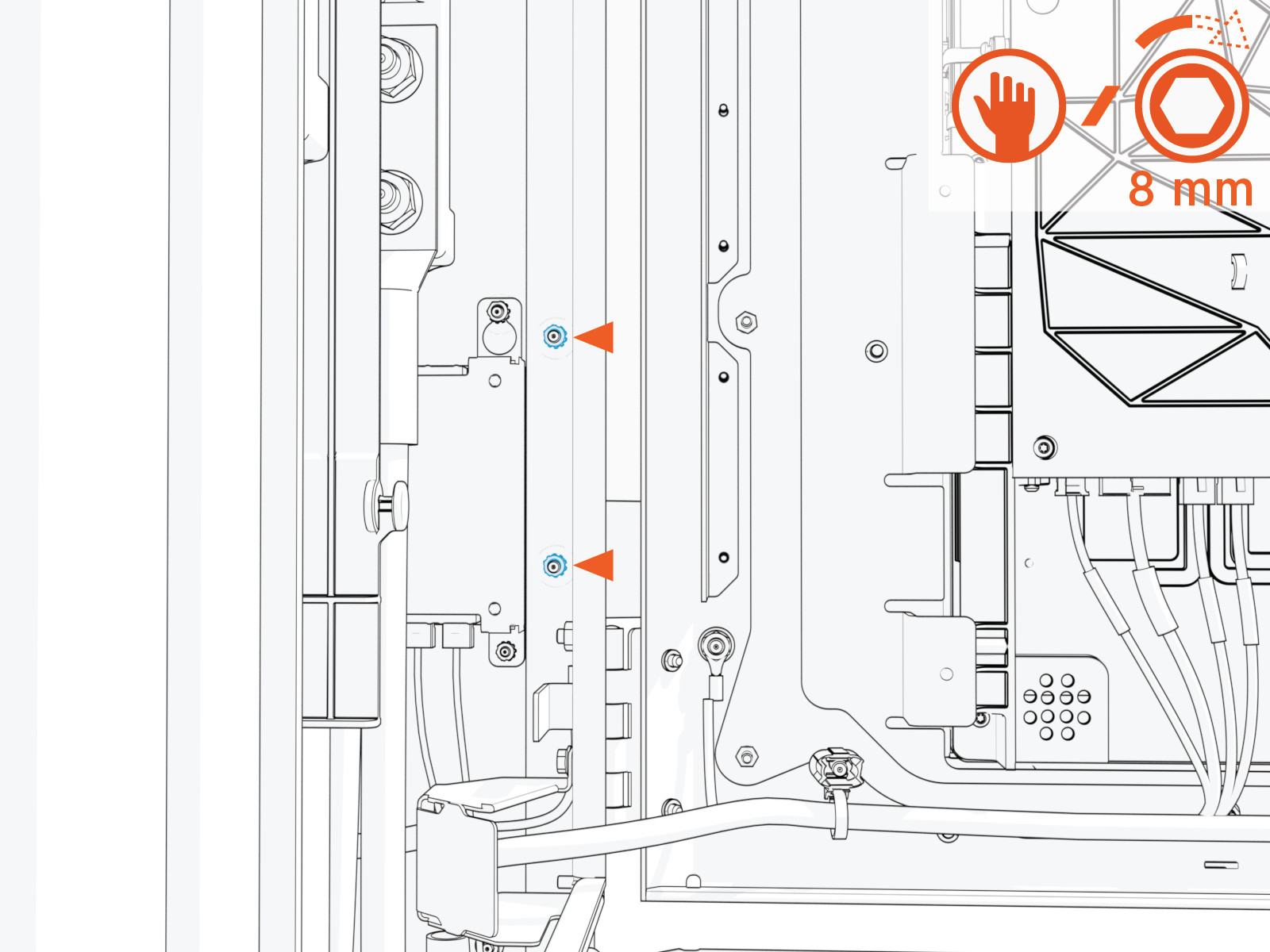
Install M5 star washer nuts (2) partially onto the studs. Thread the nuts only halfway onto each stud.
-
Mount the Ethernet to USB
Universal Serial Bus module onto the studs. Slide the module down to seat the notched tabs onto the studs.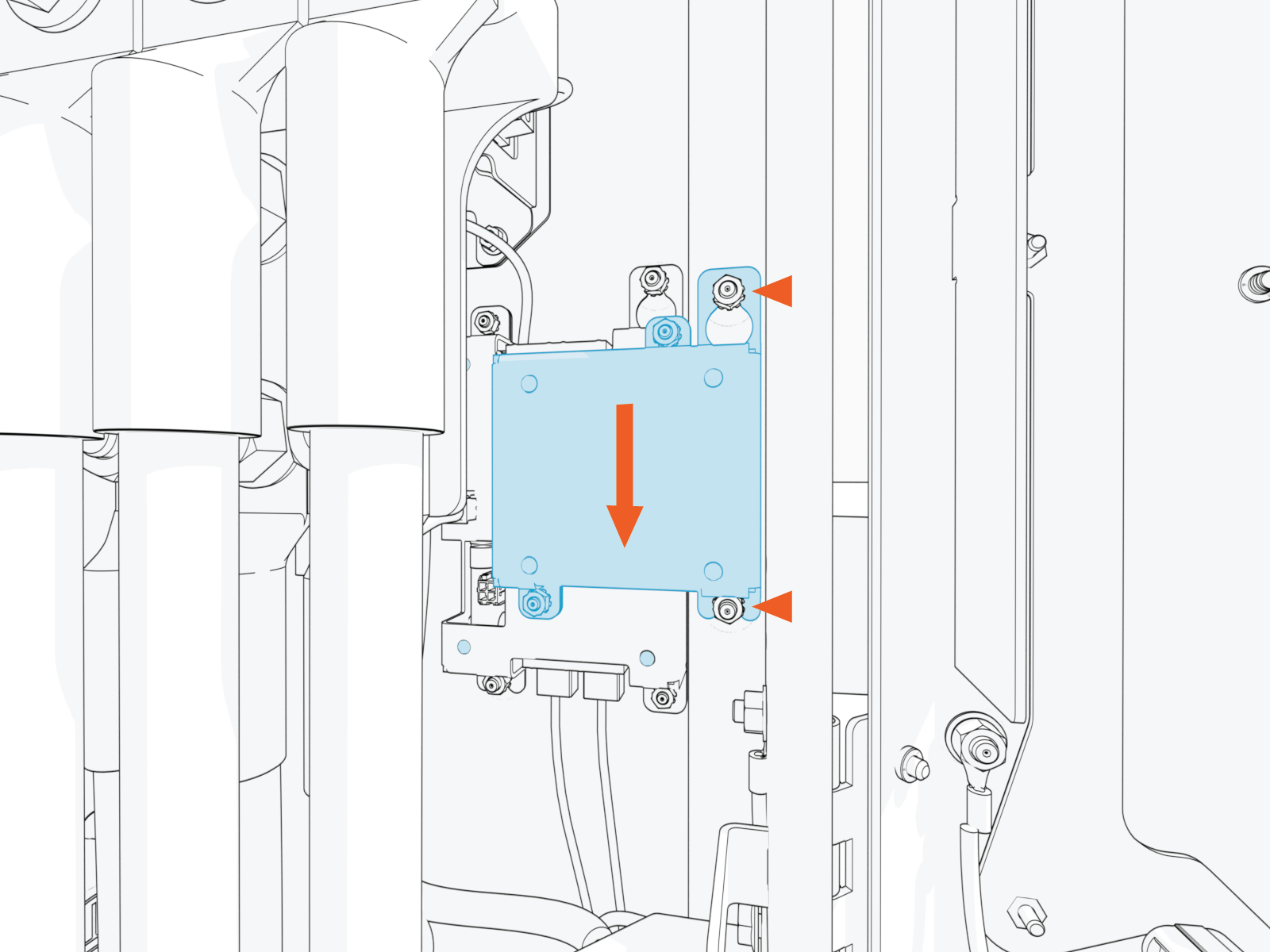
-
Torque nuts (x2) to 4.5 Nm (40 in-lb).
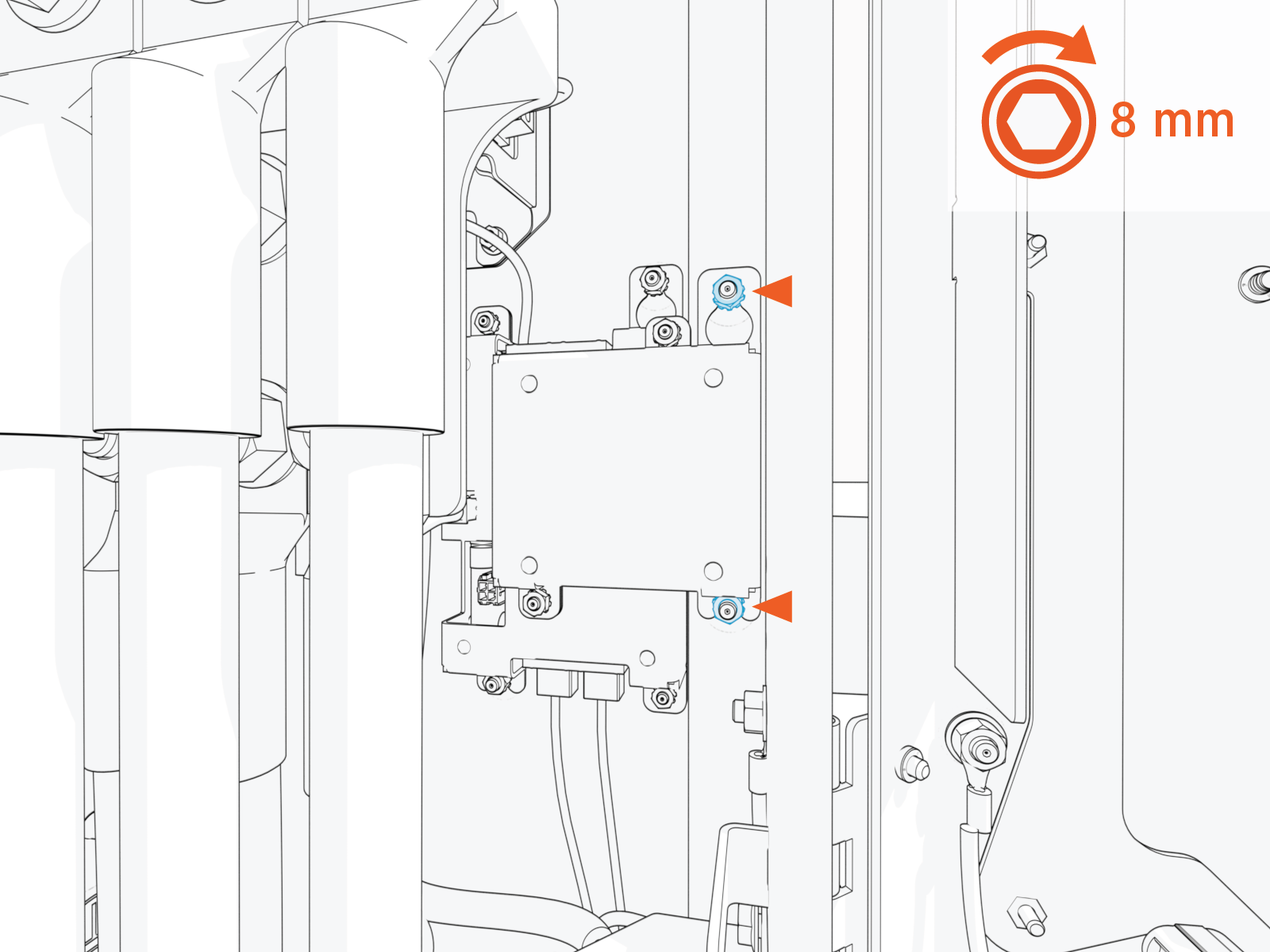
-
Plug the USB
Universal Serial Bus-B end of the USB Universal Serial Bus cable into the module.
-
Route the cable through the door cable guide and along the main cable harness to the Control and Communication Module (CCOM
Control and Communications Module) located on the Power Link 2000 door.
-
Connect the cable to the CCOM
Control and Communications Module in any of the three USB Universal Serial Bus-C ports.
-
Zip tie the USB
Universal Serial Bus cable to the main cable harness.-
Ensure the door can open and close without pinching or pulling of any cables.
-
Ensure the USB
Universal Serial Bus cable does not touch the HV DC High Voltage Direct Current wires when the door is closed.

-
-
Pull the hardwire Ethernet cable (Cat6 STP
Shielded Twisted Pair) and cut to length for landing at the
Ethernet to USB Universal Serial Bus module. Allow for a service loop.
-
Field crimp an RJ45 connector onto the Ethernet cable. Use straight-through T568B pattern.
Do not ground the shield at this end of the Ethernet cable. Ground the shield at the end of the Ethernet cable that connects to the network server.
-
Test the Ethernet cable for functionality.
If using a Paige OSP Shielded GameChanger cable for a wire run length greater than 100 m (328 ft), follow the test procedure specified by Paige. See Paige GameChanger Resources.

-
Route the Ethernet cable through wireway clamps and connect it to the Ethernet to USB
Universal Serial Bus module. 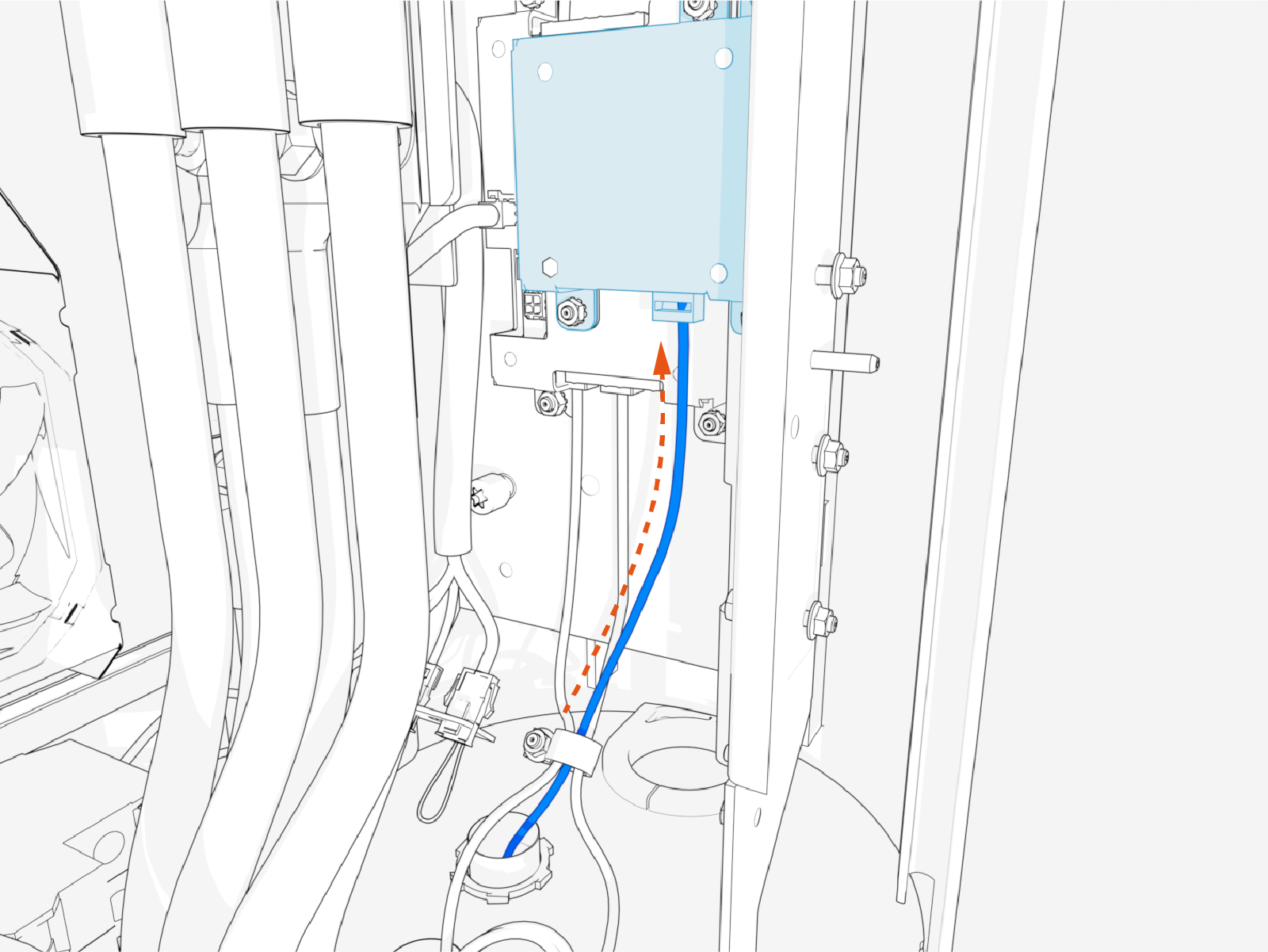
-
Route and connect the other end of the Ethernet cable to the network server.
Soft Shutdown Switch
If the site plan indicates the Power Link 2000 must be configured with a soft shutdown switch, follow procedures below to install the soft shutdown switch.
-
Pull the soft shutdown switch wiring through the conduit.

-
Loosen set screws (x2) at the soft shutdown terminal.
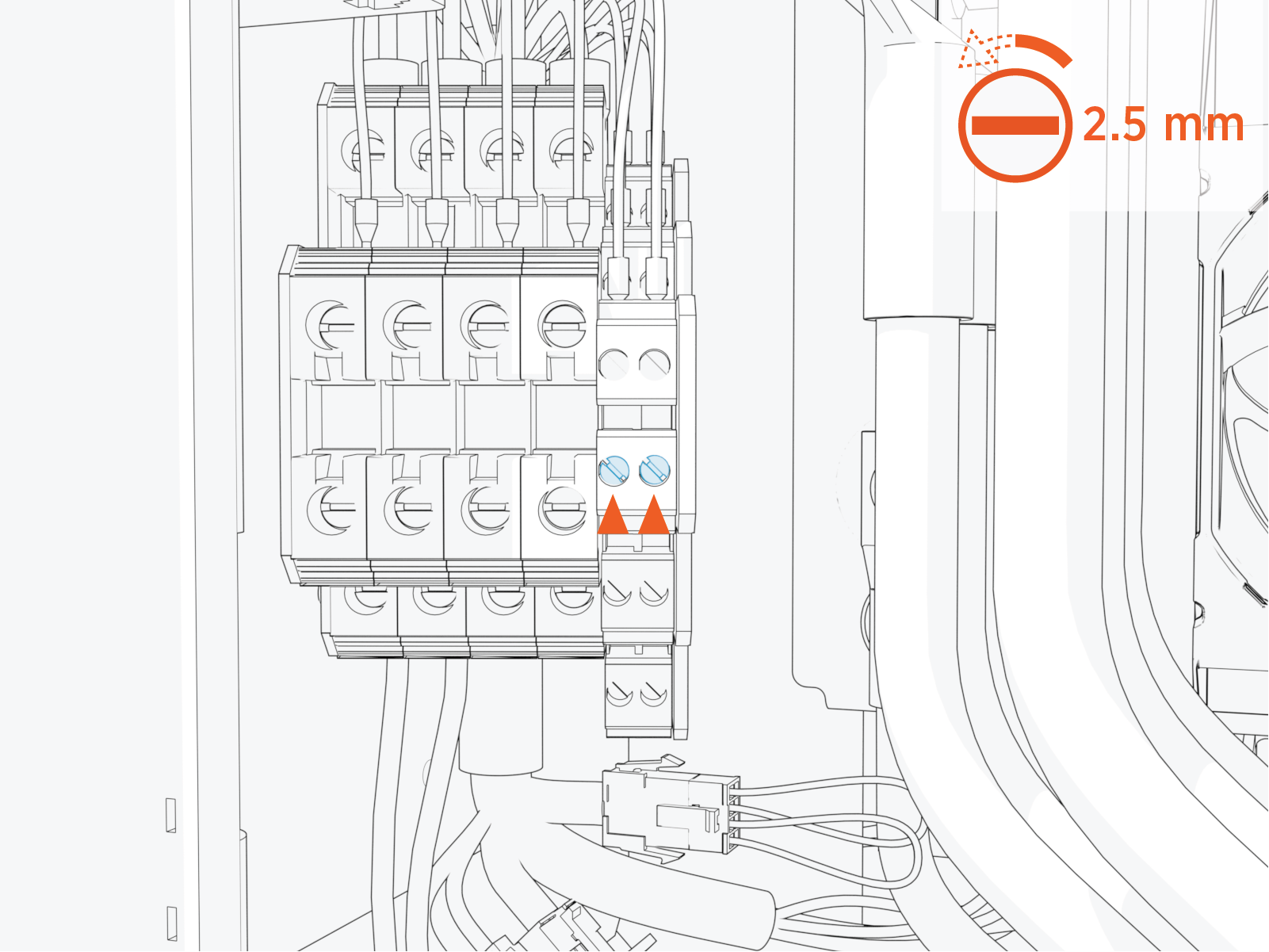
-
Twist the soft shutdown switch wires together, using a minimum of five twists per foot.

-
Route the twisted wires through the wireway clamps (if necessary, use cable ties) towards the soft shutdown terminal. Cut the wires to length for landing at the terminal.

-
Strip the wire ends.

-
Insert the wires into the soft shutdown terminal. Torque set screws (x2) to 0.6 Nm (5.3 in-lb).

