Complete Station Setup
The CPF50 charging station has its own cellular connection. Earlier models of CPF50 require that the ChargePoint Gateway is installed for cellular connectivity. To determine whether the CPF50 model has its own cellular connectivity, look for the label at the bottom of the station, which indicates the model name. A model name with CPF50-K will have a cellular modem, while a model name with CPF50 will require the ChargePoint Gateway for cellular connection. If the ChargePoint Gateway is required, each CPF50 must be installed within 45 m (150 ft) of the Gateway within line of sight.
For earlier models, do not proceed until the ChargePoint Gateway is ready. The station will not function until the ChargePoint Gateway is properly installed in a location where it has a strong cellular signal and an unobstructed line of sight to the charging station.
To complete the setup, you must have completed the ChargePoint Installer training and ChargePoint uses Single Sign-On (SSO) for accessing the Certification Hub and ChargePoint University.
When a technician or installer visits either site, they go to a login page.
-
If they already have a Field Technician/Installer account, they log in with their existing credentials.
-
If they don’t have an account, they register for one during the SSO setup. This registration generates their login credentials.
Required Tools and Materials
|
|
Smartphone with Internet connectivity |
|
ChargePoint Installer app |
|
|
Exact location of stations or units, including parking space |
|
ChargePoint installer login credentials |




To complete the setup, you must have completed the ChargePoint Installer training and received your ChargePoint Installer login.
Power Up
Power up the station. If the station does not power up, check the wiring from the electrical panel to the terminal block for issues.
Pinpoint the Station
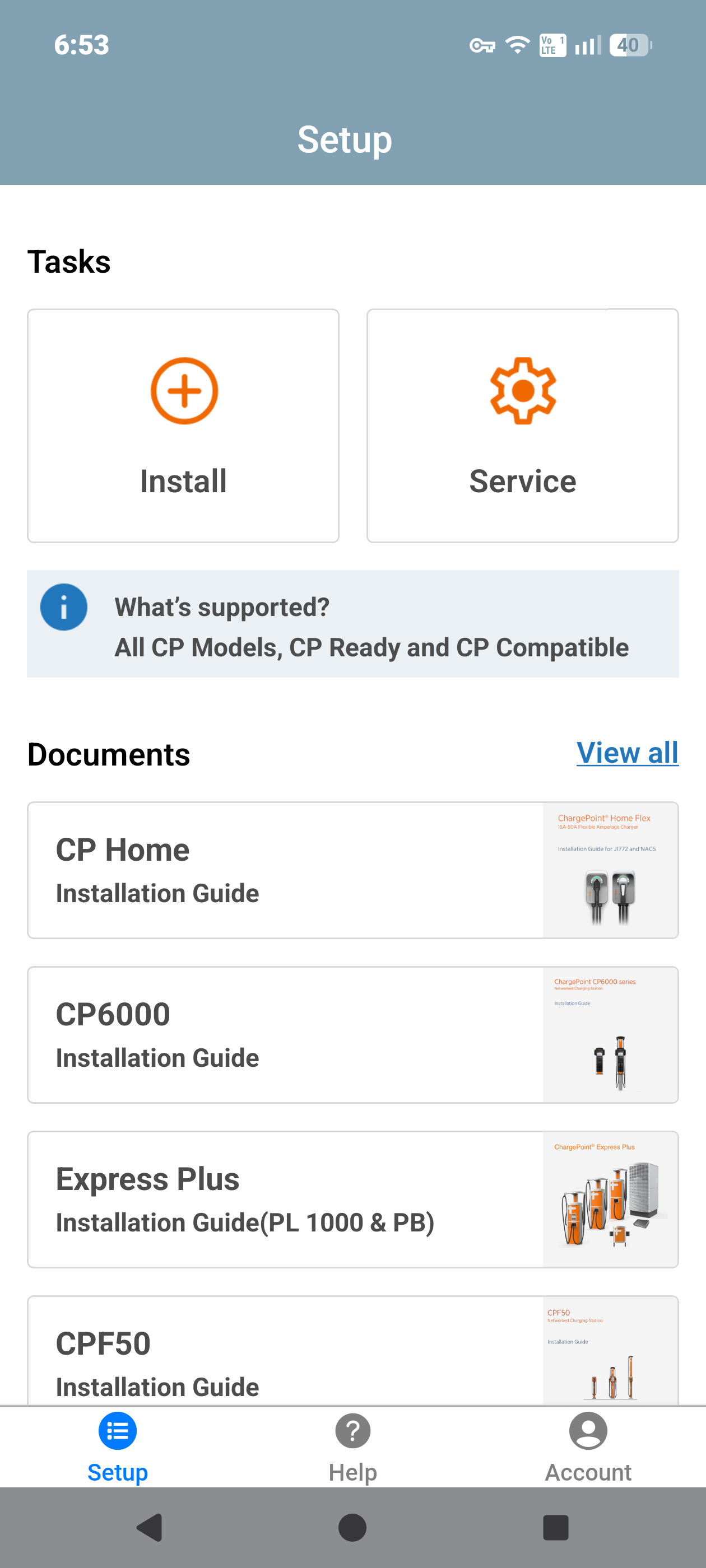
Open the ChargePoint Installer app on your smartphone and follow the instructions below:
-
If you do not already have the Installer app, scan the QR
 Quick Response code to download the app.
-
Log in or register using the ChargePoint Installer app on your smartphone.
If cellular connectivity is unavailable, the Installer app automatically switches to Offline Mode for Ethernet configuration. Automatic switching occurs only if the Installer app was launched and logged in while online. If Offline Mode does not start automatically, you can enable it manually using the Force Offline Mode option in the Account section or by turning on Flight Mode. -
Tap on Install.
-
Use the app to scan the QR
Quick Response code on the charging station label.
-
The app automatically identifies the charging station and begins the pinpointing and configuration process.
-
Follow the in‑app instructions to complete pinpointing and configuration process.
Station Activation
As the installer, your role is to support this process by providing the station owner with the required station identification information. Before leaving the site, give the station owner a list of all installed station serial numbers and/or MAC Message Authentication Code addresses and inform them that activation is required before the station can be used.
If station owner has additional questions, you can refer them to ChargePoint Support at chargepoint.com/support.
Start a Charging Session
Once the pinpointing is complete, use the ChargePoint card to start a test session. Verify that you can:
-
Initiate a charging session.
-
Plug the handle into a vehicle or a vehicle emulator (if available).
-
Return the handle to the holster.
