Complete the Installation
To set up Express 250, complete the following steps:
Do not power on Express 250 after completing the installation (after installing the covers). An authorized commissioning partner will commission, power on, pinpoint, and configure Express 250 after installation. If you are authorized to do so, complete the following procedures:
Required Tools and Materials
|
|
Smartphone with Internet connectivity |
|
ChargePoint Installer app |
|
|
Exact location of stations or units, including parking space |
|
ChargePoint installer login credentials |




To complete the setup, you must have completed the ChargePoint Installer training and received your ChargePoint Installer login.
Power On
You must be a ChargePoint authorized commissioning partner or a ChargePoint site engineer to power on the charging station, or warranty limitations apply.
-
Ensure all panels, covers, vinyl signs, and all other parts have been correctly installed and the work is complete.
-
Turn on power at the same points that you turned it off.
If the site has a remote shunt trip switch, ensure that the switch is in the operating position. -
Wait for self-diagnostics to run.
Self-Diagnostics
The station runs the following self‑diagnostics after being energized. The system may take several minutes to initiate. You may see messages intermittently until the system fully boots up.
|
Self-Diagnostic |
After Installation |
After Service or Power Outage |
|---|---|---|
|
Electrical safety checks |
✔ |
✔ |
|
Lighting checks |
✔ |
✔ |
|
Display panel checks |
✔ |
✔ |
|
Component operation checks |
✔ |
✔ |
|
Network connectivity checks |
✔ |
✔ |
View Diagnostics Information
-
Log in to the ChargePoint Platform at na.chargepoint.com or ca.chargepoint.com or eu.chargepoint.com.
-
Select Stations.
-
Apply filters to locate the desired station.
-
Select the station name to view the station-specific information.
Complete the Installation Wizard: Standalone Installations
Follow the steps in this section if you are installing a Standalone charging station. For Paired installations, skip to the next section.
Once all cables are installed and all cover panels are in place, the on-screen Installation Wizard steps you through a series of tasks to set up the Express 250 and verify that it can operate properly.
-
Power on the Express 250 charging station at the breaker panel.
-
On the front touchscreen, select a language for the Installation Wizard (this does not permanently affect the Express 250’s display language).
-
The next Installation Wizard test determines whether all cover panels are correctly installed and fully seated. Check the lower right corner of the screen for any error messages. If panel errors appear, match the panel letters to this illustration.

(a) Front bottom panel
(b) Middle vent panel
(c) Front top panel
(d) LED display
(e) Area light bar
(f) Rear bottom panel
(g) Rear middle panel
(h) Rear top panel
(i) Left extrusion
(j) Right extrusion
If any panel needs re-installation, review the procedures above to double-check that all panels are fully seated and that the edges of all signs are captured fully by the panels around them. For further details, refer to the Express 250 Installation Guide, available at ChargePoint Product Reference Documentation.
-
Select the option New installation.
-
Confirm you have all required materials to continue activation, and select Yes.
-
Skip the next section and continue with Pinpoint the Station(s).
Complete the Installation Wizard: Paired Installations
Follow the steps in this section if you are installing Paired charging stations. For Standalone installations, see the previous section.
Do not use either Paired station for a charging session, from the time work is begun to the point that both stations are confirmed as having Paired functionality. Equipment damage can result from plugging in a vehicle while the update is only partially complete.
-
Power on the Express 250 charging station at the breaker panel.
-
If the stations do not power on and begin their configuration automatically after a couple of minutes, go to chargepoint.com/support and find your region’s technical support number. Identify the two stations you are installing or updating. Request confirmation that both charging stations are running firmware version 7.0.4.x or higher. If not, ask the support technician to do this now.
Ensure both paired charging stations have the exact same version of firmware before continuing. For example, two stations running 7.0.4.24 and 7.0.4.25 are not sufficiently synced.
-
On the front touchscreen, select a language for the Installation Wizard (this does not permanently affect the Express 250’s display language).
-
The next Installation Wizard test determines whether all cover panels are correctly installed and fully seated. Check the lower right corner of the screen for any error messages. If panel errors appear, match the panel letters to this illustration.
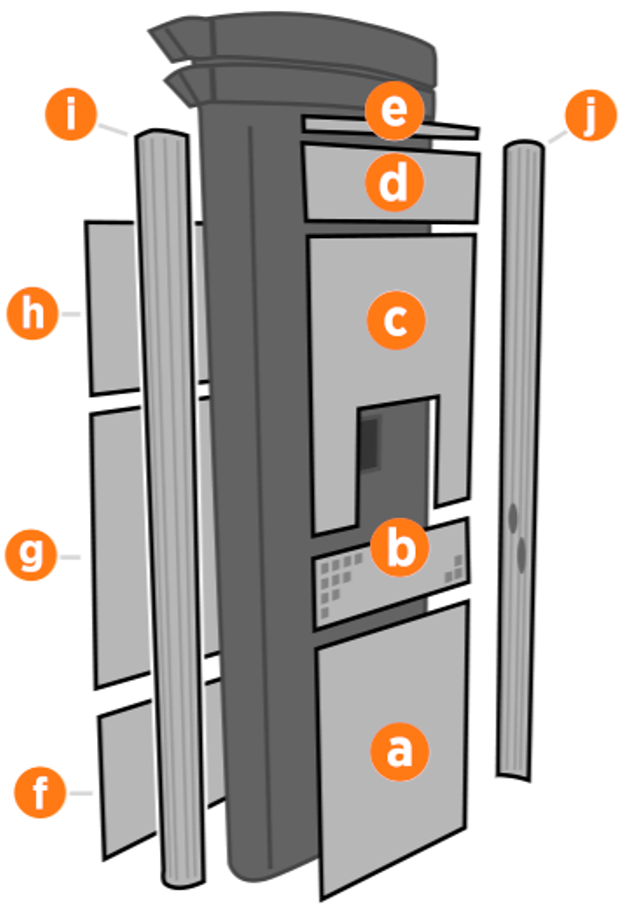
(a) Front bottom panel
(b) Middle vent panel
(c) Front top panel
(d) LED display
(e) Area light bar
(f) Rear bottom panel
(g) Rear middle panel
(h) Rear top panel
(i) Left extrusion
(j) Right extrusion
If any panel needs re-installation, review the procedures above to double-check that all panels are fully seated and that the edges of all signs are captured fully by the panels around them. For further details, refer to the Express 250 Installation Guide.
-
Select the option New installation, whether you are installing two new stations or pairing with an existing station. (The other option, Replace Existing Station, is only for stations where all settings remain the same as before.)
-
Confirm you have all required materials to continue activation, and select Yes. If the Ethernet connection is detected, the Installation Wizard runs the paired connectivity check in the background and displays a notice if all tests have succeeded.
-
If the Installation Wizard Ethernet test initially fails, it asks you to select Standalone or Paired configuration. Select Paired.
-
Solve any displayed paired faults. If problems persist:
-
Ensure both stations are running the same (and latest) version of firmware.
-
Ensure all cover panels are correctly installed.
-
Power off both stations and check the Ethernet and DC conductor connections.
-
In the case of Power Module Fault or timeout errors, power off both stations and check DC conductor and Power Module connections.
-
If none of these measures work, go to chargepoint.com/support and find your region’s technical support number.
-
Pinpoint the Station(s)
 Quick Response code.
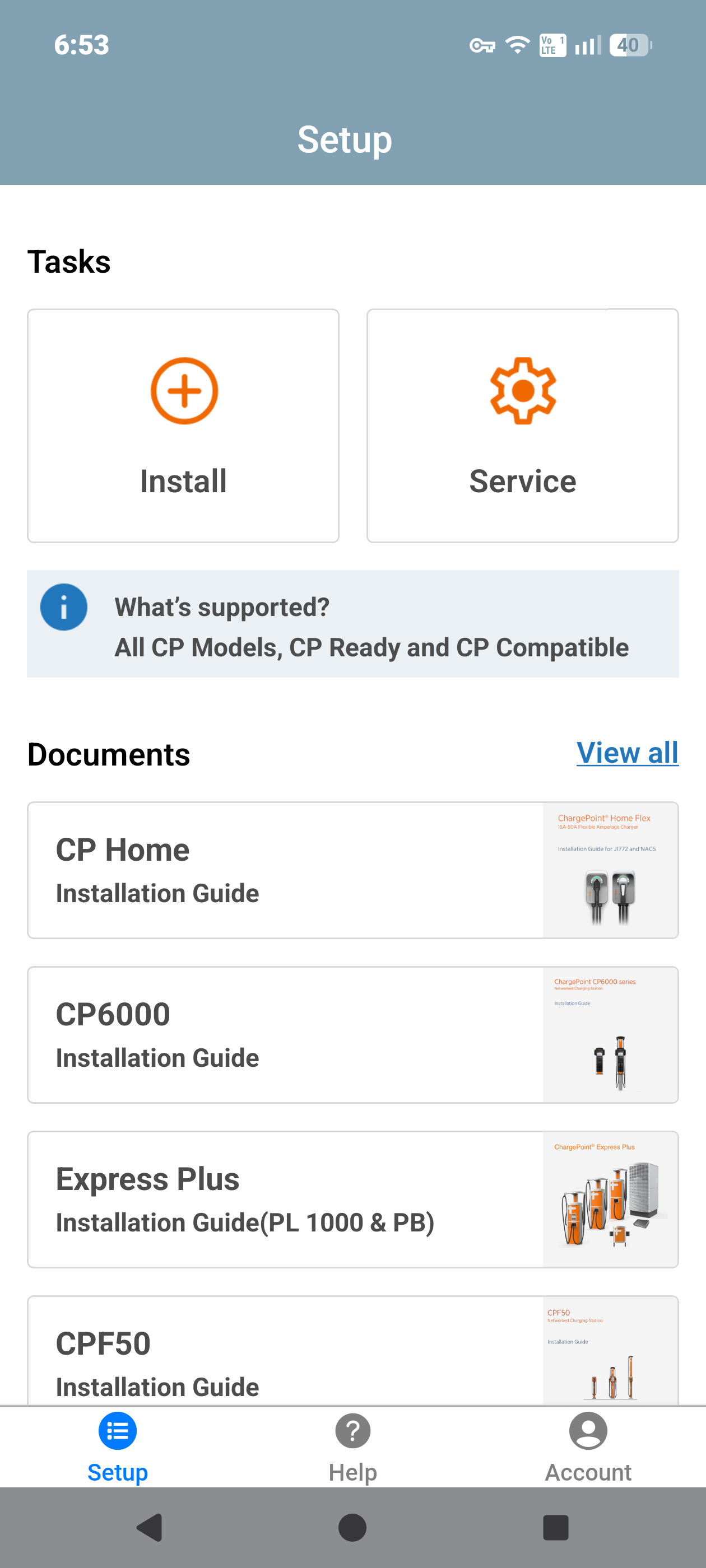
Open the ChargePoint Installer app on your smartphone and follow the instructions below:
-
Log in or register using the ChargePoint Installer app on your smartphone.
-
Tap on Install.
-
Use the app to scan the QR
Quick Response code on the charging station label.
-
The app automatically identifies the charging station and begins the pinpointing and configuration process.
-
Follow the in‑app instructions to complete pinpointing and configuration process.
Station Activation
Contact ChargePoint Support at chargepoint.com/support to activate the station, and complete any troubleshooting that may be required after activation.
If the station owner has additional questions or experiences issues following activation, direct them to ChargePoint Support at chargepoint.com/support for assistance.
Run a Test Charging Session
Before leaving the installation site, follow these steps to ensure the Express 250 is fully operational:
-
Connect the charging cable to a vehicle.
-
Use your ChargePoint card to start a charging session. The Express 250 displays instructions on how to plug in a vehicle.
-
Stop the charging session and return the connector to the holster.
If the Express 250 operates correctly and no errors are displayed, the installation is complete. If the Express 250 does not power up, or fails to begin a charging session, confirm the wiring is properly connected. If the Express 250 is properly wired but is not operating correctly, contact ChargePoint at chargepoint.com/support for assistance.
Do not leave the installation site until the charging station is operating correctly. Contact ChargePoint Support at chargepoint.com/support if you have questions about station status.
Remove the crates and all packaging from the installation area. Make sure no materials in the area could potentially damage vehicle tires, such as nails or screws.
