Fans
Before You Begin
-
Wait at least five minutes for energy to dissipate.
After replacing the components, reverse the above steps to complete the service.
-
Complete the post-service checklist. The checklist is available at ChargePoint Product Reference Documentation.
-
Contact ChargePoint regarding faulty part return.
Identify Target Fan
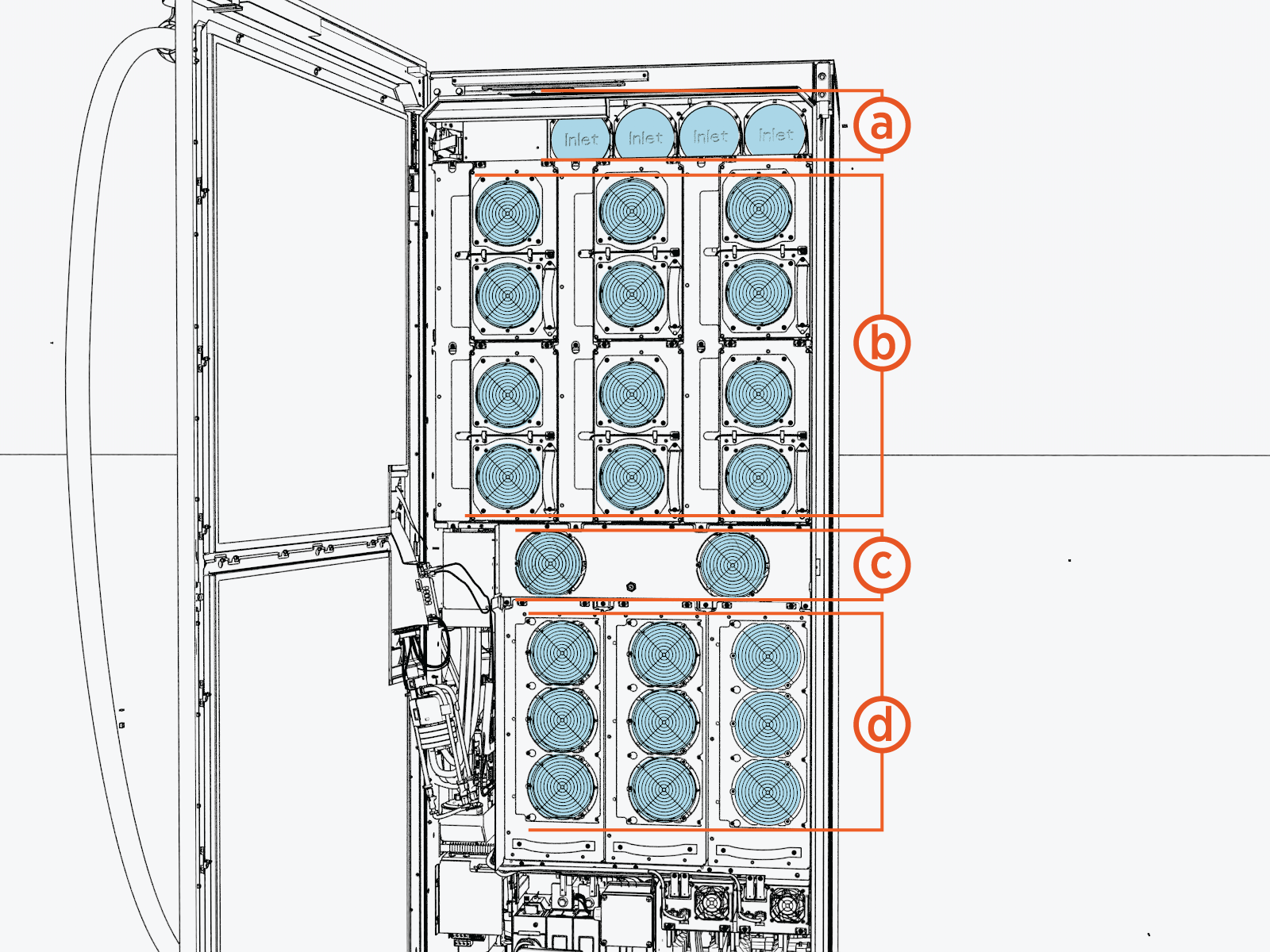
(a) LCC Liquid Cooled Cable fans
(b) DC power module fans
(c) Neutron fans
(d) AC power module fans
Remove the Fan from the LCC
This procedure is applicable only to Express Solo systems that are equipped with an LCC Liquid Cooled Cable.
The following instructions apply to each LCC Liquid Cooled Cable fan.
Required Tools and Materials
|
|
Torx screwdriver (T20) |
|
Torque screwdriver |
|
|
Ladder |
|
Socket (8 mm) |
|
|
Torque wrench |





-
Remove the M5 nuts (x4) to remove the LCC
Liquid Cooled Cable duct.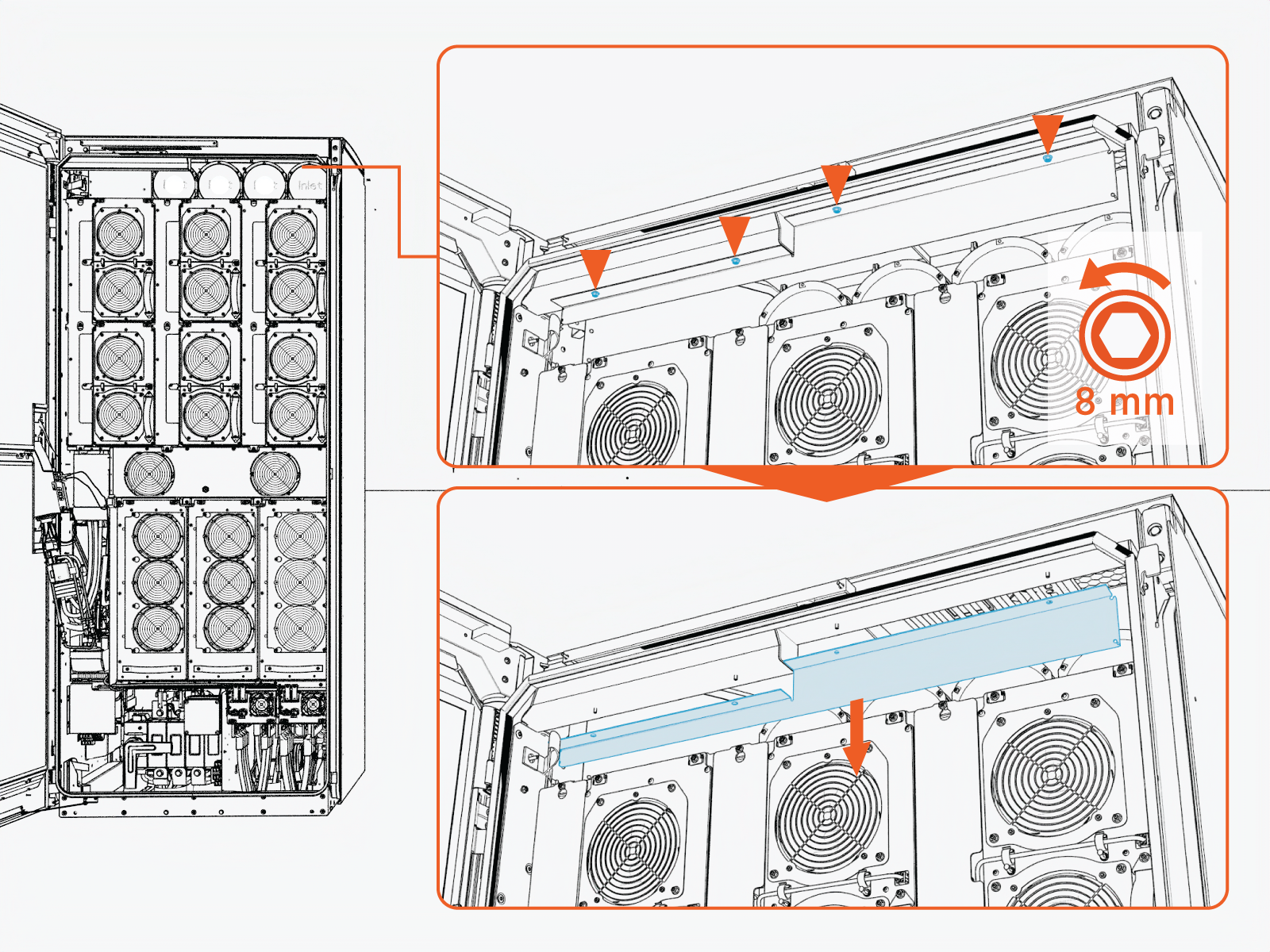 Torque the nuts to 4.5 Nm (40 in-lb).
Do not use impact driver to tighten fasteners.
-
Remove the M4 screws (x3) from the fan.
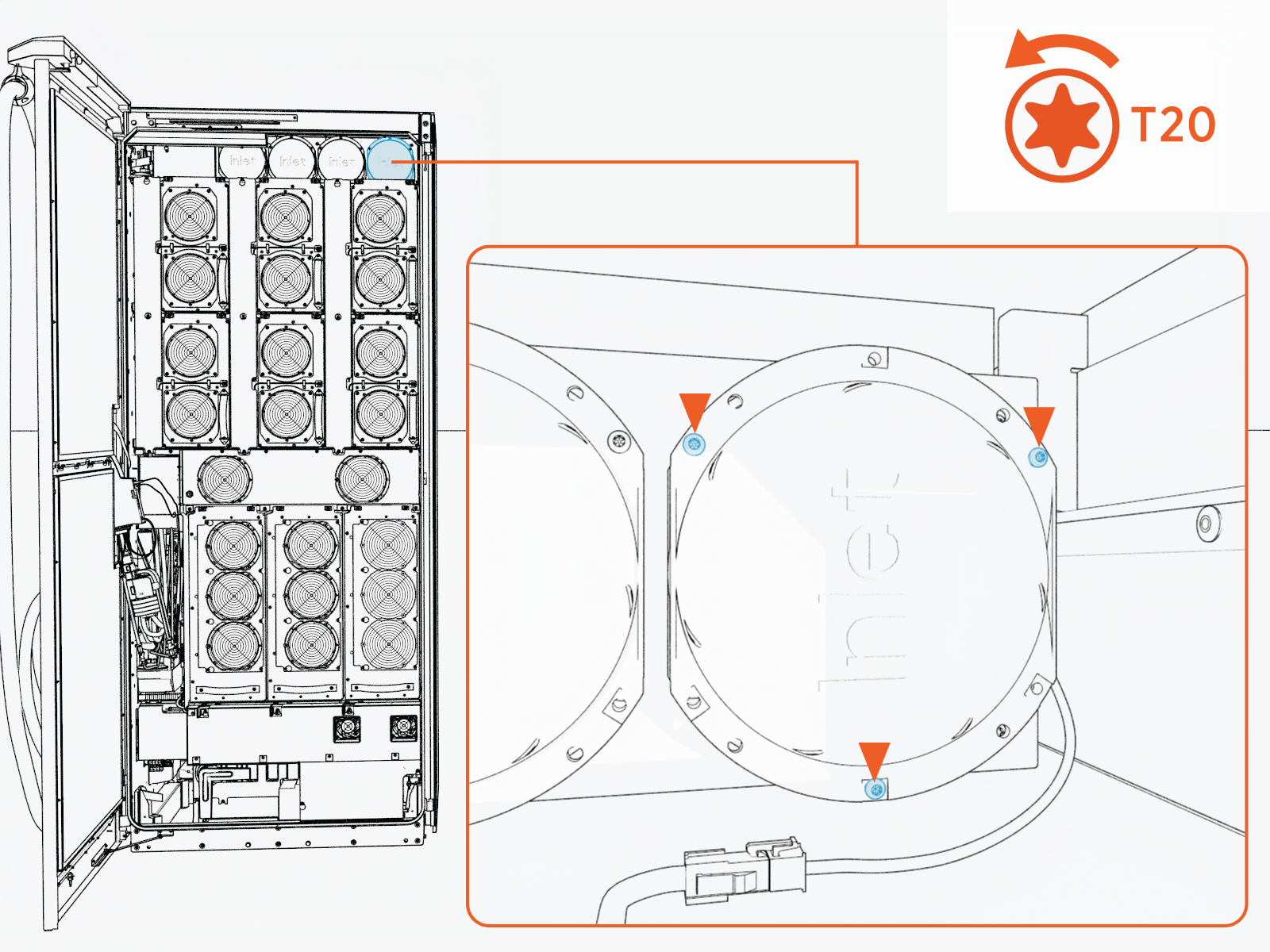 Torque these screws to 2.8 Nm (25 in-lb).
Do not use impact driver to tighten fasteners.
-
Disconnect the connector from the fan.
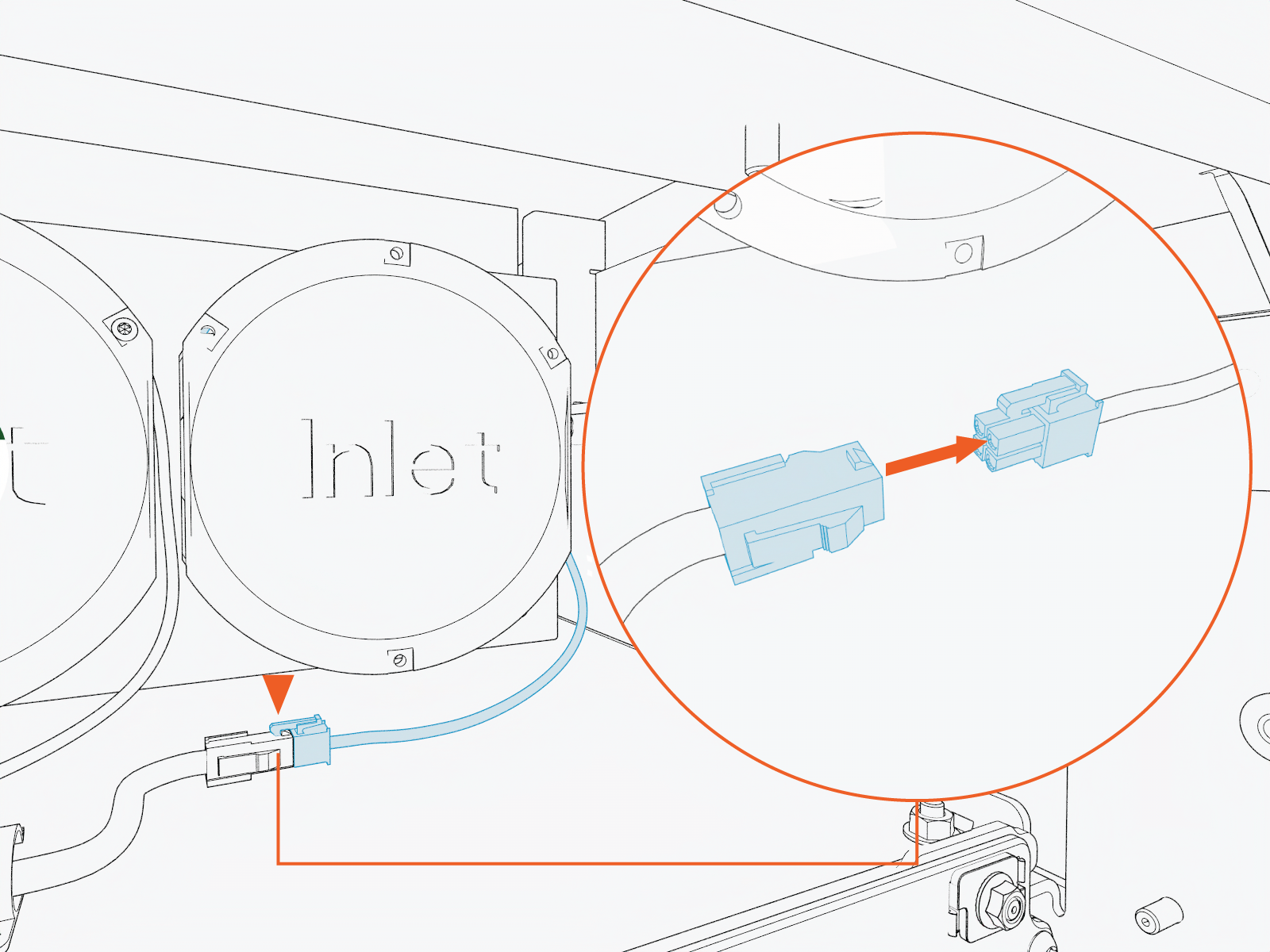
-
Remove the fan from the LCC
Liquid Cooled Cable.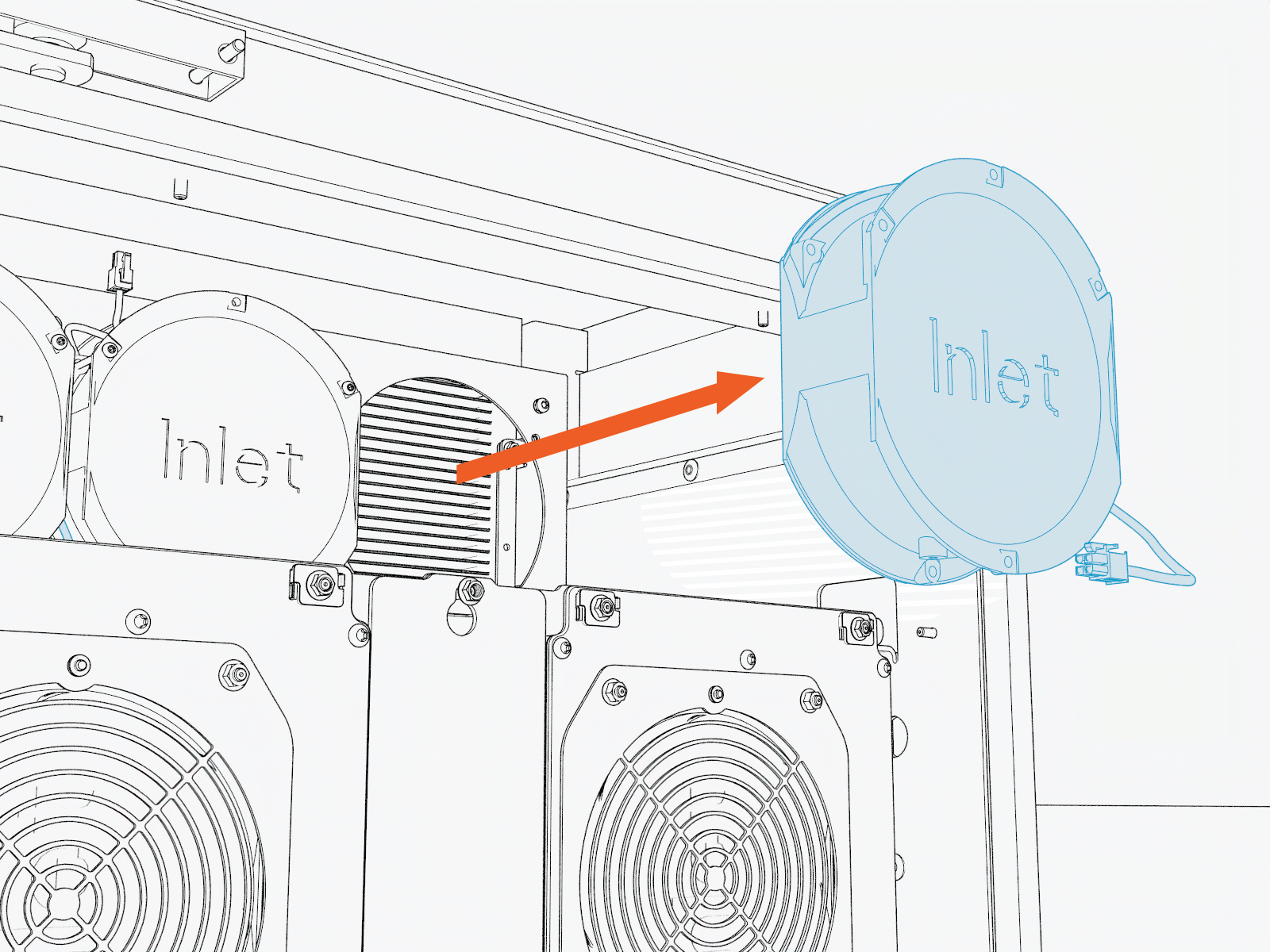
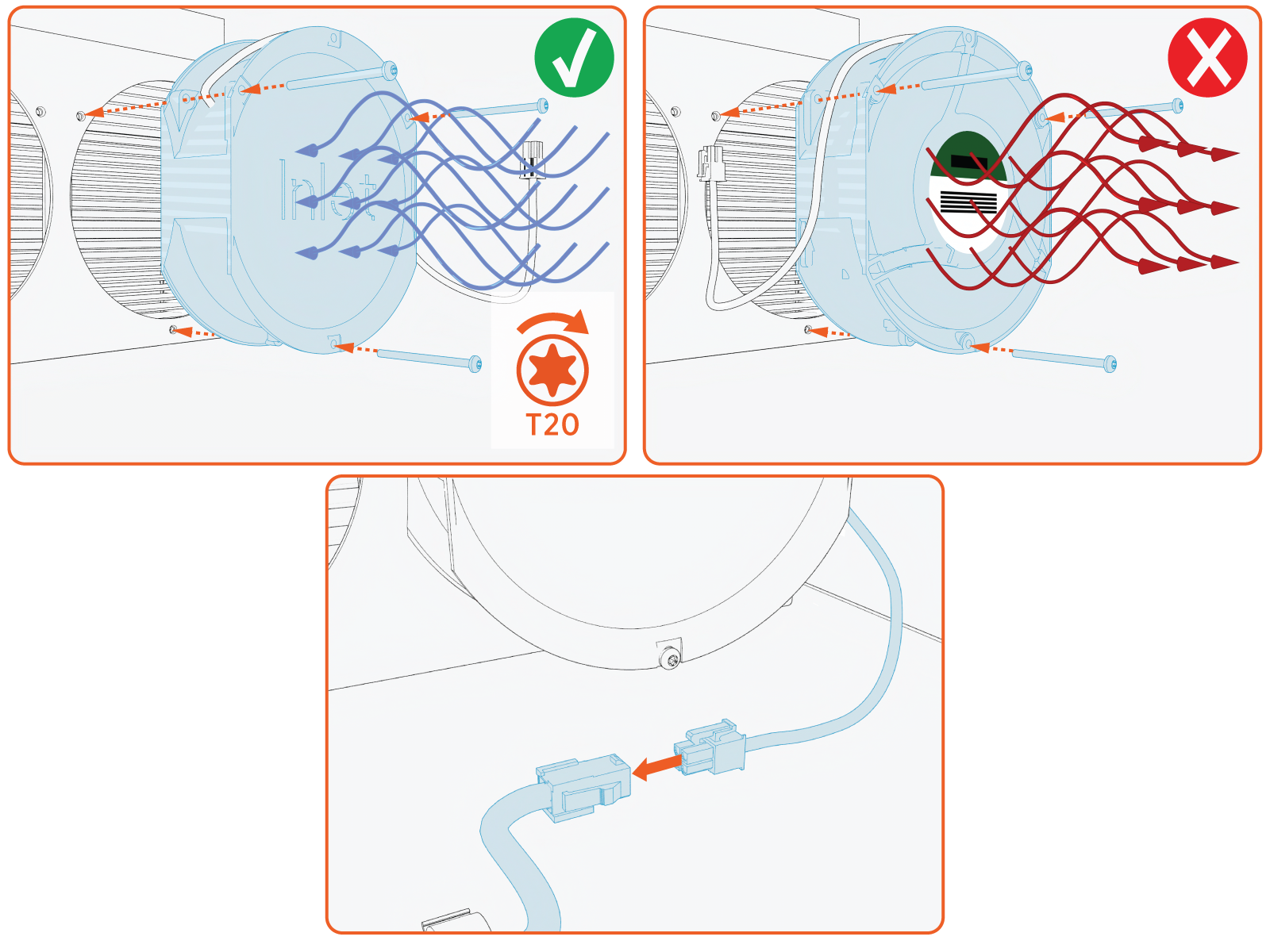
- When installing the fan, make sure that the sticker on the fan is facing inward.
-
Secure the fan cable along the curved guide on the fan. Ensure it is not loose or dangling.
Refer to the following figure.
-
Reverse the above steps to reinstall with replacement LCC
Liquid Cooled Cable fan.
Remove the Fan from the DC Power Module
The following instructions apply to each DC power module fan.
Required Tools and Materials
|
|
Socket (8 mm) |
|
Torx screwdriver (T20 ) |
|
|
Torque wrench |
|
Torque screwdriver |
-
Remove the M5 nuts (x4) from the DC power module enclosure.
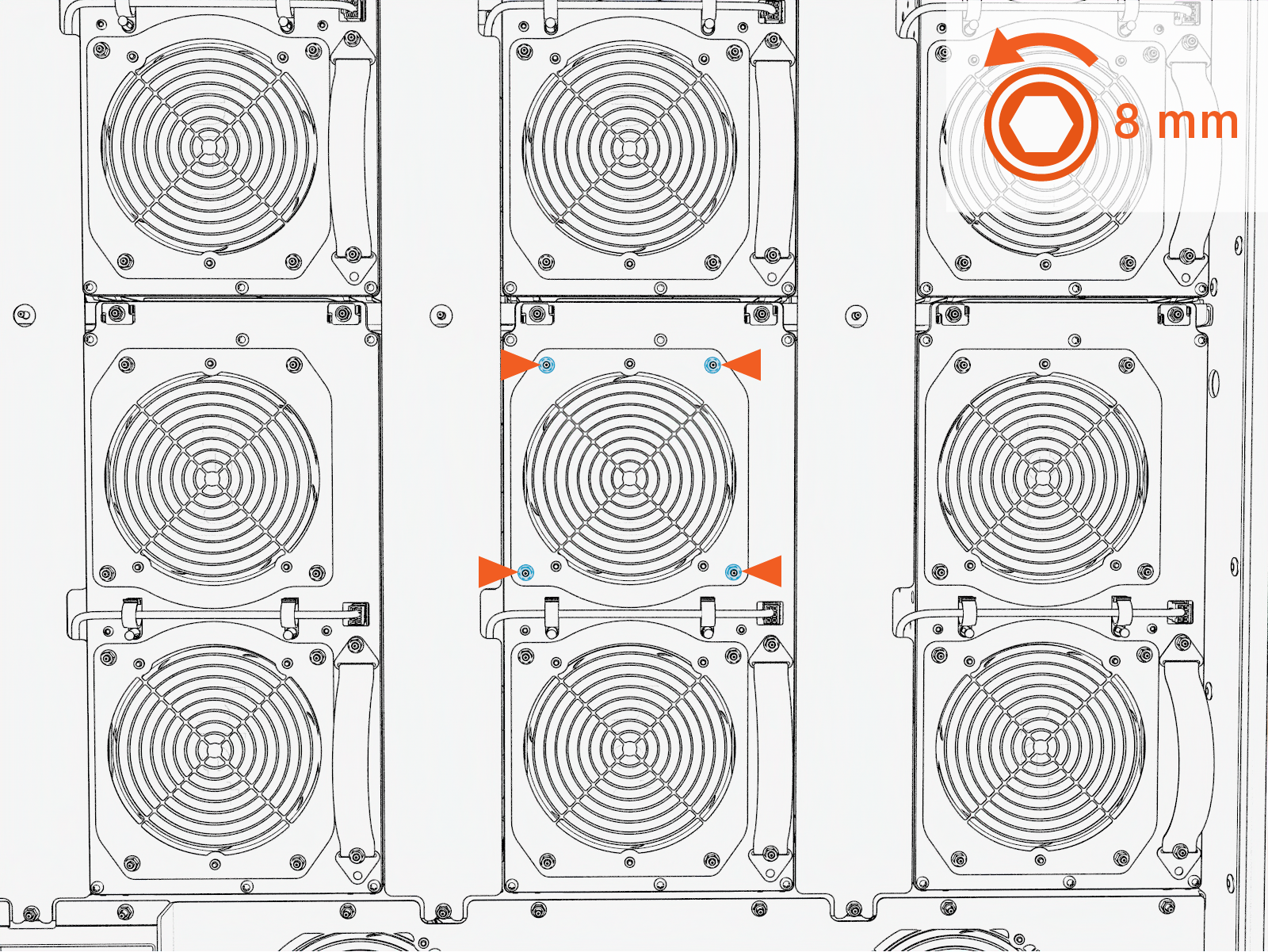 Torque the nuts to 4.5 Nm (40 in-lb).
Do not use impact driver to tighten fasteners.
-
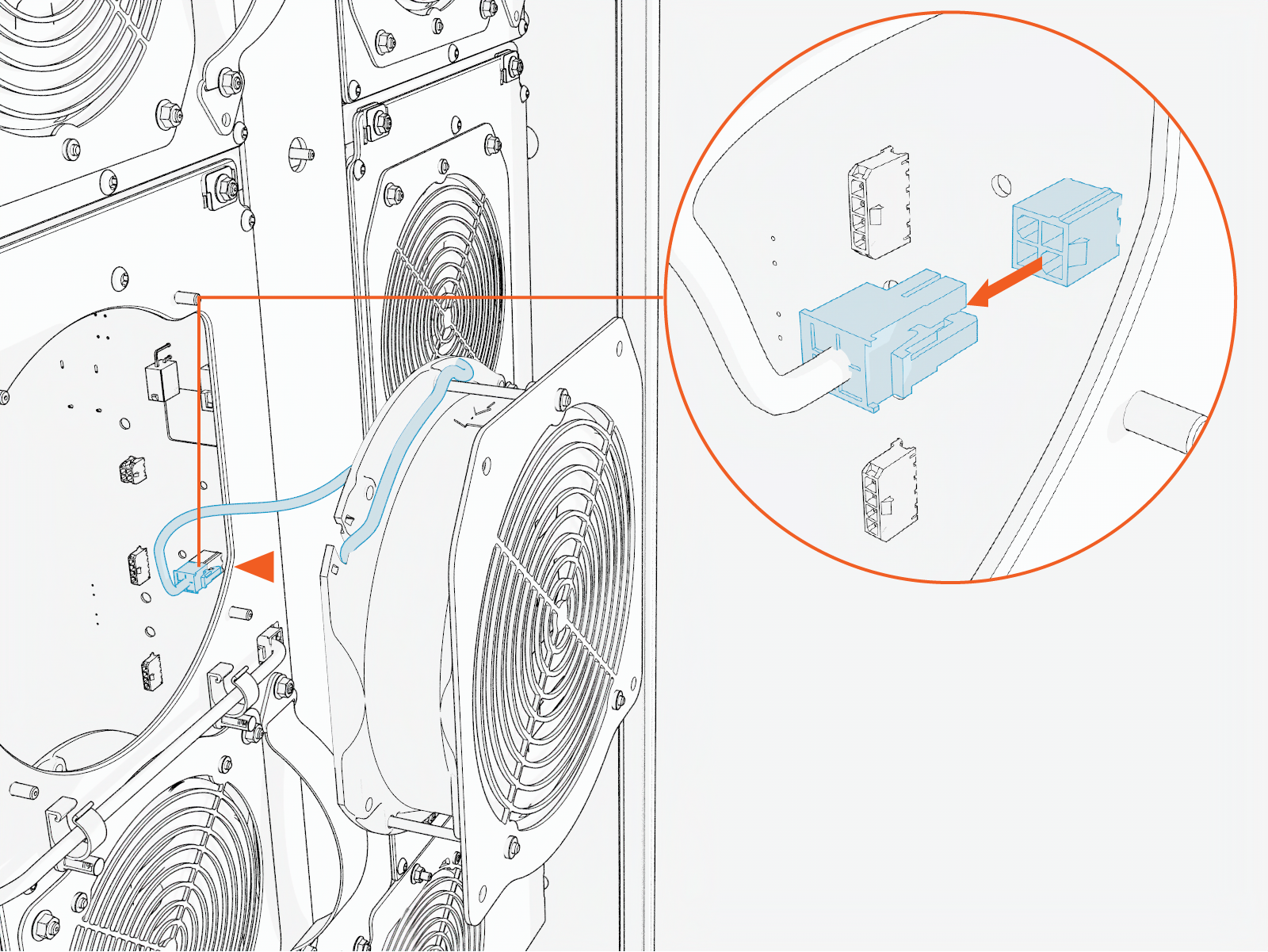
Disconnect the cable from the fan and remove it from the DC power module.
-
Remove the M4 screws (x3) from the fan.
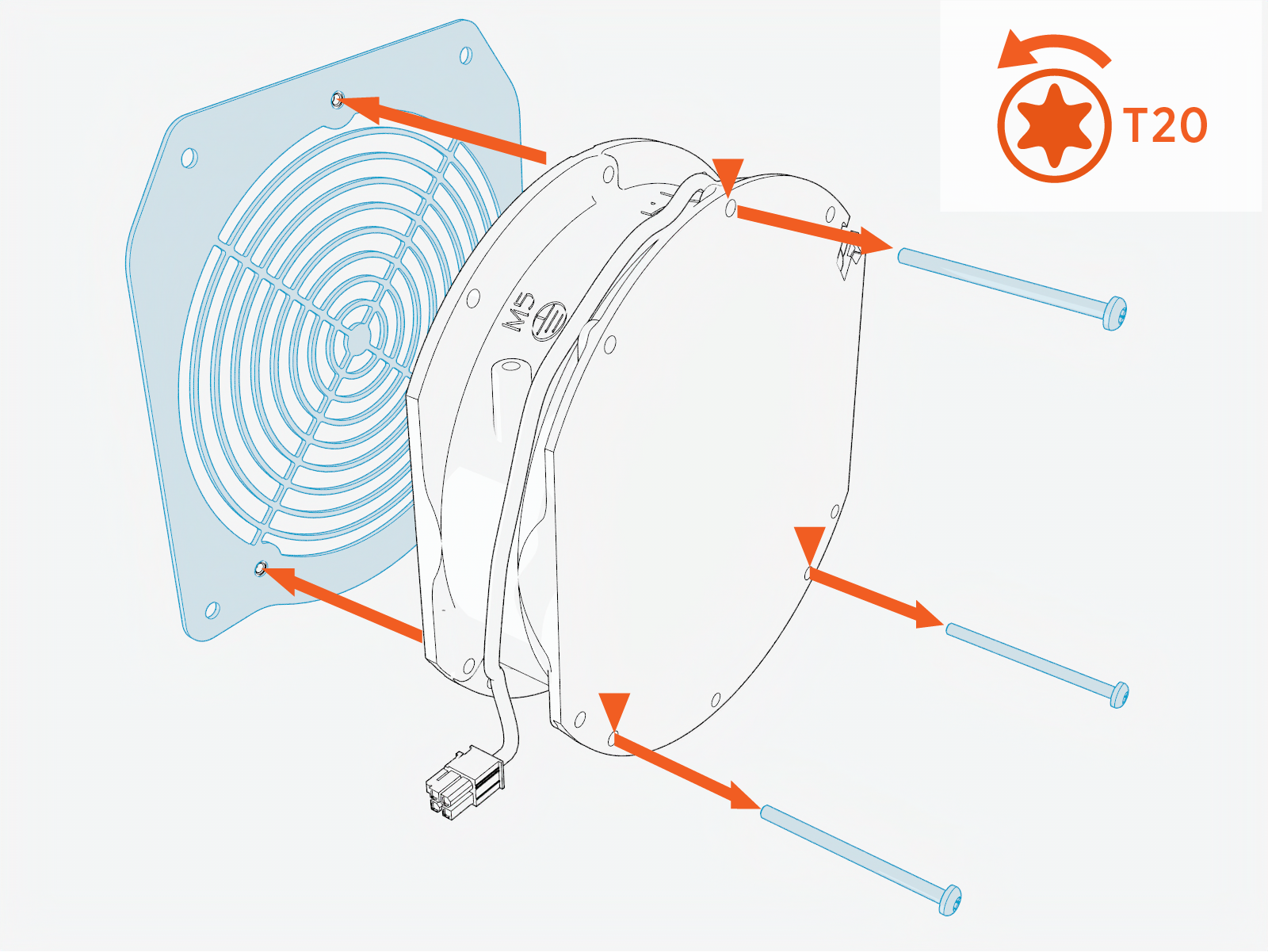 Torque these screws to 2.8 Nm (25 in-lb).
Do not use impact driver to tighten fasteners.
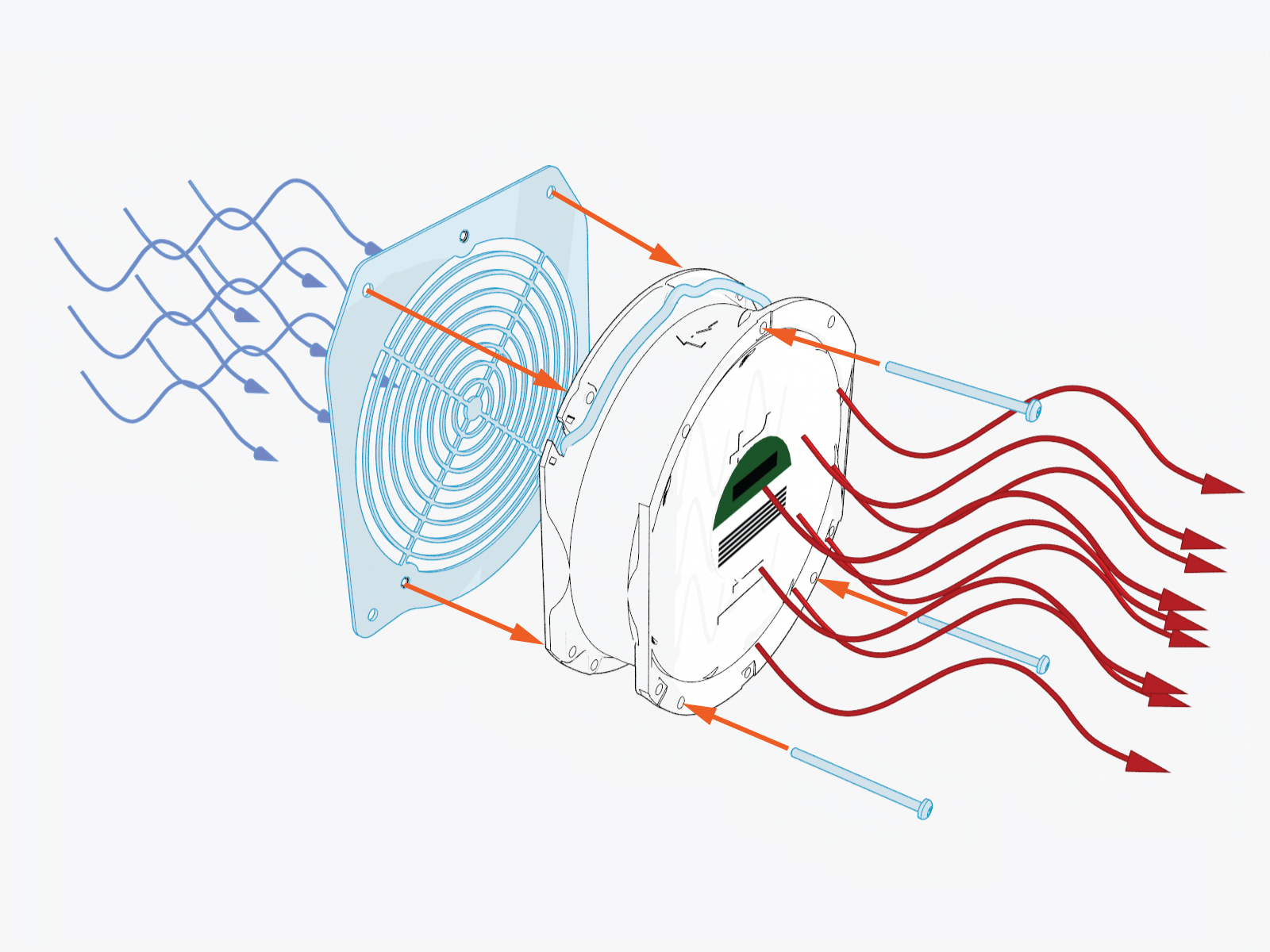
- When installing the fan, make sure that the sticker on the fan is facing inward.
-
Secure the fan cable along the curved guide on the fan. Ensure it is not loose or dangling.
Refer to the following figure.
-
Reverse the above steps to reinstall with replacement fan for DC power module.
Remove the Fan from the Neutron
The following instructions apply to each Neutron fan.
Required Tools and Materials
|
|
Socket (8 mm) |
|
Torx screwdriver (T20 ) |
|
|
Torque wrench |
|
Torque screwdriver |
-
Remove the M5 nuts (x11) from the Neutron fan plate.
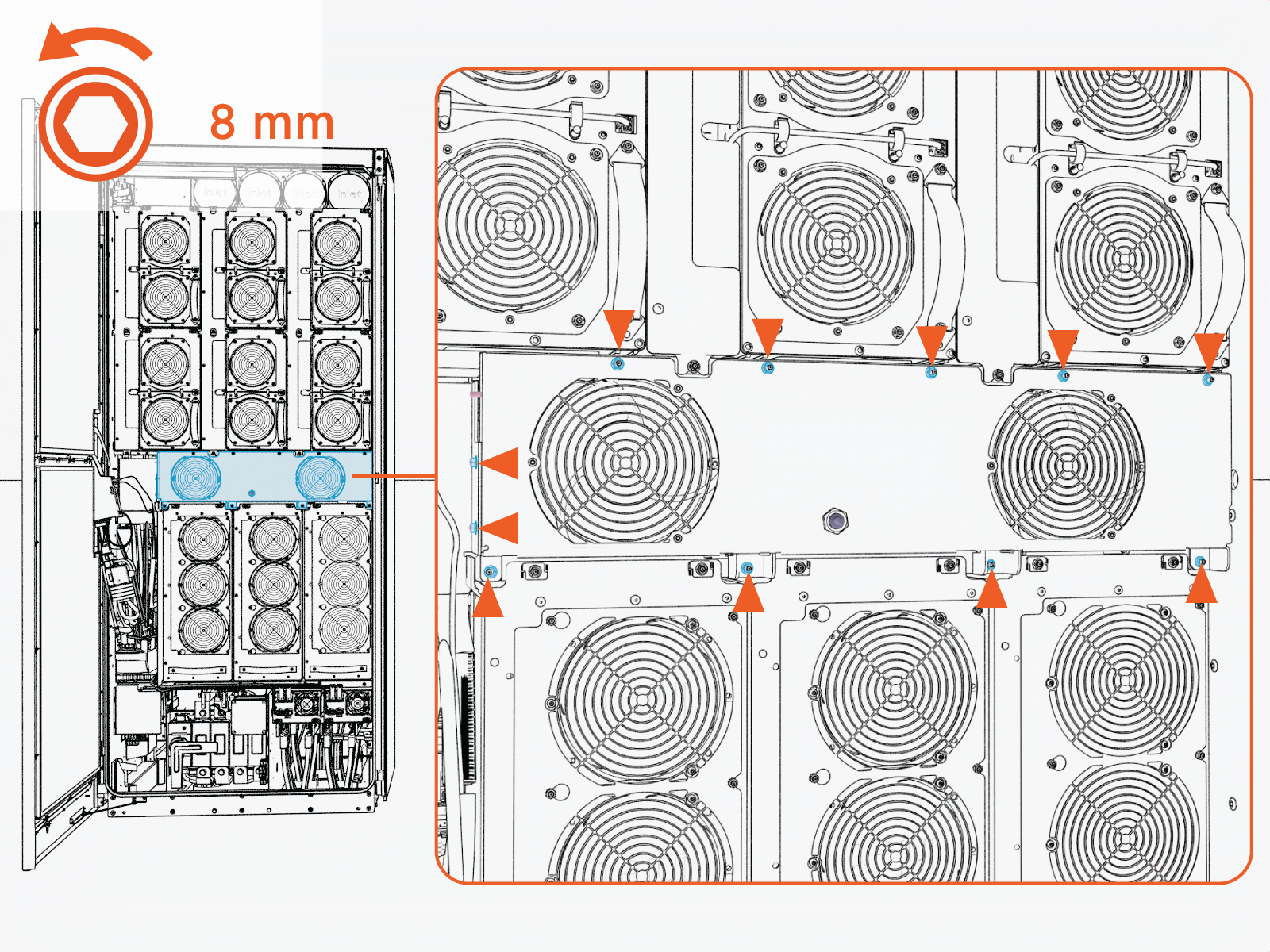 Torque the nuts to 4.5 Nm (40 in-lb).
Do not use impact driver to tighten fasteners.
-
Remove the cover and disconnect the RTD sensor.
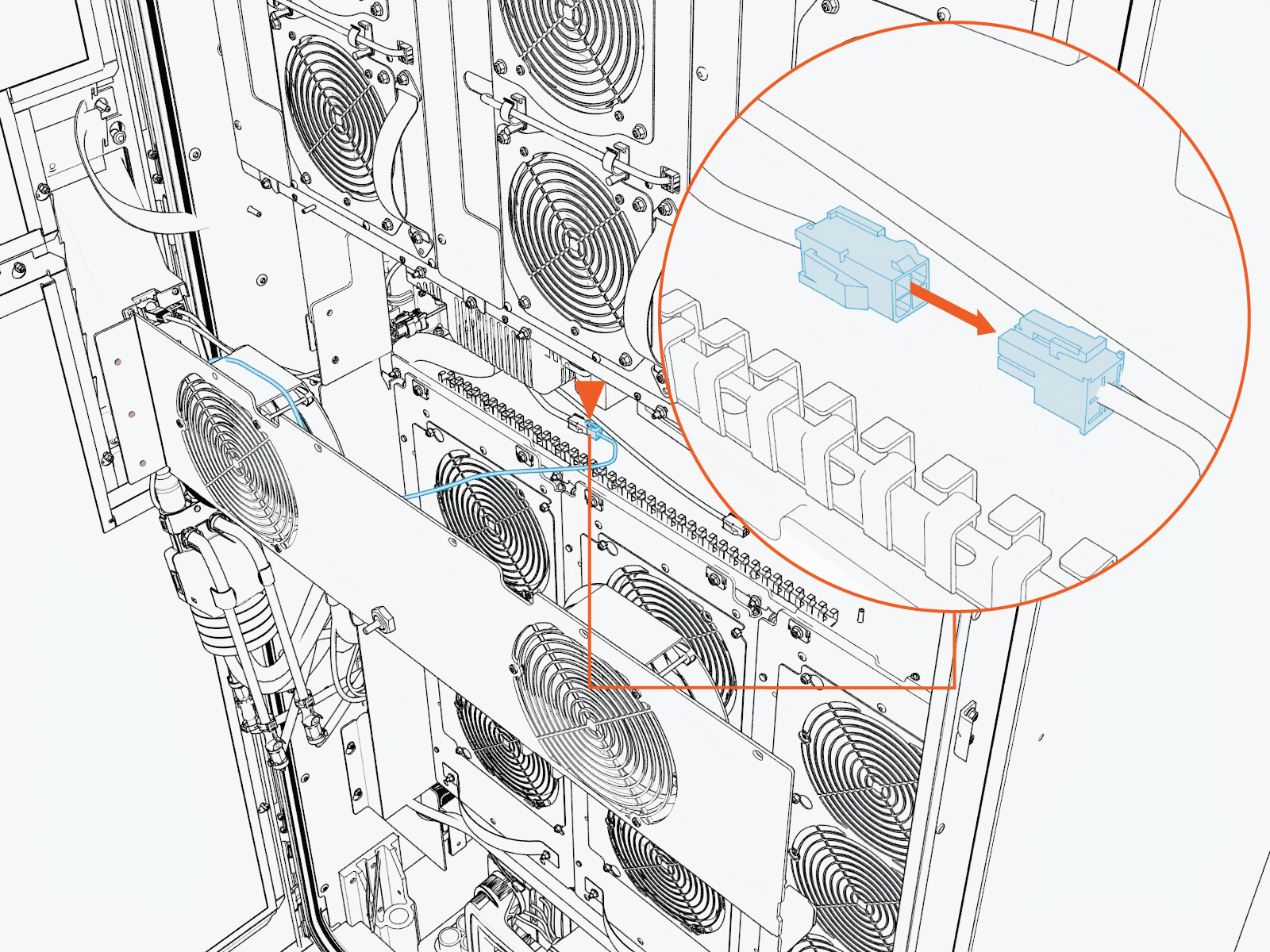
-
Remove the M4 screws (x3) from the fan.
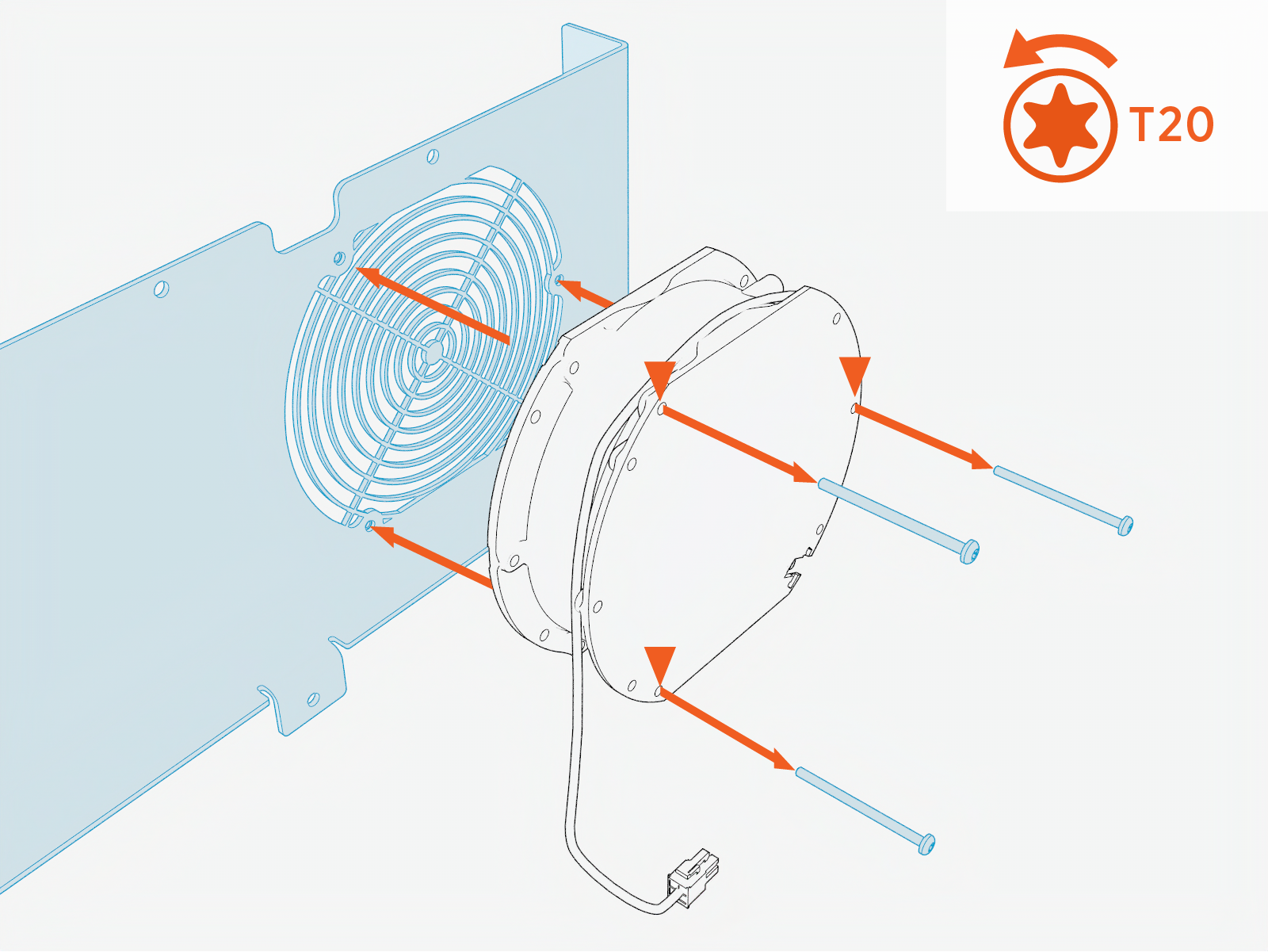 Torque these screws to 2.8 Nm (25 in-lb).
Do not use impact driver to tighten fasteners.
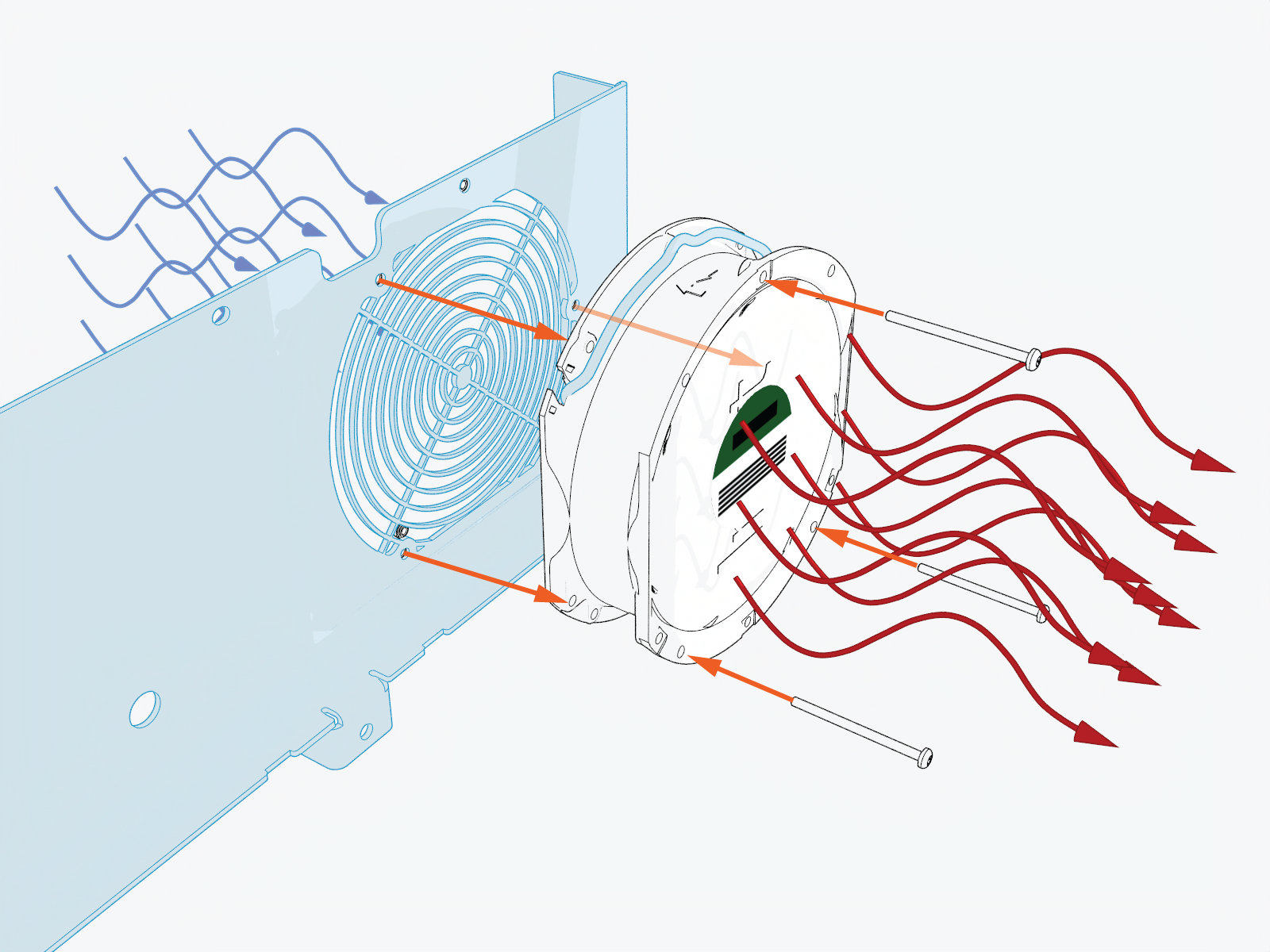
- When installing the fan, make sure that the sticker on the fan is facing inward.
-
Secure the fan cable along the curved guide on the fan. Ensure it is not loose or dangling.
Refer to the following figure.
-
Reverse the above steps to reinstall with replacement Neutron fan.
Remove the Fan from AC Power Module
The following instructions apply to each AC power module fan.
Required Tools and Materials
|
|
Socket (8 mm) |
|
Torx screwdriver (T20 ) |
|
|
Torque wrench |
|
Torque screwdriver |
-
Loosen the M5 nuts (x8) from the AC power module enclosure.
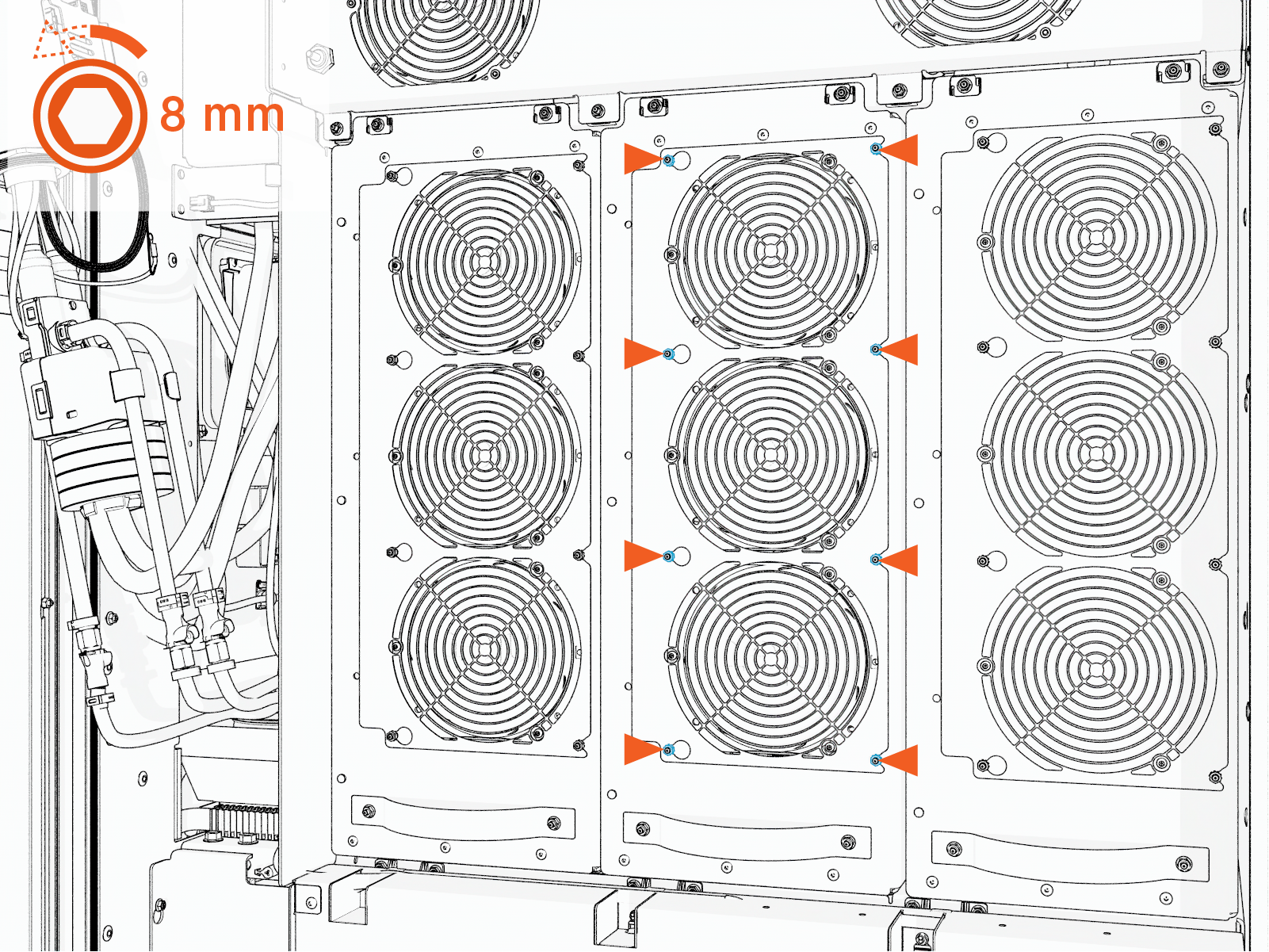 Torque the nuts to 4.5 Nm (40 in-lb).
Do not use impact driver to tighten fasteners.
-
Slide the fan tray cover sideways from the keyslot opening and pull it forward to remove.
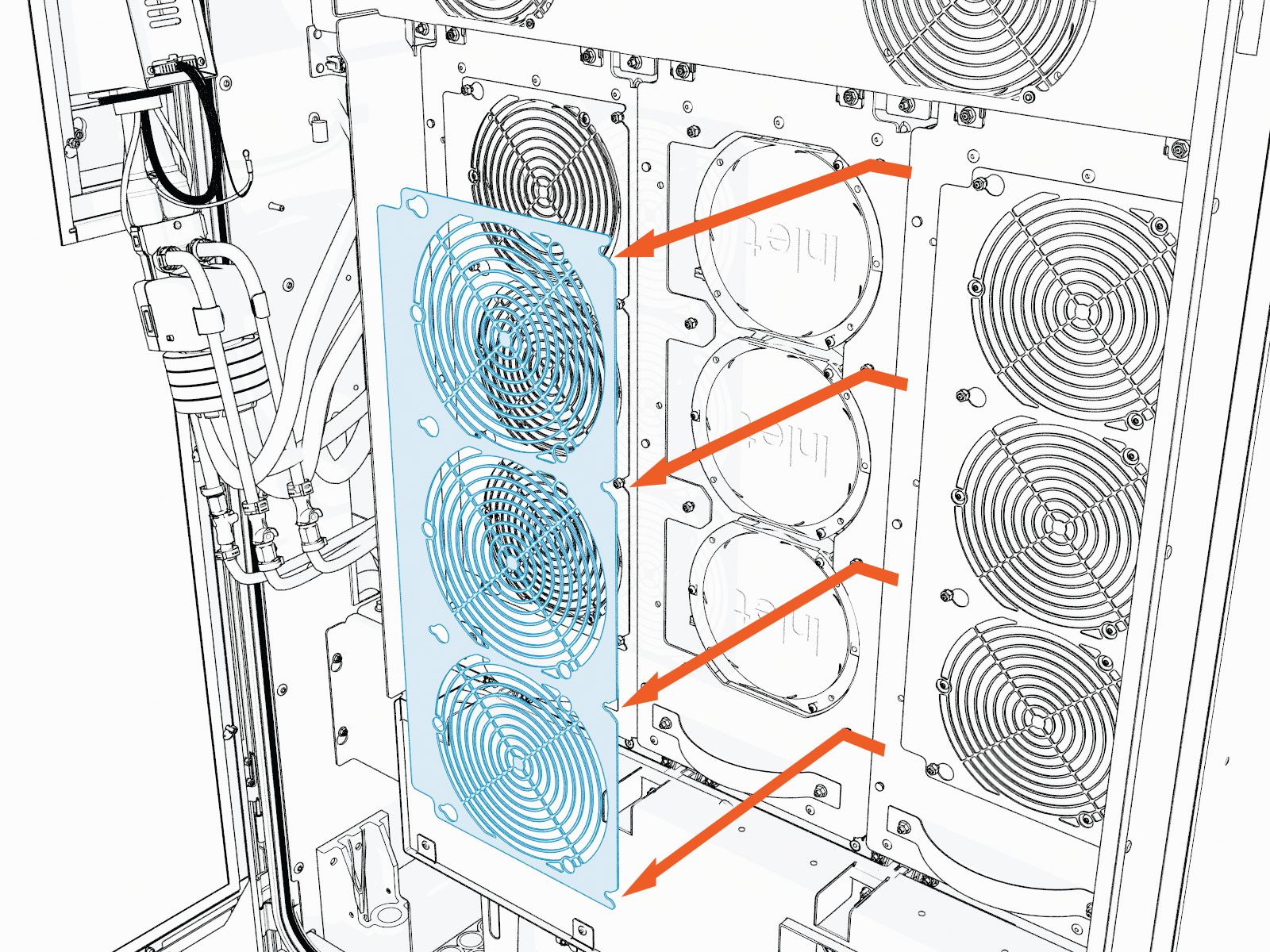
-
Remove the M4 screws (x3) from the fan.
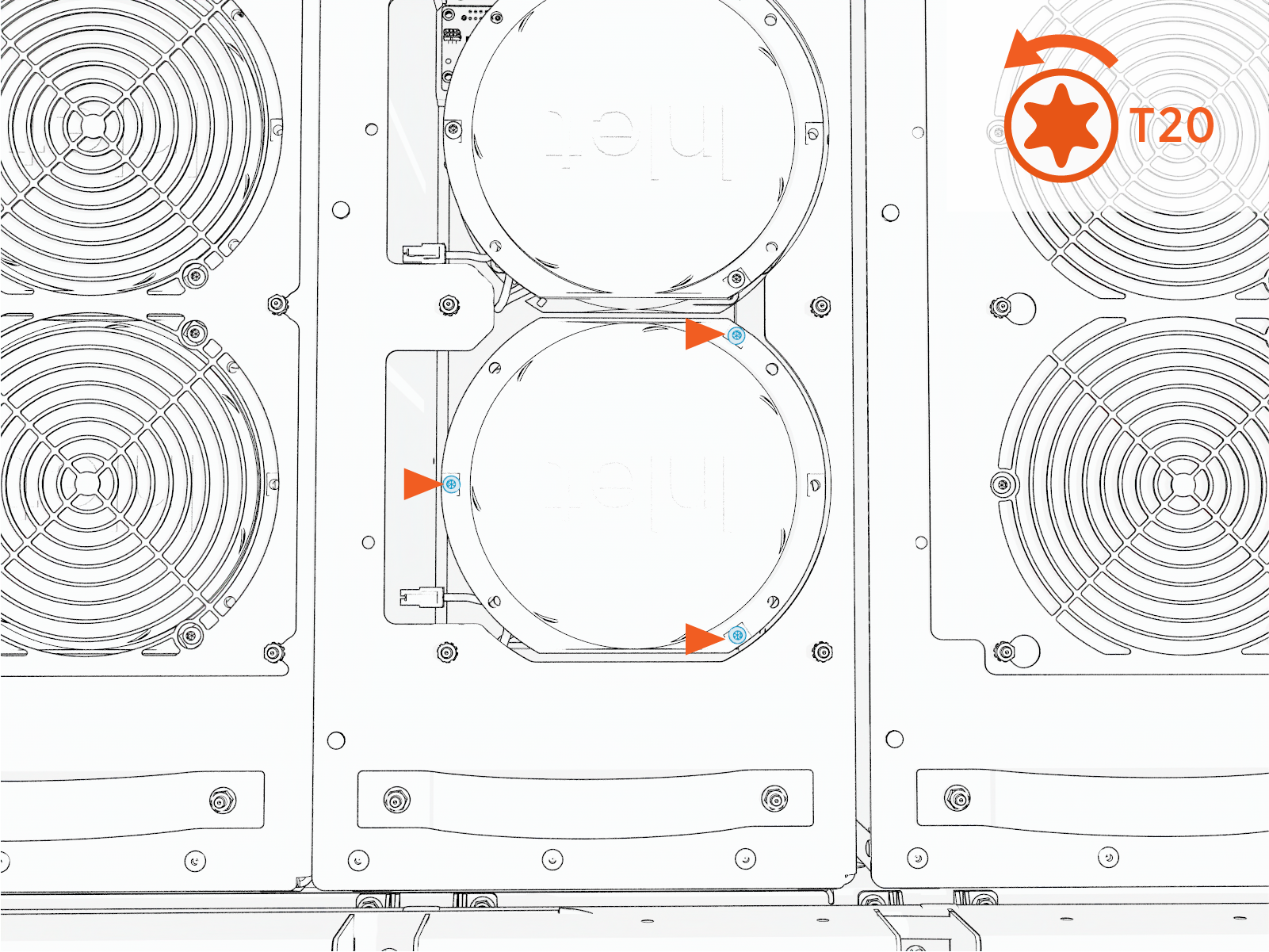 Torque these screws to 2.8 Nm (25 in-lb).
Do not use impact driver to tighten fasteners.
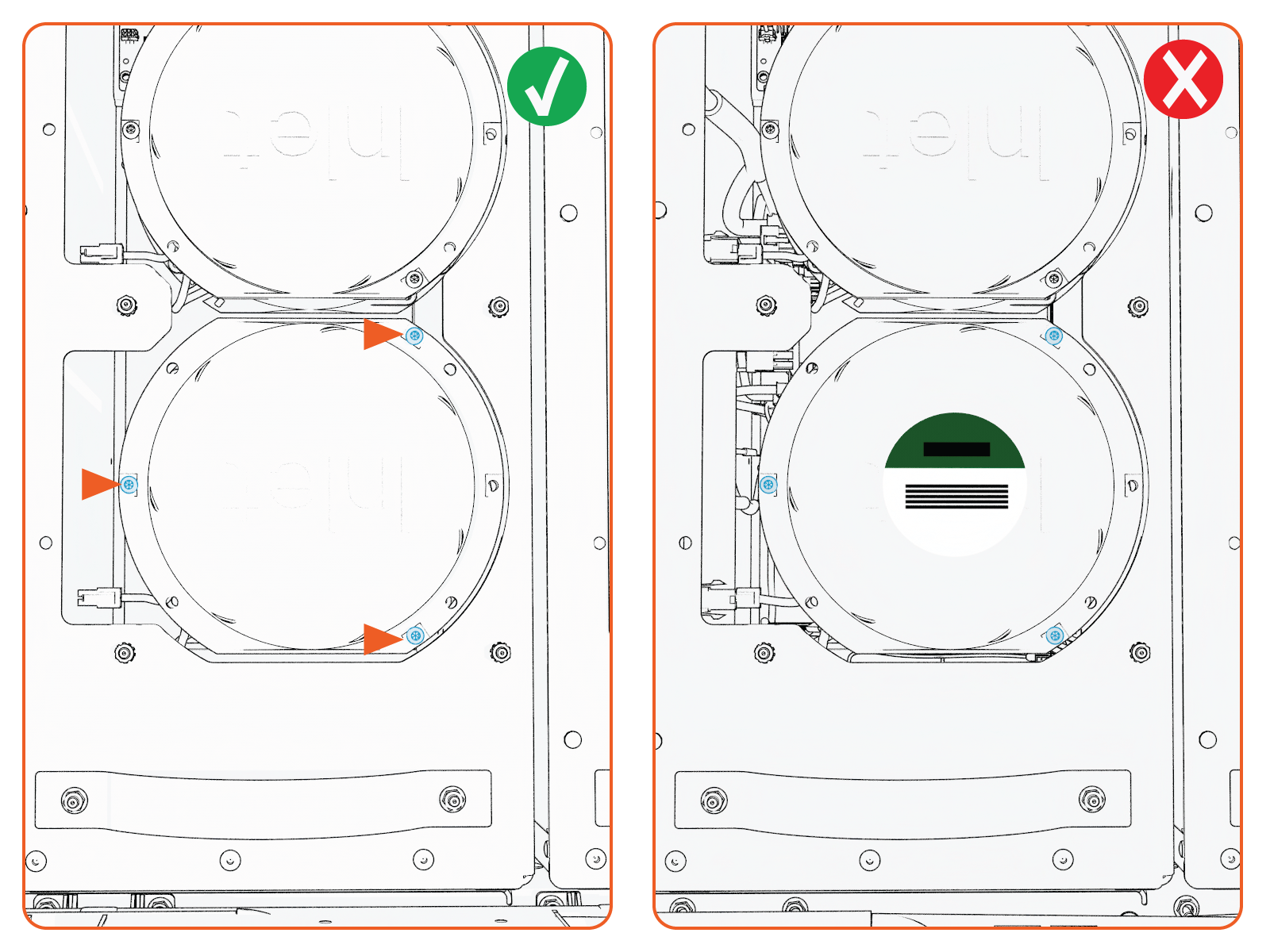
- When installing the fan, make sure that the sticker on the fan is facing inward.
-
Secure the fan cable along the curved guide on the fan. Ensure it is not loose or dangling.
Refer to the following figure.
-
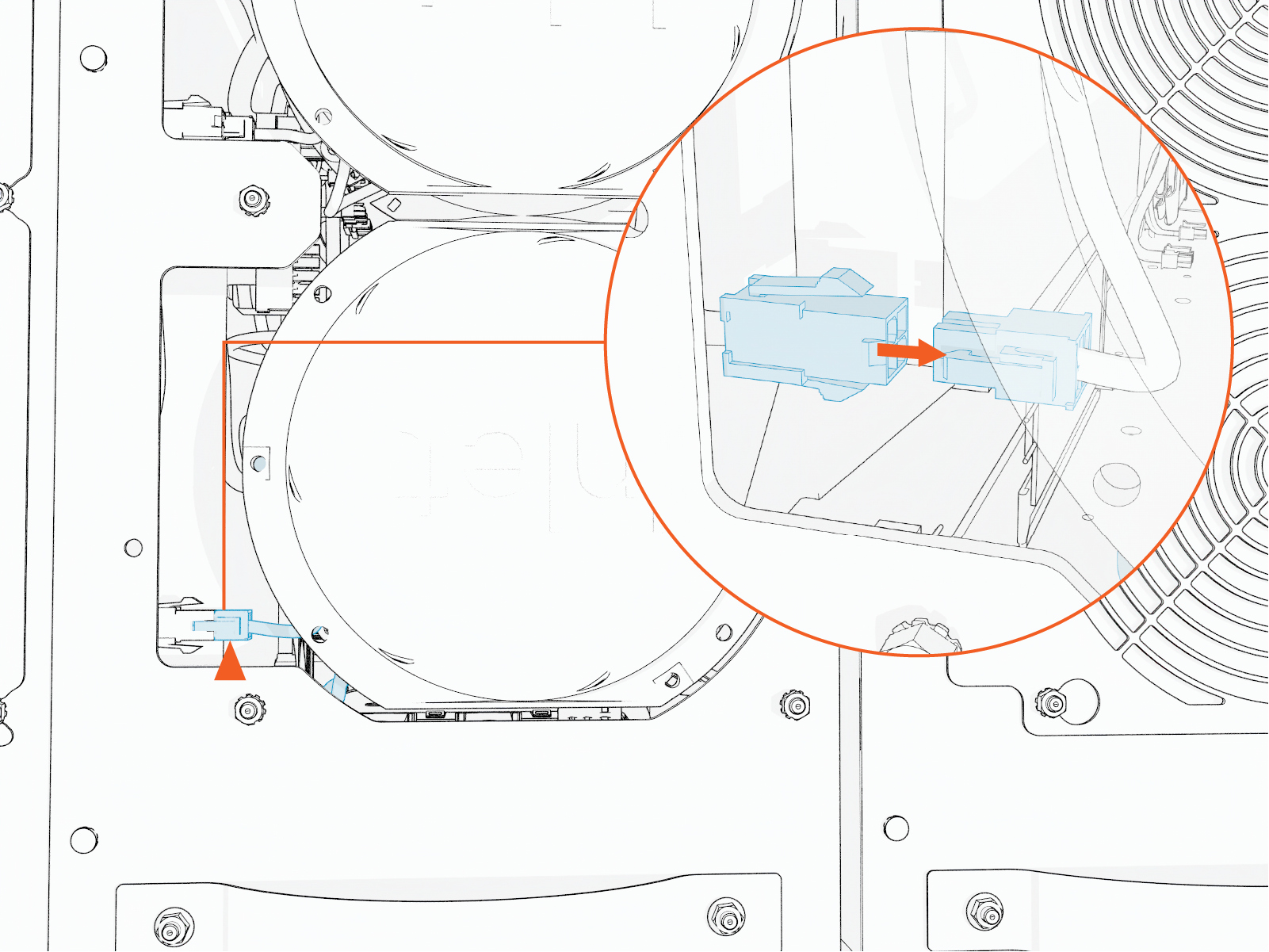
Disconnect the cable from the fan.
-
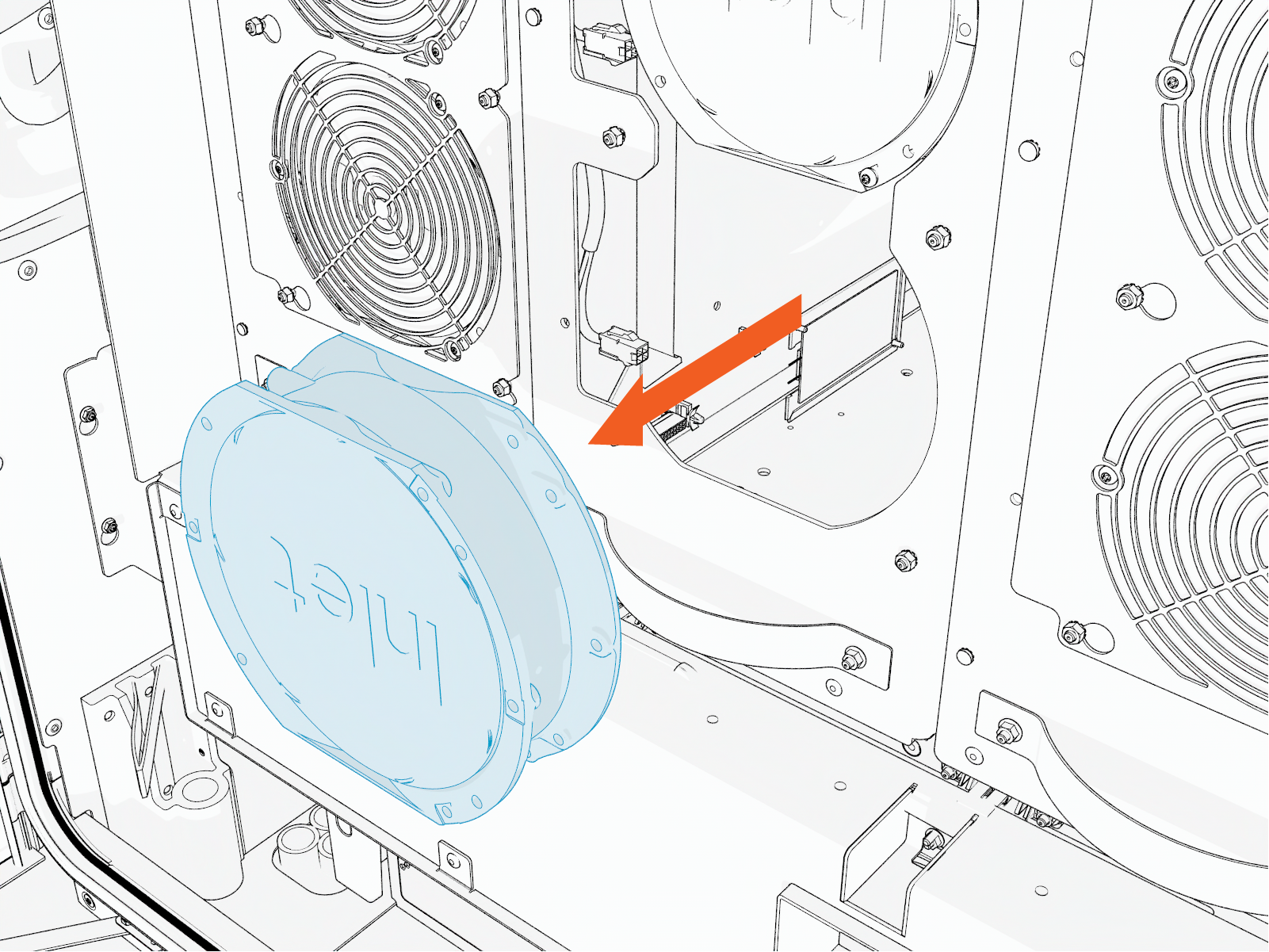
Remove the fan from the AC power module.
-
Reverse the above steps to reinstall with replacement fan for AC power module.