Accept a Work Order
Accepting a work order in the Partner Portal application involves reviewing all relevant details before formally confirming. You can open the Work Order page, where stations, SLA dates, and delivery timelines are displayed. The Related tab provides scope of work and documents, while Work Order Line Items (WOLIs) outline specific tasks that must be completed in sequence. Attachments under Files should be checked for supporting materials, and the Collaborate tab can be used for clarifications.
To accept a work order, perform the following steps:
-
Open the Work Order page. This lists the stations associated with the Work Order.
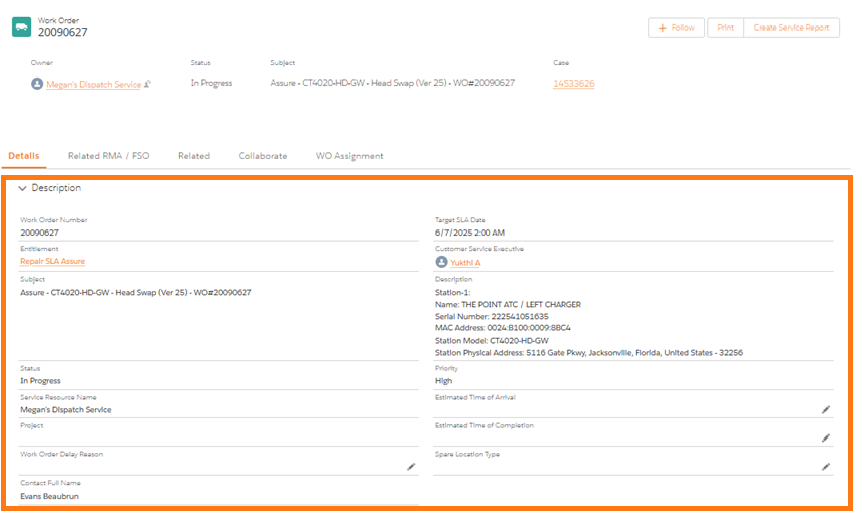
The Target SLA Date is automatically updated. If parts are required it will be updated the Estimated Delivery Date is updated, if parts are not required it will be updated based on Entitlement.
-
Click Related tab, to view scope of work and associated documents.
-
Under Work Order Line Items (WOLI), select each work order individually to view the service request.
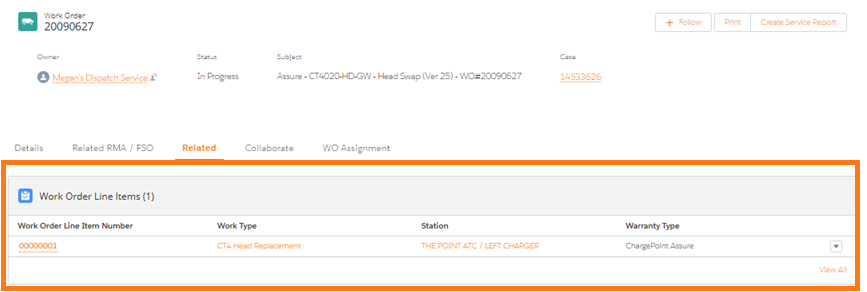
If there are multiple Work Order Line Items (WOLIs), note that several tasks must be completed at the station. Carefully read the WOLI description and confirm you have all necessary information to perform the task.
Ensure that the work must be performed in order of the WOLI number. For example, complete WOLI 1 before completing WOLI 2. -
Under Files, review the attachments for relevant materials.
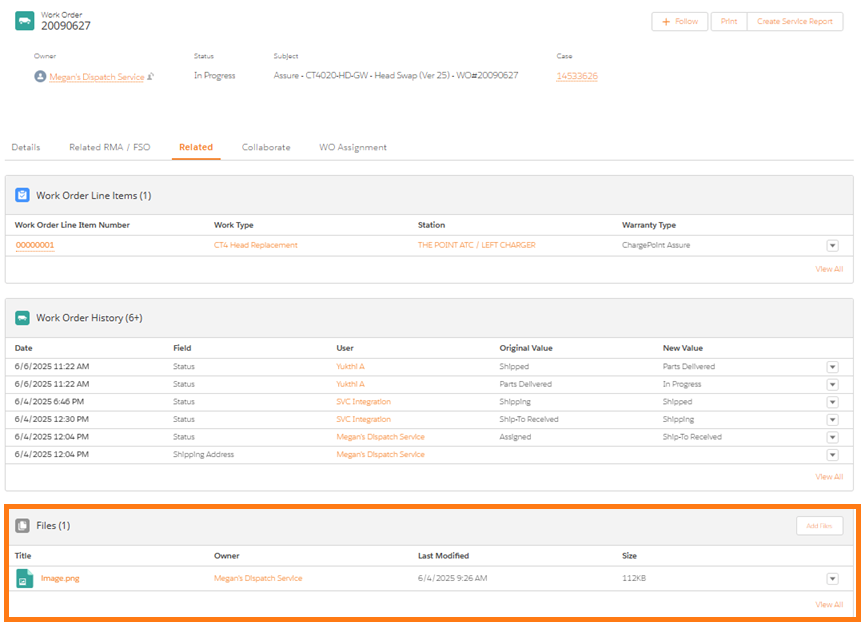
If additional input or documents are required, use the Collaborate tab to communicate with the Customer Service Executive.
-
-
Once all the details are reviewed and clarified, click the Accept button to accept the work order. This moves the process forward.
-
Enter the shipping information (Name, Phone Number, Shipping Address and Shipping Address) and click Save.
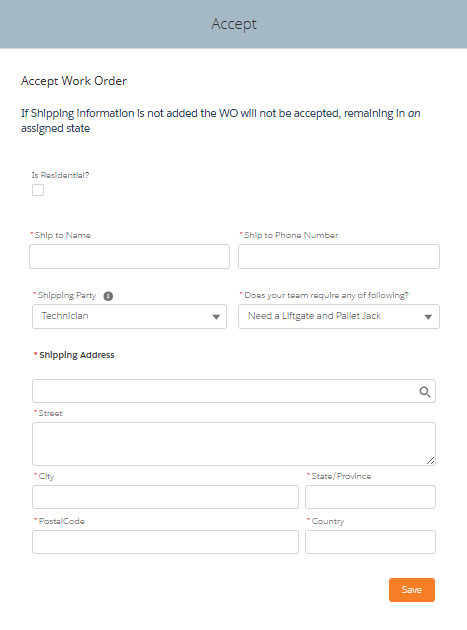
The above fields are automatically populated. Enter the street address, after which address suggestions will be generated. You can then select the appropriate option rather than manually entering the full details.
In the field "Does your team require any of the following?", specify whether a Liftgate and Pallet Jack are needed.
-
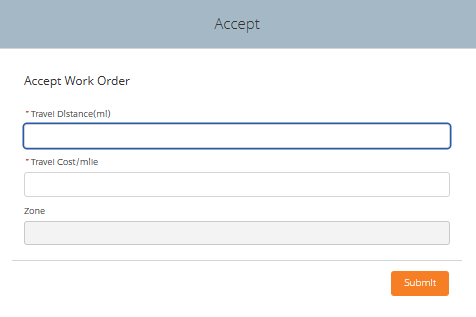
Enter the travel information.
-
Travel Distance: Enter the total round trip mileage minus the 50 mile round trip which is already covered by the dispatch rate. Review the WOLIs to determine if more than one technician is required for a given task to ensure proper mileage is entered.
-
Travel Cost/Mile: Enter the agreed upon travel cost per contract (SOW).
-
Zone: This is auto-generated based on Service Territory.
-
-
Click Submit to confirm. A success message is displayed confirming that the work order is accepted successfully.
To better understand how to onboard and offboard a technician, view the following video.
