Complete a Work Order
Completing a work order in the Partner Portal application requires updating all deliverables and mandatory details before marking it as complete.
After completing the WOLIs on-site, update the portal to mark the work order as complete.
To complete work order, perform the following steps:
-
Confirm that all required deliverables including images and supporting documents are uploaded to the work order. These can be added in the Notes and Attachments section or through the Collaborate tab.
-
In the Collaborate tab, provide any additional notes or feedback to the ChargePoint dispatcher.
-
Prior to closing the work order, confirm that all mandatory fields such as Scheduling Completed Date, Appointment Date, Technician Name, and Technician Phone Number are filled in.
-
Enter the Actual Site Arrive Time (Date/Time) and Actual Site Departure Time (Date/Time) of the technician prior to moving the WO to complete.
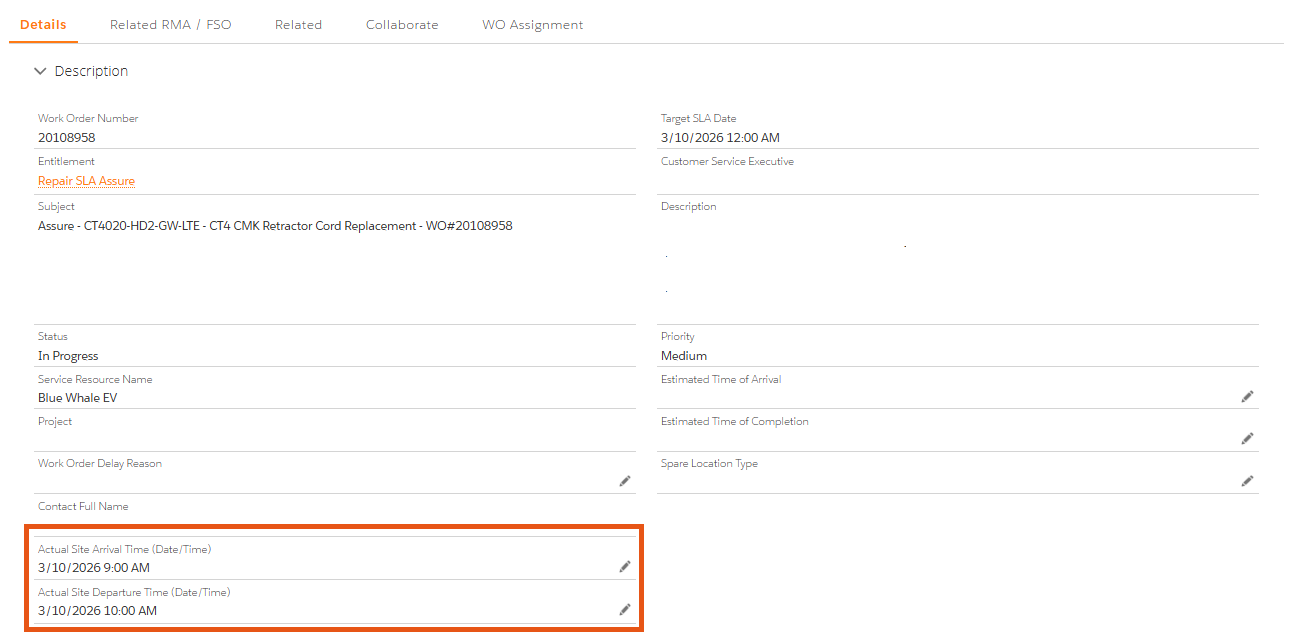
Ensure that all required fields are completed before closing the work order. If any are left incomplete, an error message appears that the work order cannot be closed.
-
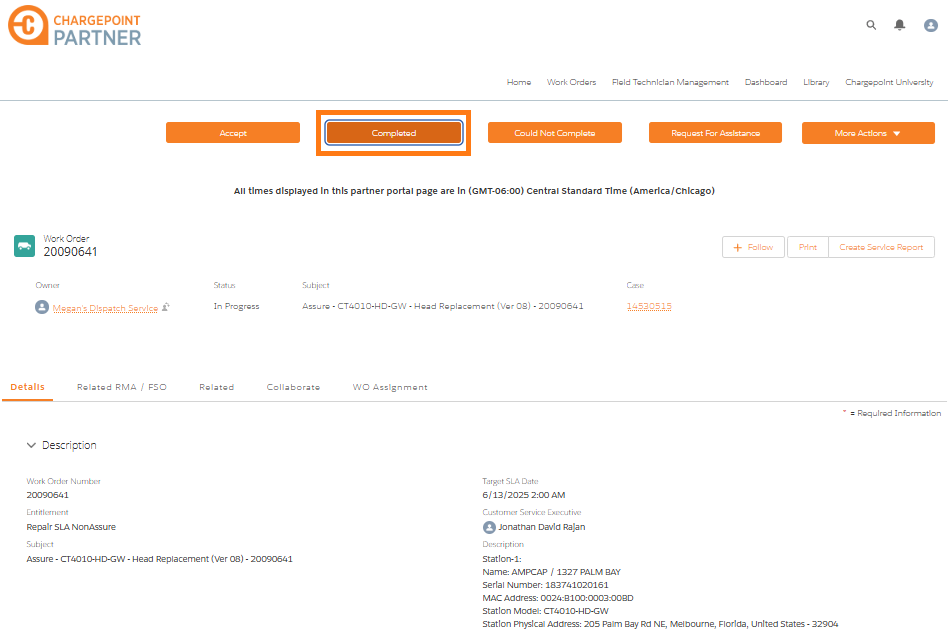
Ensure that all required information and deliverables are finalized and then click Completed to move the work order into the completed queue.
-
After completing the work order and submitting proof of return (when required), an additional window appears. Enter the following details:
-
Rental Equipment Details: Provide a clear explanation of why rental equipment was necessary. If approved by ChargePoint, this may also include costs incurred for purchasing equipment during the dispatch (for example, screws, lugs, tarp, rope).
-
Rental Equipment Cost: Provide rental equipment cost details. For example, forklift and EV
 Electric Vehicle vehicles.
 -
Permit Details: Provide an explanation detailing the reason the permit was required.
-
Permit Cost: Provide the additional permits required on site.
Ensure that if no additional costs were incurred, the fields are submitted blank.
-
-
Click Submit. The work order is marked as Completed.
Once the work order is marked as completed, ChargePoint will conduct a review. After confirming that all work and deliverables meet the required standards, the work order will be transitioned to a closed status.
-
You can review the completed queue to verify the work order has been successfully transitioned to completed status and subsequently closed by ChargePoint.
