Filter and Sort Work Orders
This page helps you manage work orders efficiently by using filters and sorting options. Filters at the top of the work orders list let you view categories such as all work orders, your open work orders, recently viewed, completed/closed, or rejected/cancelled items, and you can pin a preferred filter to make it your default view.
Filter Work Orders
At the top of the work orders list, you will see filter options. To filter work orders, perform the following steps:
-
Navigate to the top of the work orders list to access the filter options in the application.
-
Click the drop-down arrow located beside the work order filter title. The following are the list of available categories. Choose the appropriate filter category.
-
All Work Orders
-
My Open Work Orders
-
Recently Viewed
-
Recently Viewed Work Orders
-
WO Completed / Closed
-
WO Rejected / Cancelled / Cannot Complete
-
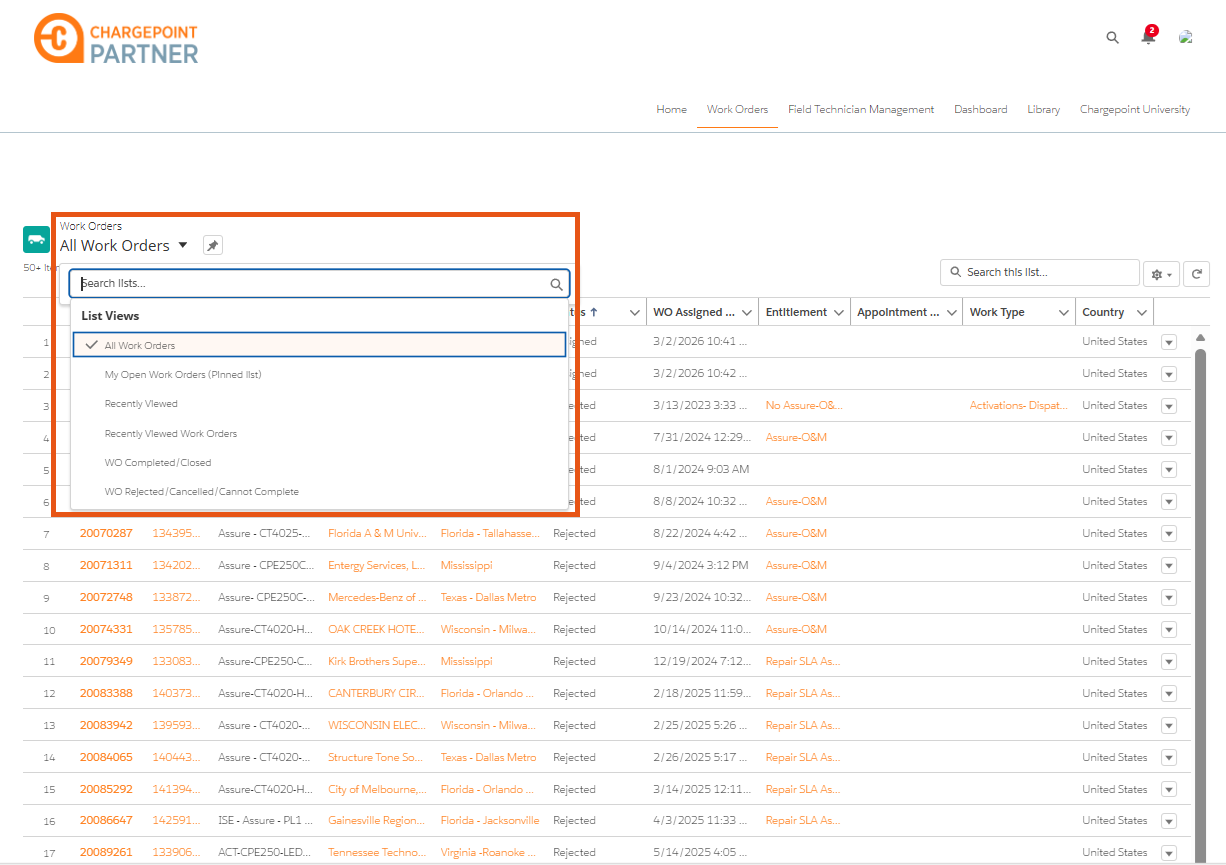
Depending on the selected filters, the key columns change accordingly
-
To designate the selected filter as your default view, click the pin icon next to the filter. Once pinned, the selected filter is applied automatically, and all work orders are displayed according to this default configuration.
Sort Work Orders
You can sort the work orders using the column headers in the work order table by performing the following steps:
-
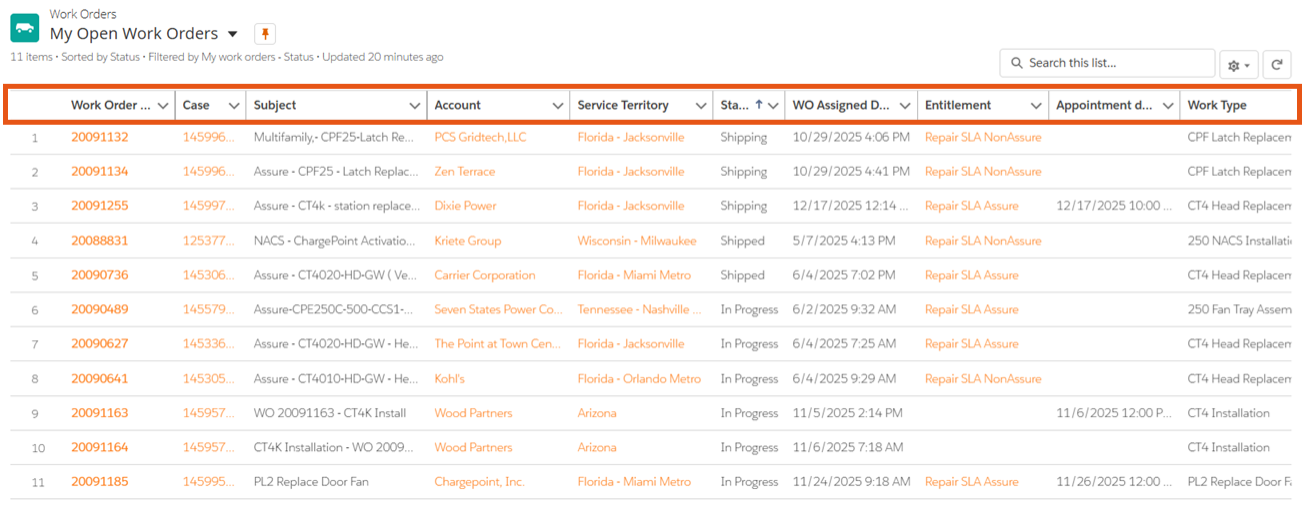
At the top of the work orders table, identify the column headers. Each header represents a category (Example: WO Assigned Date, Status, Priority).
-
Click the column header corresponding to the category by which you want to sort the work orders. For example: To sort by assignment date, select the WO Assigned Date header.
The table automatically reorders based on the selected column. If the WO Assigned Date header is selected, the table displays work orders sorted by the most recent assignments.
-
To sort by a different category, repeat Step 2 with another column header. The table updates accordingly.
