Review and View Work Orders
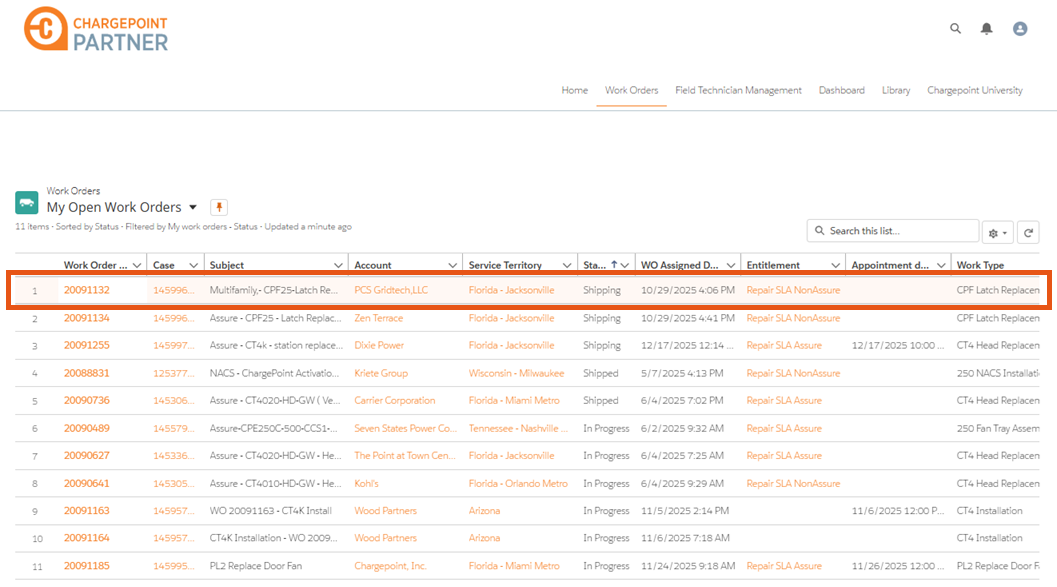
In the Partner Portal application, work orders can be reviewed and tracked through clearly defined statuses such as Assigned, Ship to, Parts Ordered, Shipping, Shipped, In Progress, On Hold, Completed, Closed, or Cannot Complete, each reflecting the stage of progress or challenges faced.
Review and Understand Work Order Status
| Status | Description |
|---|---|
| Assigned | Work order has been allocated but not yet acted upon. |
| Ship to Received | ChargePoint has received the shipping address and now needs to place an order for parts. |
| Parts Ordered | Parts needed for the work order have been ordered. |
| Shipping | Parts are pending fulfillment or partially fulfilled. |
| Shipped | Parts are shipped and are on their way. |
| In Progress |
Work order is currently in progress. or If parts are required, they have been delivered. The Work Order is currently in progress. |
| On Hold | The work order is temporarily on hold, awaiting further action. |
| Completed | The assigned scope of work has been completed, and all deliverables have been provided. |
| Closed | The work order has been completed successfully, as confirmed by ChargePoint. |
| Cannot complete | The work order cannot be accepted or executed. |
View Work Order Details
To view the work order details, perform the following steps:
-
On the Work Orders page, click the specific Work Order Number you want to view.
-
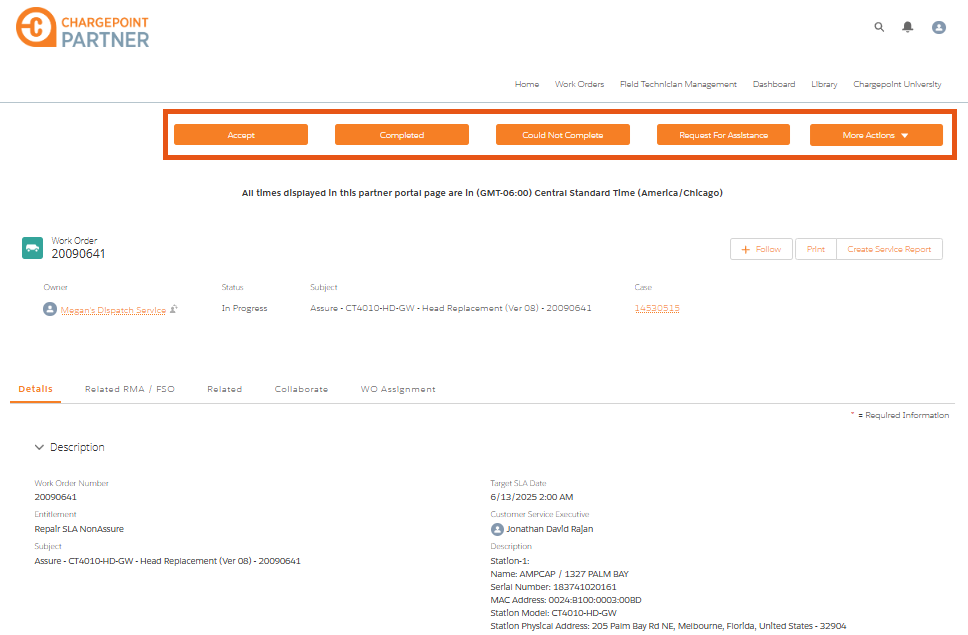
Select from the top navigation buttons to take action.
| Action | Description |
|---|---|
| Accept | Select this option to confirm that you have reviewed and formally accepted the work order. |
| Completed | Use this option once the assigned task is successfully finished. The work order status will be updated to Completed. |
| Could Not Complete |
Select this option if circumstances prevent completion of the task (for example, equipment removal, inaccessible location) or if you are unable to accept the work. The work order status is updated as Could Not Complete. |
| Request for Assistance |
Use this option to request ChargePoint support. For faster responses on the Work Order queries, it is recommended to use the Collaborate tab instead of Request for Assistance. |
| More Actions |
Provides access to additional work order actions if directed by ChargePoint. |
