Assigning a Technician and Scheduling an Appointment
Assigning a technician and scheduling an appointment in the Partner Portal application involves selecting the right personnel and entering key scheduling details. Technicians with the required skills can be assigned directly from the Field Technician list, while those without skills or freelancers can also be assigned by providing an override reason.
Assign a Technician With Skills
To schedule the appointment, perform the following steps:
-
Navigate to the WO Assignment to assign a technician.
-
From the Field Technician list, select the technician to assign a work order.
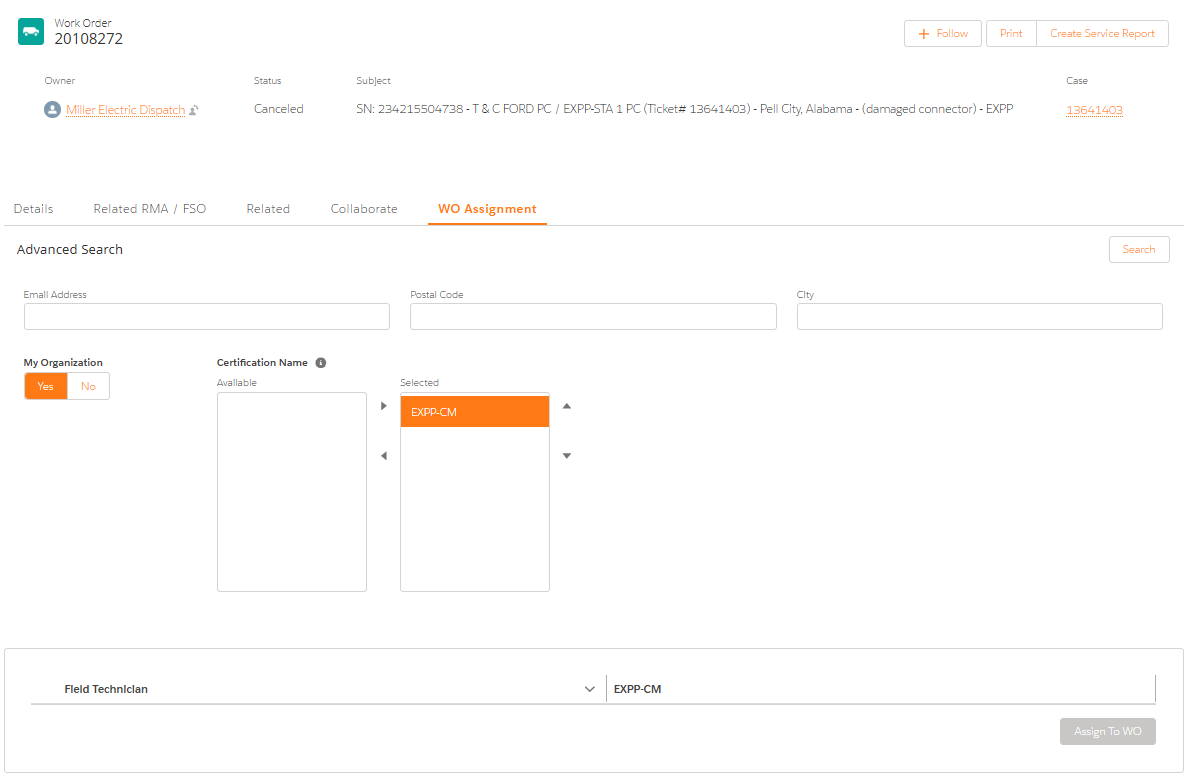
The second column shows whether the technician possesses the necessary skill for the work order.
-
Click Assign To WO to associate the technician with the work order. A success message is displayed confirming that the work order is successfully assigned to the technician.
-
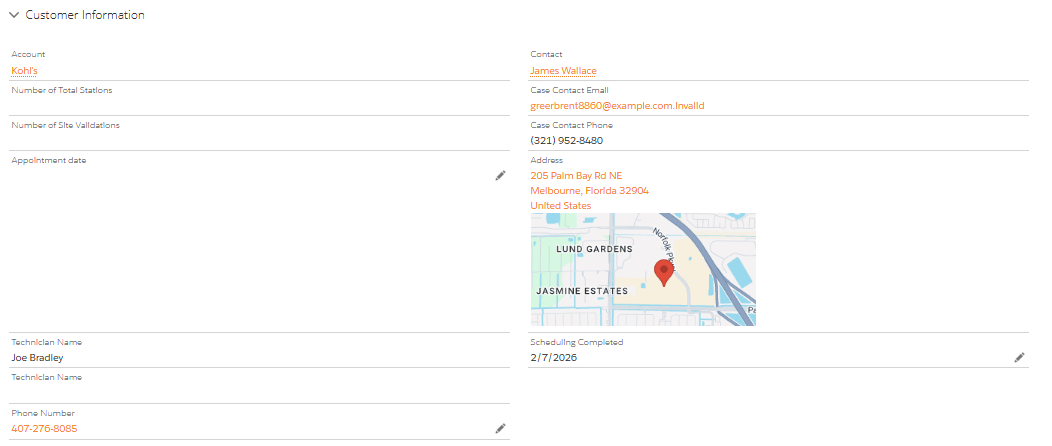
Navigate to the Details tab and access the Customer Information section.
-
Enter the Appointment Date, Technician Name, Phone Number, Scheduling Completed date into the work order.
-
-
Click Save. The scheduling information is saved.
Assign a Technician Without Skills
To assign a technician that does not have the required skills, perform the following steps:
-
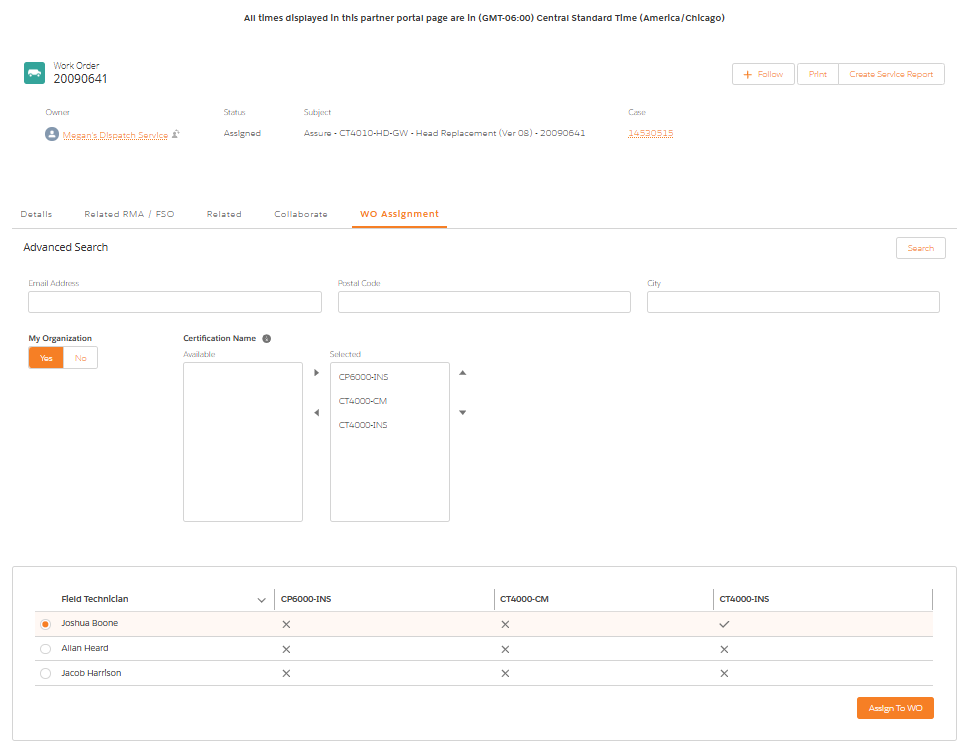
Navigate to the Work Order Assignment to assign a technician.
-
From the Field Technician list, select the technician to assign a work order.
-
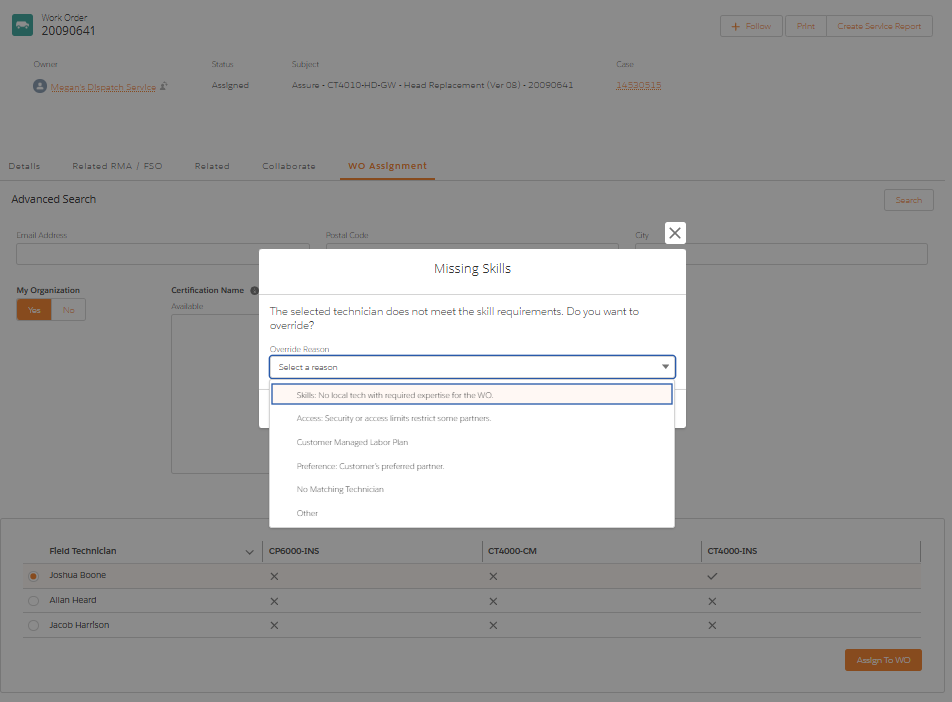
Click Assign To WO to associate the technician with the work order. The Missing Skills window is displayed.
You need to provide an override reason for selecting a technician without the required skill set.
-
Select the required option and click Confirm Override to assign the technician.
-
Return to the Details tab to update the critical information for scheduling.
Assign a Freelancer
To assign a freelancer to a work order, perform the following steps:
-
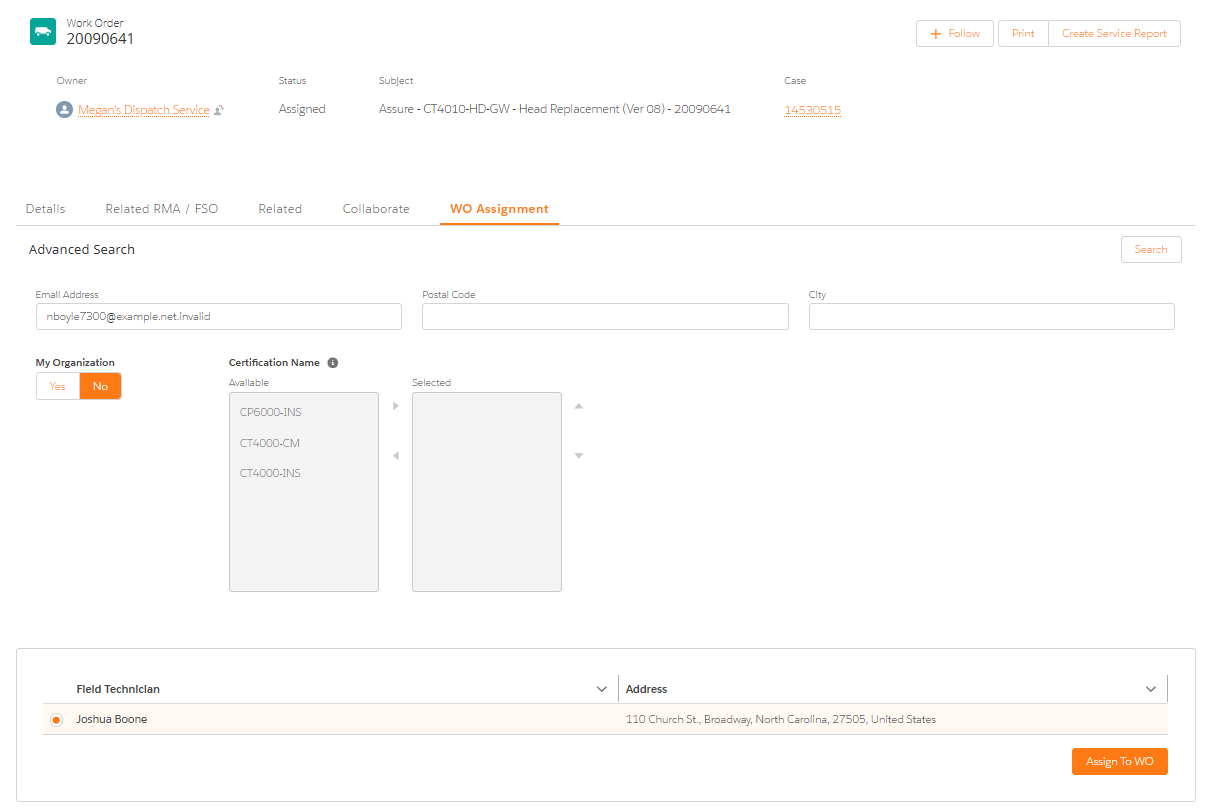
Navigate to the Work Order Assignment to assign a technician.
-
In My Organization, select No.
-
Enter the technician's Email Address and click Search to find a matching personnel.
-
From the search results, select the technician for assignment.
-
Click Assign To WO to associate this technician with the work order. The Missing Skills window is displayed.
-
Select the reason for choosing a freelancer and click Confirm Override to assign the technician.
-
Return to the Details tab to update the critical information for scheduling
