Place Work Order On Hold
Placing a work order on hold in the Partner Portal application requires submitting a request through the Collaborate tab rather than doing it directly. Users must share an update with the dispatcher to inform them of the delay, and once confirmed, the work order is placed on hold until the scheduled repair date. It is important to ensure that all relevant guides and documents are attached in the Notes and Attachments section, and to verify customer information, scheduled dates, and service details in the Details tab so the work order can be resumed smoothly when repairs are ready to proceed.
To place a work order on hold, perform the following steps:
You do not have direct access to place a work order on hold. Submit a request using the Collaborate tab.
-
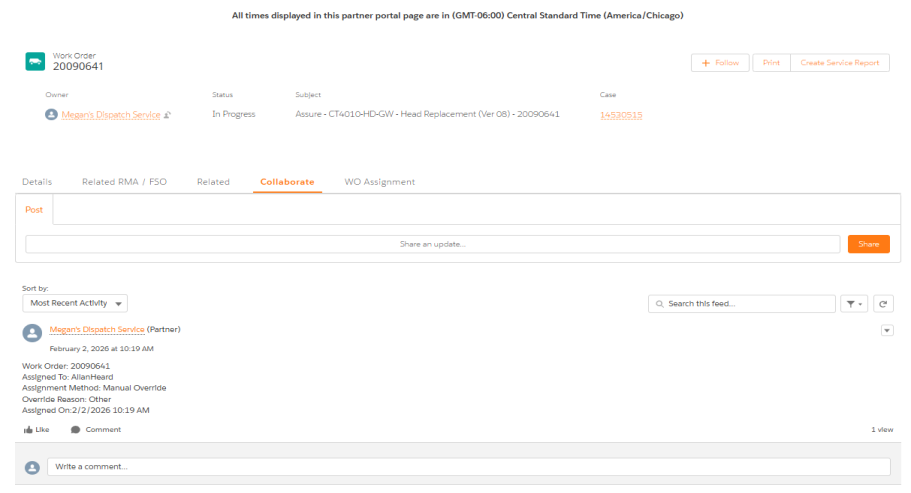
On the Work Order page, click Collaborate tab.
-
Click Share an update, and inform the dispatcher of the delay and wait for the communication.
-
Once the dispatcher confirms, place the work order on hold until the scheduled repair date.
Ensure that all necessary guides or documents are attached and accessible in the Notes and Attachments section.
-
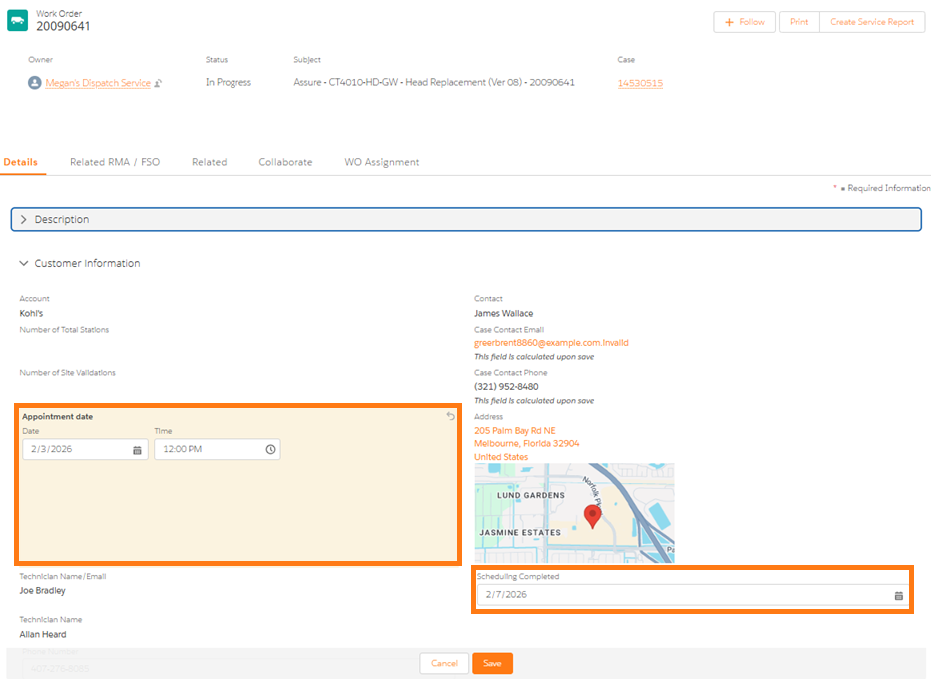
Navigate to the Details tab and access the Customer Information section. Verify the scheduled date and service information for resuming the work order or performing the repair.