Format Videos Using Handbrake
To format videos using Handbrake, complete the following steps:
-
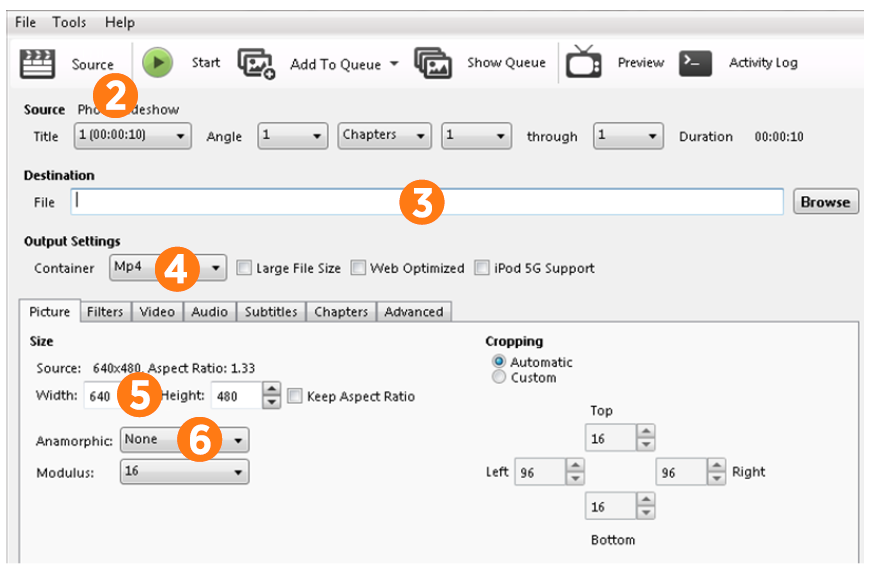
Open Handbrake.
-
Click Source, then select your video file.
-
In the Destination box, enter the full path and filename (with .mp4 extension) of the output video file; or click Browse to navigate to that folder and then enter your video filename.
For example: Loyalty Program.mp4
-
From the Container drop-down box, select MP4.
-
On the Picture tab, set the Width to 640.
-
For the CT4000, set the Height to 480.
-
For the CP4000/Express 250, set the Height to 360.
-
-
From the Anamorphic drop-down list, select None.
Figure 1: Using Handbrake to Format Videos
-
Click Video.
-
Set the Video Codec to H.264 (x264).
-
Set Framerate (FPS) to 30 and Constant Framerate.
-
Set Quality to Avg Bitrate (kbps) and 1200.
-
Click Start.
Figure 2: Using Handbrake to Format videos
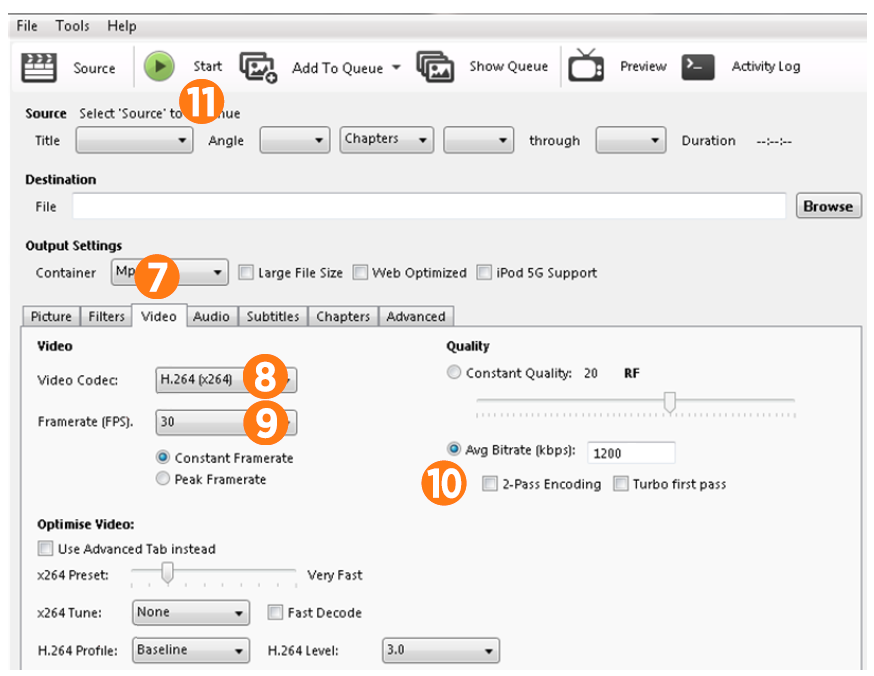
Handbrake re-formats your video which may take a few minutes. When the formatting is complete, go to Submit Video Ads for Validation.
If you need help with Handbrake, go to www.handbrake.fr.
