Side Panels (Pedestal Mounted)
This section provides information on servicing and replacing side panels (pedestal mounted).
Required Tools and Materials
|
|
T25 security screwdriver |
|
Stepladder |


Before You Begin
-
Power off the charging station at the site electrical panel.
-
Lift charging cable connector off the holster.
-
Determine if the Power Link 1000 has preassembled covers or unassembled components, remove them as necessary.
-
If applicable, remove the lower bus bar safety cover.
RISK OF SHOCK- Do not remove the lower bus bar safety cover (cover on the maintenance switch) without disconnecting power at the site electrical panel or AC disconnect switch supplying all connected Power Blocks.
- Unless you turn off power at the site electrical panel, all other connected Power Link 1000s will still be powered on and energized.
- Below the maintenance switch power will be still live:
- The bus bars and high-voltage (HV
 High Voltage) site wiring connected below the maintenance switch could still be live because the upstream system was not powered off.
 - The maintenance switch only turns OFF (disconnects) the HV High Voltage connections above it, not below it.
- The bus bars and high-voltage (HV
FAILURE TO FOLLOW THESE INSTRUCTIONS CAN RESULT IN SERIOUS INJURY OR LOSS OF LIFE.
AFTER REPLACING A SIDE PANEL, REVERSE THE ABOVE STEPS TO COMPLETE THE SERVICE.
Replace Side Panel with Cable Exit Trim
To replace side panel with cable exit trim, complete the following steps:
Remove
-
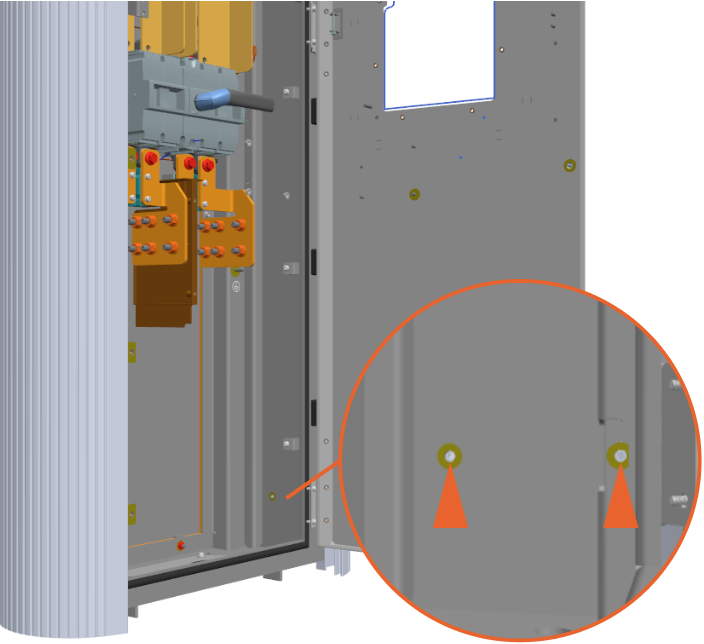
Loosen the M5 screws (x2) (use T25 security screwdriver).
-
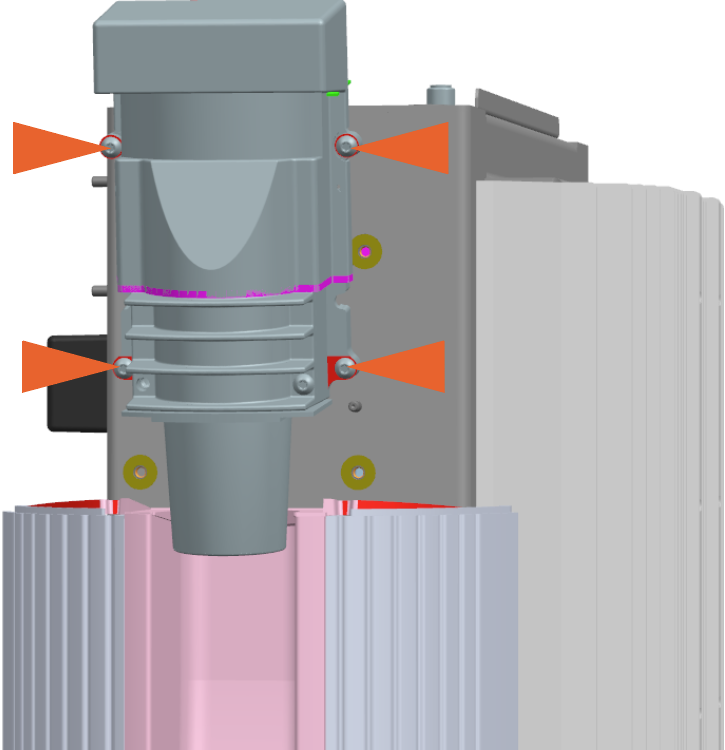
Loosen the DC smart cable assembly mounting screws (x4) (use T25 security screwdriver) and hold the assembly up to make space for the side panel to travel off the hooks on the frame. Disconnecting the cable connections inside the Power Link 1000 is not required.
-
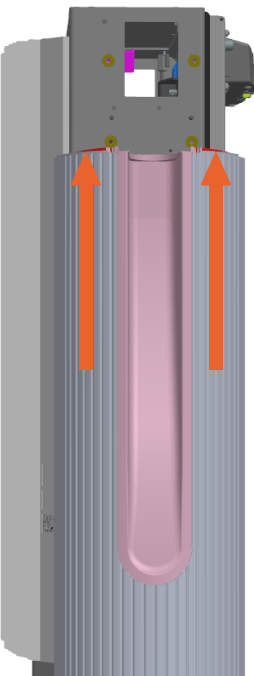
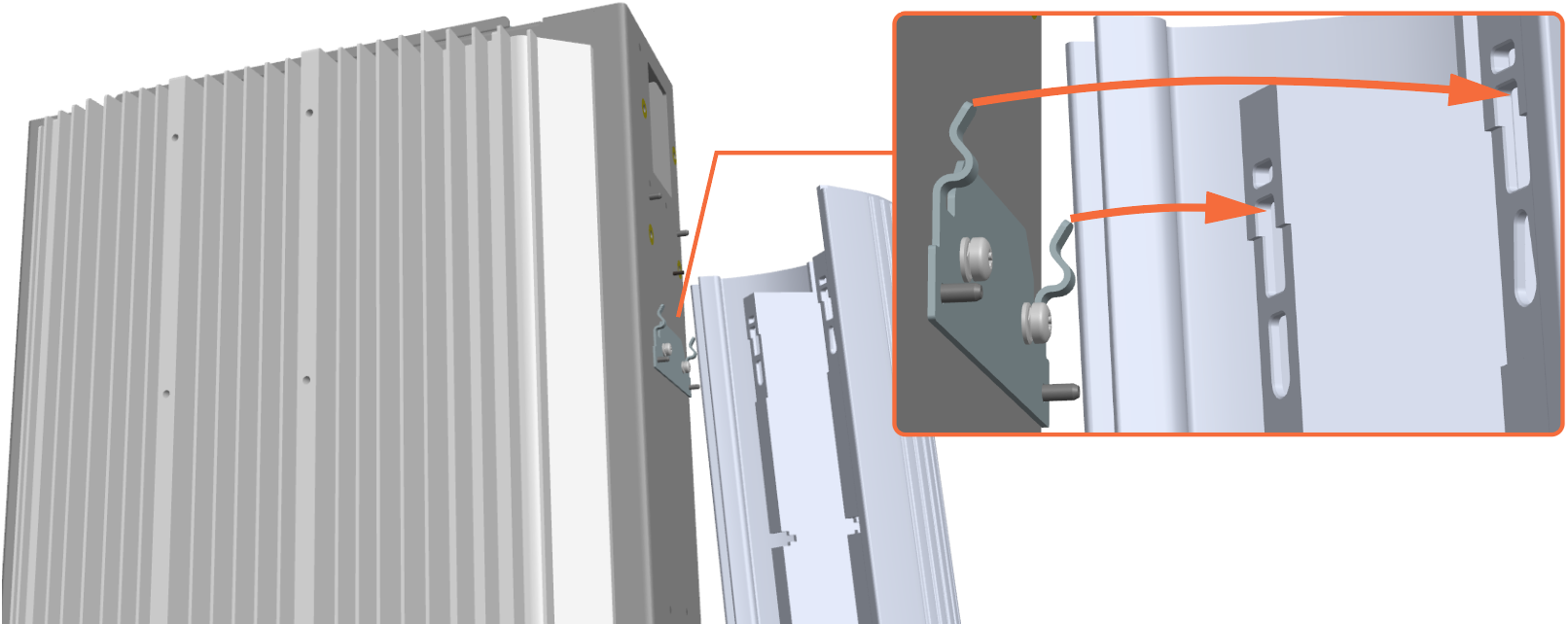
Slowly push upper side of the panel up to disengage it from the two hooks on the frame and remove the panel.
Reinstall Standard Side Panel or Side Panel Blank
-
Hold the side panel under the DC smart cable and place the cable into the cable exit trim on the side panel.
-
Align and install the side panel onto the two hooks and two studs on the frame.
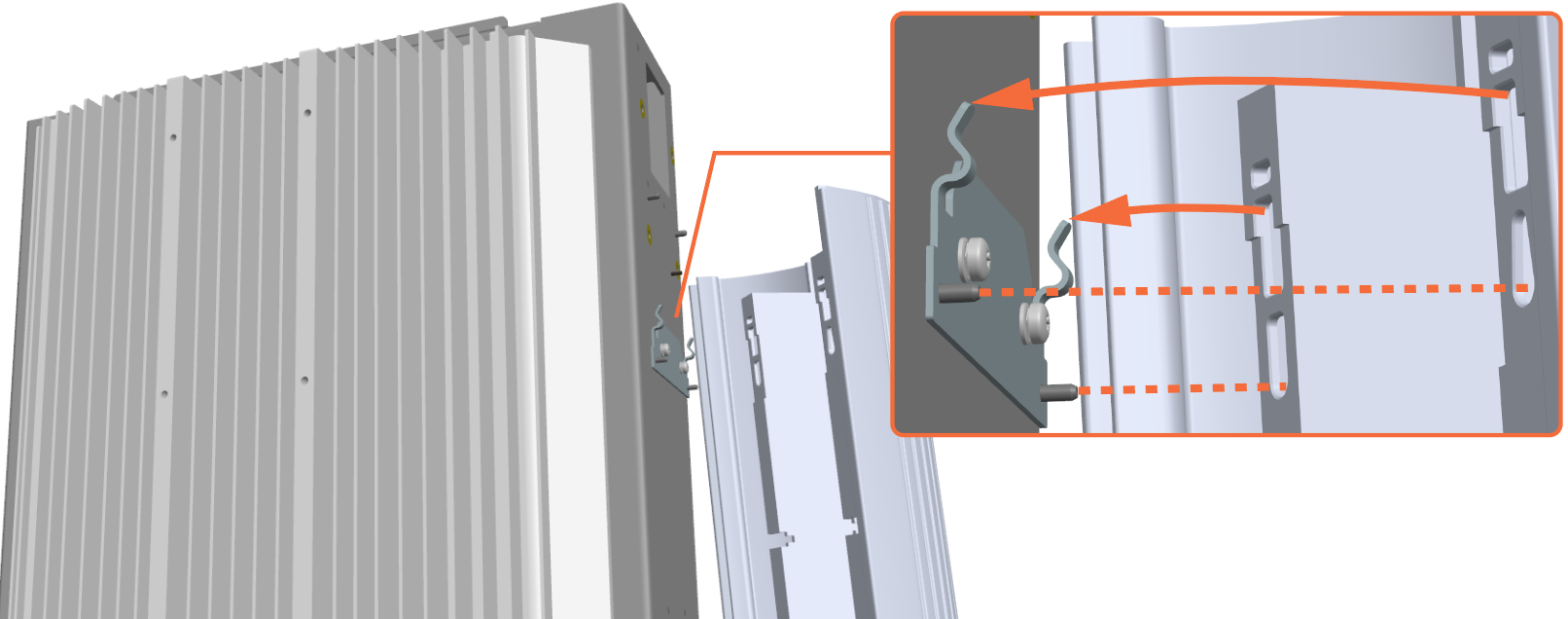
-
Slowly pull the side panel down to hook the panel to the frame.
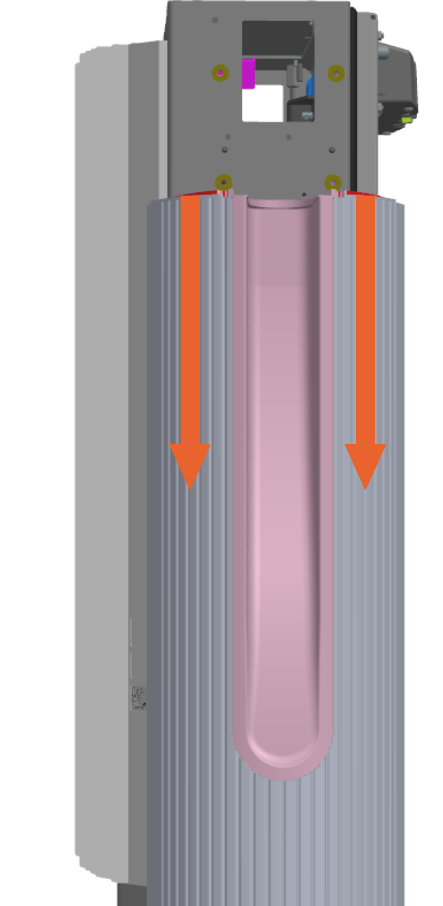
-
If you are re-installing the Standard Side Panel (as displayed in the following image), then install the DC smart cable assembly and torque (use T25 security screwdriver) the M5 screws (x4) to 4.5 Nm (40 in-lb). Whereas, if you are installing the Side Panel Blank, then you reinstall the DC smart cable cap and torque (use T25 security screwdriver) the M5 screws (x4) to 4.5 Nm (40 in-lb)
-
Align and torque (use T25 security screwdriver) the M5 screws (x2) to 4.5 Nm (40 in-lb).
- To adhere to ChargePoint best practices, complete the post-service checklist before you leave the site.
-
For assistance or to return a faulty part to ChargePoint, go to chargepoint.com/support and contact technical support using the appropriate region-specific number.
