Control and Communication Module (CCOM)
This section provides information on replacing the Control and Communication Module.
Required Tools and Materials
|
|
5/16 in hex socket (for CCOM |
|
Multimeter
|
|
|
T25 security screwdriver |
|
Serrated tweezers |




Before You Begin
-
Power off the charging station.
-
Determine if the Power Link 1000 has preassembled covers or unassembled components, remove them as necessary.
AFTER REPLACING THE CCOM Control and Communications Module, REVERSE THE ABOVE STEPS TO COMPLETE THE SERVICE.
Replace CCOM
To replace the CCOM Control and Communications Module, complete the following steps:
Remove
-
Notice the back of the CCOM
Control and Communications Module. 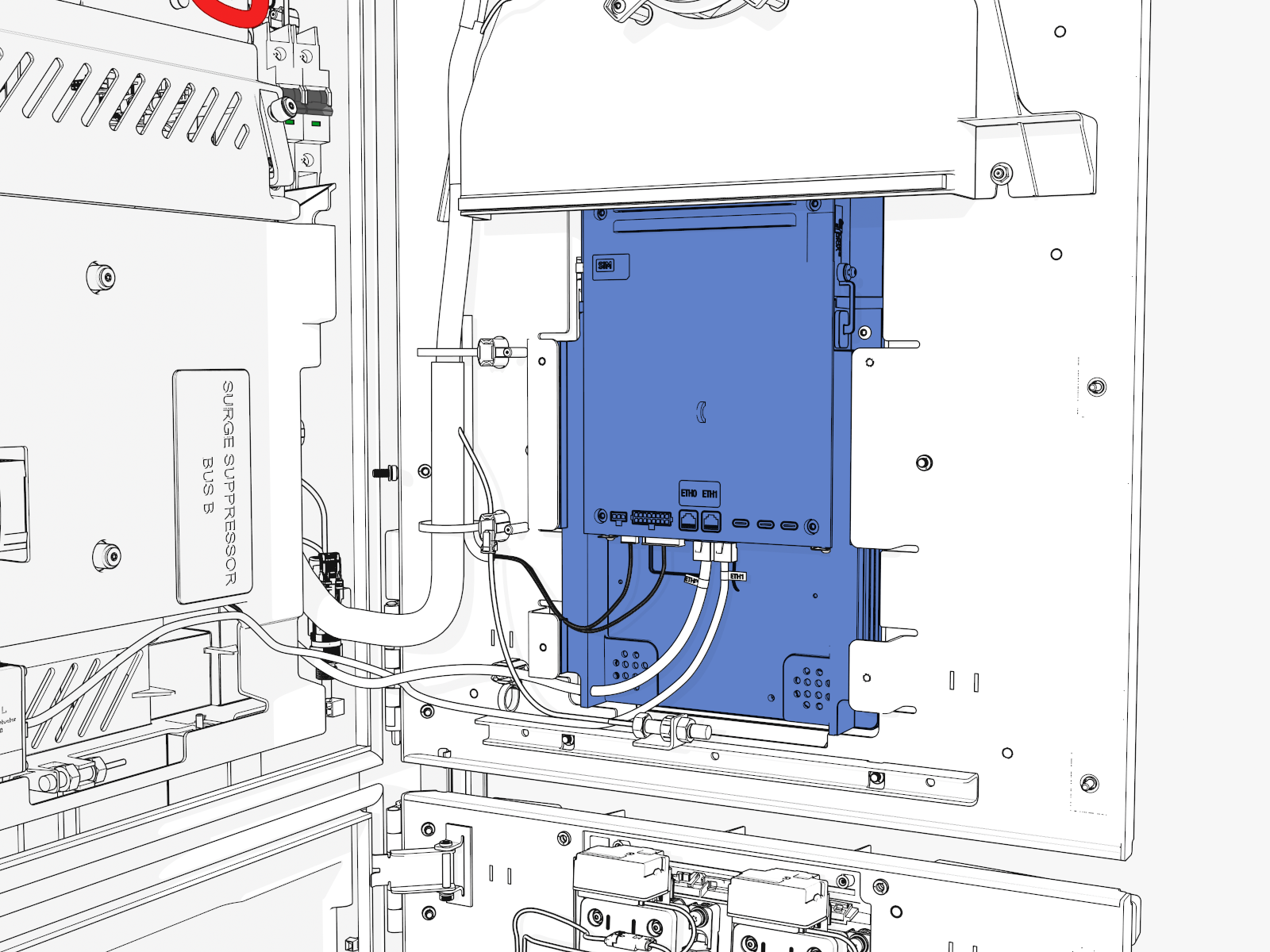
-
Disconnect the connectors (x4).
You must pinch to disconnect two of these connectors. The latch on these connectors may face away from you and be obscured by the connector.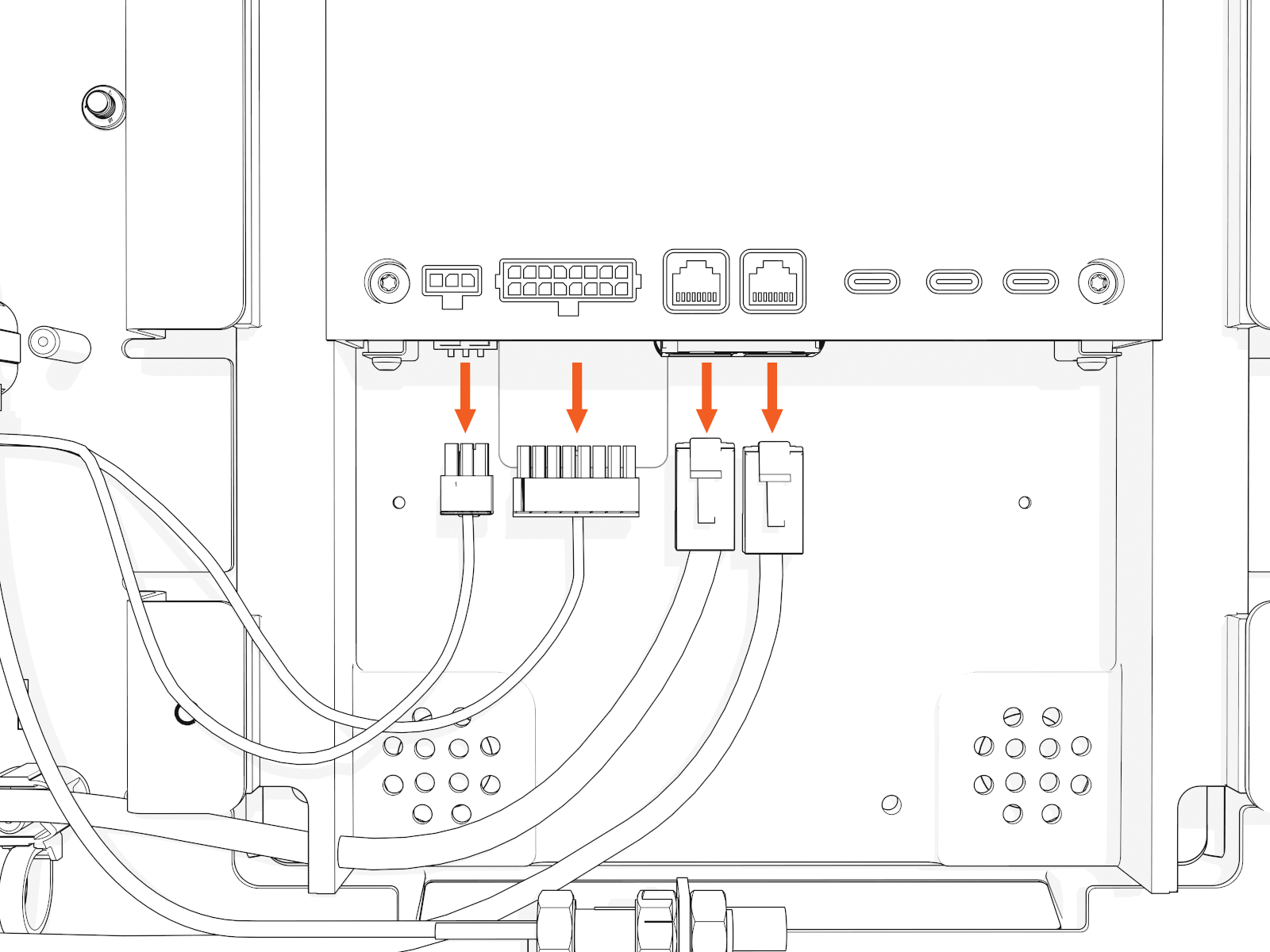
-
On the front side, loosen screws (x6) (use T25 security screwdriver) to remove the CCOM
Control and Communications Module lens bracket. 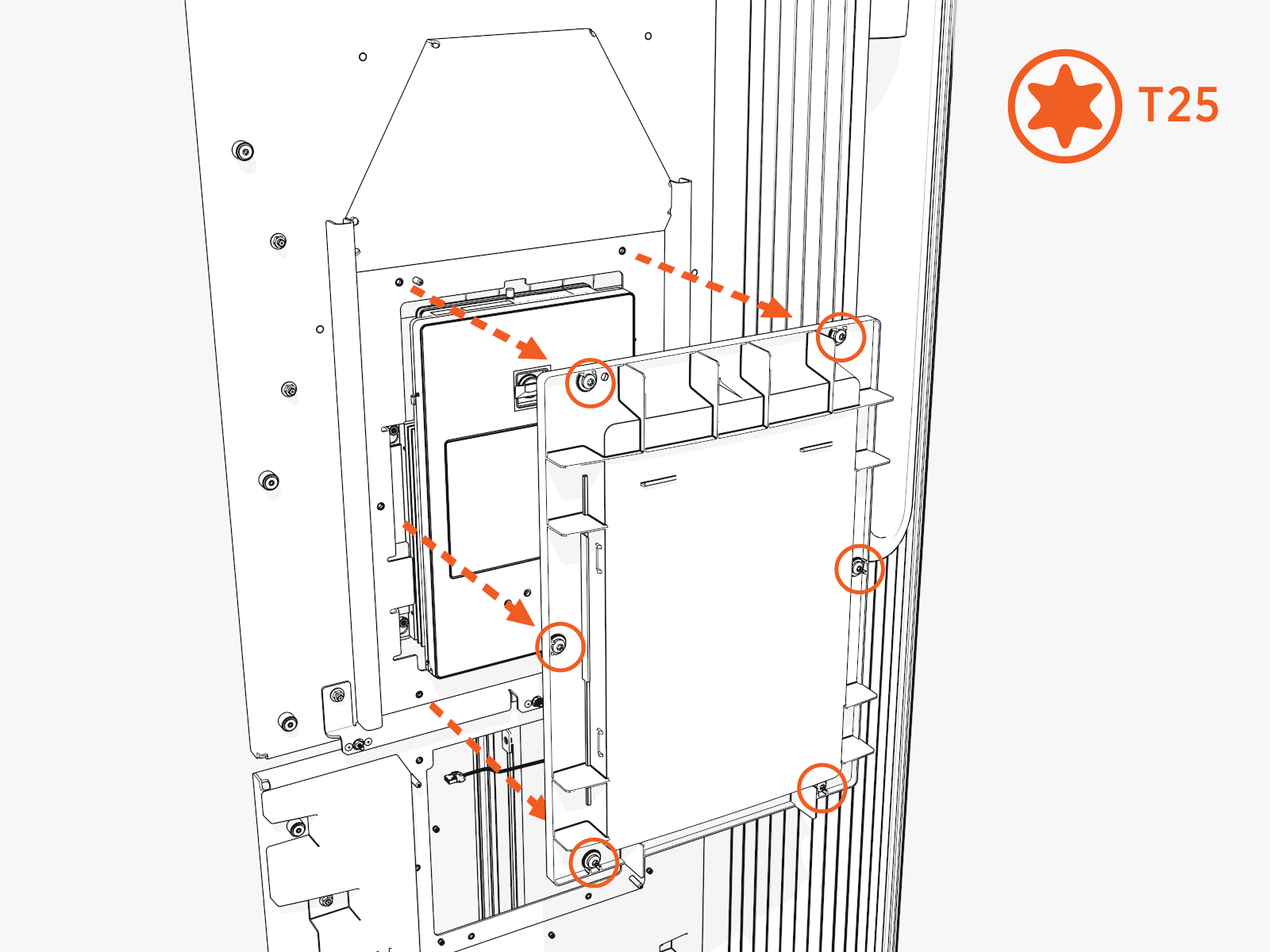
-
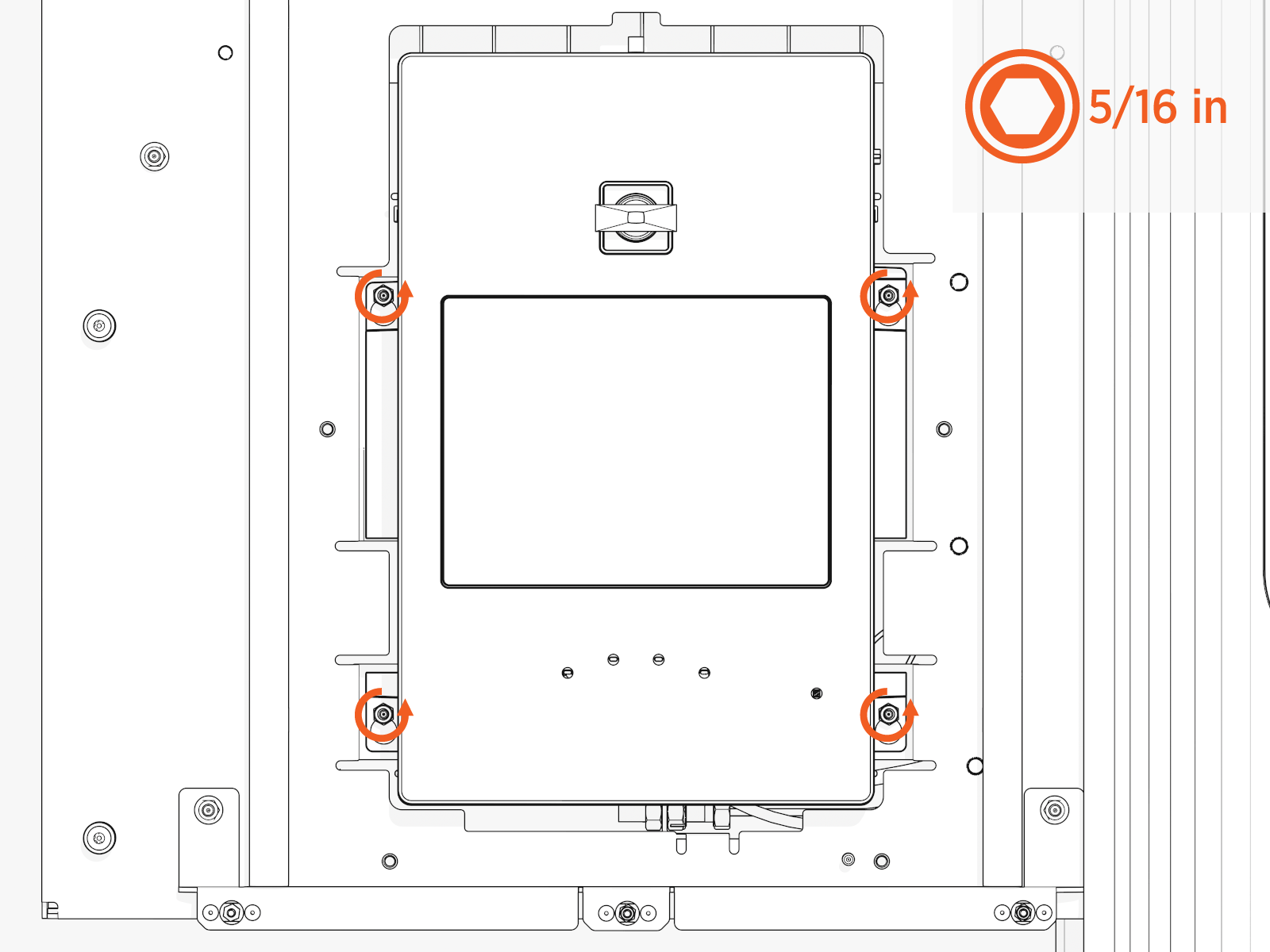
Loosen #6 (x4) nuts.
-
The module hangs from four keyholes on the back. Lift it up and off the door.
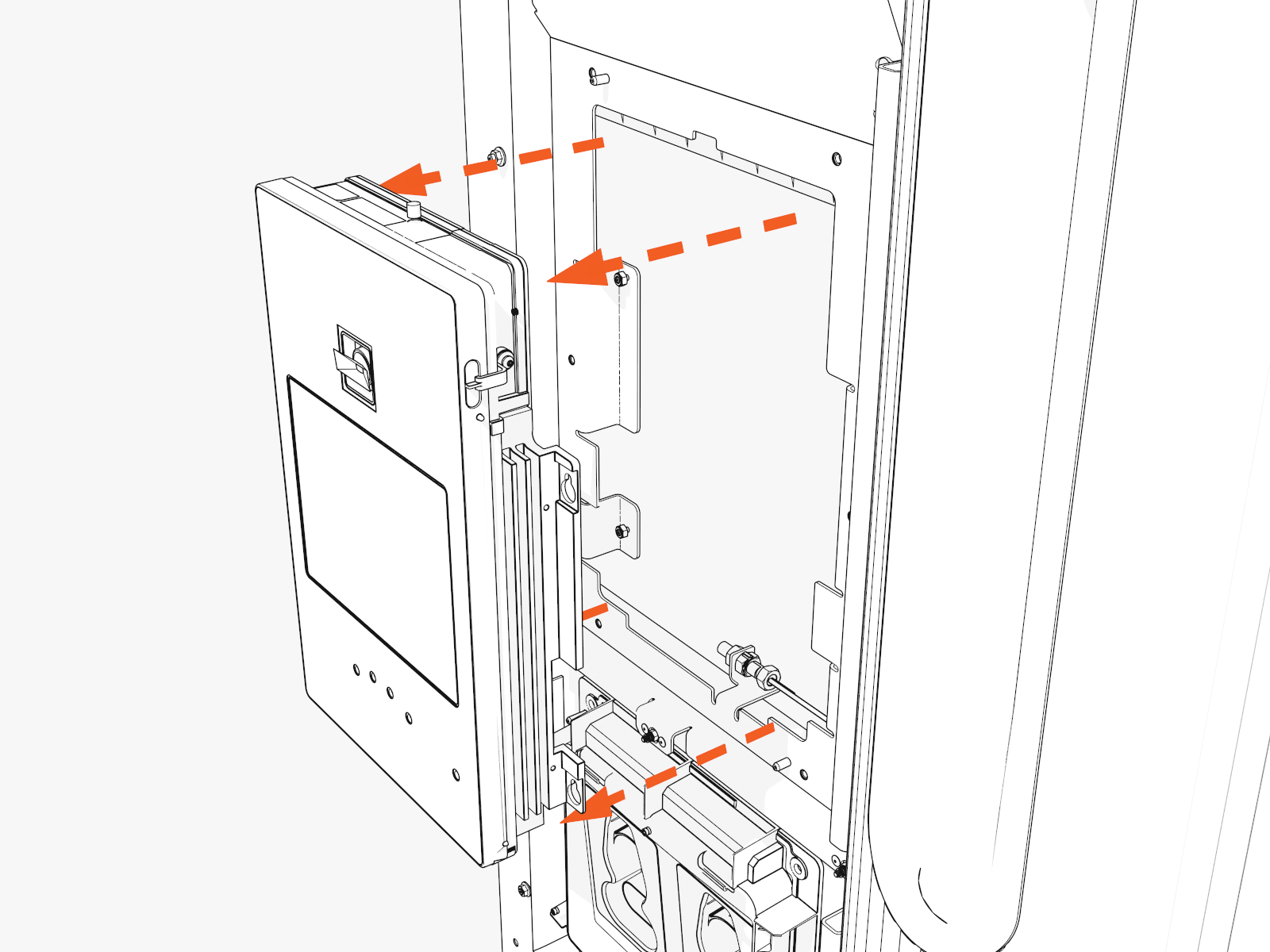
-
Transfer or replace the SIM card.
-
If you are installing a new module, transfer the SIM card to the new module.
-
If you are installing a new SIM card, replace the SIM card.
-
Reinstall
To reinstall the Control and Communication Module, complete the following steps:
-
Reinstall the same SIM card or replace the SIM card with a new one.
-
Align the keyholes on the back of the module to hook onto the front of the upper door.
-
Use 5/16 in socket to torque the #6 nuts to 4.5 Nm (40 in-lb).
-
Align and install the CCOM
Control and Communications Module lens bracket. Torque (use T25 security screwdriver) the M5 screws (x6) to 2.8 Nm (25 in-lb) . -
Return to the inside of the cabinet door.
-
Inside the cabinet, reconnect the four connectors across the bottom rear of the module.
Reconnect the two Ethernet connectors as marked: cable "0" to port "0", and cable "1" to port "1." If you fail to do so, this could disrupt communication or damage the module or other hardware, the charging station, or a vehicle.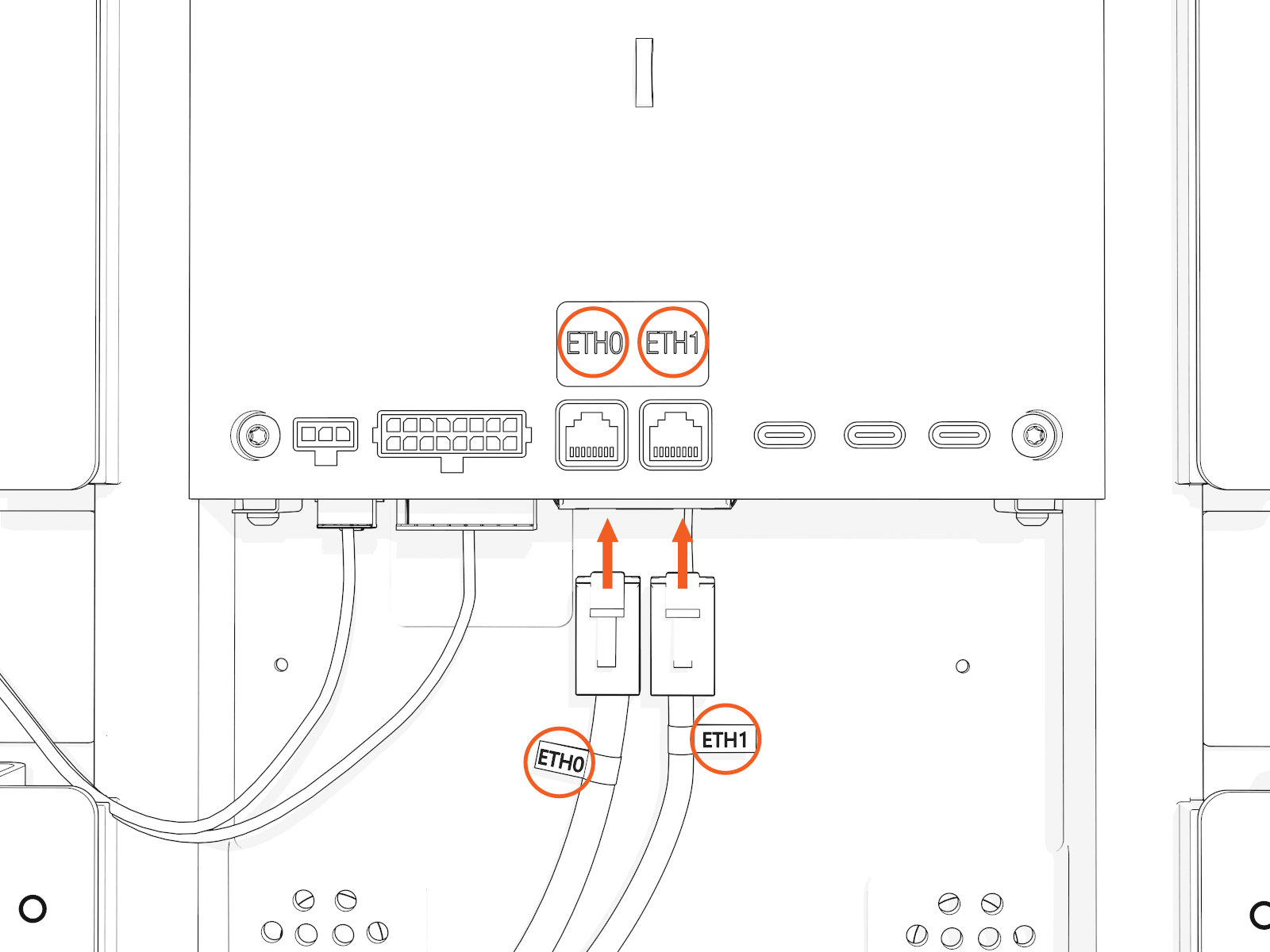
- To adhere to ChargePoint best practices, complete the post-service checklist before you leave the site.
-
For assistance or to return a faulty part to ChargePoint, go to chargepoint.com/support and contact technical support using the appropriate region-specific number.
Replace SIM Card
To replace the SIM card, complete the following steps:
Remove
-
Set the module on a soft padded surface.
-
Locate the SIM card in the slot at the back upper left.
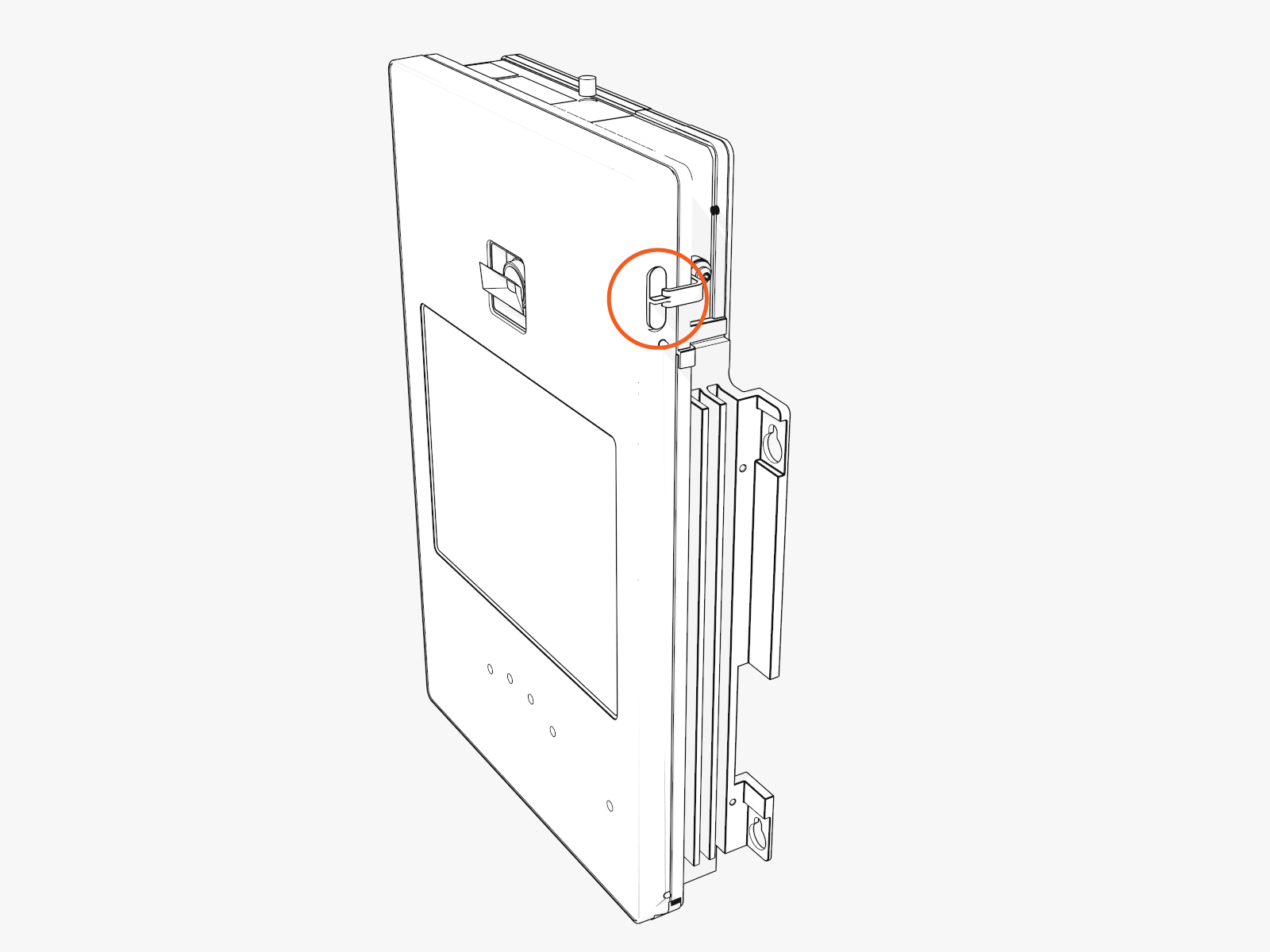
-
Push in the SIM card to partially eject it.
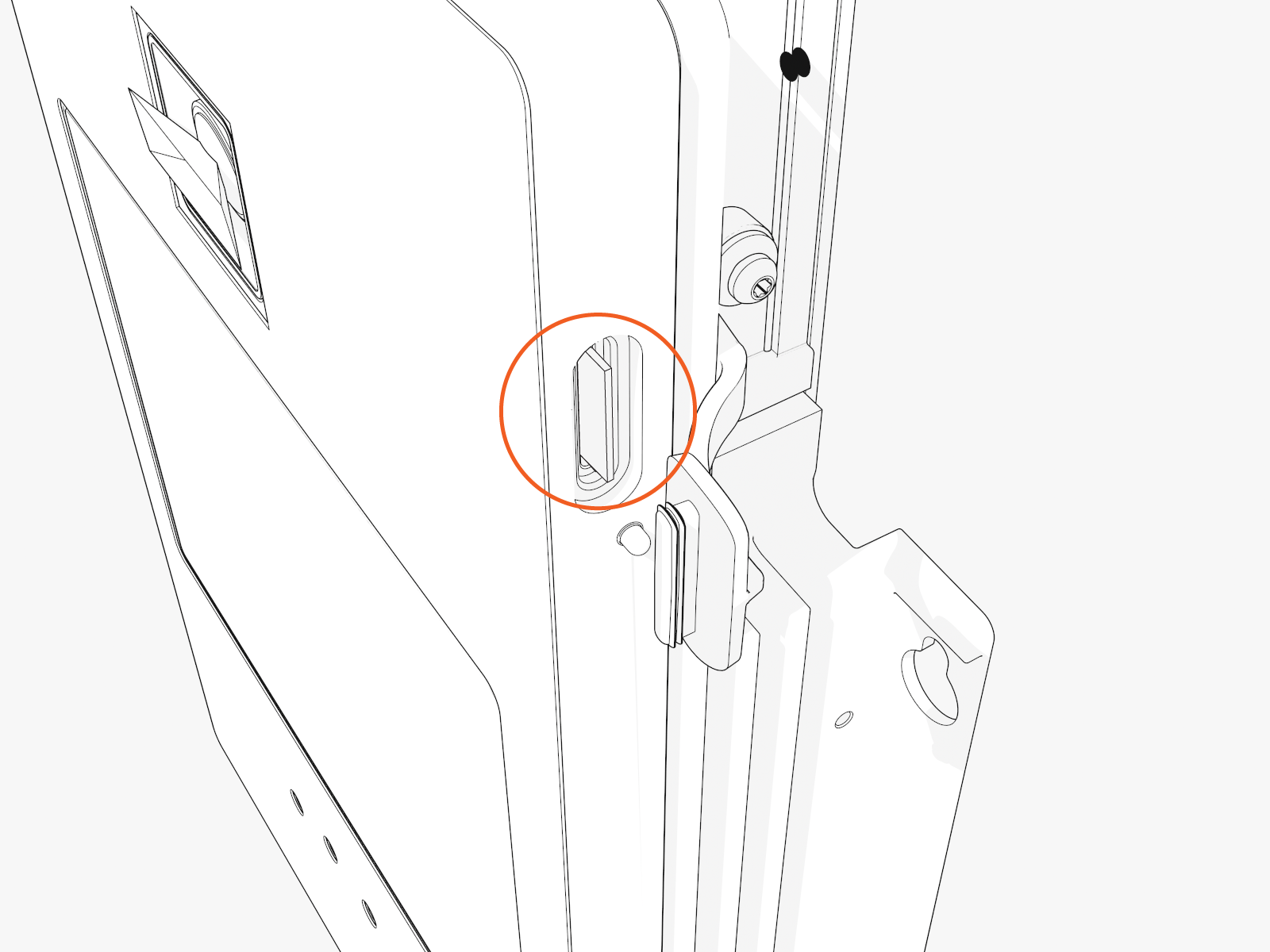
-
Grasp the SIM card with tweezers and pull out.
Keep the same SIM card to use in the new module.
Reinstall
To reinstall the SIM card, complete the following steps:
-
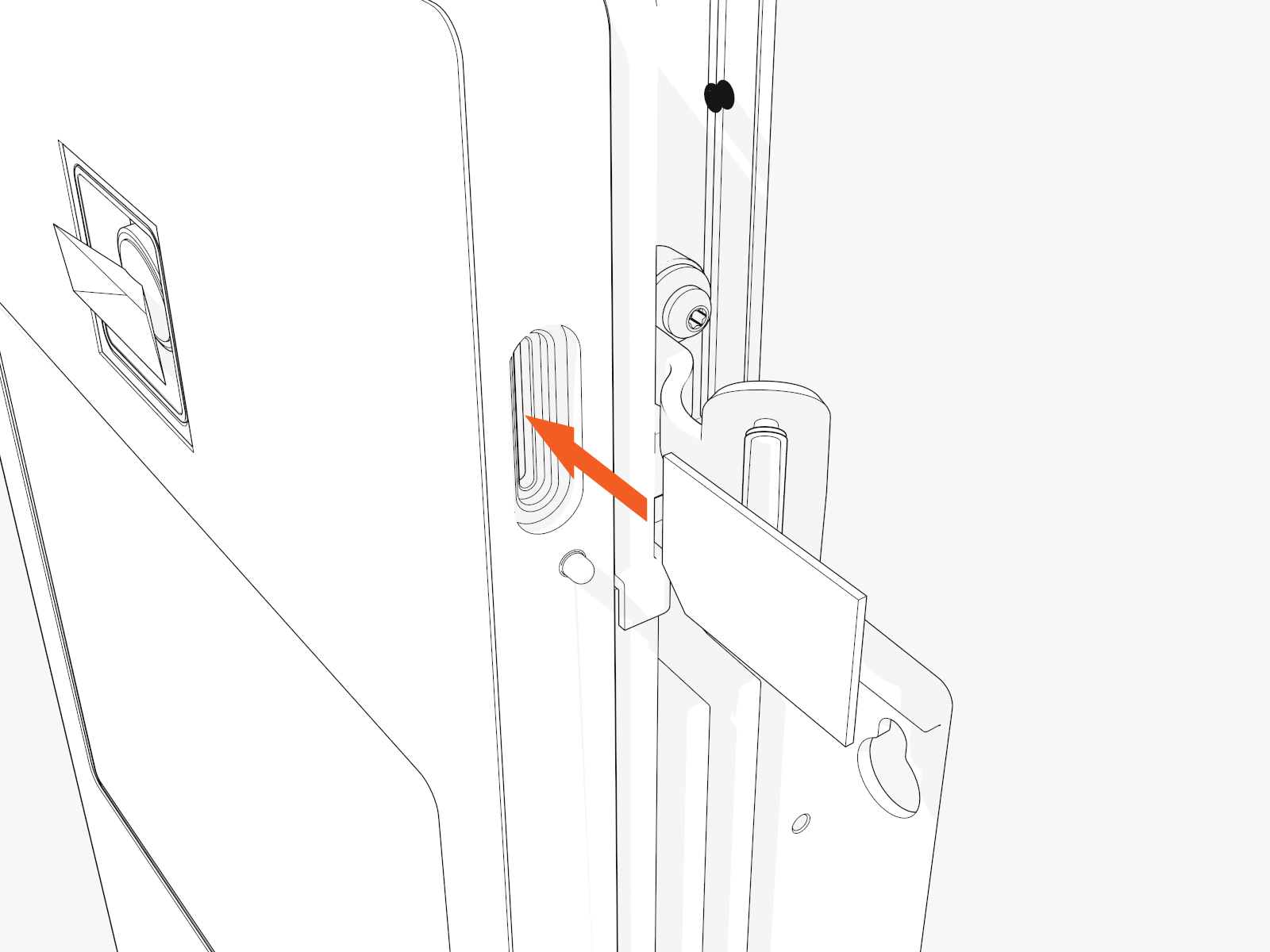
Orient the SIM card with the diagonal corner edge at bottom right (when viewed from the back upper left of the module).
-
Insert the SIM card into the slot on the side of the module.
-
Push the SIM card inside until it clicks into its position.
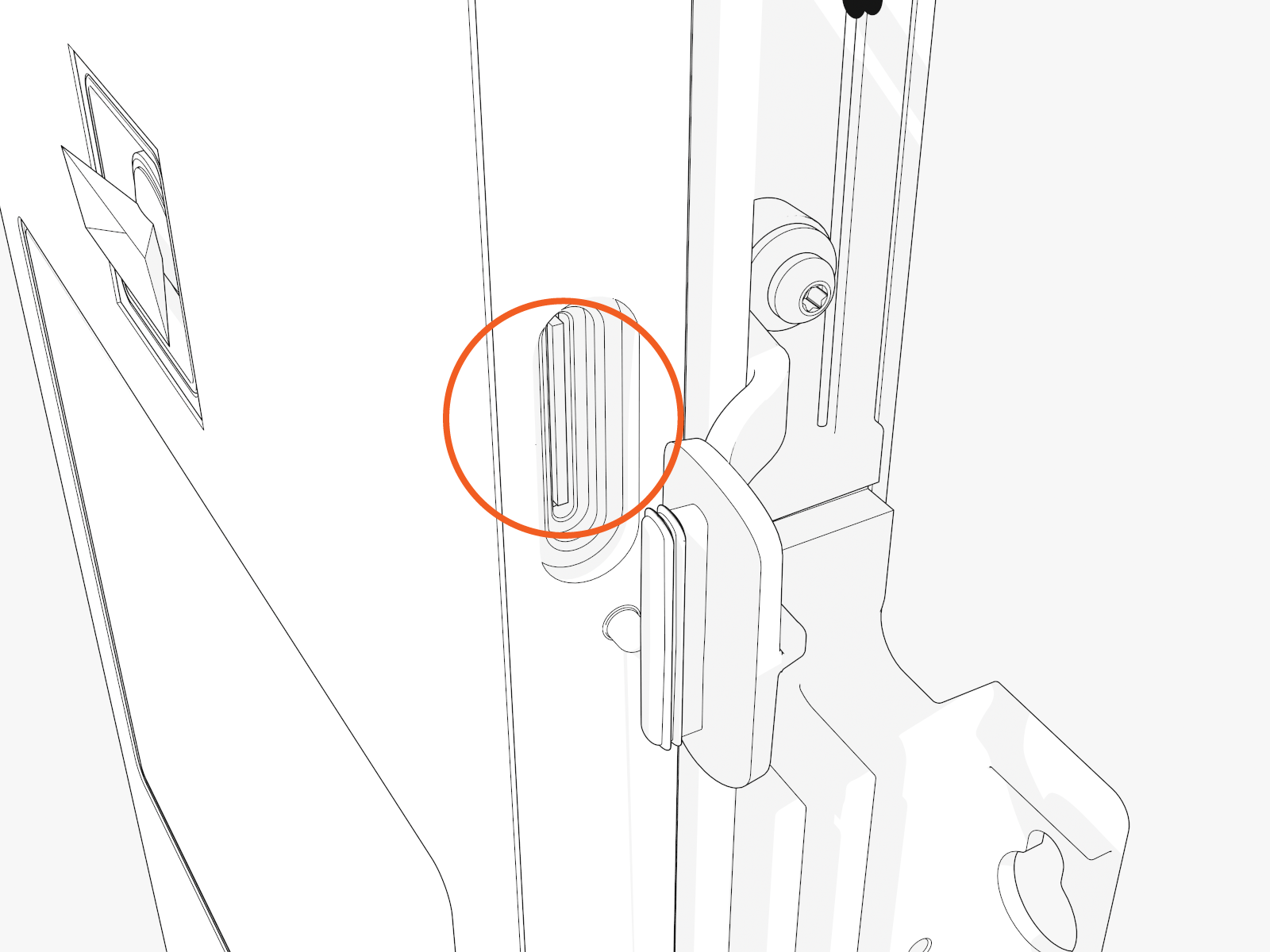 Ensure that the SIM card is in the locked position, flush with the innermost slot, and not ejected. Although the SIM card clicks into position, you might not hear the sound if you are in a noisy environment.
- To adhere to ChargePoint best practices, complete the post-service checklist before you leave the site.
-
For assistance or to return a faulty part to ChargePoint, go to chargepoint.com/support and contact technical support using the appropriate region-specific number.
