Replace a Holster

To replace a holster, complete the following steps:

Required Tools and Materials

  • ChargePoint replacement part for your charging connector type: CCS1, CCS2, CHAdeMO, or NACSClosed North American Charging Standard

  • Headlamp

  • #2 Phillips screwdriver

  • T10, T20 and T25 Security Torx drivers

  • 8 mm (5/16 mm) nut driver

  • Small flathead screwdriver

About Panels

All panels have guide tabs that align with corresponding slots on the product’s frame. When removing a panel, lift the panel upward to release these tabs from their slots.

When installing a panel, align these tabs above their corresponding slots and press the panel downward.

Power Off the Station

Power off at the breaker panel and lock out/tag out before continuing work.

RISK OF SHOCK. Before performing this procedure, disconnect the power to the station at the service panel. Keep power off for this circuit until all cover panels are correctly reinstalled and the work scope is completed. FAILURE TO FOLLOW THESE INSTRUCTIONS CAN RESULT IN SERIOUS INJURY OR LOSS OF LIFE.

Remove the Area Light Bar

  1. Using a T25 Security screwdriver, loosen the two captive screws on the area light bar.

    Technical illustration depicts the procedural step.

  2. Disconnect the power cable that connects the area light bar to the LED display assembly. Remove the area light bar.

    When reinstalling, ensure the gasket on each end of the area light bar is properly seated around the plastic tab.

    Technical illustration depicts the procedural step.

Remove the LED Display

  1. Push the LED display upward to release its guide tabs from their corresponding slots on the Express 250’s frame.

    Technical illustration depicts the procedural step.

  2. When the LED display assembly is released, disconnect the five cables from the back.

    When reinstalling, connect the five cables to their corresponding connectors on the back of the display. Leave the area light bar cable (e) loose.

    Technical illustration depicts the procedural step.

    (a) Communications cable (USBClosed Universal Serial Bus-A)

    (b) Holster light cable

    (c) Area light cable x 2 (interchangeable)

    (d) Power cable (24 V)

    Do not allow the LED display to hang from its cables.

Remove the Top Front Panel

Technical illustration depicts the procedural step.

  1. Using two hands, pull the top panel upward to release its guide tabs from their corresponding slots on the Express 250’s frame.

  2. Place a protective cover, such as a lint-free cloth, over the touchscreen to prevent damage during service.

  3. If you are replacing a charging cable, be sure to visit Replace a Holster for information on replacing the holster BEFORE reinstalling the panels.
    When reinstalling, push the bottom edge inward to position it inside the groove in the middle vent panel and engage the edge of the sign. Carefully push the panel down until it is firmly seated.
    When reinstalling, ensure all five cables at the top of the panel are not captured by the front upper panel, and are easily accessible for reinstalling the LED display.

Remove the Middle Vent Panel

  1. Use a T25 Torx driver to remove the M5 screw and washer attaching each touchscreen ground strap to the frame. Keep the screws and washers for reuse.

  2. Loosen both retention knobs (a), allowing the touchscreen beam (b) to slide up vertically and the touchscreen’s bottom edge to clear the middle vent panel’s slot (c).

  3. With hand pressure, tilt the touchscreen upward at a 45-degree angle.

  4. Allow the touchscreen to return to its lowest position vertically. Rotate the retention knobs clockwise to re-tighten.

    The bottom edge and corners of the touchscreen are sharp. Take care when moving underneath the raised screen.
  1. Disconnect the two proximity sensor wires from the connectors on the bottom of the touchscreen and the wire management ring. Move the proximity wires to hang in front of the middle vent panel.

    When reinstalling, connect the proximity sensor wires to their corresponding connectors: left wire to left port and right wire to right port. Route any excess wiring through the right-side wire management ring under the touchscreen, to prevent it being pinched in the panels.

  2. Using two hands, remove the panel by firmly pulling it upward to release the guide tabs from the corresponding slots on the product frame.

    When reinstalling, route both proximity wires under the sheet metal edge, to hang in front of the panel on the right side (as you face the front of the charging station).

    The fins on the back surface of the middle vent panel are sharp. Take care when handling the panel.

Remove the Bottom Front Panel

Remove the bottom front panel by lifting upward from the bottom of the panel to release the guide tabs from their corresponding slots on the Express 250’s frame.

When reinstalling, ensure the panel installation does not tear or break the gaskets on the inner edges of the side extrusions.

Remove the Top Rear Panel

  1. Using a T25 Torx (or a Phillips #2 screwdriver for early charging stations), loosen the two hidden captive screws located in the top rear panel’s vents, inset from each bottom corner.

  2. Using a T25 Torx driver, loosen the two captive screws located at the top of the top rear panel. Using two hands, hold the top rear cover at an angle to remove, leading with the bottom edge.

    When reinstalling, squeeze the sides of the panel inward to fit the tabs into place in the C-channel, inside the watertight gasket.

Remove the Middle Rear Panel

Using two hands, lift the middle rear panel straight up and out to disengage the guide tabs.

When reinstalling, squeeze the sides of the panel inward to fit the tabs into place in the C-channel, inside the watertight gasket. For older stations, ensure the lower panel’s sign is correctly captured under the middle panel’s edge as you carefully push the panel down.

Small gauge wiring routed on the sides of the frame could be sheared if caught by panel tabs. Ensure wiring is cleared from guide holes when installing bottom and middle rear panels.

Remove the Bottom Rear Panel

Using two hands, carefully pull the panel upward to release the panel’s guide tabs from their corresponding slots on the product’s frame.

When reinstalling, squeeze the sides of the panel inward to fit the tabs into place in the C-channel, inside the watertight gasket. Carefully push the panel down.

For installation or servicing, Surface Conduit Entry (SCEClosed Surface Conduit Entry) extrusions can be removed without removing the SCEClosed Surface Conduit Entry or rear bottom panel. However, if the rear bottom panel must be removed, first remove the SCEClosed Surface Conduit Entry cover and loosen the box base side screws. For more details, refer to the Express 250 Surface Conduit Entry guide on ChargePoint University: https://www.chargepoint.com/partners/training-certification.

Open the Power Module Holders (Ground Straps)

If the station has EMIClosed Electromagnetic Interference shields instead of ground straps, refer to Open the Power Module Holders (EMI Shields) instead.
  1. Use a T25 Torx to remove the front and rear M5 screws and washers attaching the Power Module holder (a) and Power Module (b) ground straps to the Express 250 frame (eight screws total). Keep the screws and washers for use in a later step.

  2. Using two hands, squeeze the Power Module mechanism’s release bar against the flange. Raise the bar to fully rotate the Power Module mechanism upward to the lock position. This ensures enough clearance for the Power Modules to slide under the mechanism.

  3. At the bottom right of the Express 250, press and hold the yellow release latch while pulling the Power Module tray out of the station completely.

Open the Power Module Holders (EMI Shields)

If the station has ground straps instead of EMIClosed Electromagnetic Interference shields, refer to Open the Power Module Holders (Ground Straps) instead.
  1. Use a T20 Torx to remove the top two screws and washers from the rear EMIClosed Electromagnetic Interference shield (a).

  2. Use a T25 Torx to remove the four middle and lower screws and washers from the rear EMIClosed Electromagnetic Interference shield (b). The rear shield might be in one or two sections. Save all screws and washers for later reuse.

    When reinstalling, ensure:
    • The cutout on the long edge is on the right side (c), leaving the sensor wire clear.

    • The drain hose and cooling controller cover flap are inside the EMIClosed Electromagnetic Interference shield.

  3. Use a T25 Torx to remove the six T25 screws and washers from the front EMIClosed Electromagnetic Interference shield (d).

    When reinstalling, position the bottom cut-out over the yellow release latch (e).
  4. Using two hands, squeeze the Power Module mechanism’s release bar against the flange. Raise the bar to fully rotate the Power Module mechanism upward to the lock position. This ensures enough clearance for the Power Modules to slide under the mechanism.

  5. At the bottom right of the Express 250, press and hold the yellow release latch while pulling the Power Module tray out of the station completely.

Remove the Right Extrusion

  1. Remove the charging cables from their holsters and rest them gently on a padded surface out of the way.

  2. Insert a small flathead screwdriver into the notch on each plastic cap to remove it from the holster screw opening.

  3. Use a T25 Torx to remove the rubberized washer and M5 shoulder screw. Set them aside for reuse.

  1. Using a step ladder, hold the extrusion with one hand and loosen the top two captive screws using the supplied T25 Torx driver.

  2. Images show screw locations from the outside. Fasteners are accessed inside the frame.

    The top and middle screws are asymmetrical.

  1. Use a T25 Torx driver to loosen the middle two captive screws while the Power Module mechanism is still in the closed position.

  1. Use a T25 Torx driver to loosen the bottom two captive screws.

  1. Slightly tilt the bottom of the extrusion out to extract its top edge from under the bottom edge of the area light bar. Lift the extrusion off the guide pins on each side of the frame that hold the extrusion in place.

  1. Disconnect the shortest cable from the top holster.

  2. Disconnect the next-longest cable from the bottom holster.

When reinstalling, check that these connections are correctly seated, or the system will not operate.

  1. Locate the P-clip mounted to one of the holsters (top or bottom holster varies by product version).

  2. Remove the P-clip hardware from the extrusion holster:

    • Generation 1, attached with screw: use a T25 Torx driver to remove the screw and all its components. Carefully note the order of the components.

    • Generation 2, attached with nut (a): Use an 8 mm (5/16 in) nut driver to remove only the nut and the P-clip.

  3. Remove the shielded holster cable from the opening in the P-clip (b).

  4. Remove the existing extrusion from the station.

Replace the Holster

  1. Lay the right extrusion down on a protected surface, with the inside facing up.

  2. Use a T20 Torx to remove the six holster housing screws from the holster backing (a). Set them aside for reuse.

  3. Use a T10 Torx to remove the four holster body screws from the holster backing (b). Set them aside for reuse.

  4. Remove the old holster backing from the inside of the extrusion.

  5. Remove the old holster body and housing from the outside of the extrusion.

  6. Position the new holster body and housing on the front of the extrusion together.
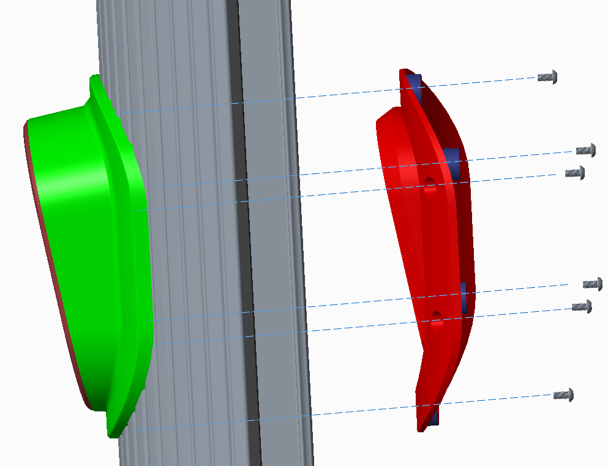
  7. Install the new holster housing onto the extrusion and holster backing, using the six T20 screws.

  8. Fasten the new holster body to the extrusion and backing, using the four T10 screws.

  9. Re-connect the ground cable and LED board cable connector.

Replace the Right Extrusion

  1. Slightly tilt the right extrusion and slide its top edge under the bottom edge of the area light bar. Align the holes in the extrusion with the guide pins on each side of the Express 250’s frame. This temporarily holds the extrusion in place.

  2. Install the shielded holster cable and P-clip hardware to the extrusion holsters using either a T25 Torx Driver (Generation 1) or an 8 mm (5/16 in) nut driver (Generation 2).

  3. Connect the longest cable to the bottom holster and the shortest cable to the top holster.

    Ensure the connections are correctly seated, or the system will not operate.
  4. Using a step ladder, hold the extrusion with one hand and loosely secure the top two captive screws using the supplied T25 Torx driver.

    The top and middle screws are asymmetrical.
  5. Use a T25 Torx driver to loosely secure the bottom two screws next. The Power Module holders must not be inside the charging station to have access to the bottom screws.

  6. Use a T25 Torx driver to loosely secure the middle two screws, just above the Power Module mechanism. Access to the middle screws is easier with the Power Module mechanism handle in the closed (down) position.

  7. Tighten all right extrusion screws.

  8. At the bottom right of the Express 250, press and hold the yellow release latch while pushing the Power Module tray into the station until it locks into place.

  9. Using two hands, squeeze the Power Module mechanism’s release bar and lower it halfway to check alignment with the ports and guide posts.

  10. Lower the Power Module mechanism until you hear a click as the mechanism locks into place. Ensure the mechanism is fully engaged with all Power Module connectors. The Power Module mechanism should fully cover the ridges on the Power Module’s top edge.

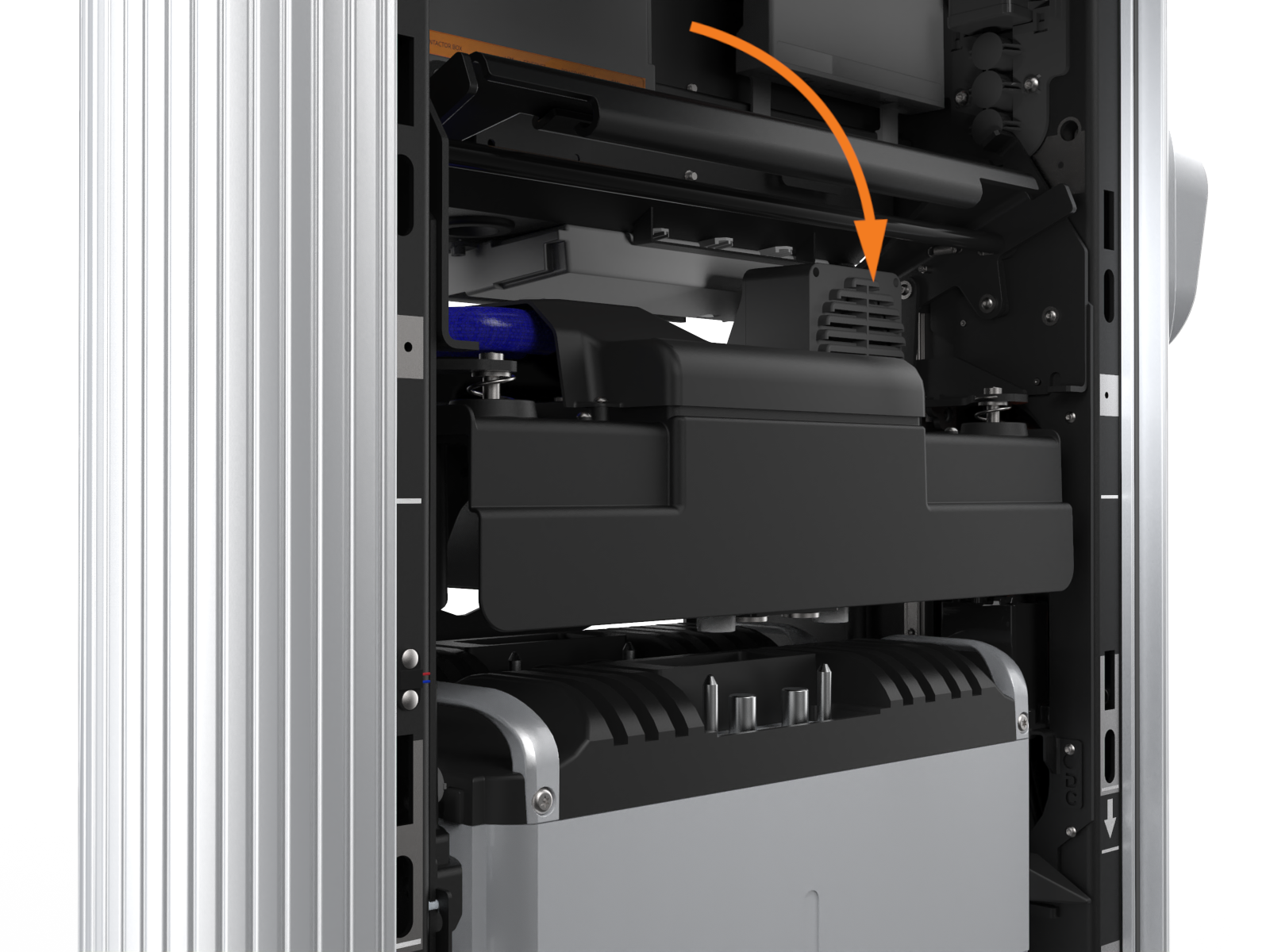
  11. If the mechanism does not engage, raise it again and push the Power Modules to the back of the station to realign, then try again. Do not apply excessive force.

REVERSE THE ABOVE STEPS TO REPLACE THE EMIClosed Electromagnetic Interference SHIELD (IF APPLICABLE), REAR PANELS, FRONT PANELS, LED DISPLAY, AND AREA LIGHT BAR.

Power On the Station

Once all cover panels are installed, power on the station. The on-screen Installation Wizard steps you through any required tasks to set up the station and verify that it can operate properly.

An Installation Wizard test checks that all cover panels are correctly installed and fully seated. Check the lower right corner of the screen for any error messages. If panel errors appear, match the panel letters to this illustration.

Labeled diagram of product, tools or parts.

(a) Front bottom panel

(b) Middle vent panel

(c) Front top panel

(d) LED display

(e) Area light bar

(f) Rear bottom panel

(g) Rear middle panel

(h) Rear top panel

(i) Left extrusion

(j) Right extrusion

RISK OF SHOCK. If a fault exists, turn the power off at the service panel to BOTH product paired charging stations during work and keep it off until all panels are reinstalled. Internal components can present a shock hazard. FAILURE TO FOLLOW THESE INSTRUCTIONS CAN RESULT IN SERIOUS INJURY OR LOSS OF LIFE.

If any panel needs re-installation, review the procedures above to double-check that all panels are fully seated and that the edges of all signs are captured fully by the panels around them. For further details, refer to Introduction.